





This tutorial will show you how to set up the ExpressVPN app on iOS 15 and above.
Not yet a customer? Read more about VPN for iOS.
Jump to…
Download the VPN app
Set up the VPN app
Connect to a VPN server location
Check connection details
Disconnect from a VPN server location
Connect to a different VPN server location
Pause the VPN connection
Use split tunneling
Switch to a different VPN protocol
Block ads, trackers, and harmful sites
Customize the Internet Kill Switch
Use the Speed test
View Time Protected summary
Check Secure Device Assistant
Use Advanced settings
View Network Insights
Change app appearance
Change languages
Try Siri commands
Add the ExpressVPN app widget
Access support articles in the app
Uninstall the app
Download the VPN app
- Go to the App Store and search for ExpressVPN.
- Tap Get or the Cloud icon.


- The ExpressVPN app will be downloaded to your phone.
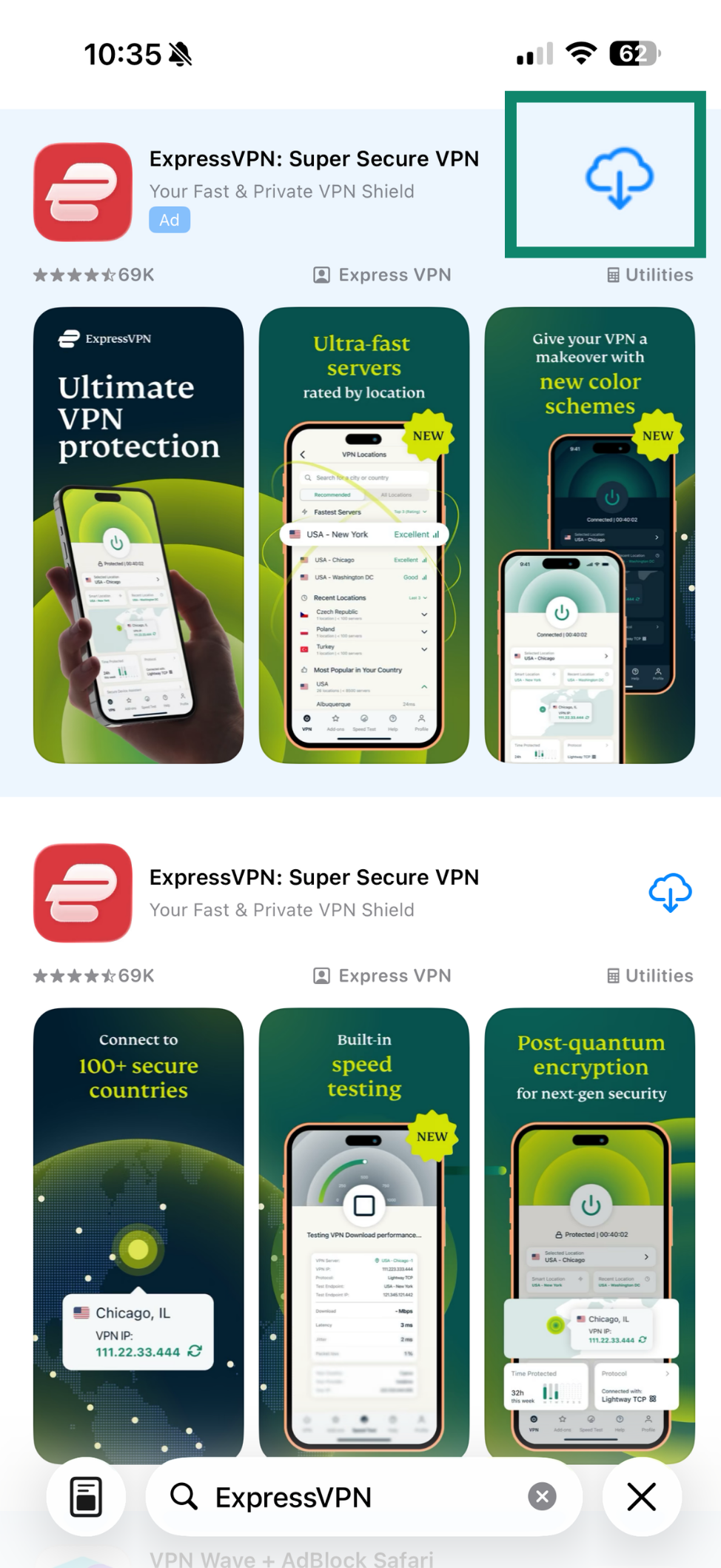
If you do not see the ExpressVPN app in your App Store, try changing your App Store country.
After the app has finished downloading, tap OPEN to launch the ExpressVPN app.
Need help? Contact the ExpressVPN Support Team for immediate assistance.
Set up the VPN app
- When you launch the app, it first asks you to accept the ExpressVPN Terms of Service (ToS). Review them and continue to the next screen.
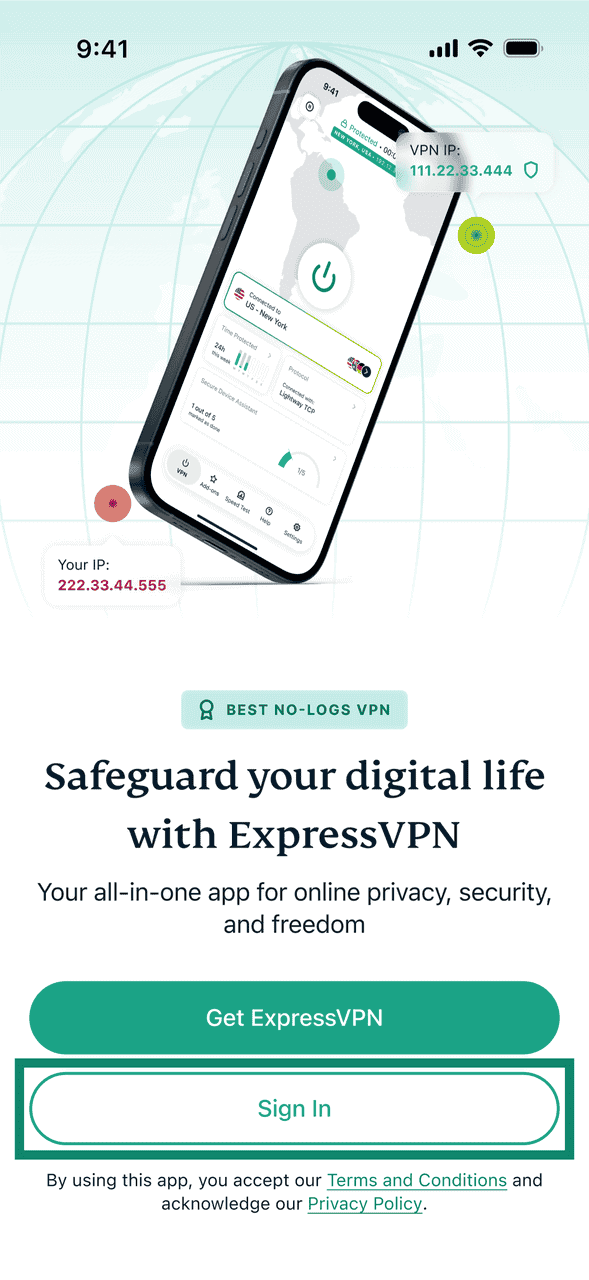
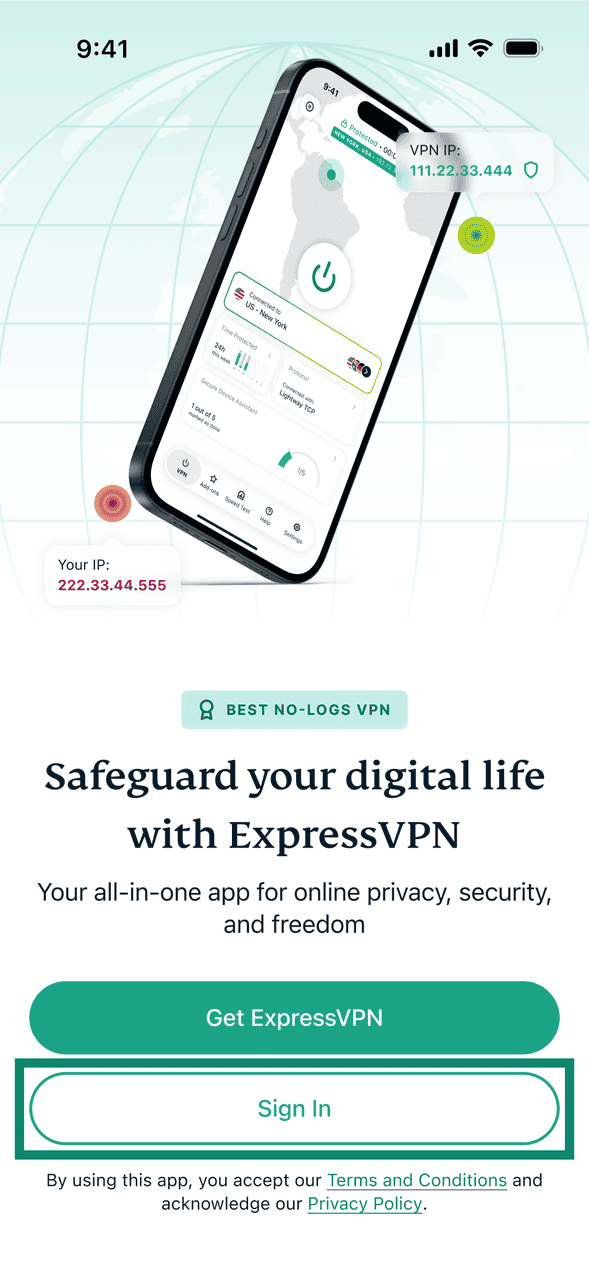
- Tap Sign In on the next screen.
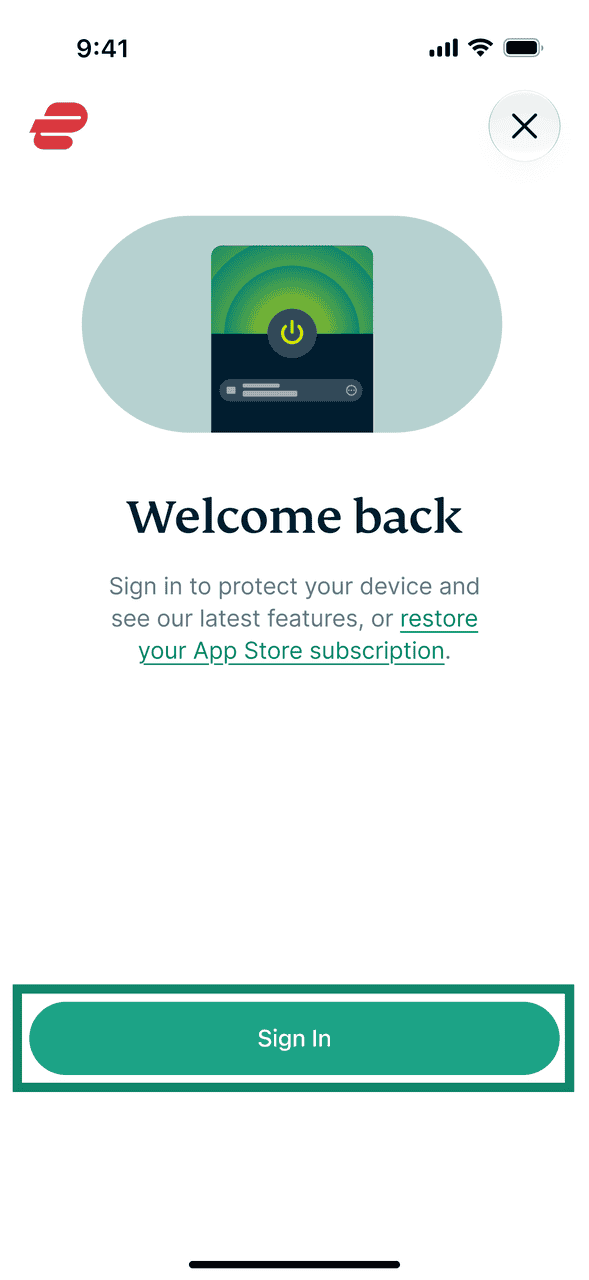
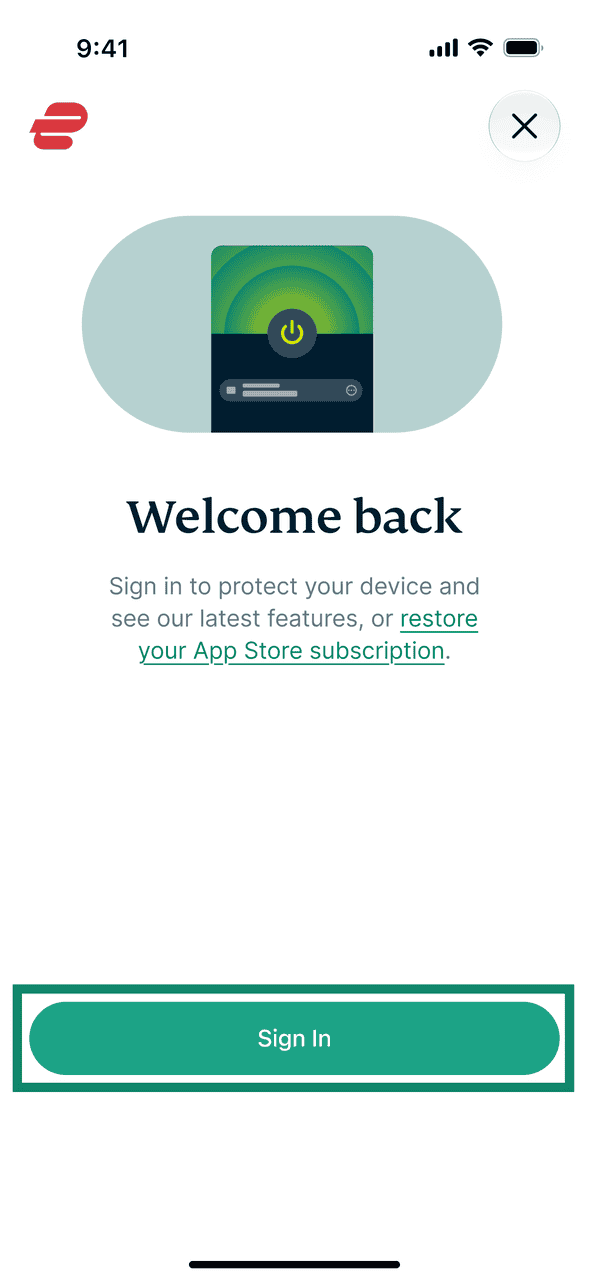
- On the “Welcome Back” screen, tap Sign In again.
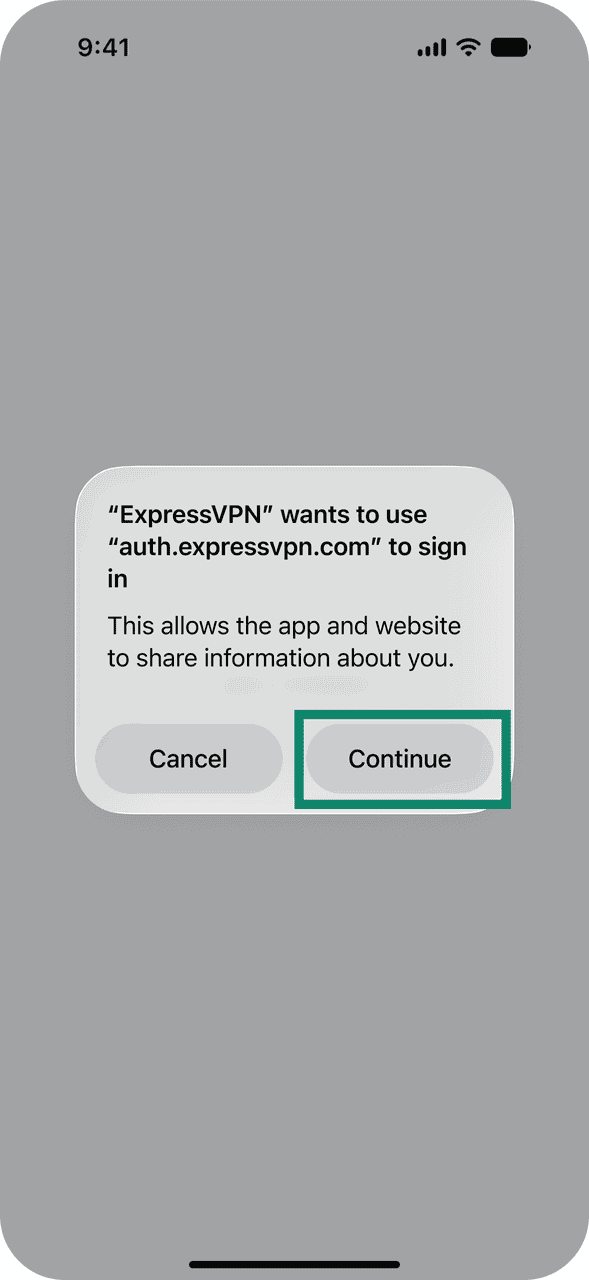
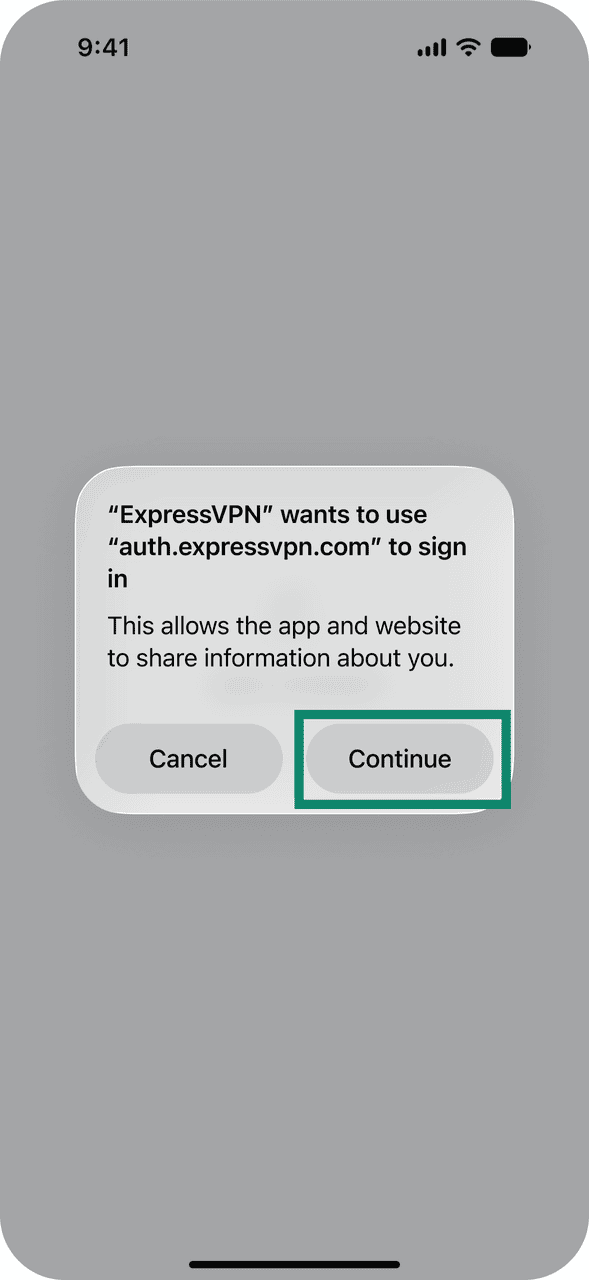
- Tap Continue in the pop-up.
- Enter the email address associated with your account in the Email field.
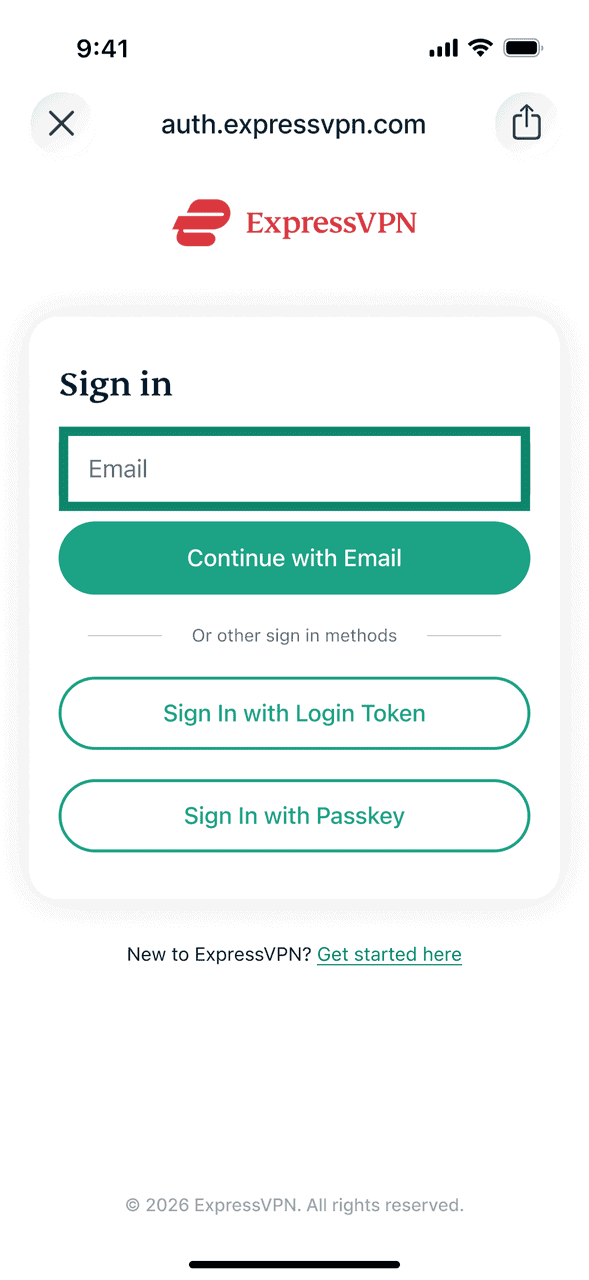
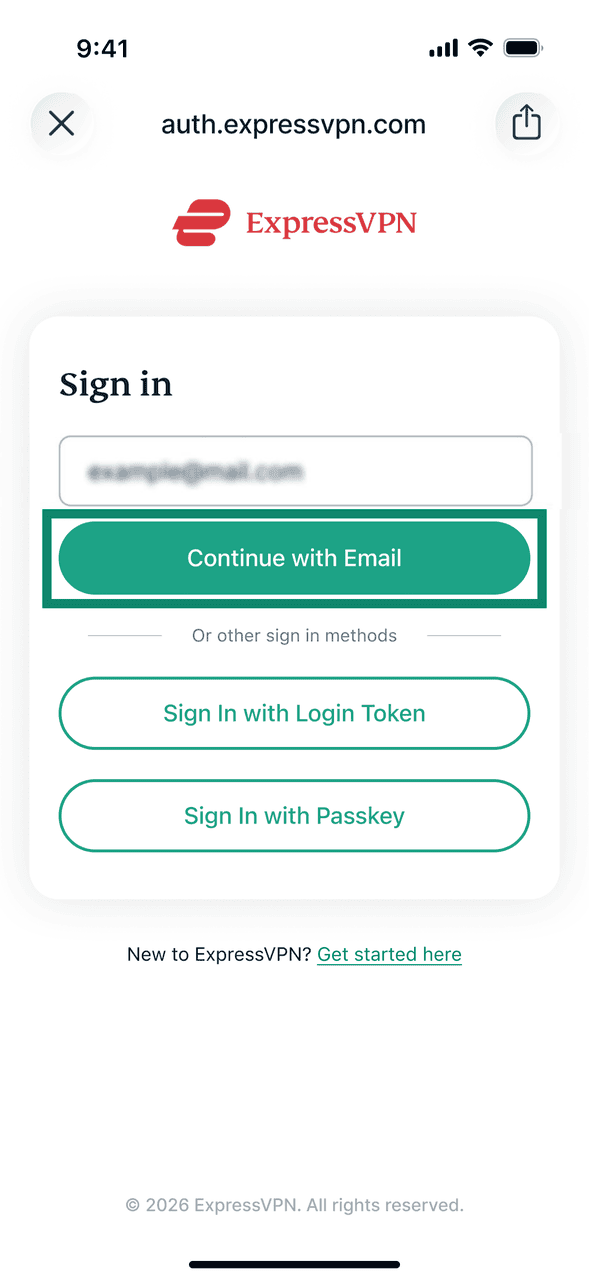
- With ExpressVPN app version 12.79.0 and newer, you can sign in with an email code, login token, or passkey. If you are using app version 12.78.0 and below, you may only see legacy sign-in options.
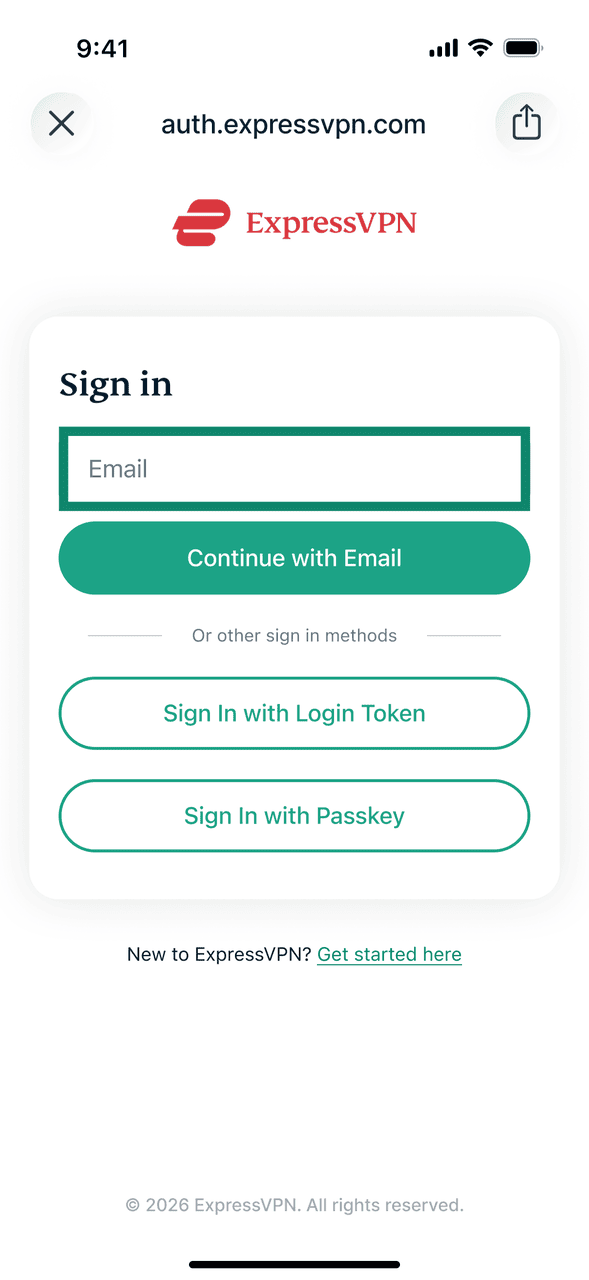
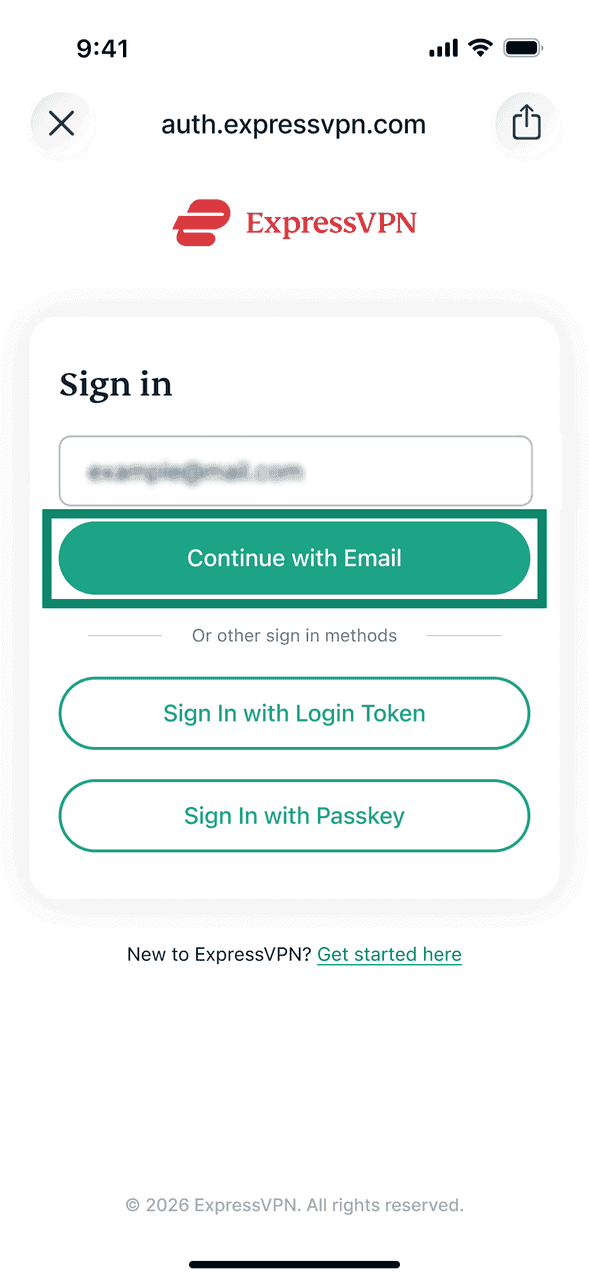
- Enter the email address associated with your ExpressVPN account. Select Continue with Email.
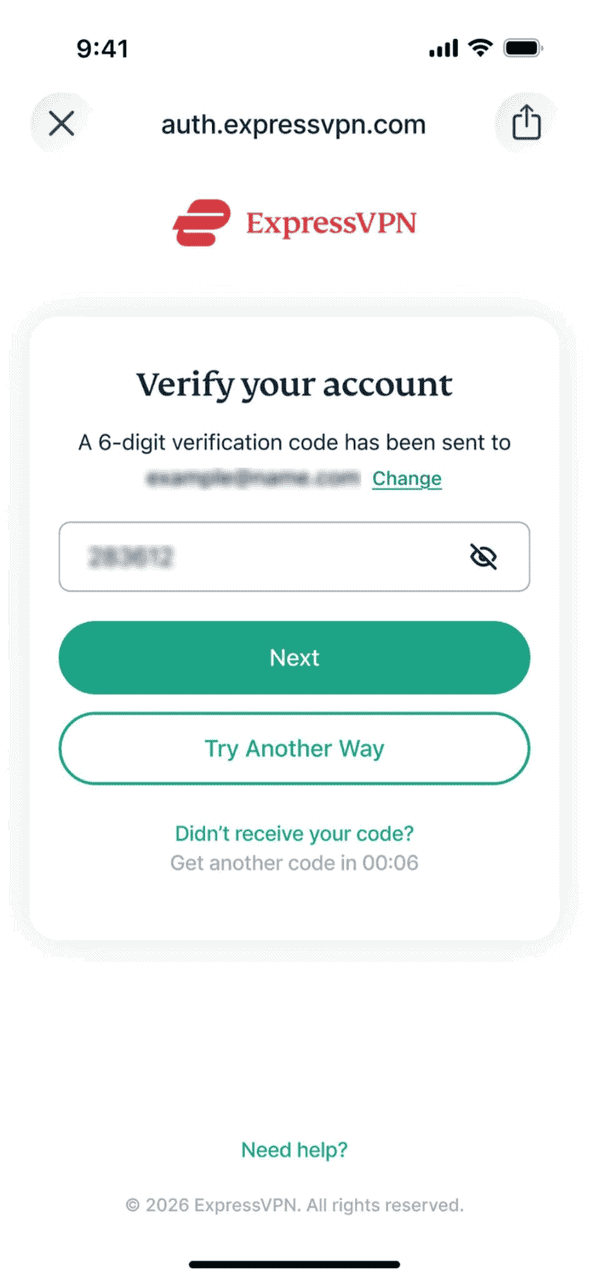
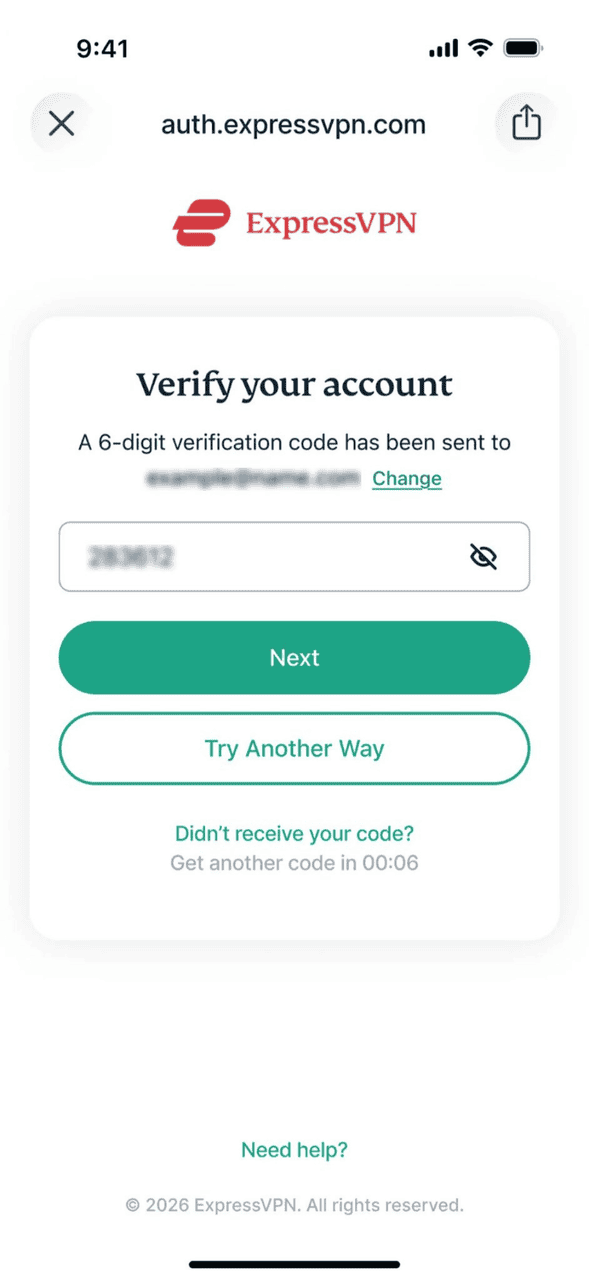
- Go to your inbox to find the verification code and enter it. Select Next to log into your account.
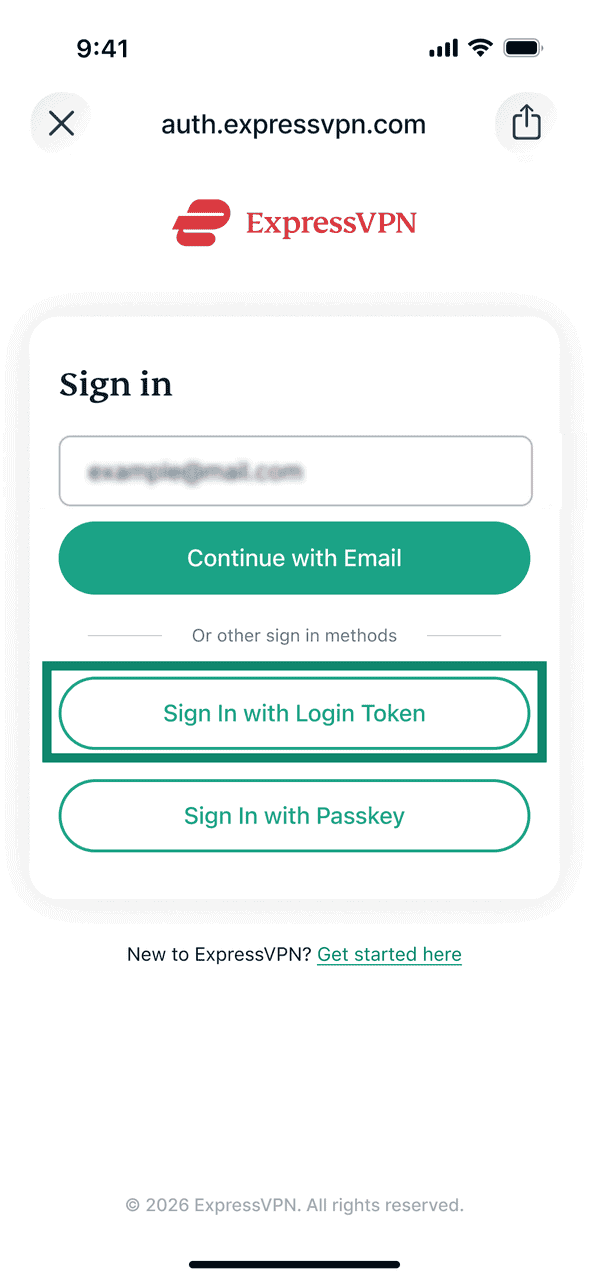
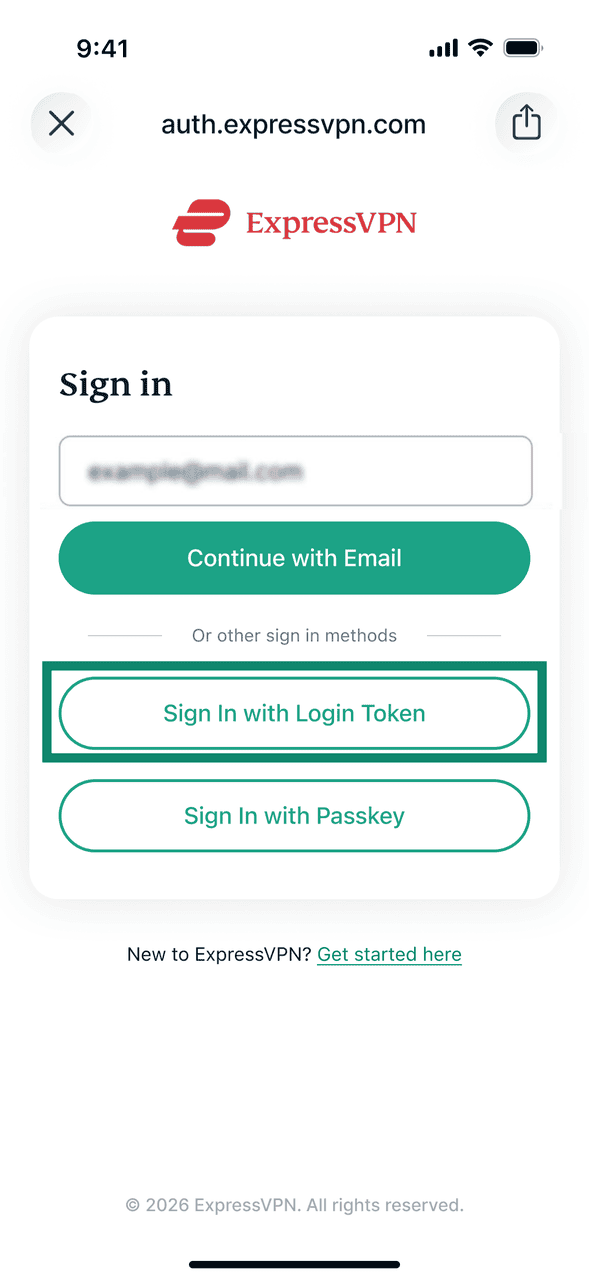
- Select Sign In with Login Token.
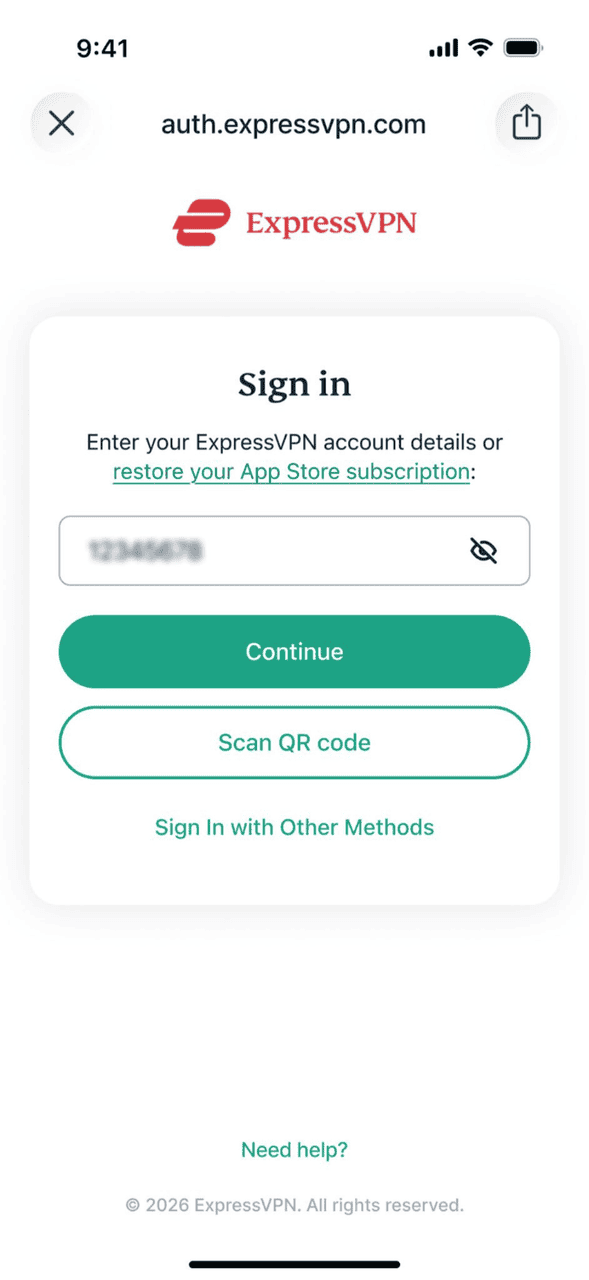
- Enter the login token from your ExpressVPN+ portal and select Continue. You’ll then be logged into your account.
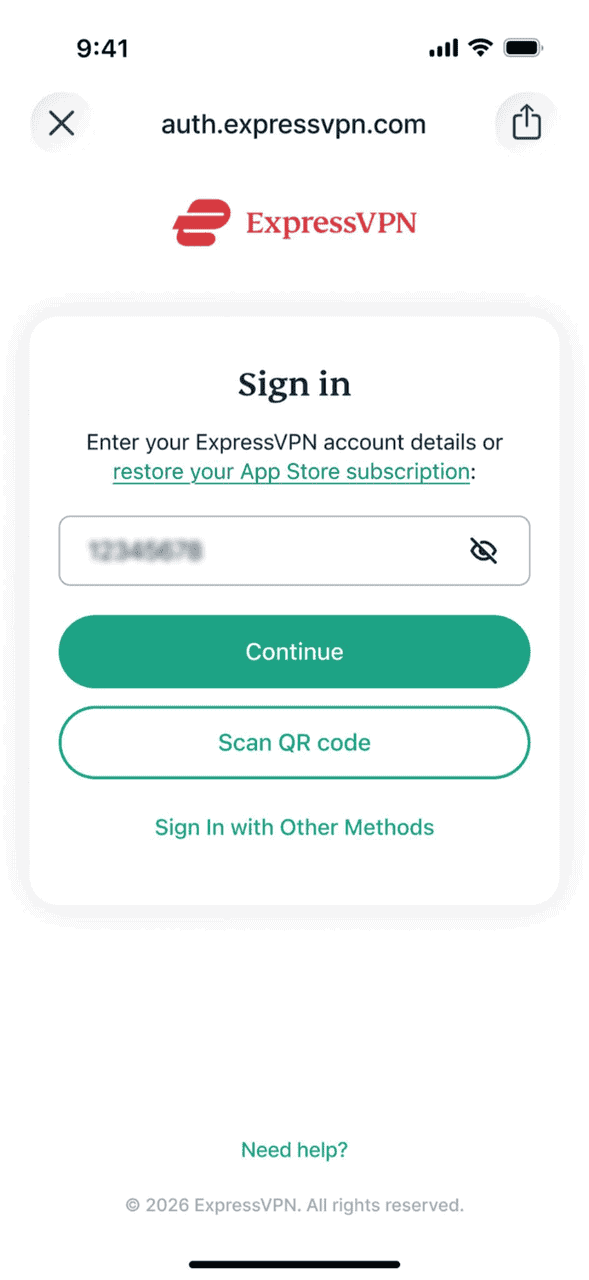
Alternatively, you can select Scan QR code and use the camera on this device to scan a QR code in the ExpressVPN portal. You will then be automatically logged into your account.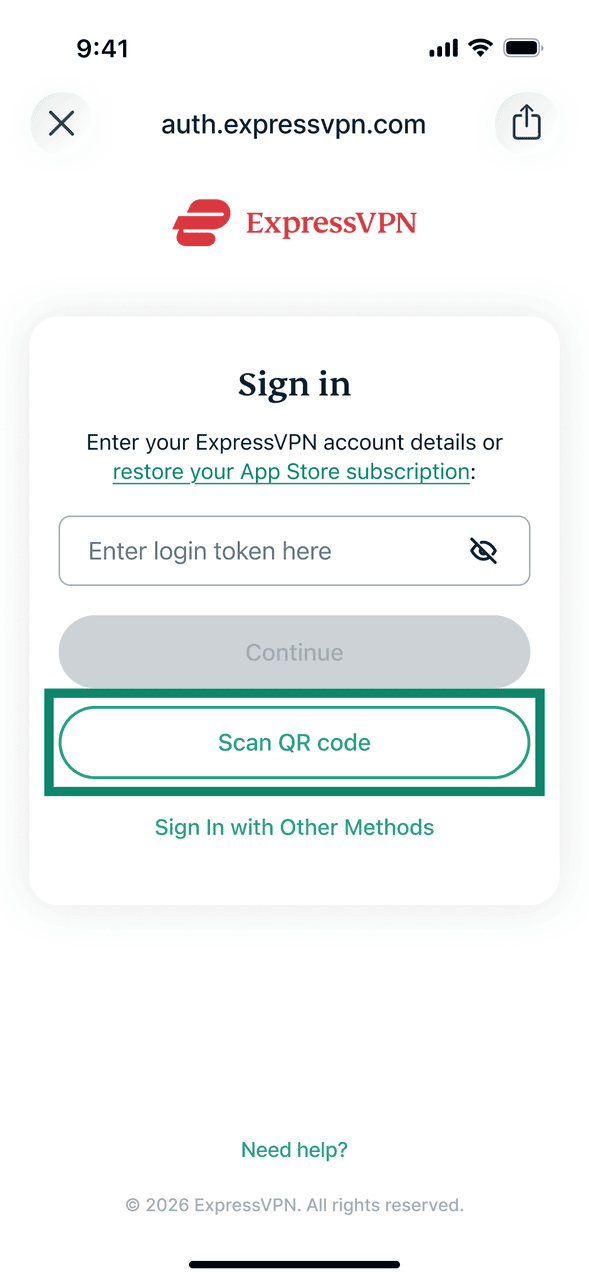
If you created a passkey during signup for your iOS device, you can use this option to sign in.
- Select Sign In with Passkey.
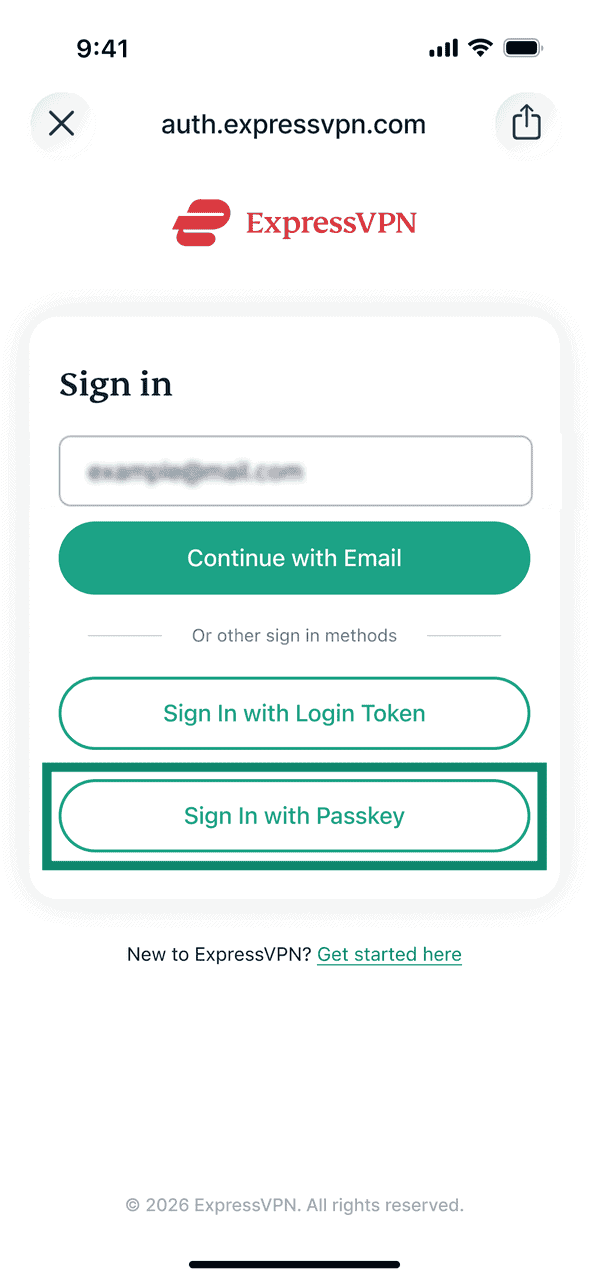
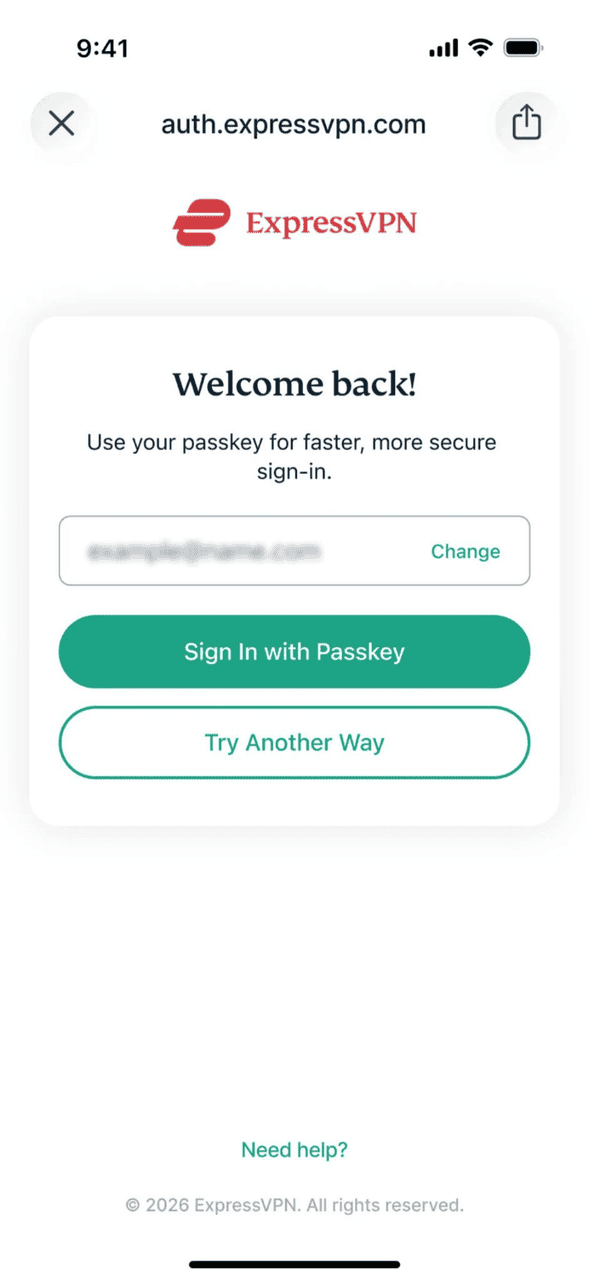
- On the next screen, confirm the email address and tap Sign In with Passkey.
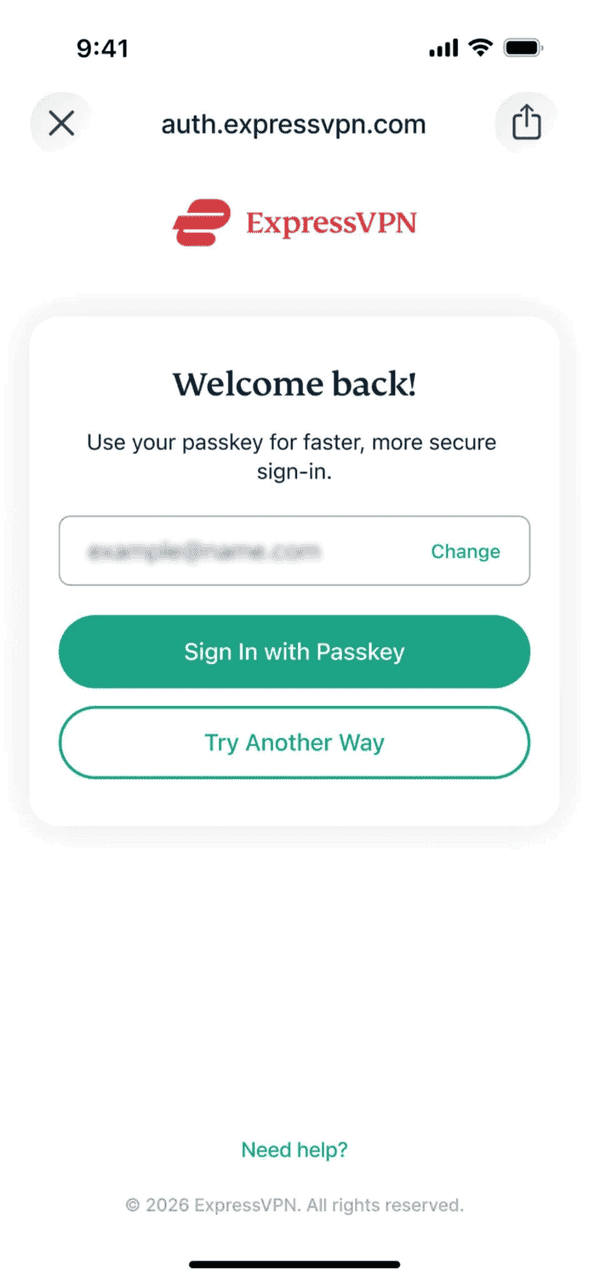
- You will then be prompted to use your passkey. Follow the on-screen instructions to log into your account.
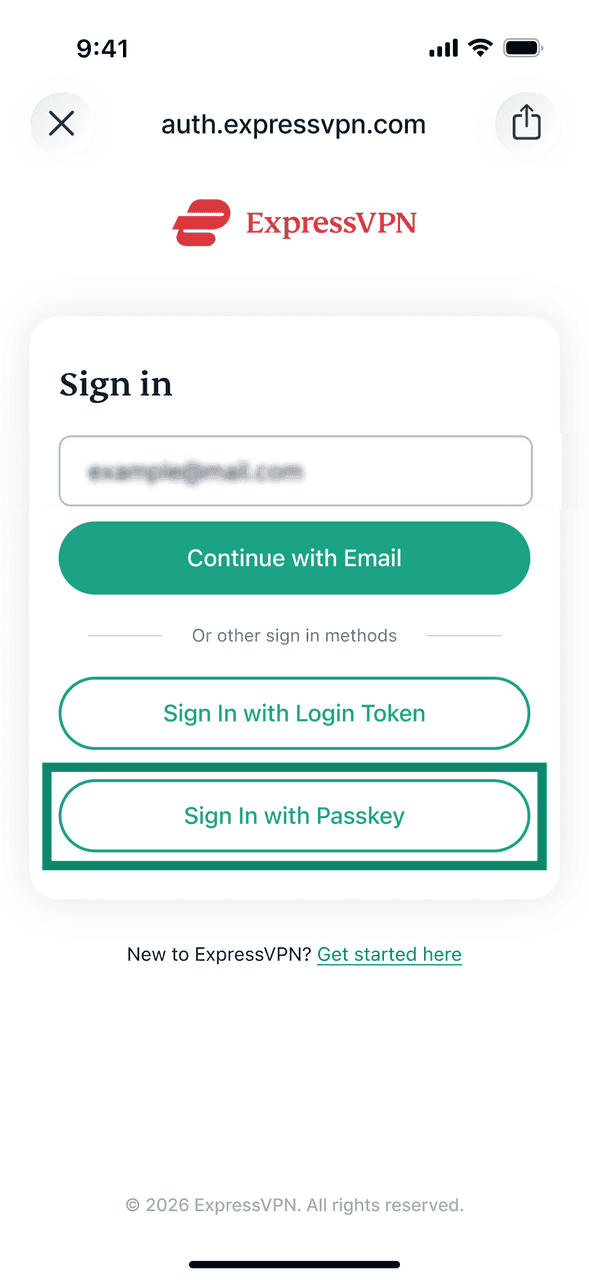
- Email and password: Enter the email address and password associated with your ExpressVPN account and tap Sign In.
- Email and activation code: Enter the email address associated with your ExpressVPN account and your activation code.
- Restore subscription: If you previously purchased your ExpressVPN subscription from the Apple App Store, selecting this option will automatically restore the subscription and log you in.
Once you are signed in:
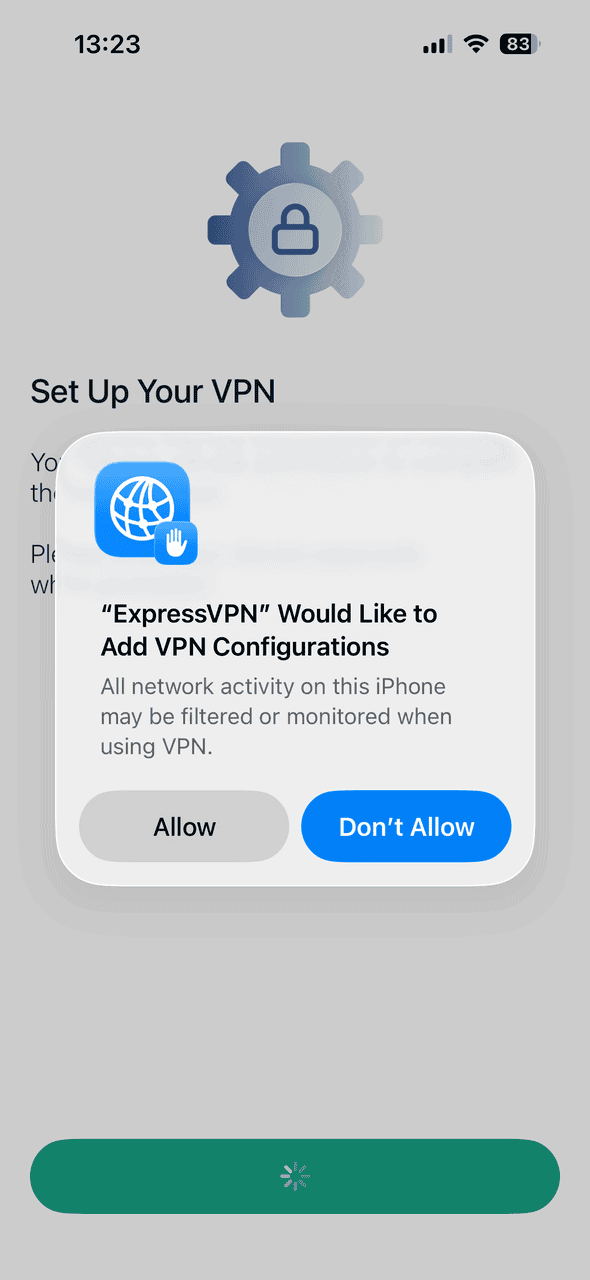
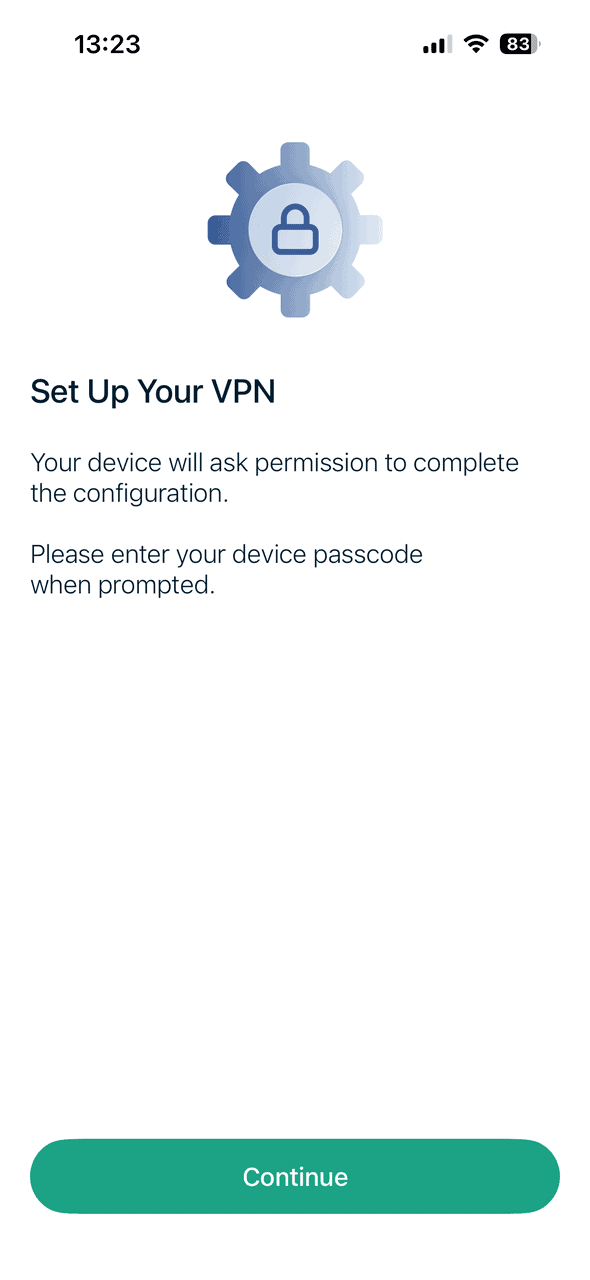
- Tap Continue.
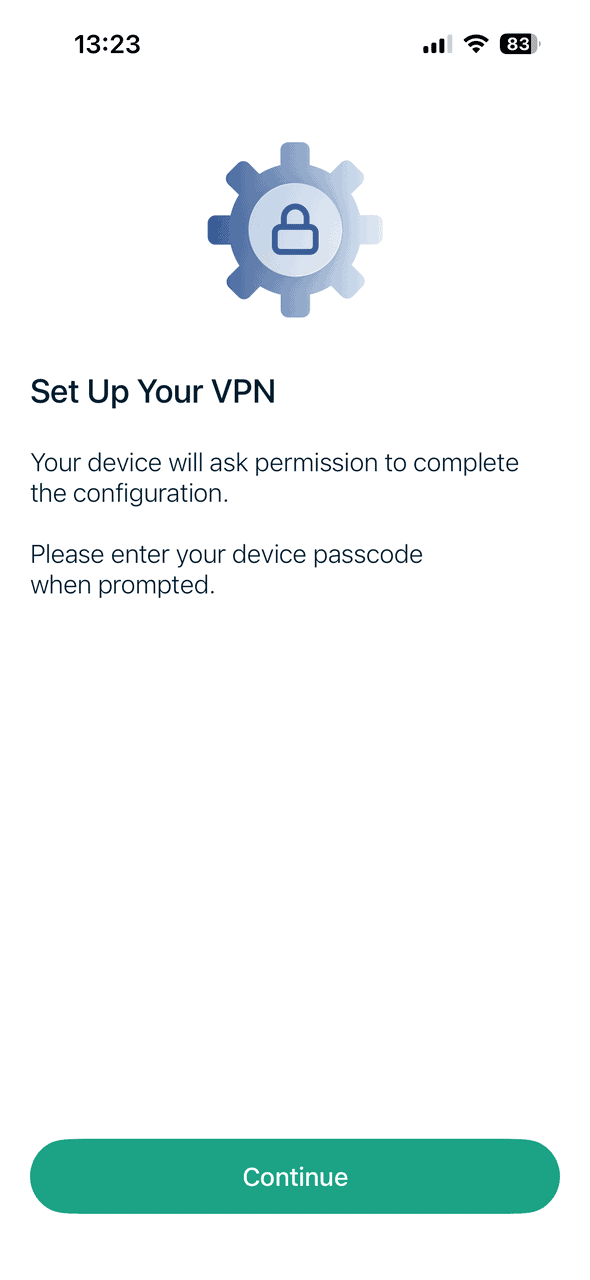

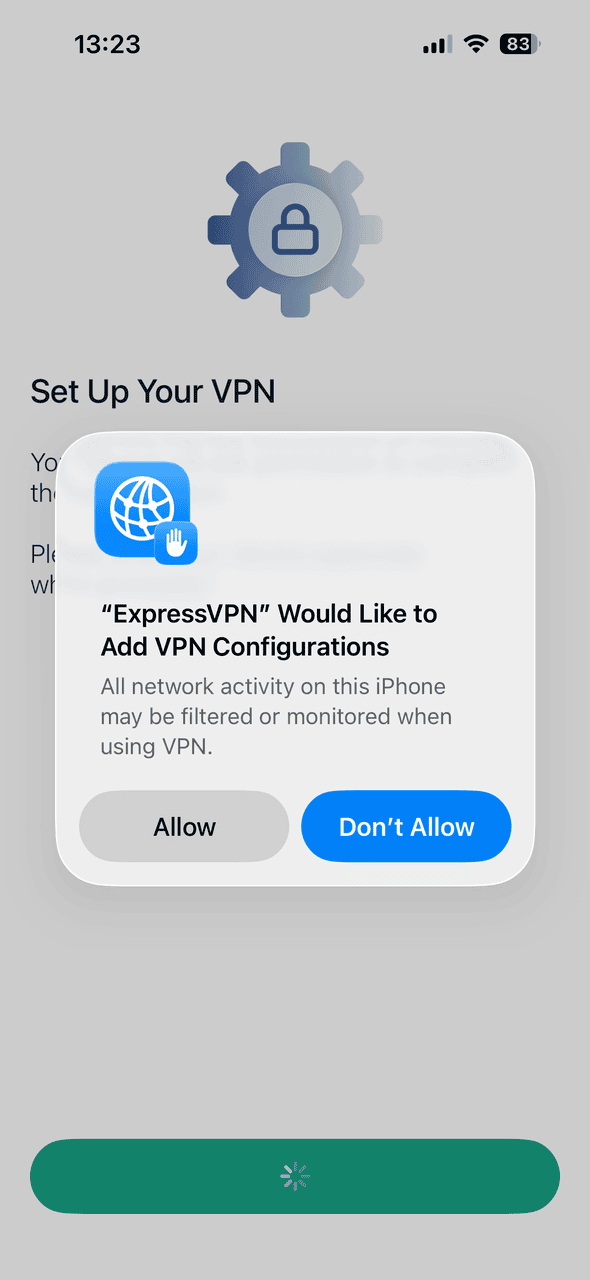
- You will see a message saying “ExpressVPN” Would Like to Add VPN Configurations. Tap Allow otherwise the configuration will fail.
- You may need to enter your device passcode to continue.
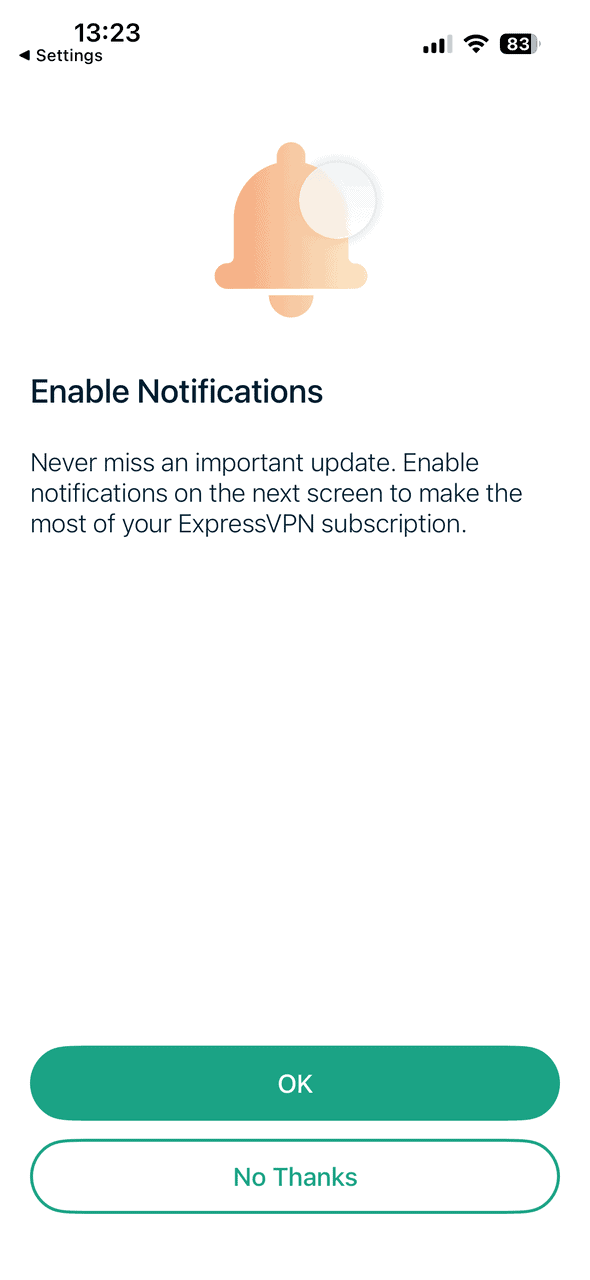
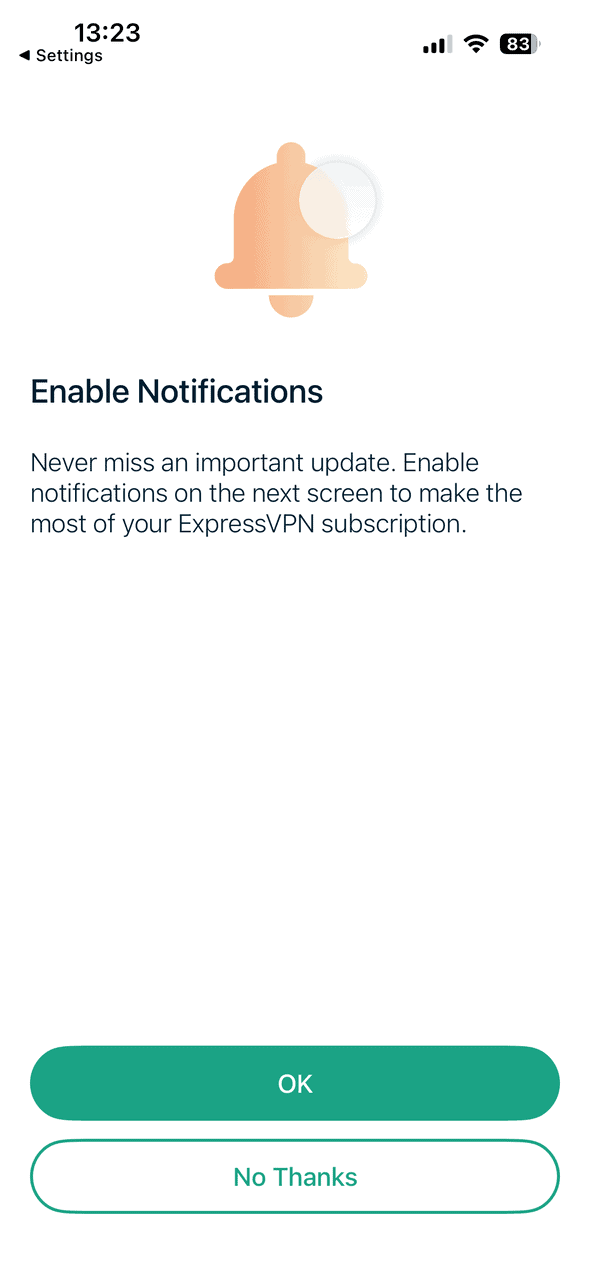
- The app will ask you if you want to enable notifications. Select your preference to proceed.
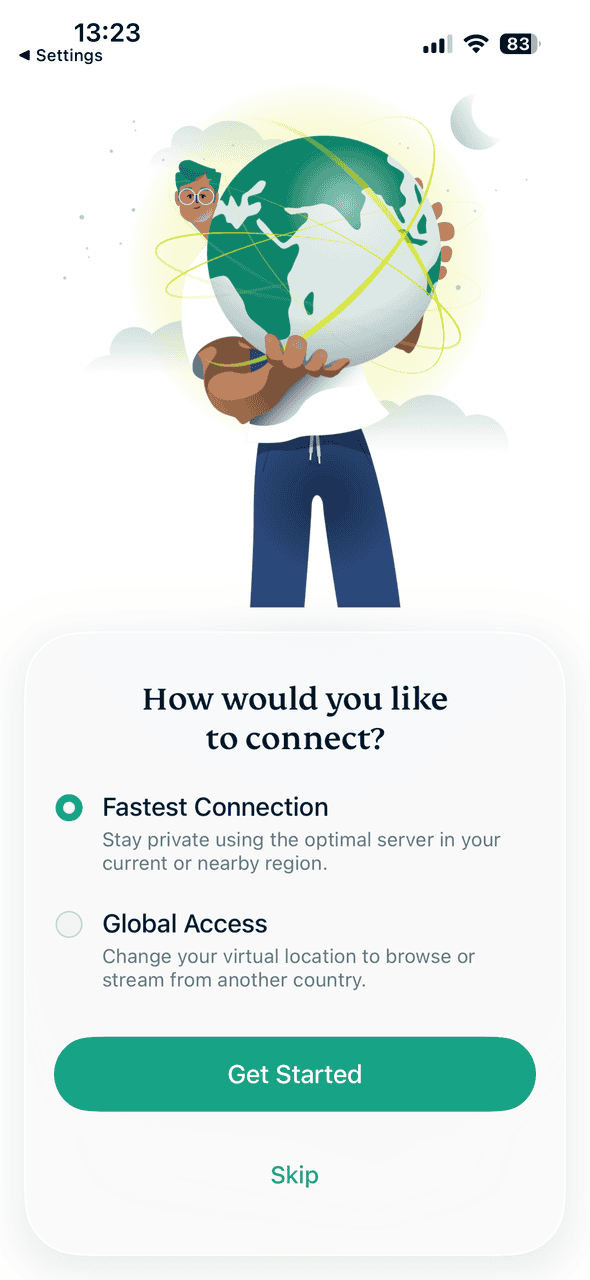
- Choose how you would like to connect to the VPN and tap Get Started. If you want to skip this step, tap Skip and you’ll be taken to the home screen.
Need help? Contact the ExpressVPN Support Team for immediate assistance.
Connect to a VPN server location
To connect to a VPN server location:
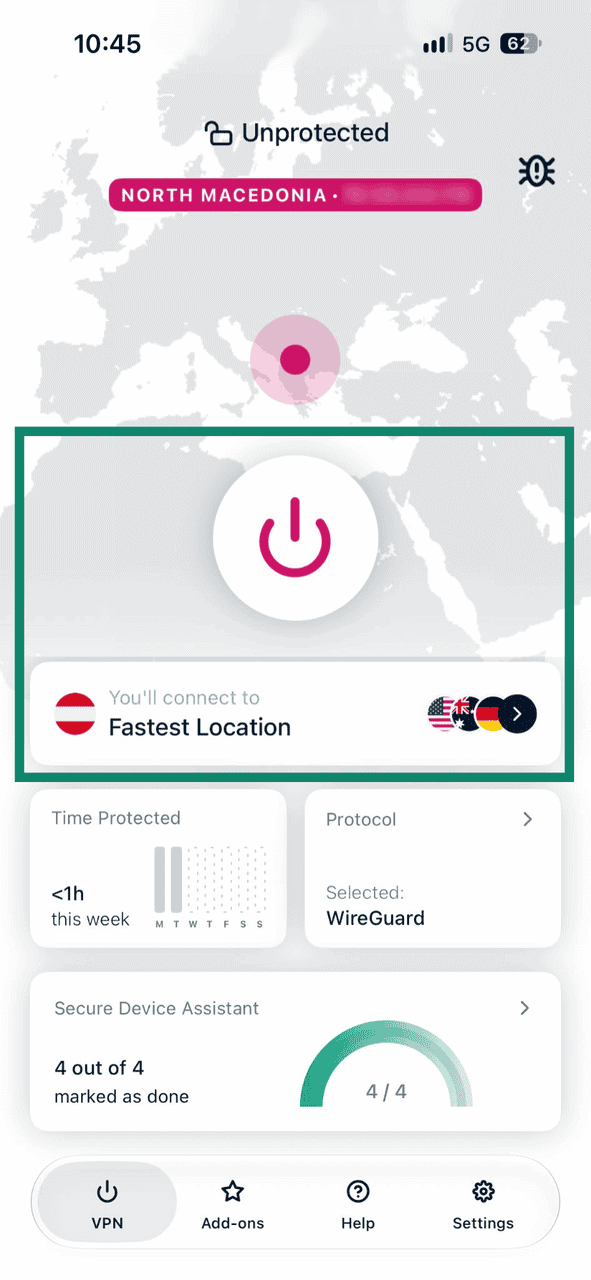
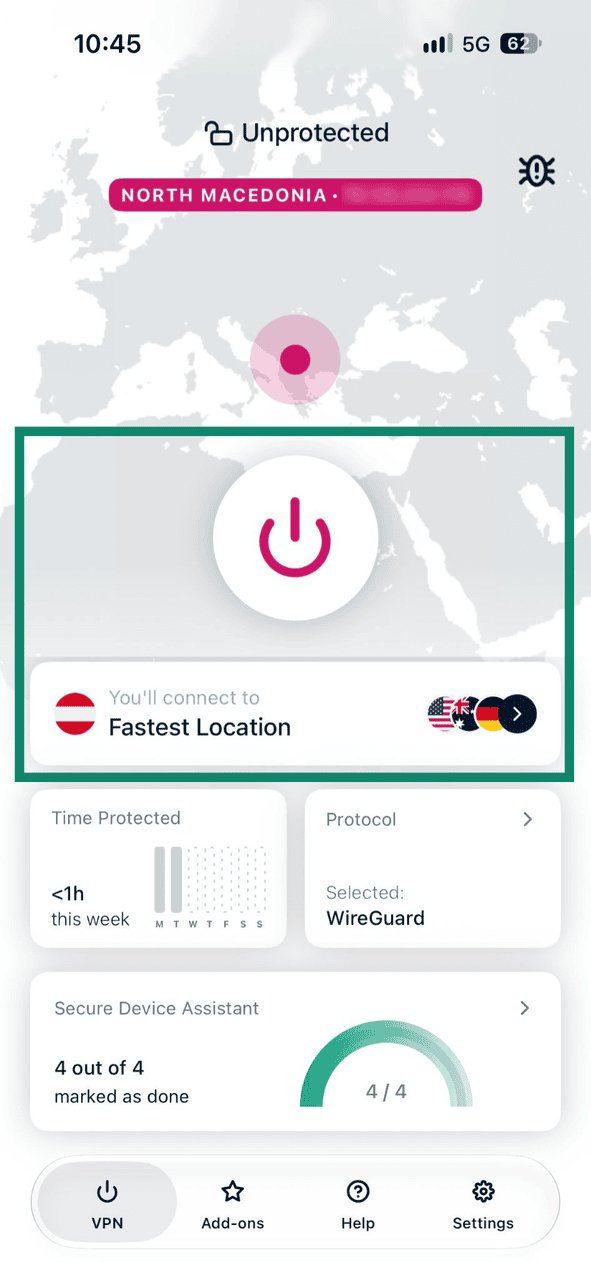
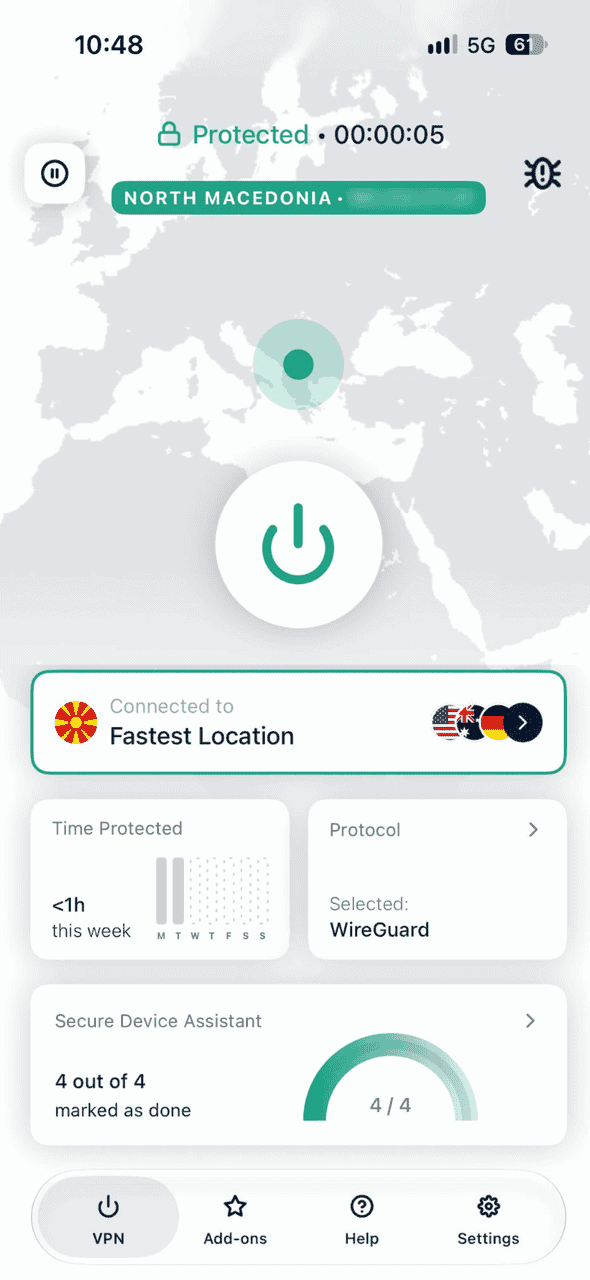
- On the home screen, tap the power button

 . By default, ExpressVPN will suggest the location that provides the optimal experience for you, called Fastest Location.
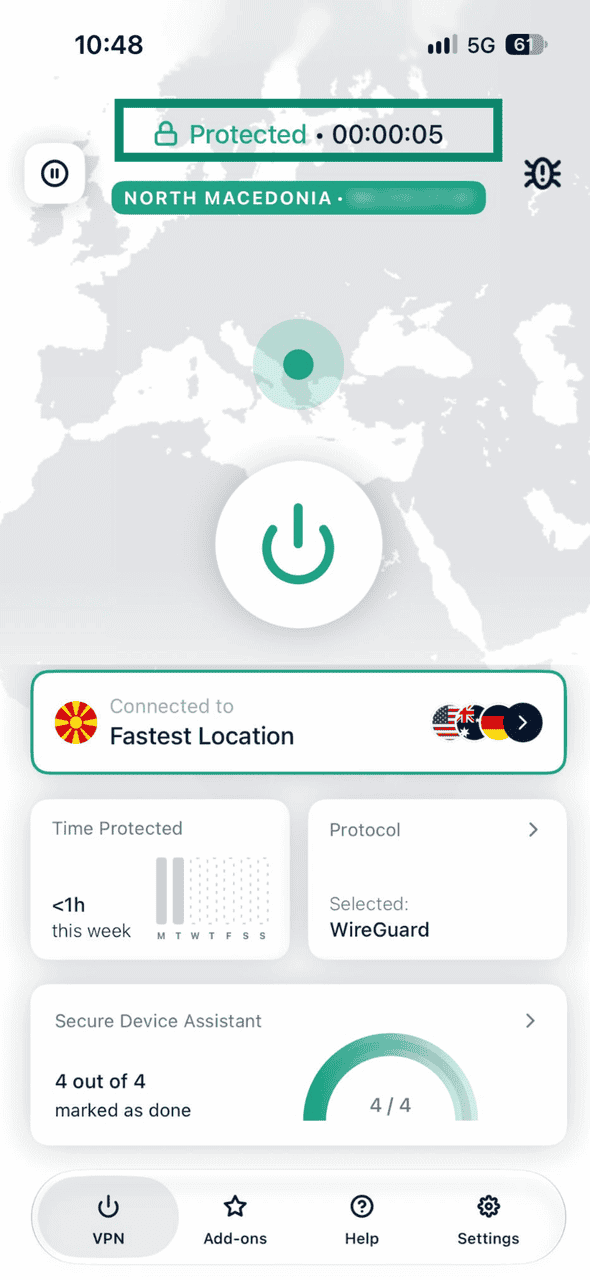
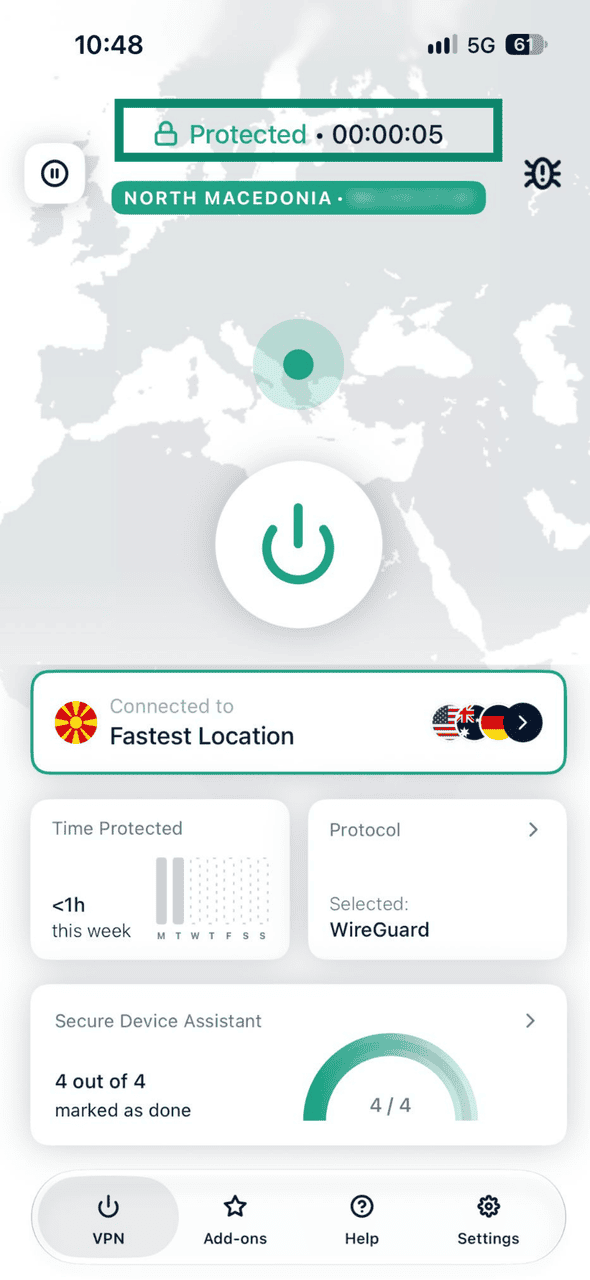
- Once you see the Protected message at the top of the screen, you can begin browsing with added privacy and security.
Note: The number of devices you can connect to the VPN at the same time depends on the subscription tier you chose at checkout:
- Basic: 10 devices at the same time.
- Advanced: 12 devices at the same time.
- Express Pro: 14 devices at the same time.
Need help? Contact the ExpressVPN Support Team for immediate assistance.
Check connection details
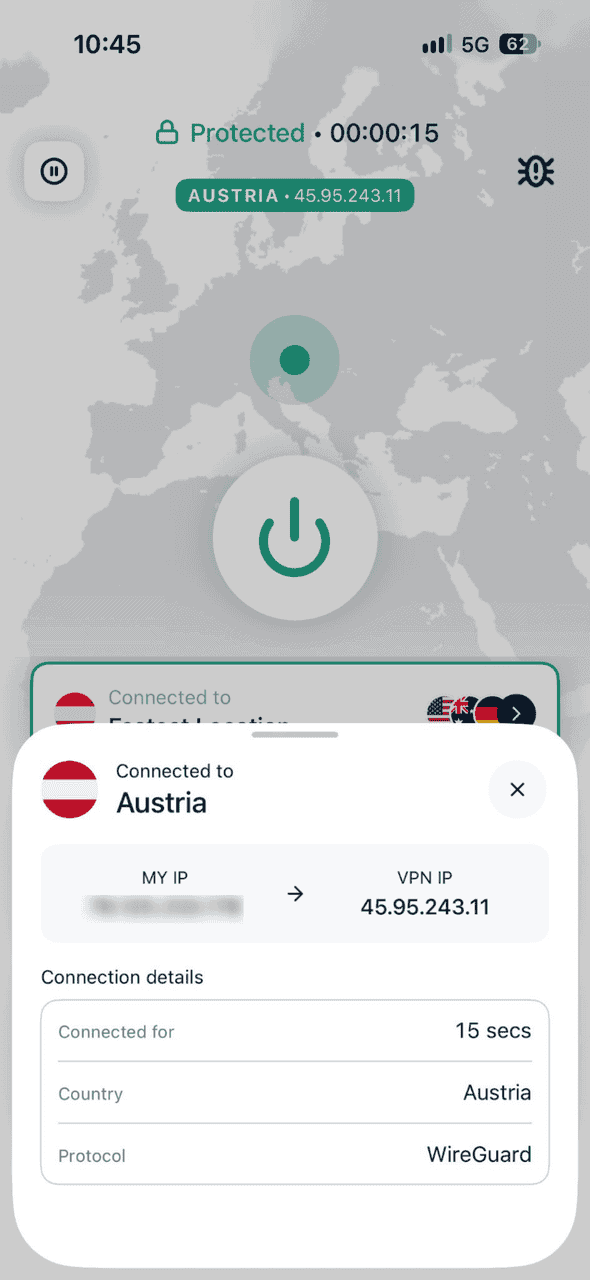
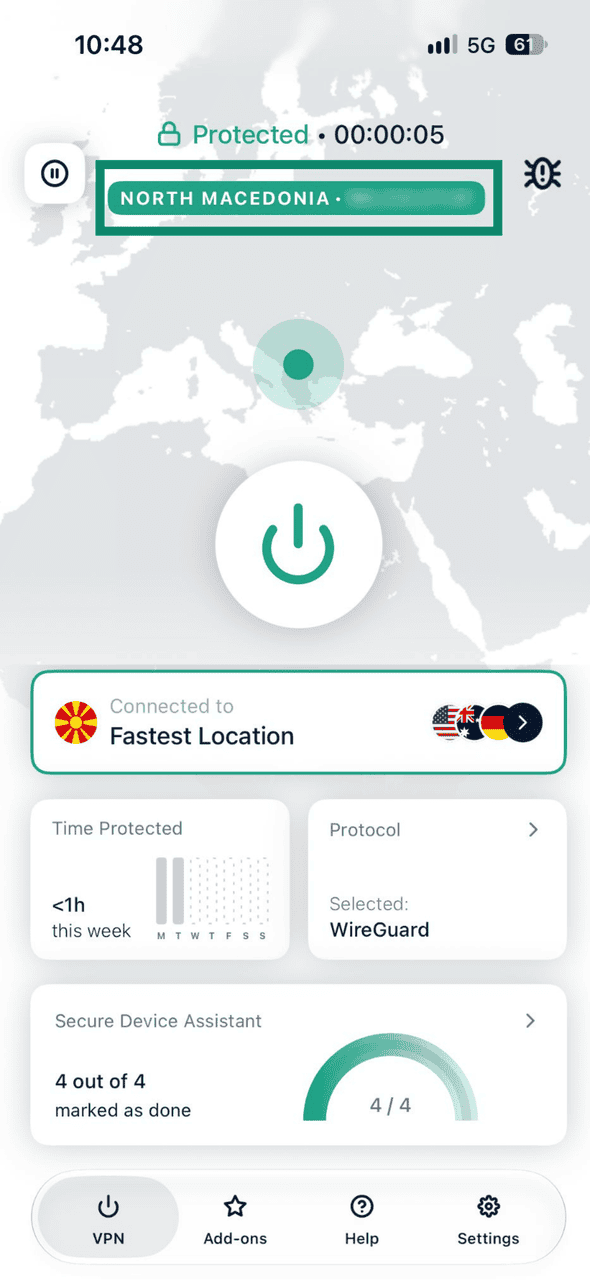
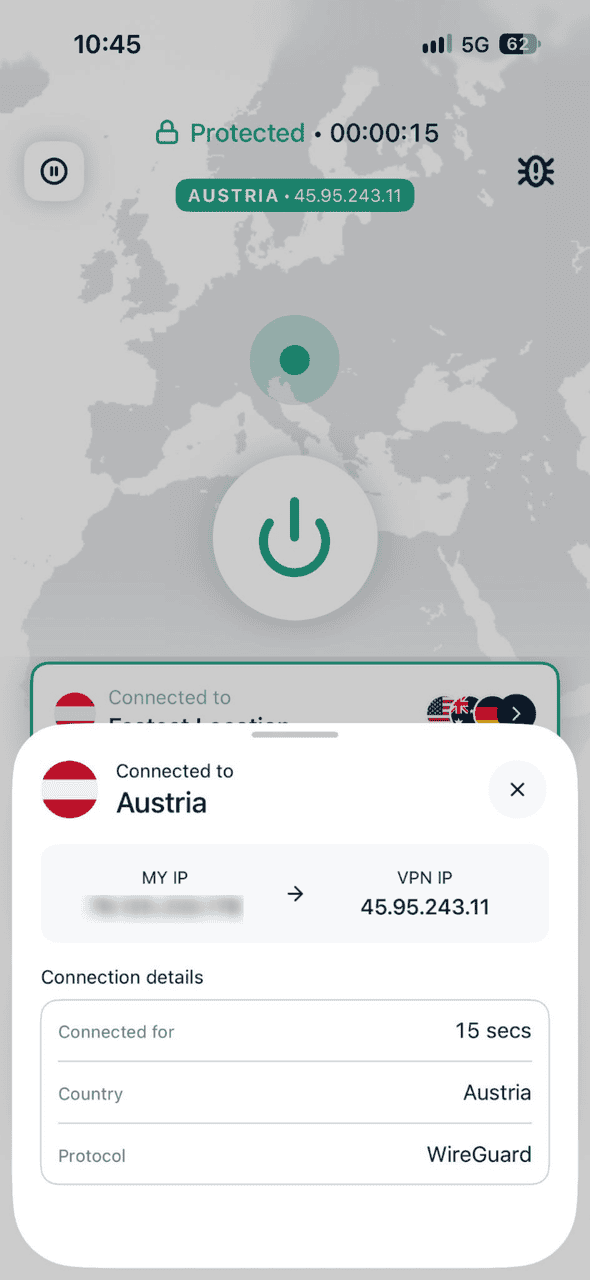
You can check your connection details, including your IP address, the IP address of the VPN server you’re connected to, how long you’ve been connected to this server location, and the VPN protocol the connection is using.
To access this information.
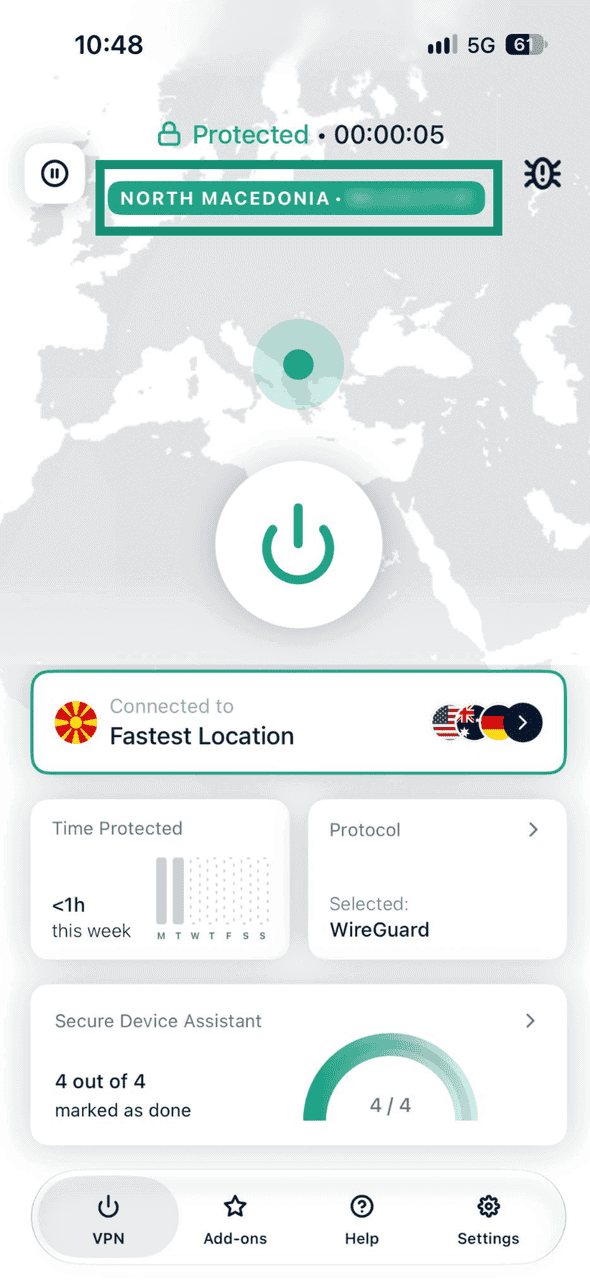
- Tap the location (and IP address if visible) above the power button.
- Review your connection details.
Need help? Contact the ExpressVPN Support Team for immediate assistance.
Disconnect from a VPN server location
To disconnect from a VPN server location:
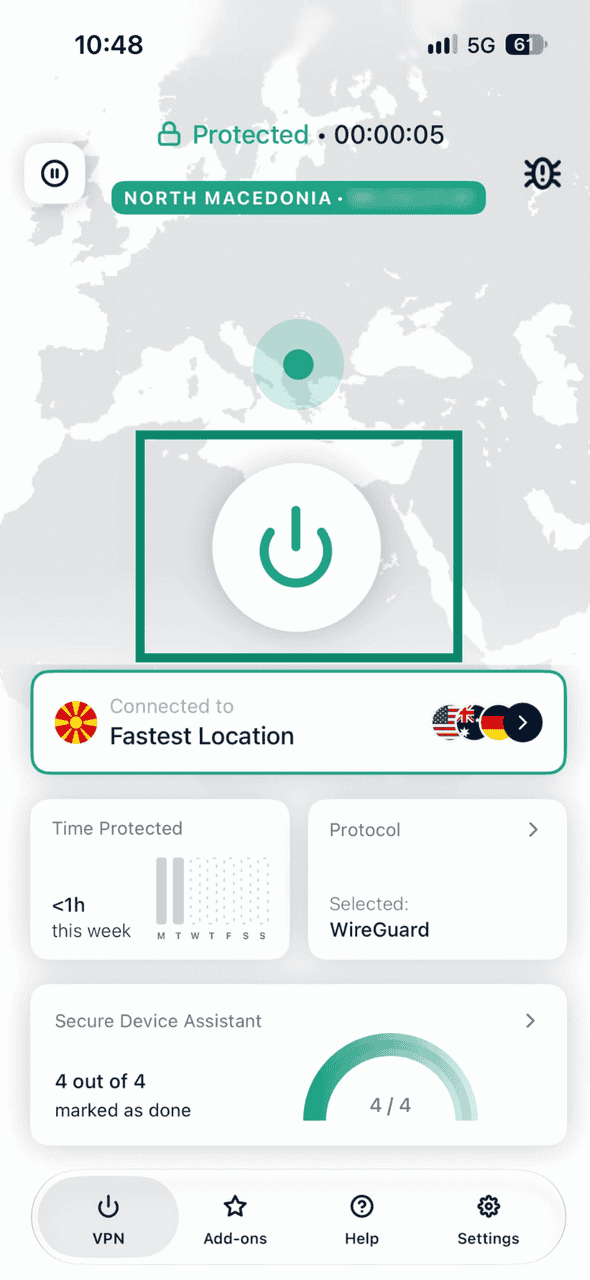
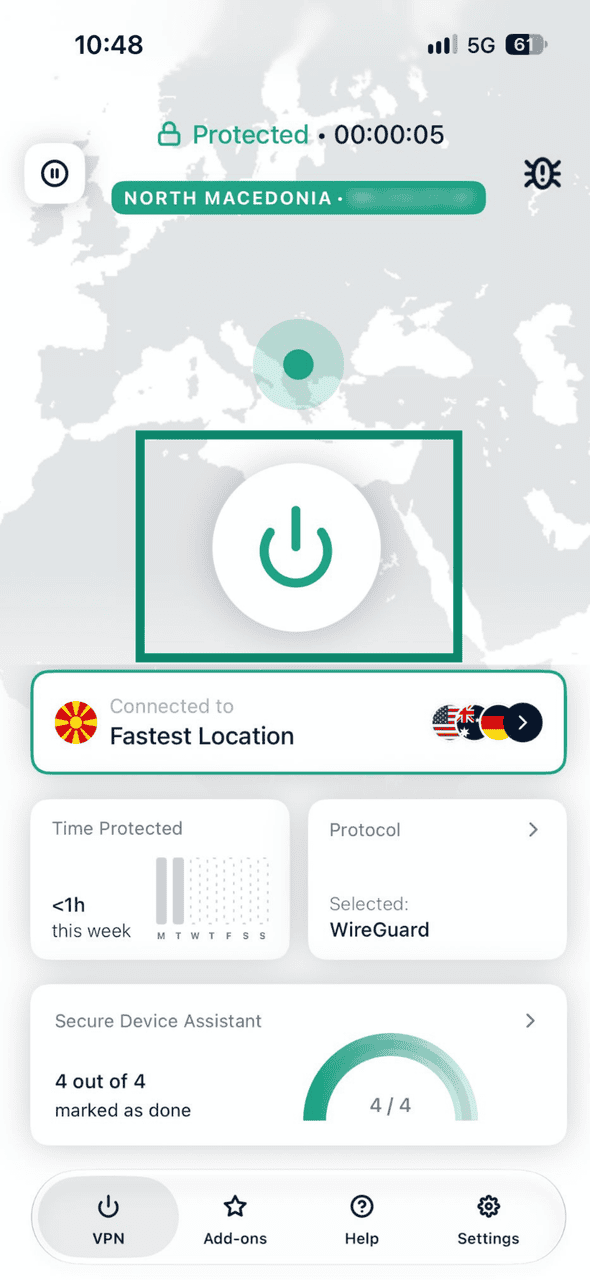
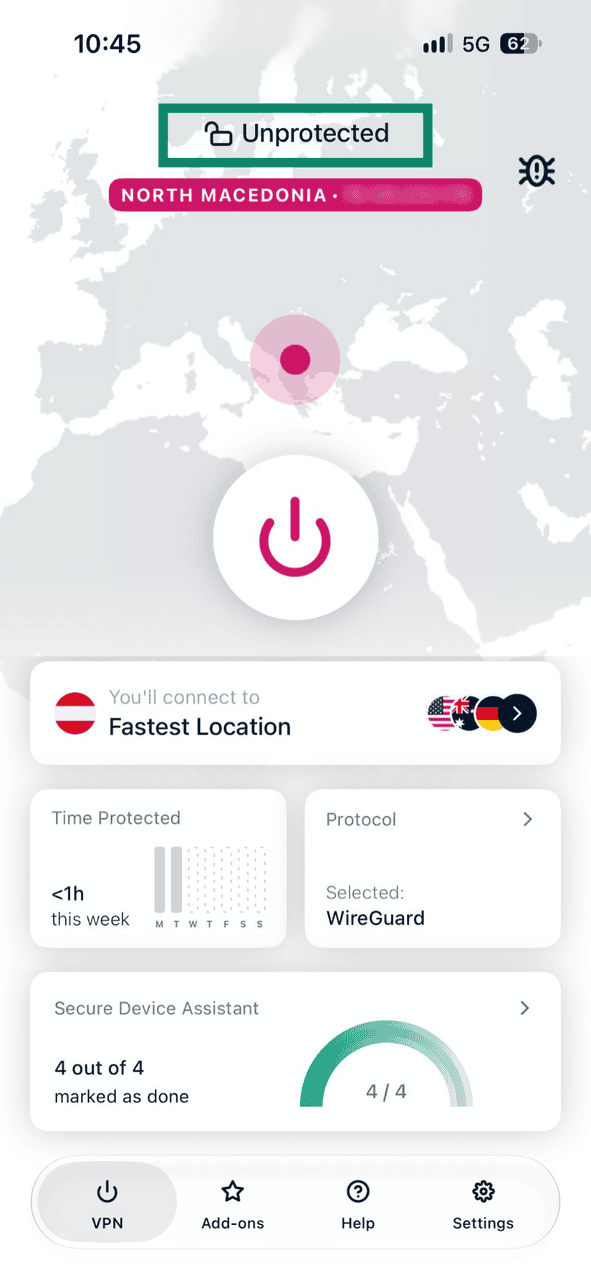
- Tap the power button while the VPN is on.
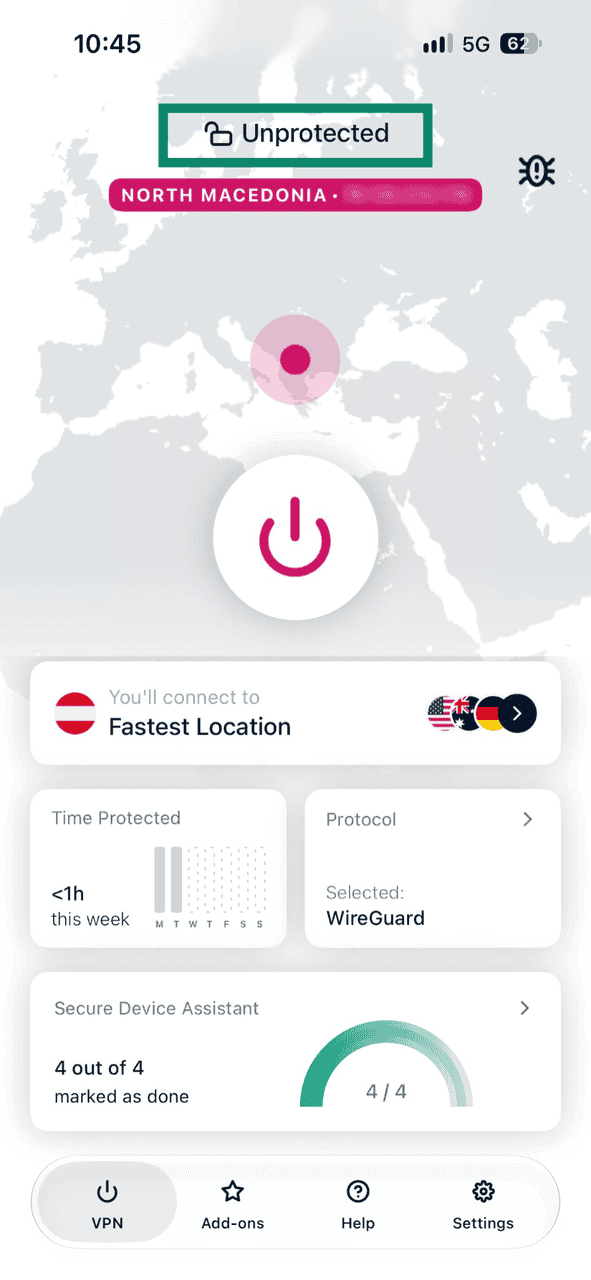
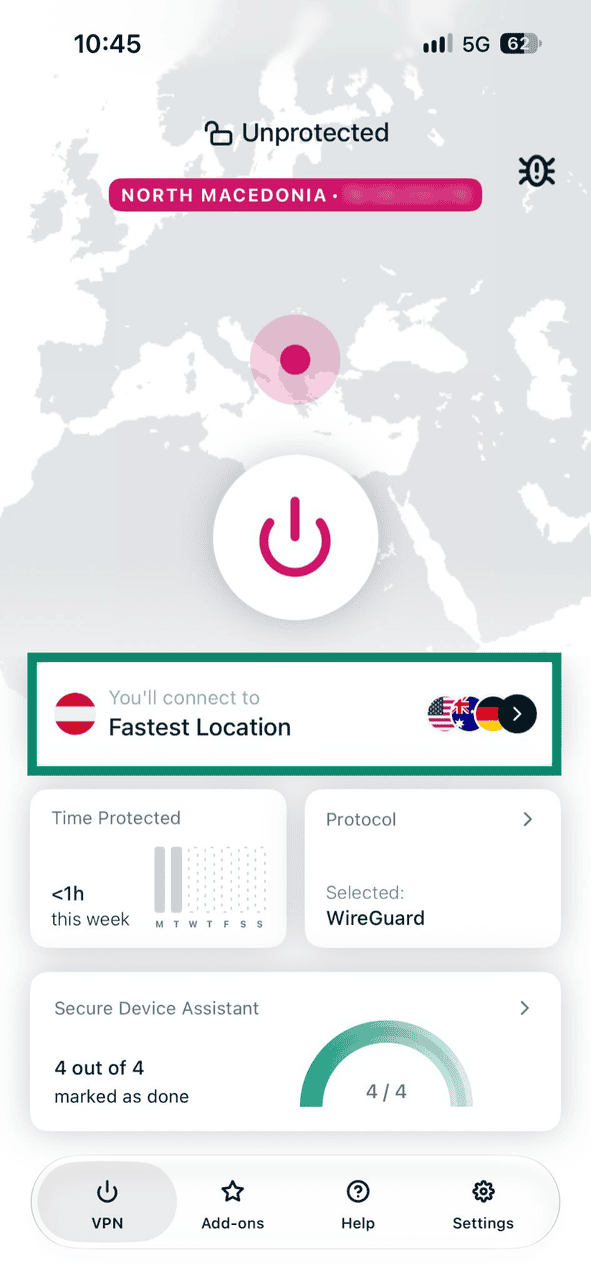
- You will know you are disconnected when the screen says Unprotected.
Need help? Contact the ExpressVPN Support Team for immediate assistance.
Connect to a different VPN server location
To choose a different server location:
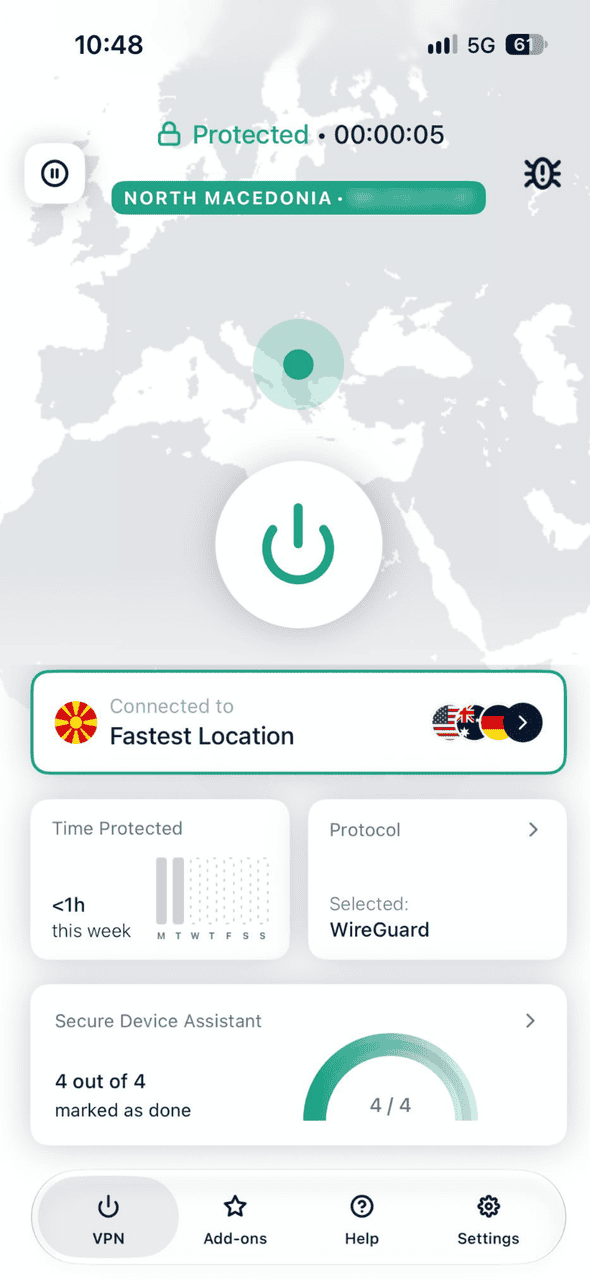
- Tap the location picker widget to see more server locations.
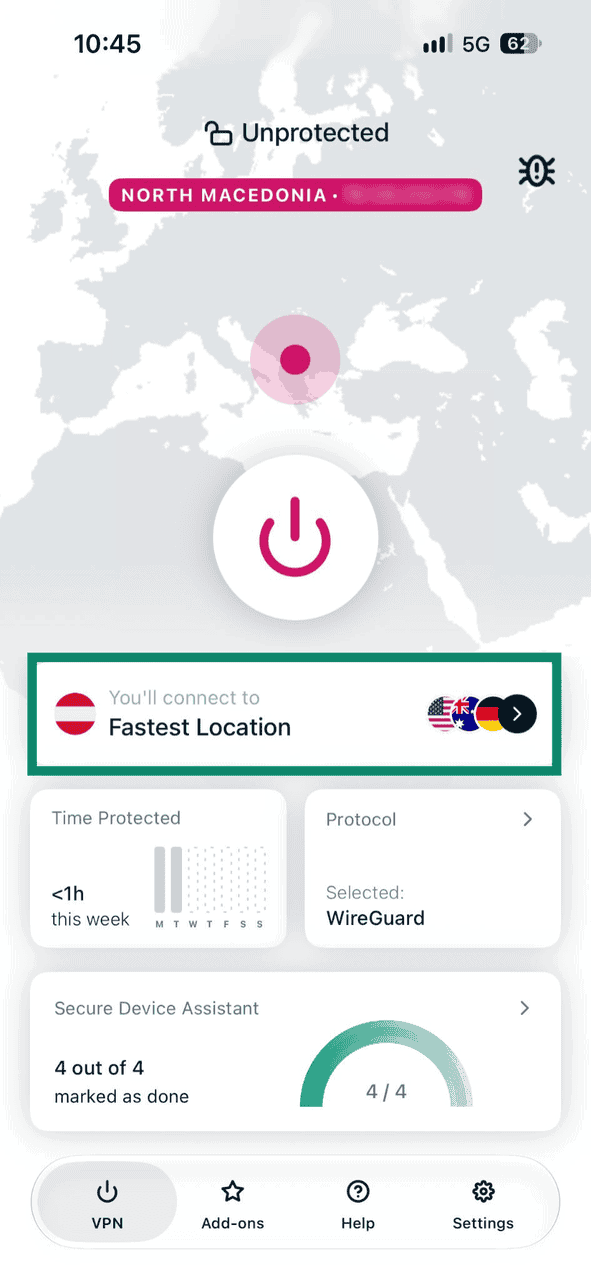
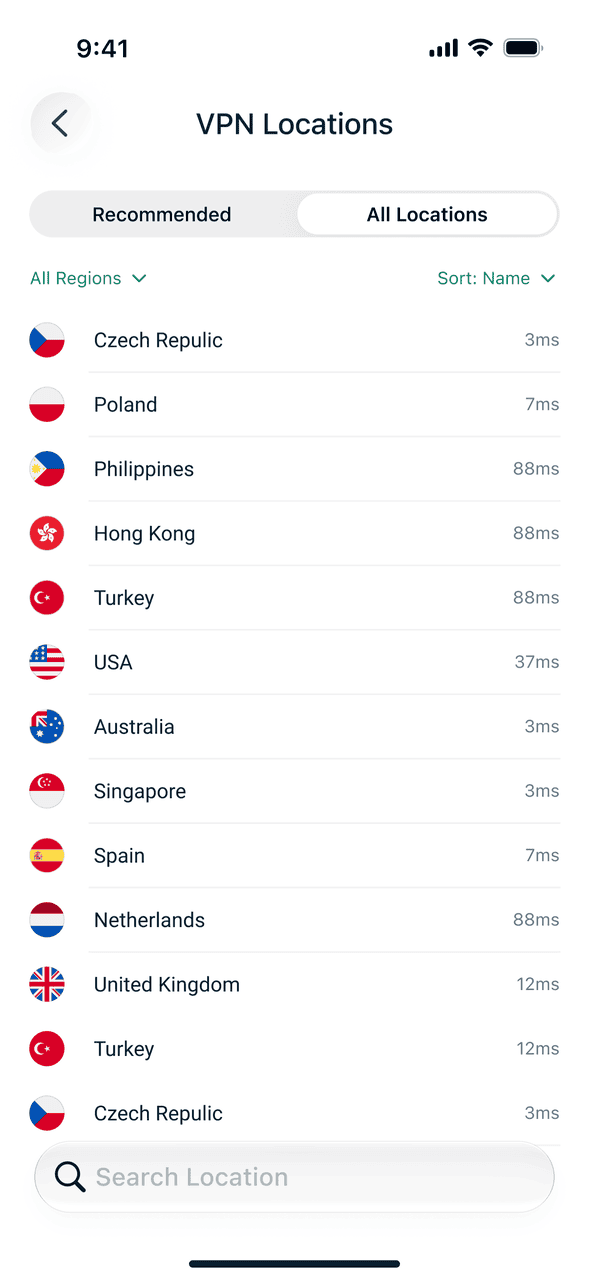
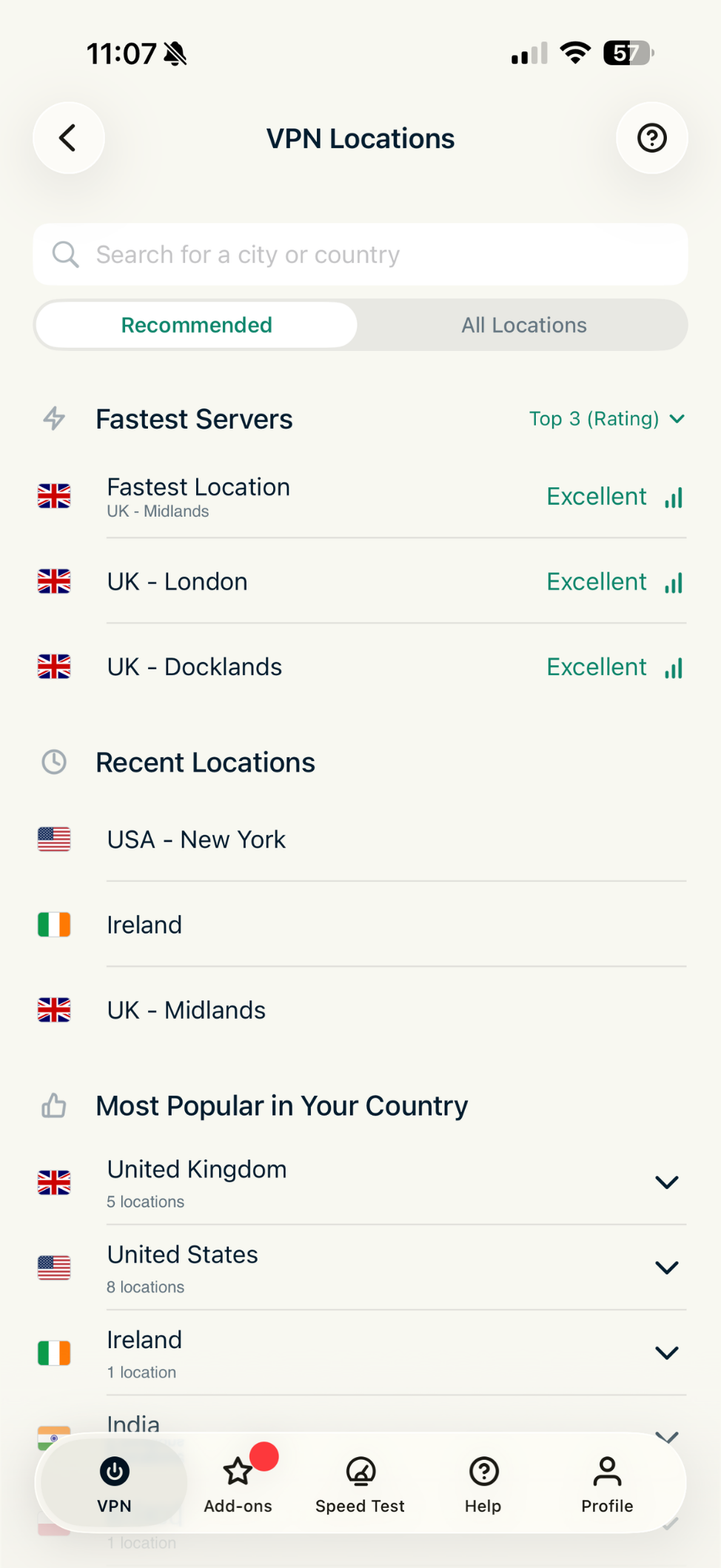
- You will see a list of server locations.
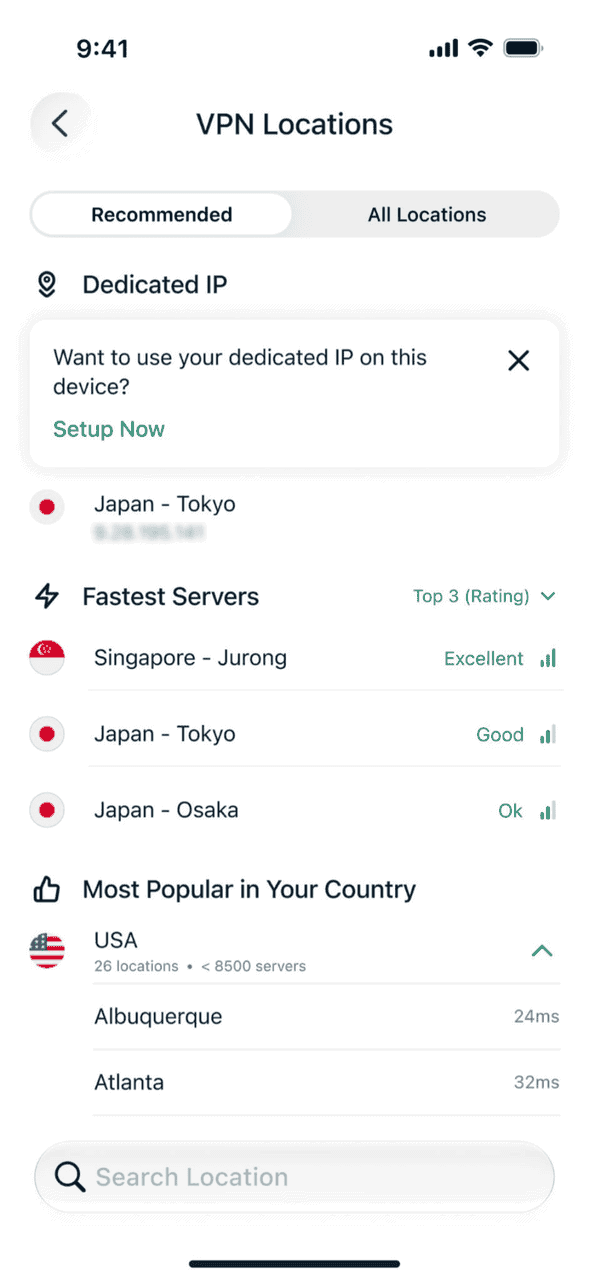
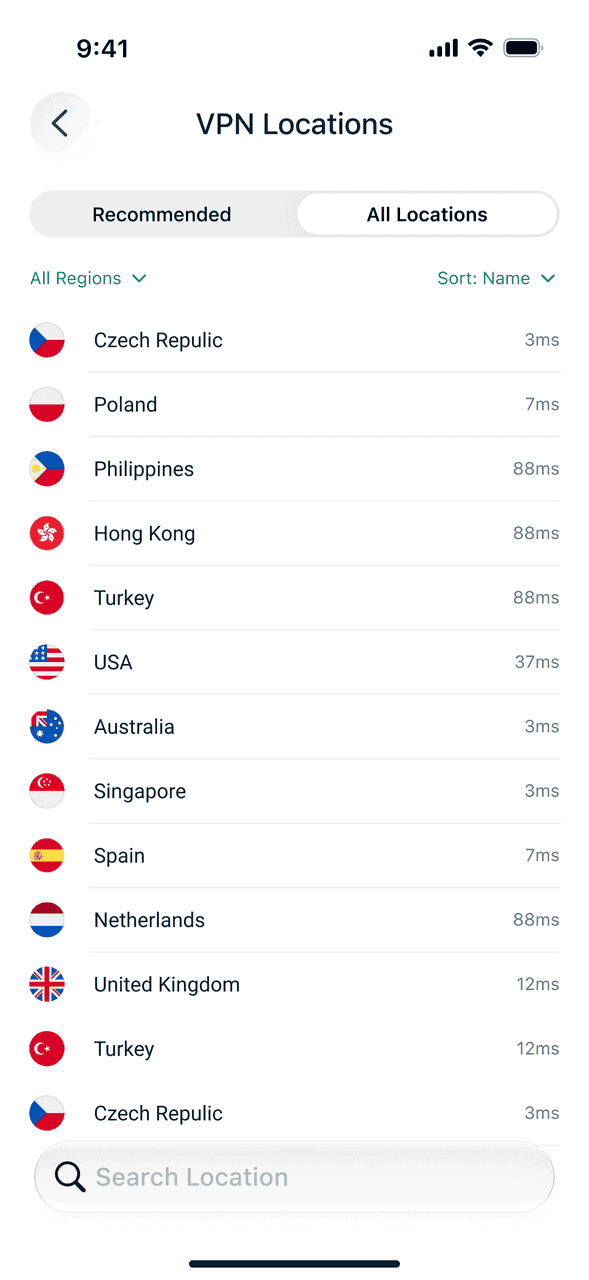
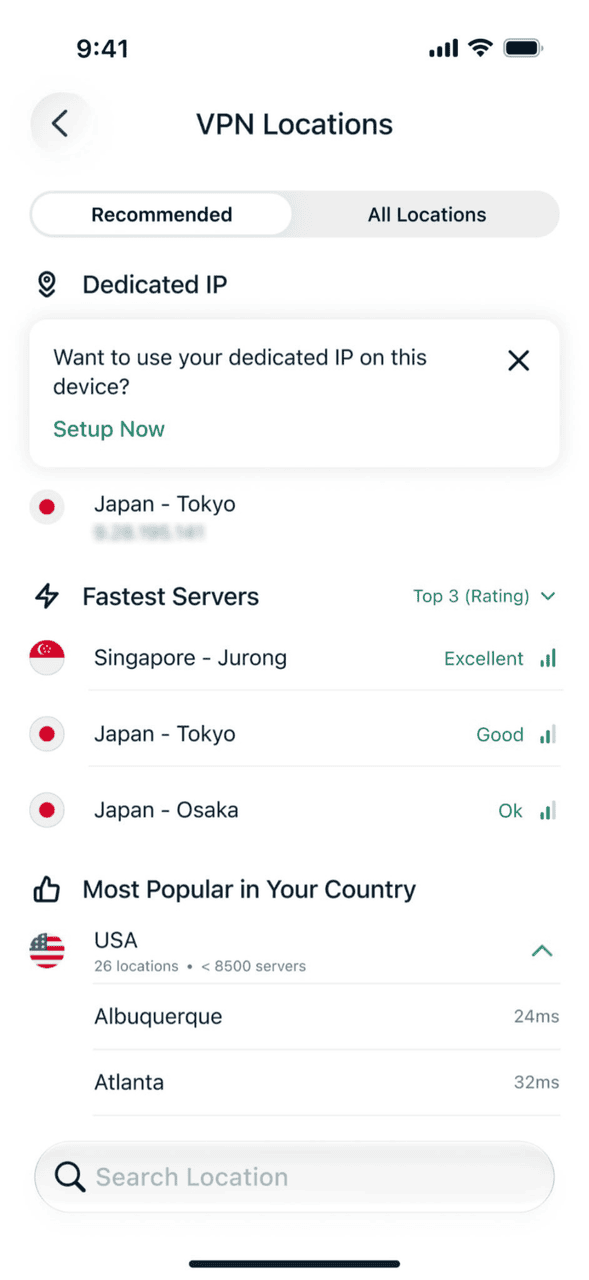
The list of VPN locations features two tabs: RECOMMENDED and ALL LOCATIONS.
The RECOMMENDED tab includes four sections:- Fastest Servers: Lists up to five of the fastest servers based on your current location.
- Recent Locations: Shows up to five of the most recent server locations you connected to.
- Most Popular in Your Country: Lists the server locations most often used by other ExpressVPN users in your country.
- Dedicated IP: If you have a dedicated IP set up, you will find it here. To learn more about dedicated IPs, refer to our Dedicated IP FAQs.
 The ALL LOCATIONS tab lists VPN server locations by region.
You can expand and collpase the lists by tapping and . You can display server locations from only one region (Americas, Asia Pacific, Europe, or Middle East and Africa) and also sort locations by alphabetical order or the number of endpoints.
- Once you choose a location, ExpressVPN will automatically connect you to it.
 . You can display server locations from only one region (Americas, Asia Pacific, Europe, or Middle East and Africa) and also sort locations by alphabetical order or the number of endpoints.
Note: When you change locations while connected to the VPN, a notification will pop up letting you know the VPN will briefly disconnect while it connects to the new server location. Tap Connect to proceed.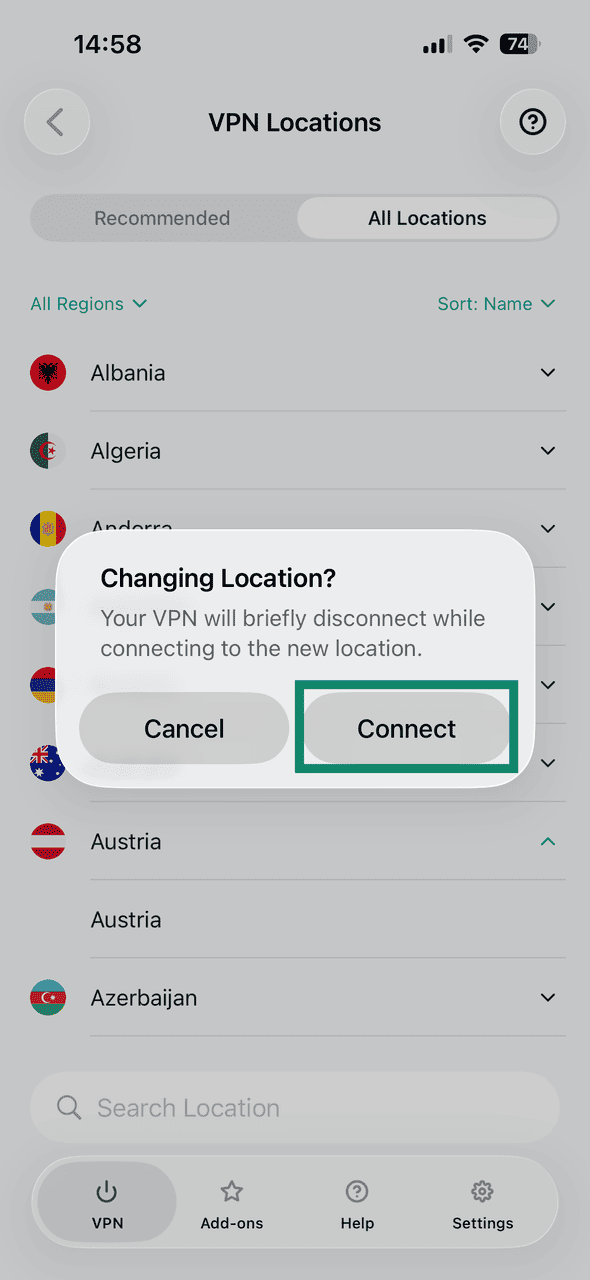
Need help? Contact the ExpressVPN Support Team for immediate assistance.
Pause the VPN connection
You can pause an active VPN connection and have it automatically resume after a set time.
To pause an active VPN connection:
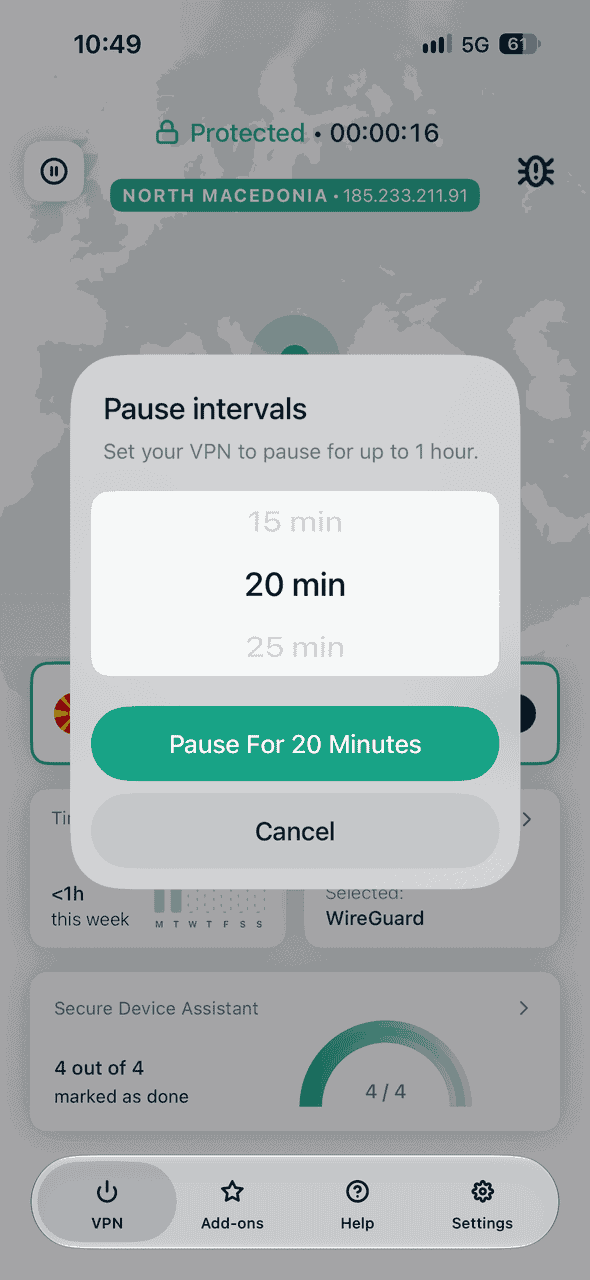
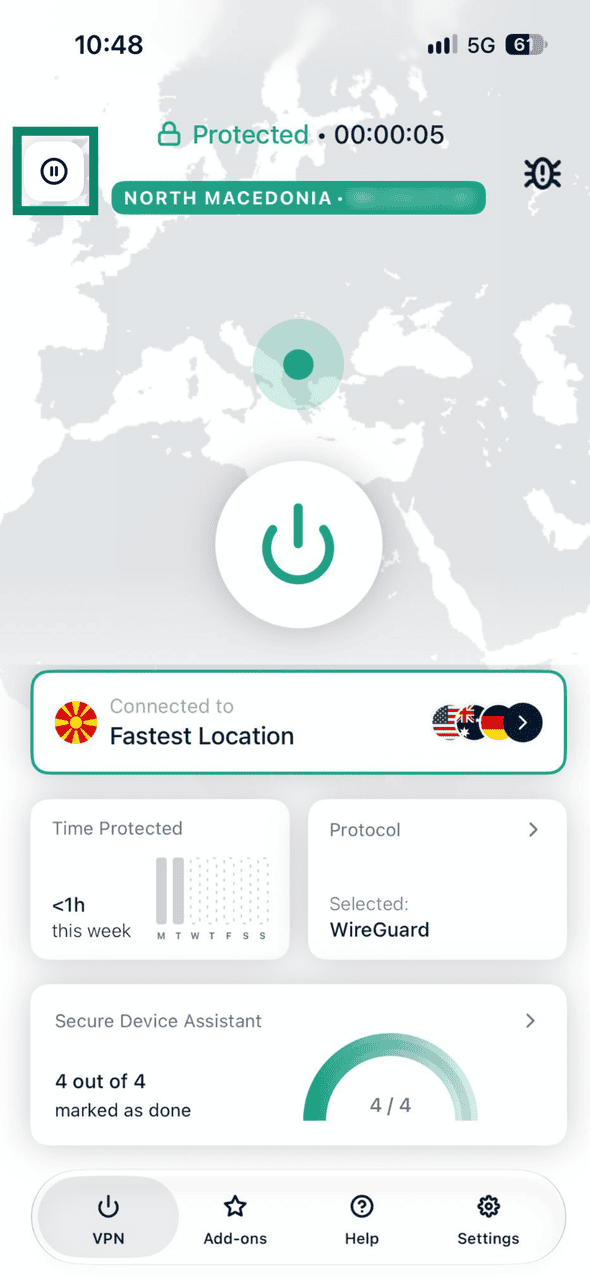
- Tap the pause icon in the top left.
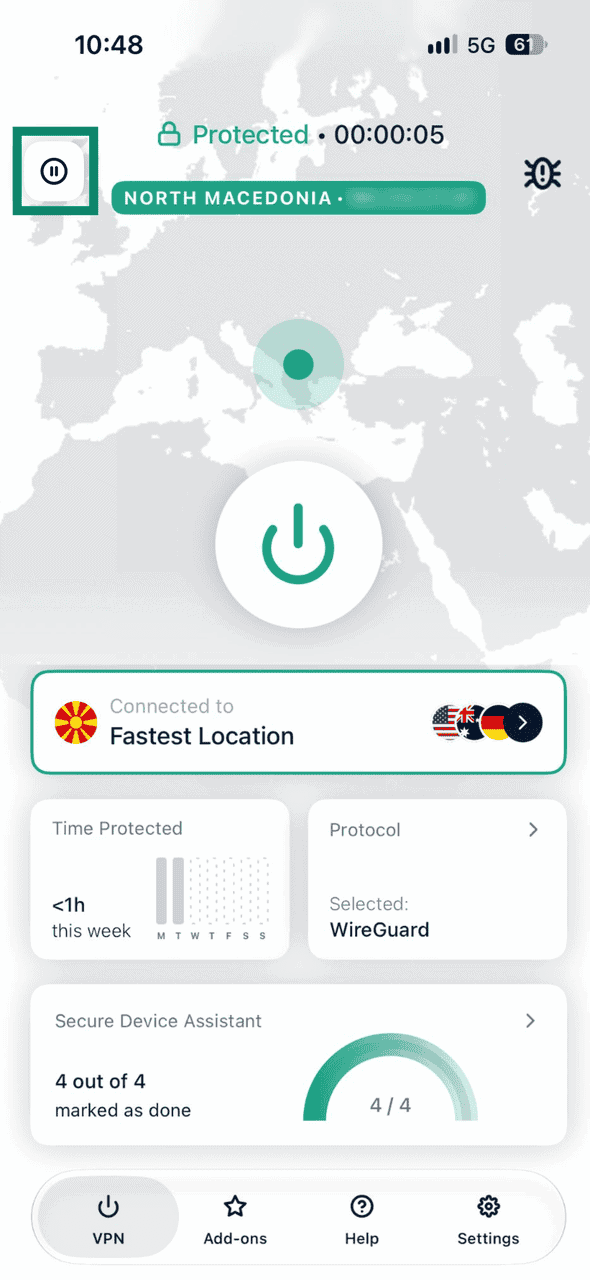
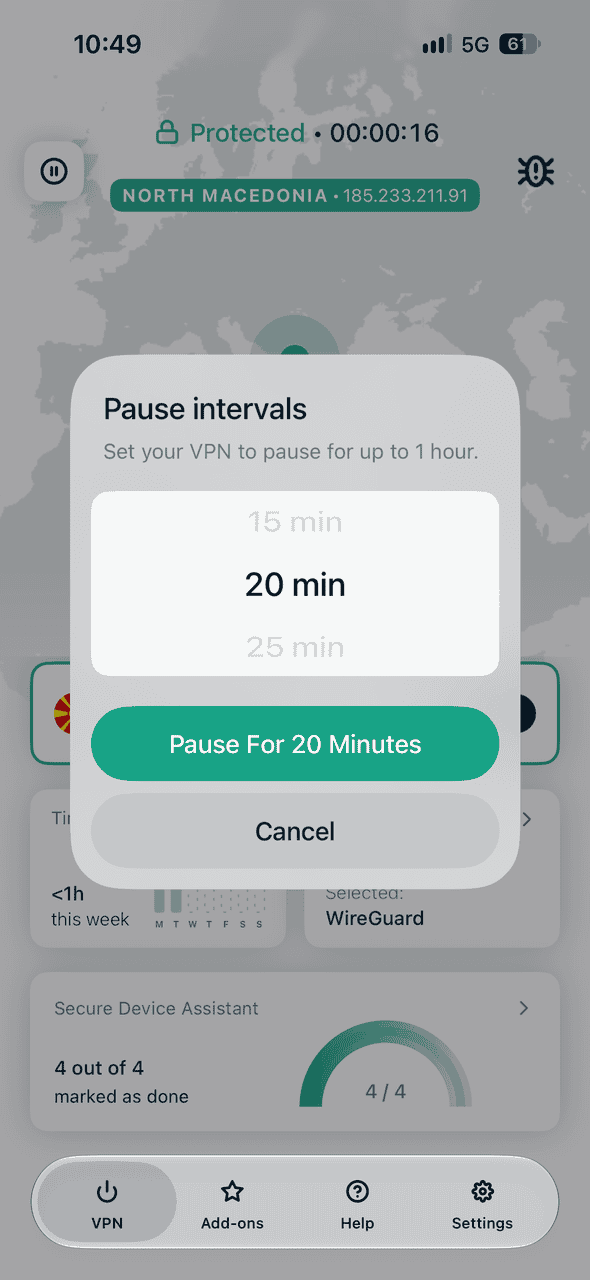
- Choose a pause interval and tap Pause For xx Minutes.
- If you have paused the VPN successfully, you will see Paused and a countdown timer inside the location picker widget.
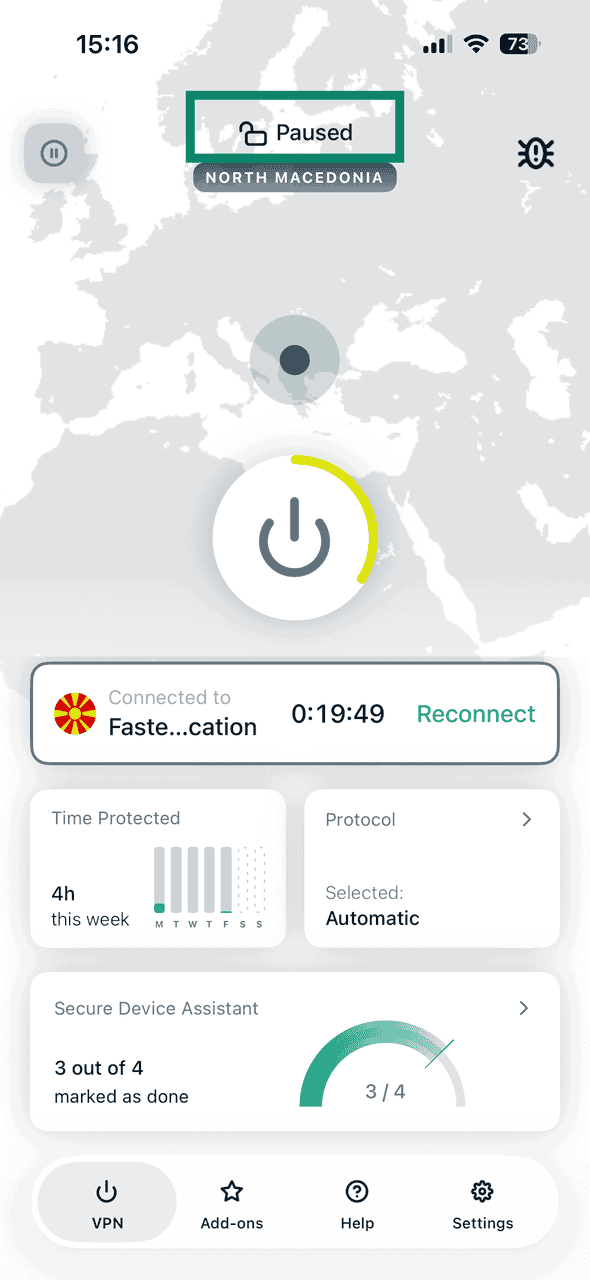
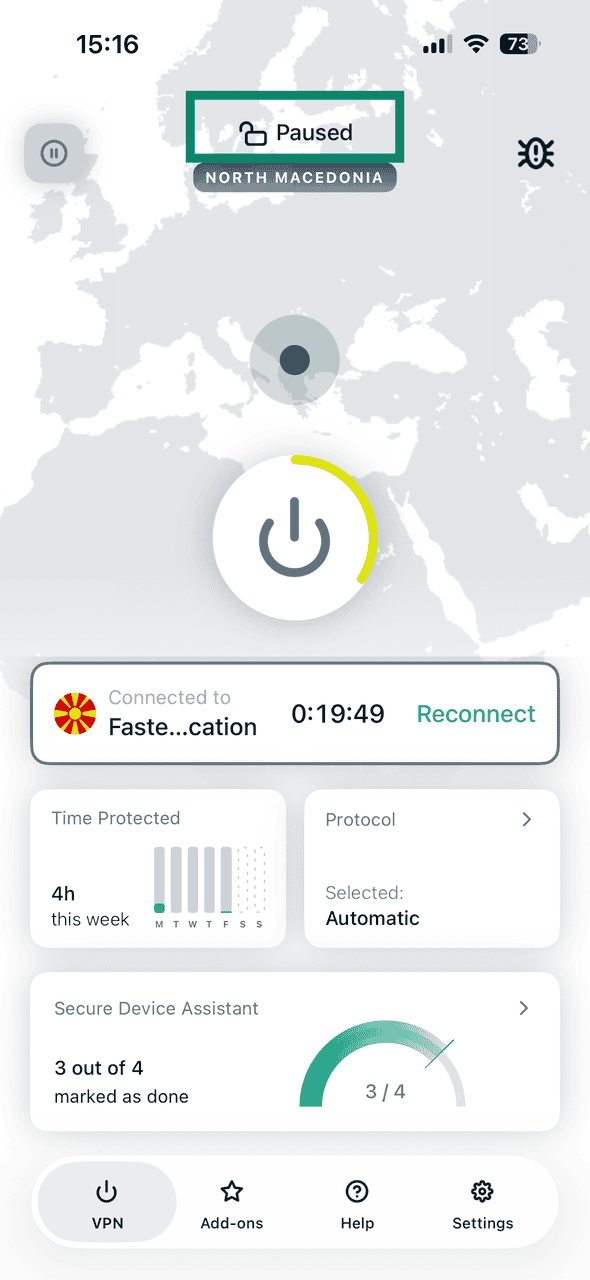
The VPN connection will automatically resume when the countdown reaches zero.
To resume the VPN connection, tap Reconnect in the location picker widget. To disconnect, tap the power button. 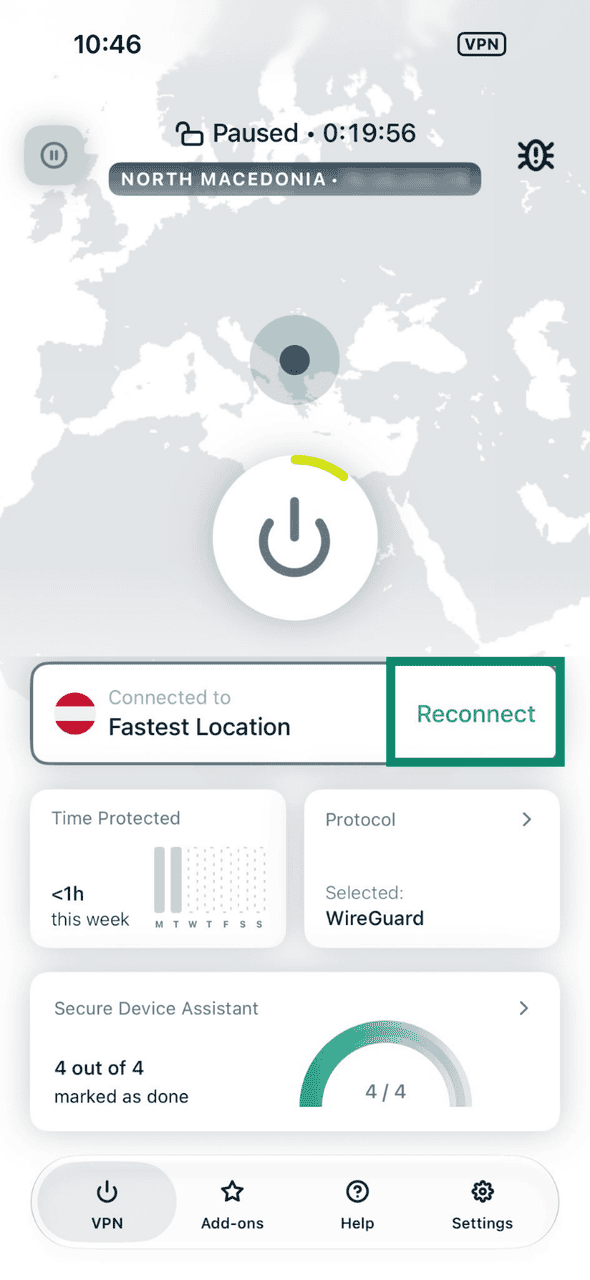
If you have resumed the VPN successfully, you will see Protected at the top of the screen.
To reset or reduce the time the VPN is paused for, tap the pause icon, select a new pause interval, and tap Pause For xx Minutes.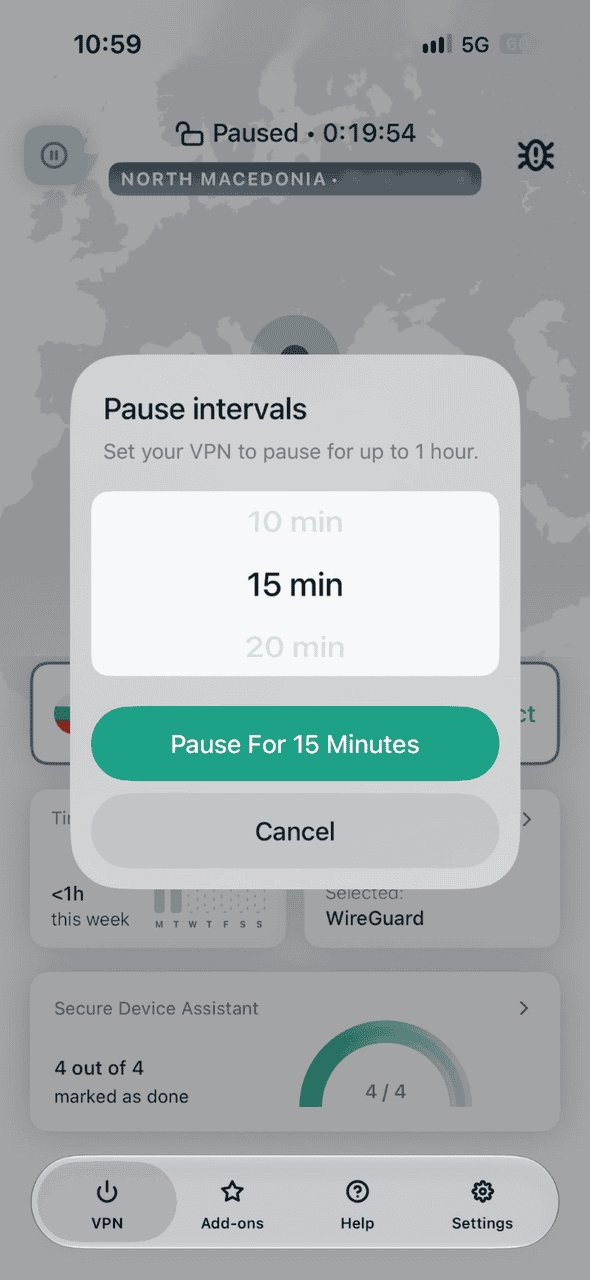
Need help? Contact the ExpressVPN Support Team for immediate assistance.
Use split tunneling
The split tunneling feature lets you choose which IP addresses do not use the VPN when you are connected to ExpressVPN.
To set up split-tunneling:
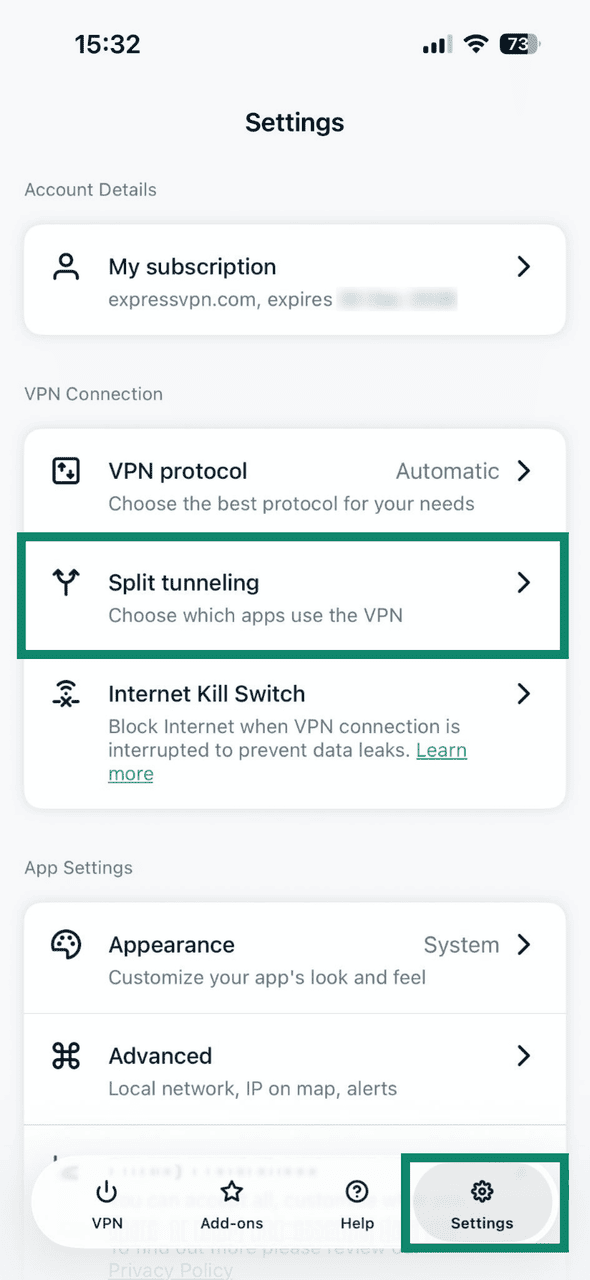
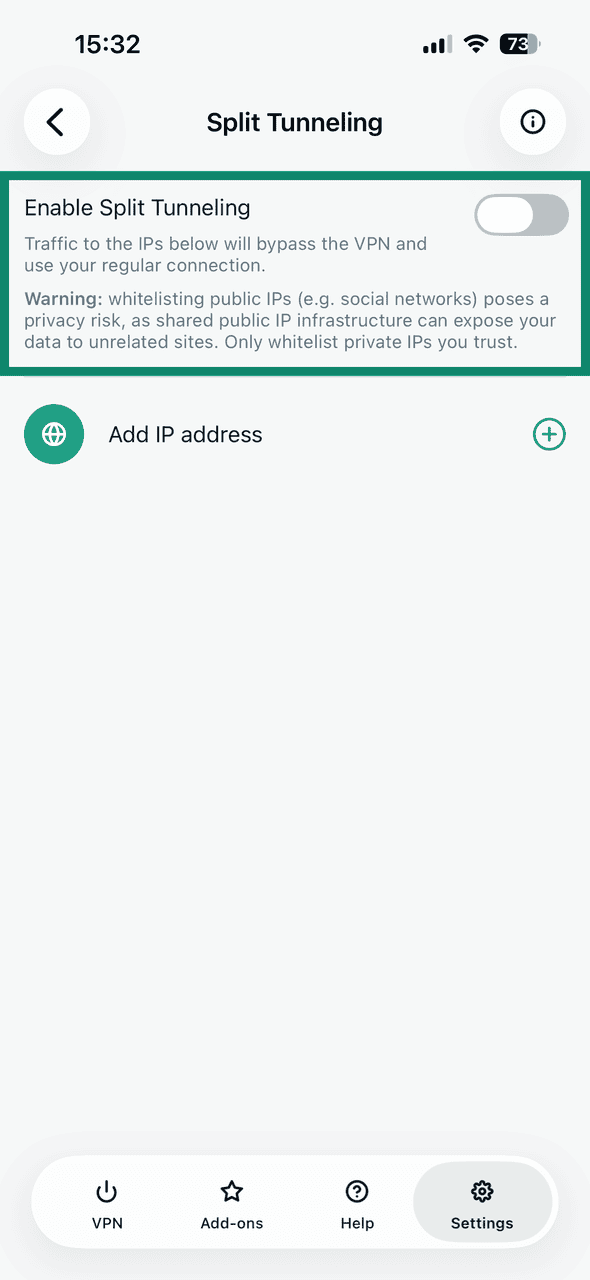
- Tap Settings and select Split tunneling.
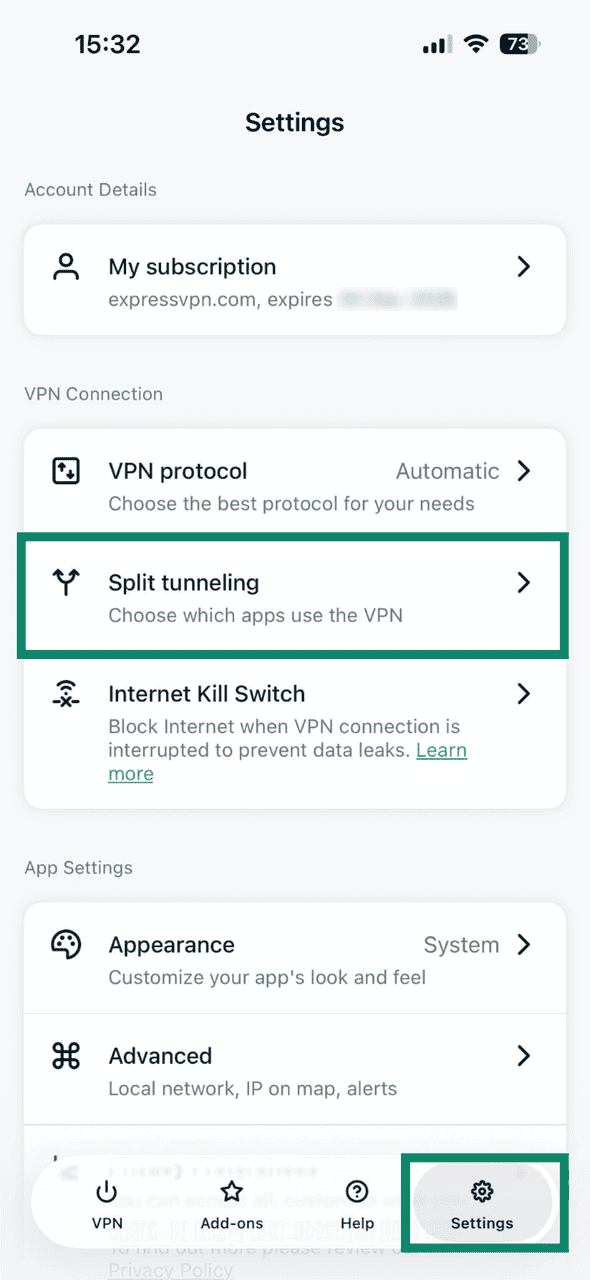
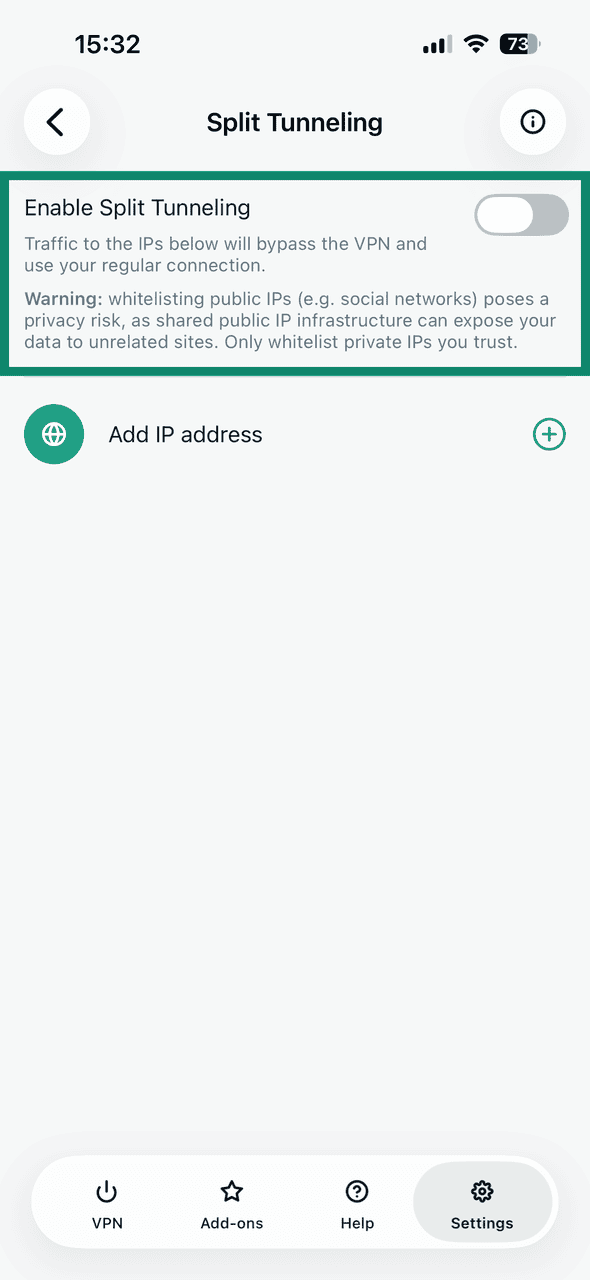
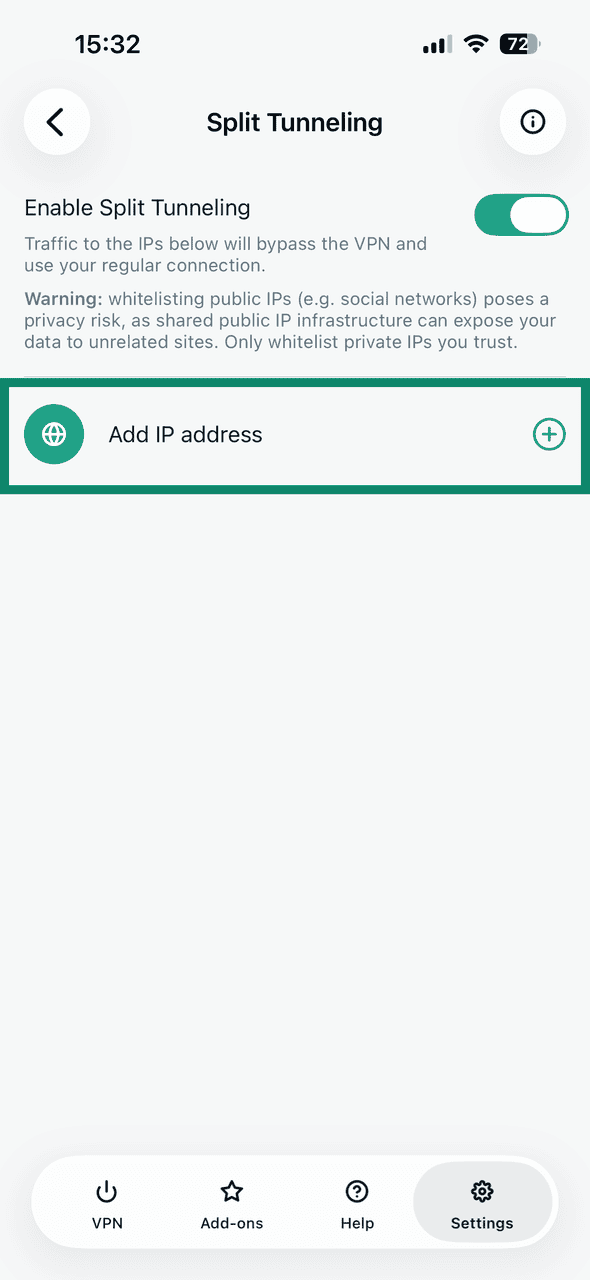
- Toggle Enable Split Tunneling on.
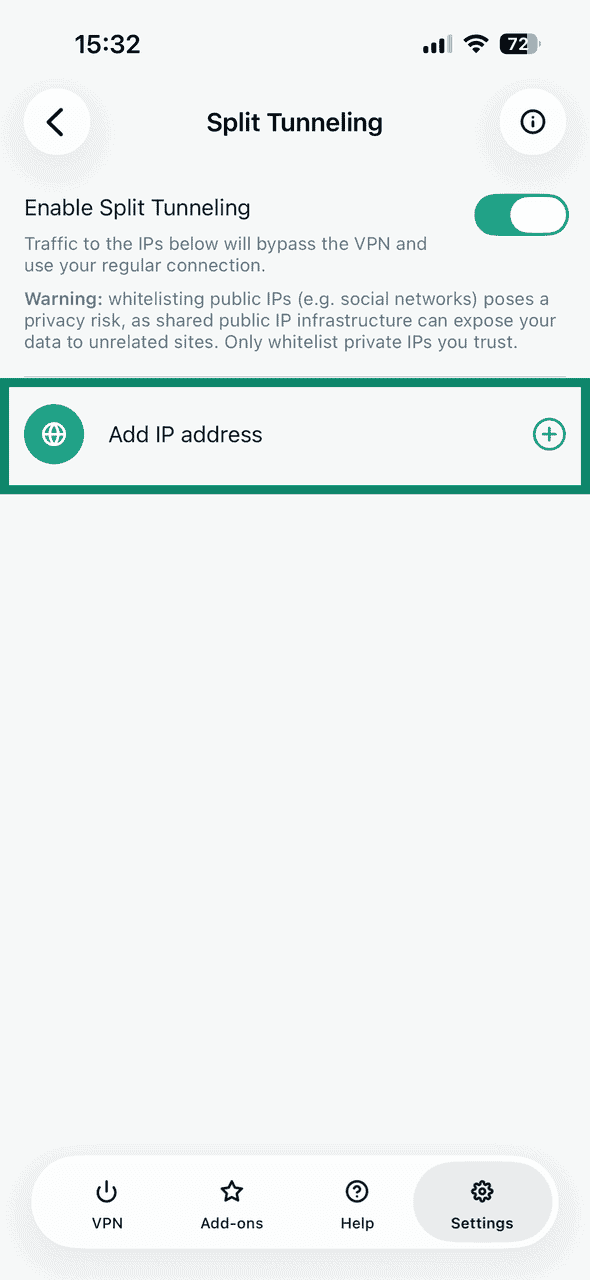
- Tap Add IP address.
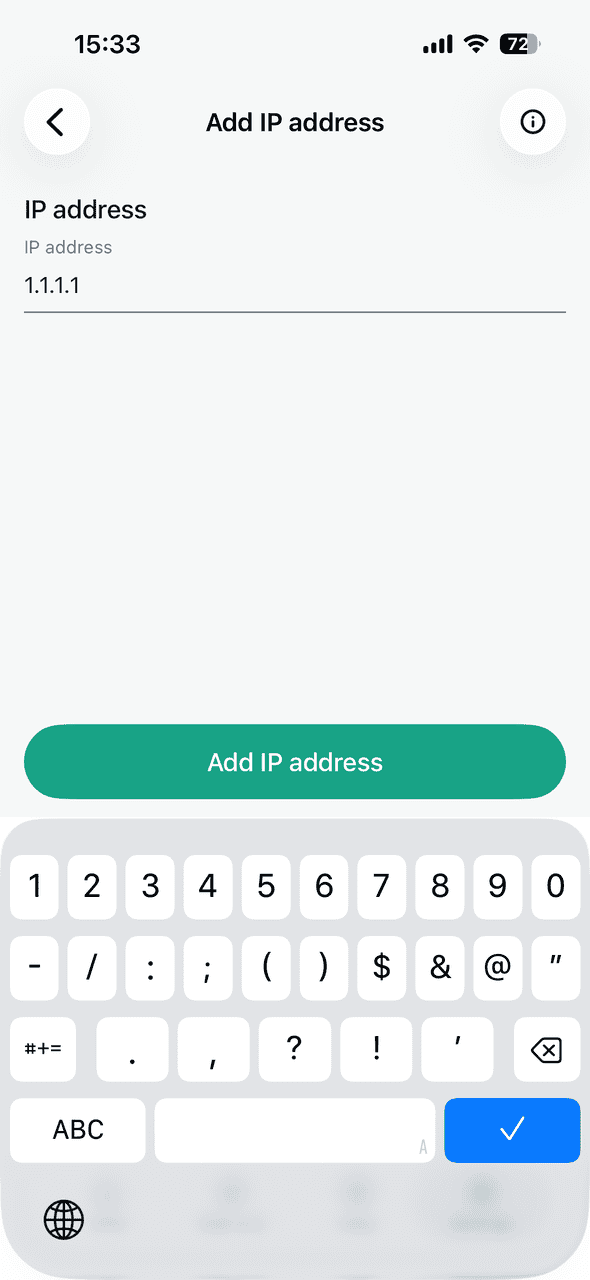
- Enter the IP address you want to bypass the VPN tunnel and confirm by tapping Add IP address.
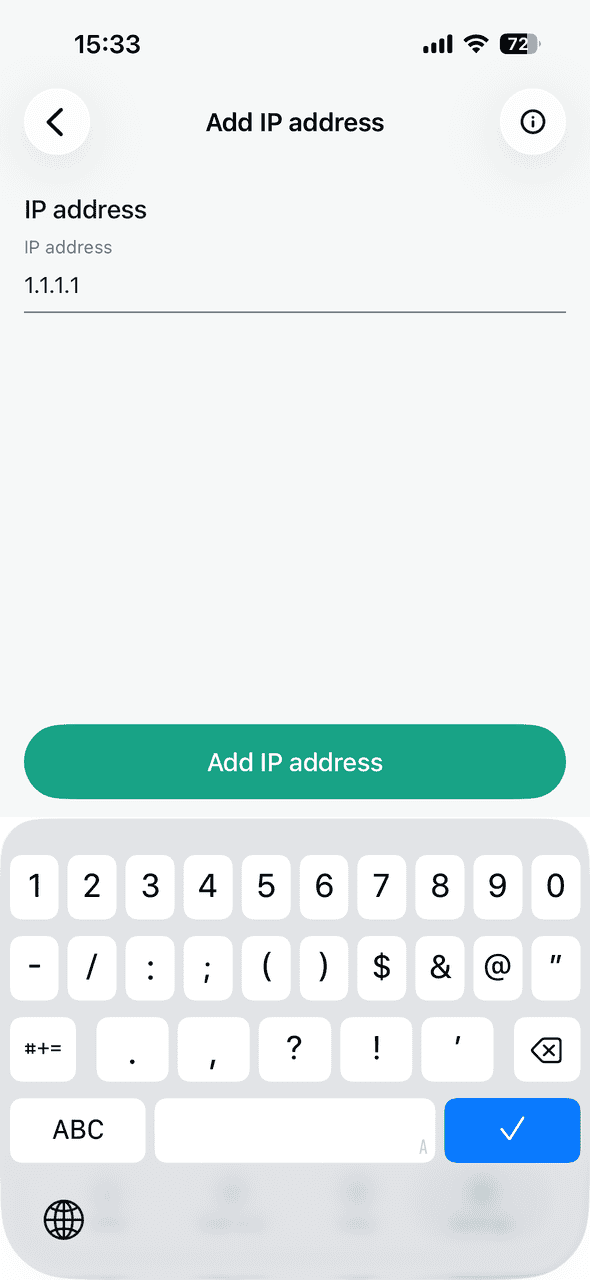
- Repeat for any additional IP addresses you want to add.
- Connect or reconnect to ExpressVPN for the changes to apply.
Note: Excluding an IP address from the VPN will not work reliably for large websites. This is because these services do not use a single fixed IP address. The IP address of the same website can be different every time you look it up, and the same IP address can be shared by multiple unrelated websites. As a result, the split tunneling rule may apply to websites you did not intend to exclude from the VPN.
Warning: Whitelisting public IPs (e.g., social networks) poses a privacy risk, as shared public IP infrastructure can expose your data to unrelated sites. Only whitelist private IPs you trust.
Need help? Contact the ExpressVPN Support Team for immediate assistance.
Switch to a different VPN protocol
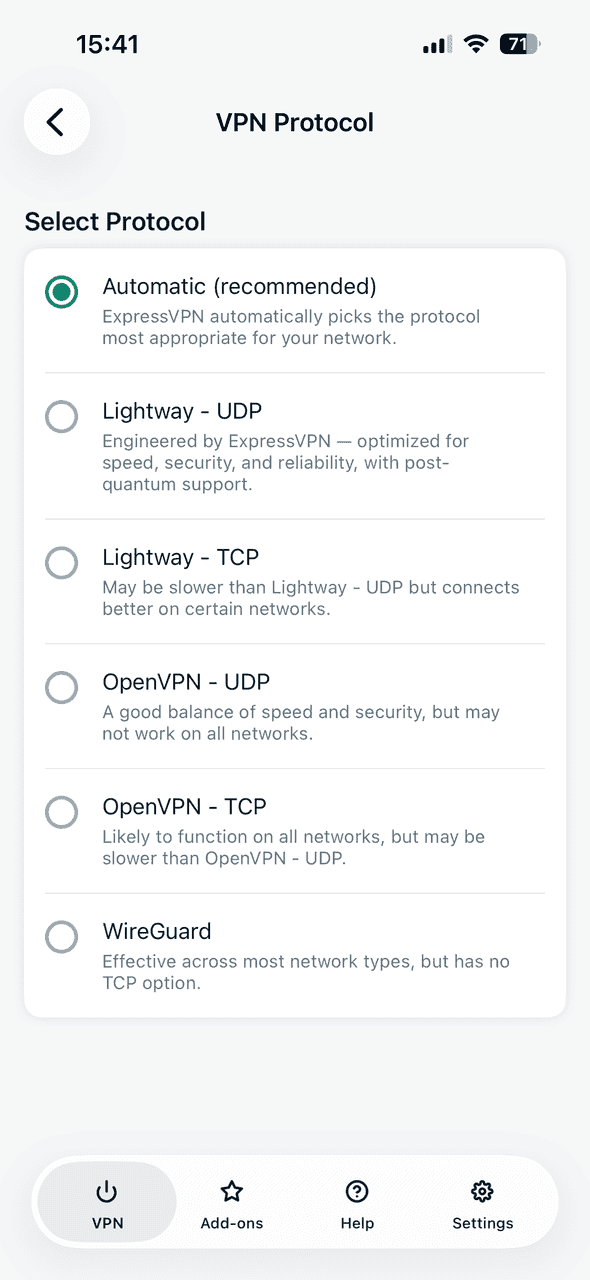
VPN protocols are the methods by which your device connects to a VPN server. For the best experience, ExpressVPN recommends using the Automatic protocol option. This is selected by default and automatically picks the protocol most appropriate for your network.
In some cases, switching to a different protocol may help you troubleshoot issues or achieve faster connection speeds.
To switch to a different protocol:
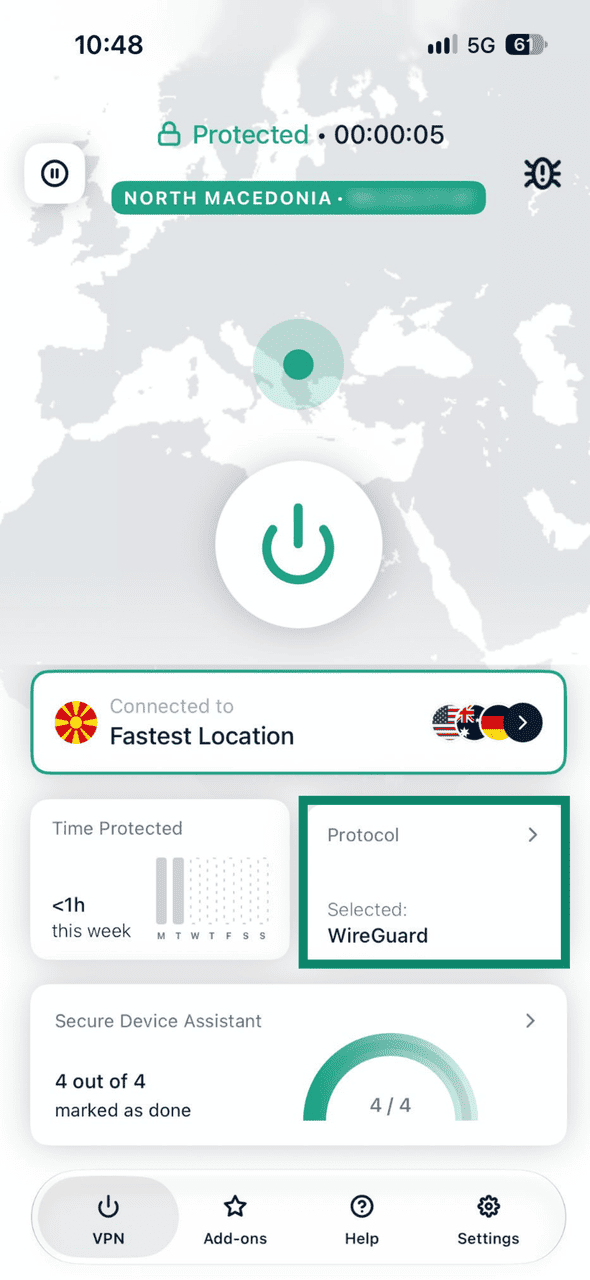
- On the VPN tab, tap Protocol.
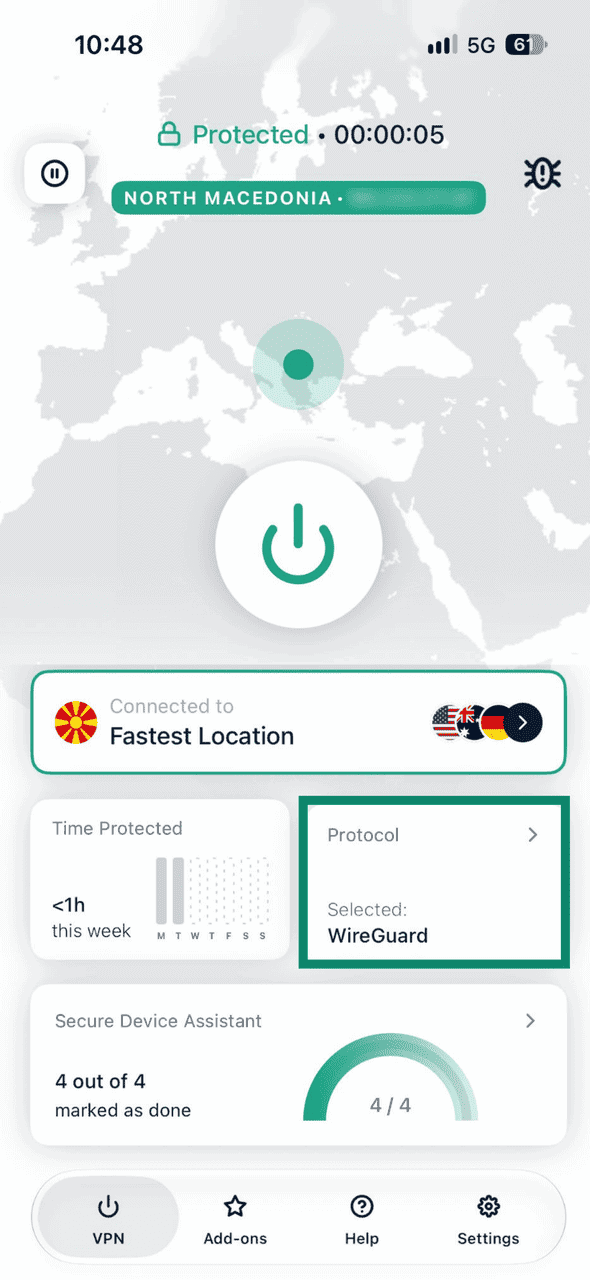
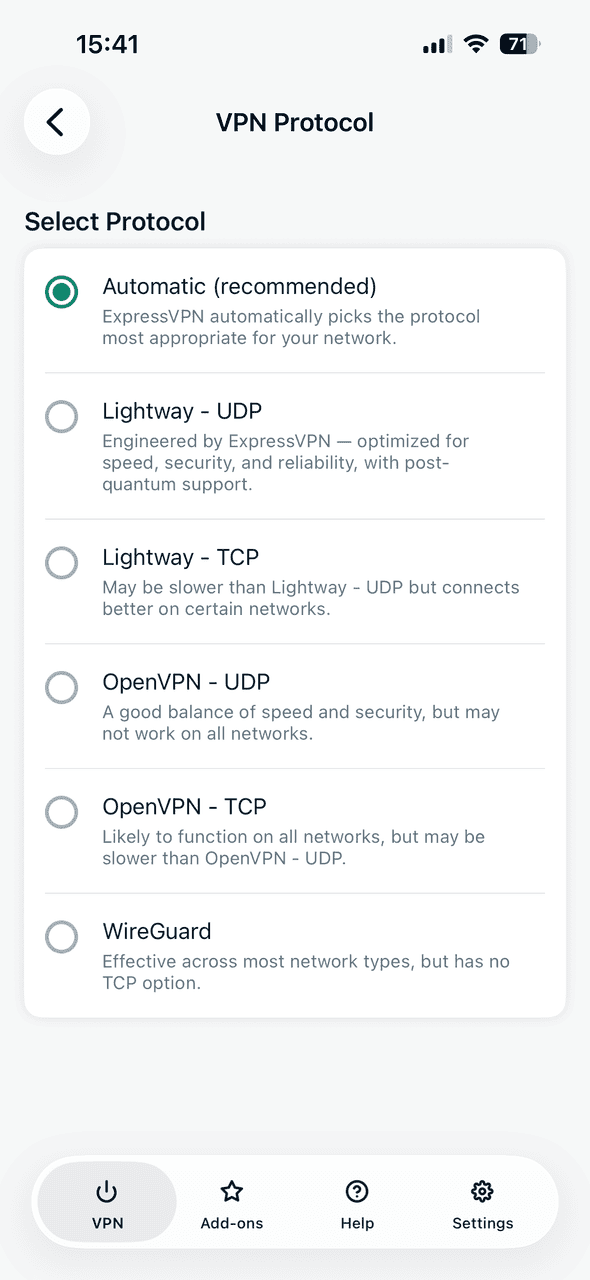
- Tap your desired VPN protocol. When you next connect to a server location, ExpressVPN will use the selected protocol to establish the connection.
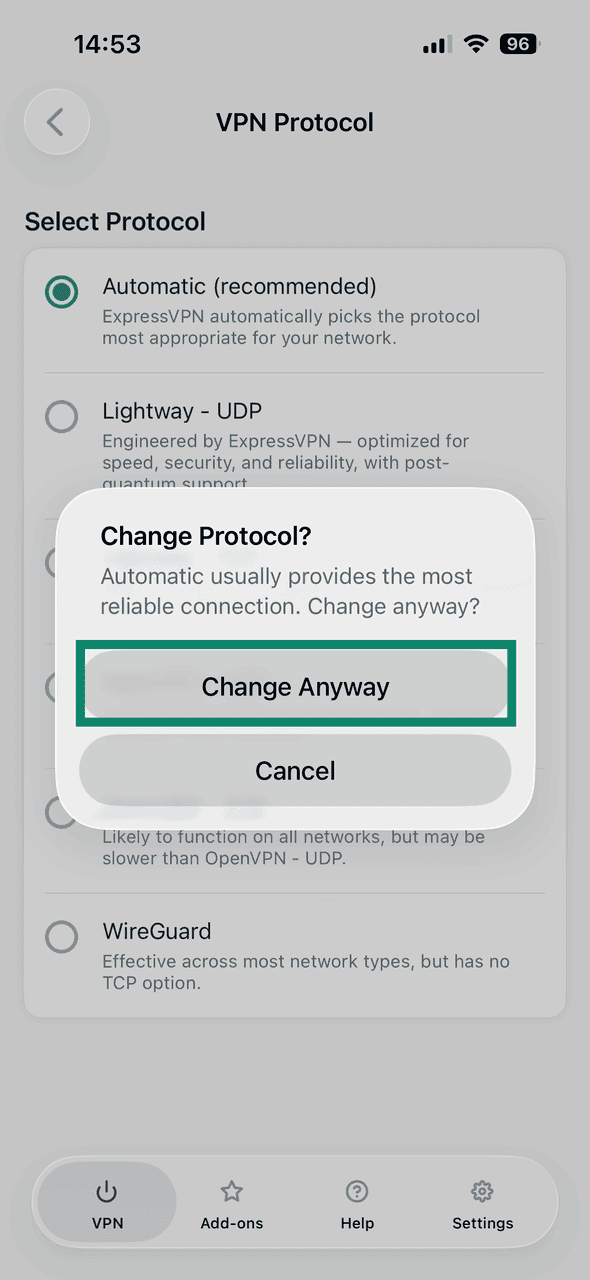
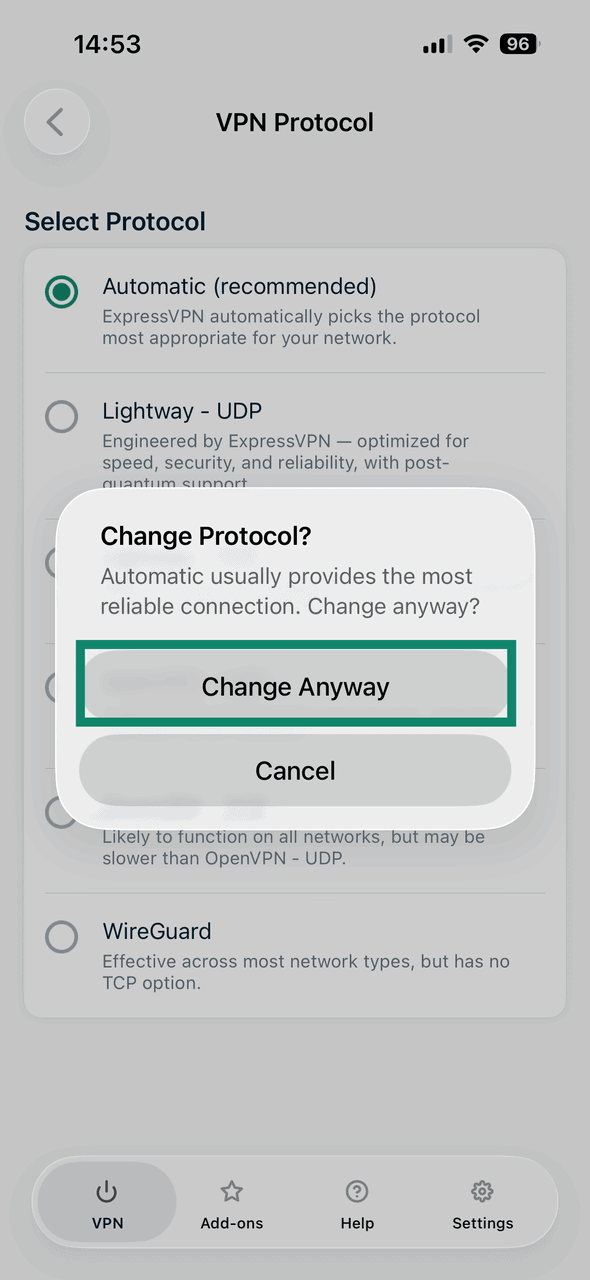
- If switching from Automatic to other protocol options, you might see a pop-up message asking if you are sure. Tap Change Anyway to proceed.
Need help? Contact the ExpressVPN Support Team for immediate assistance.
Use the speed test
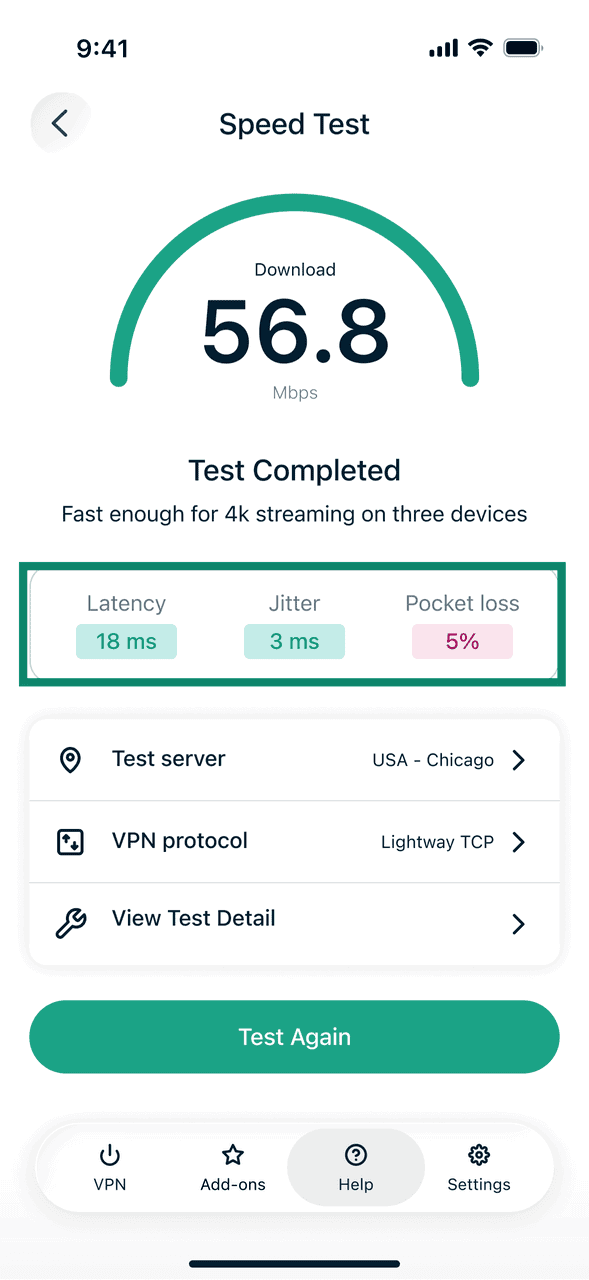
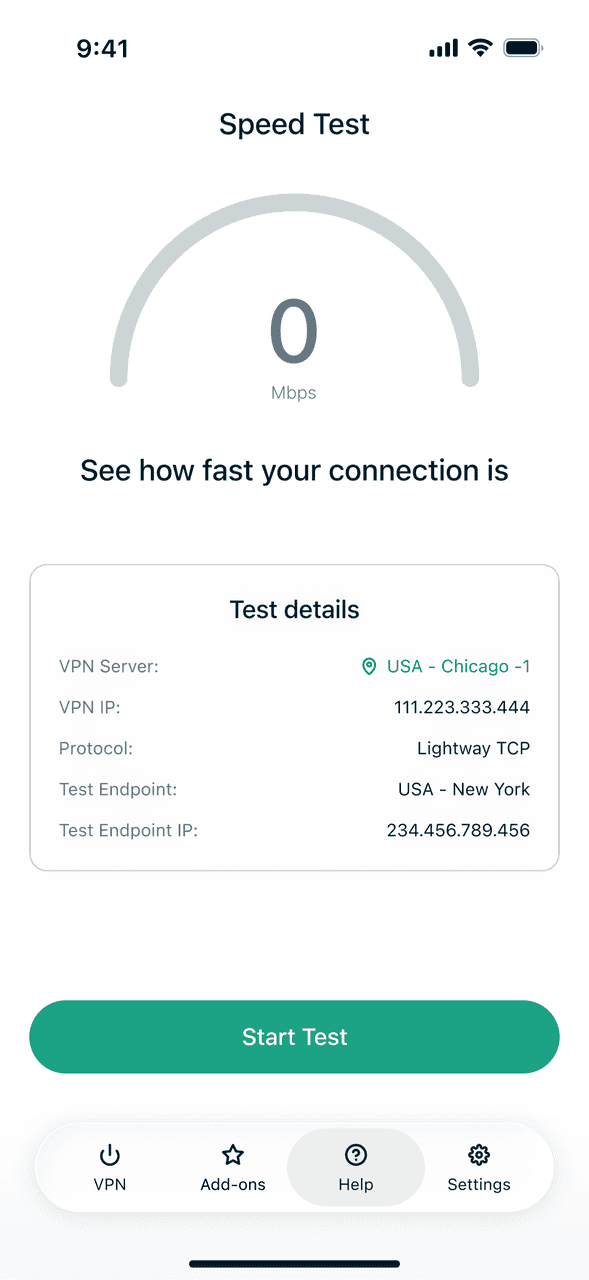
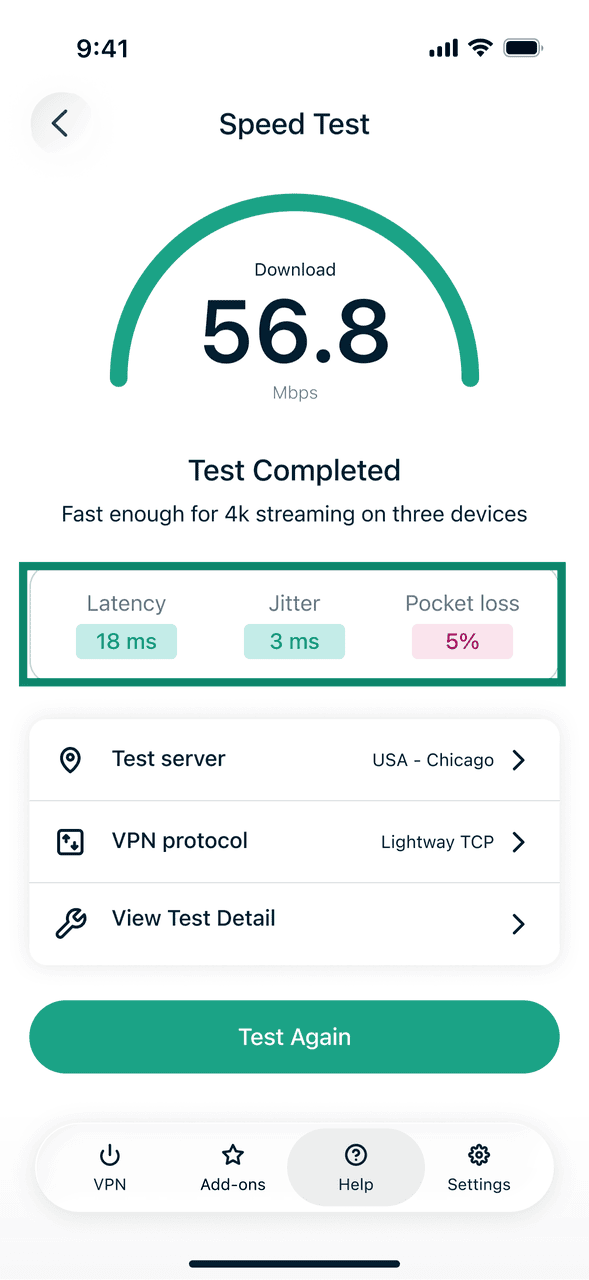
The in-app speed test measures the speed of your selected VPN server location. It checks relevant metrics like download, upload, latency, jitter, and packet loss.
To run a speed test:
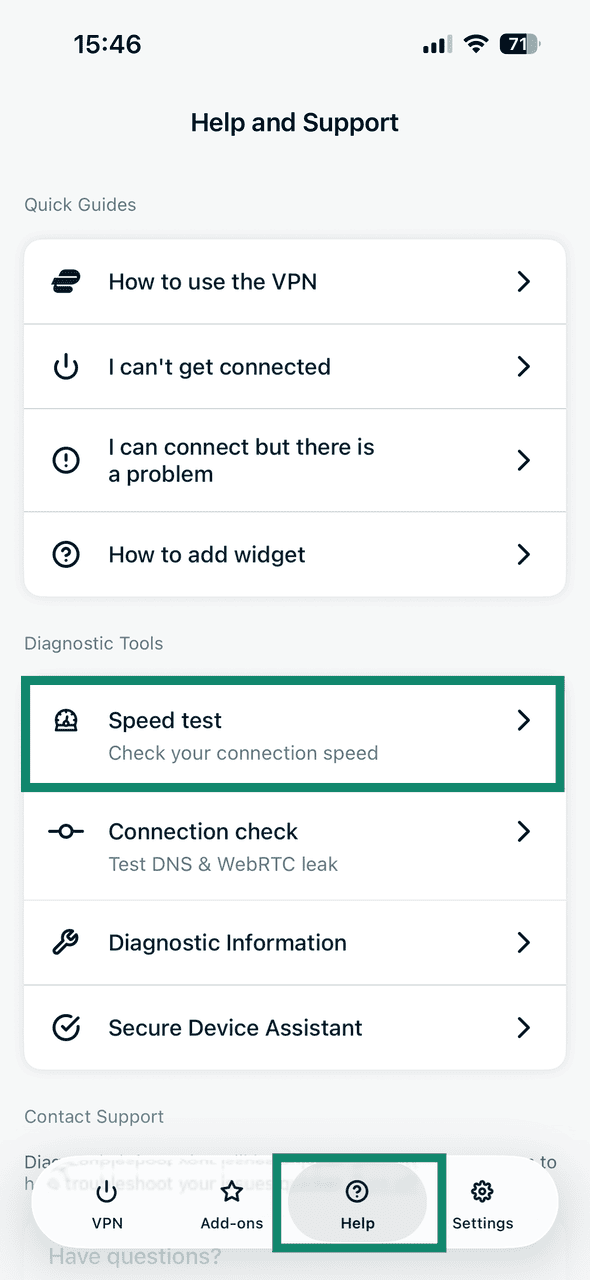
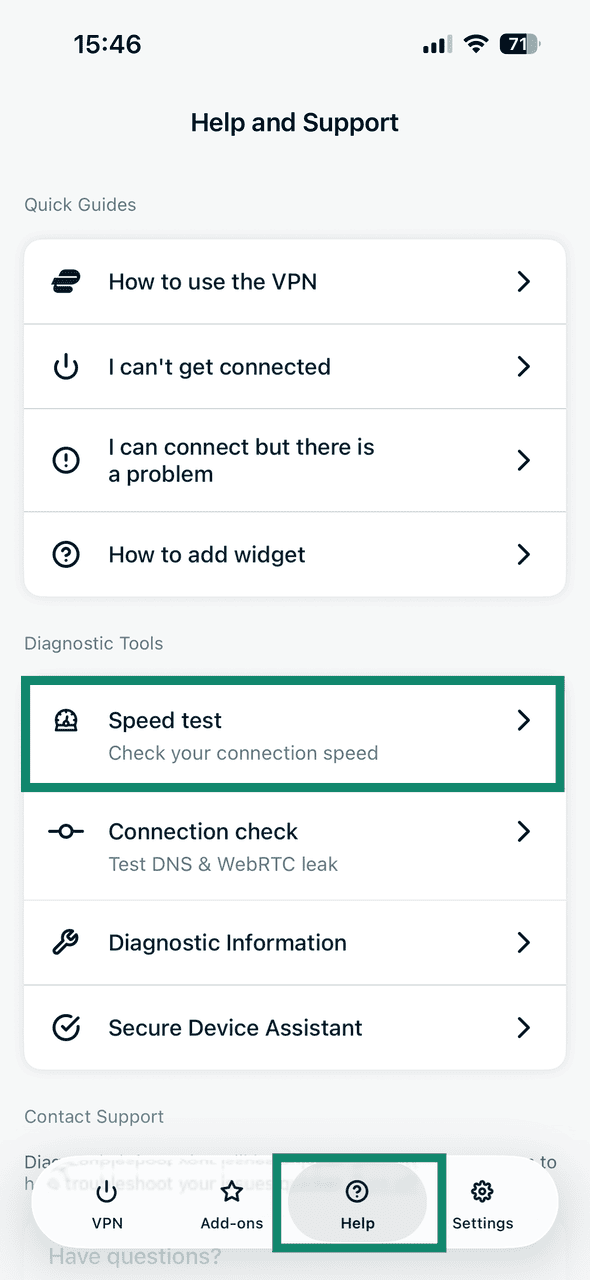
- Go to the Help tab and select Speed test.
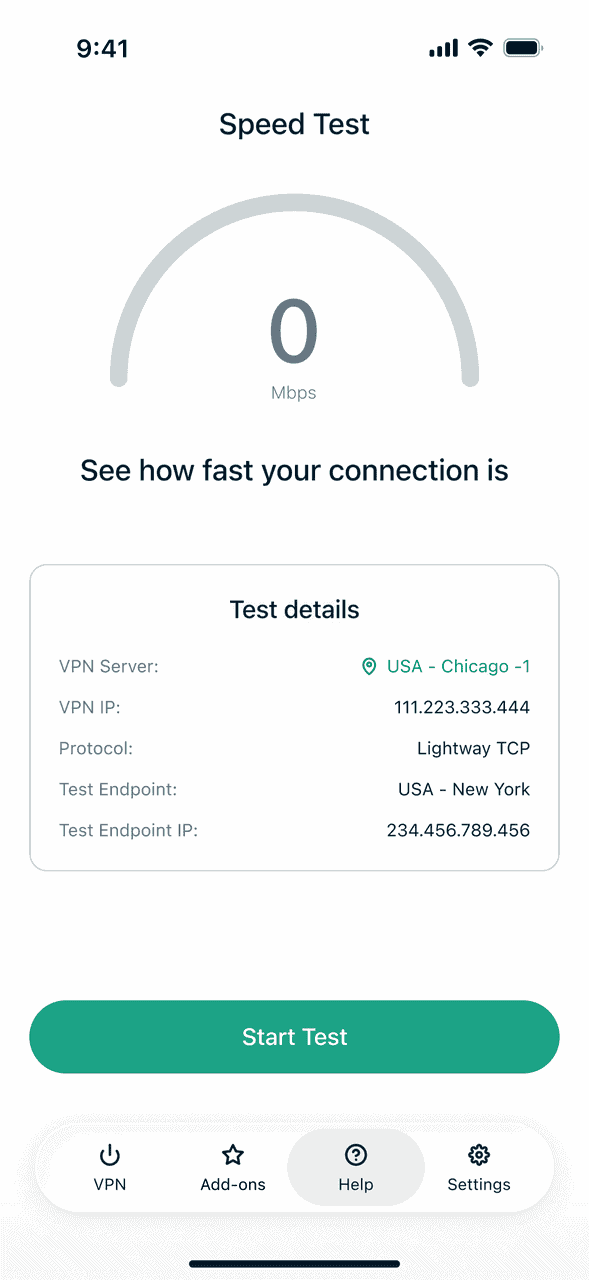
- Tap Start Test.
- It may take up to a few minutes for the speed test to finish and display the results.
Need help? Contact the ExpressVPN Support Team for immediate assistance.
Block ads, trackers, and harmful sites
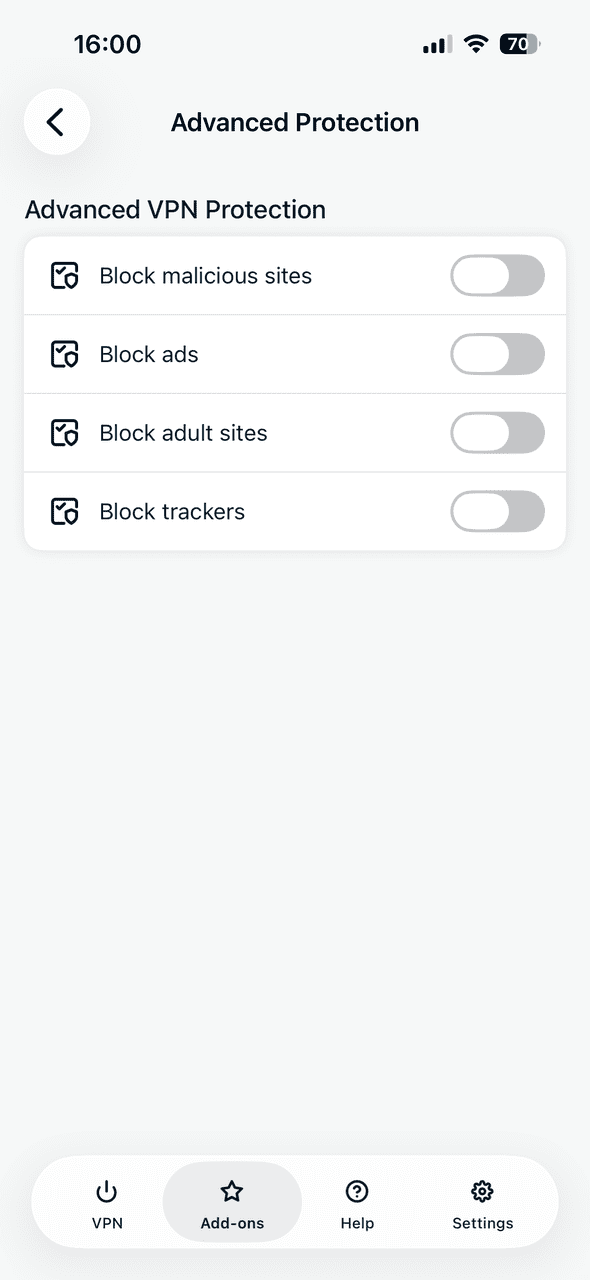
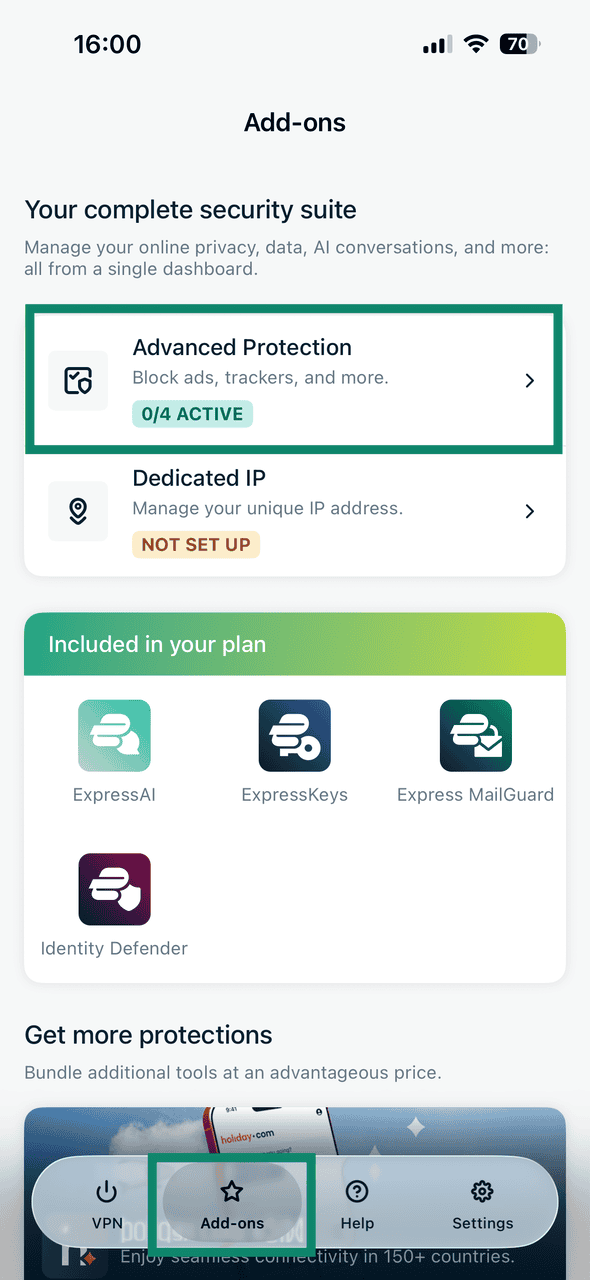
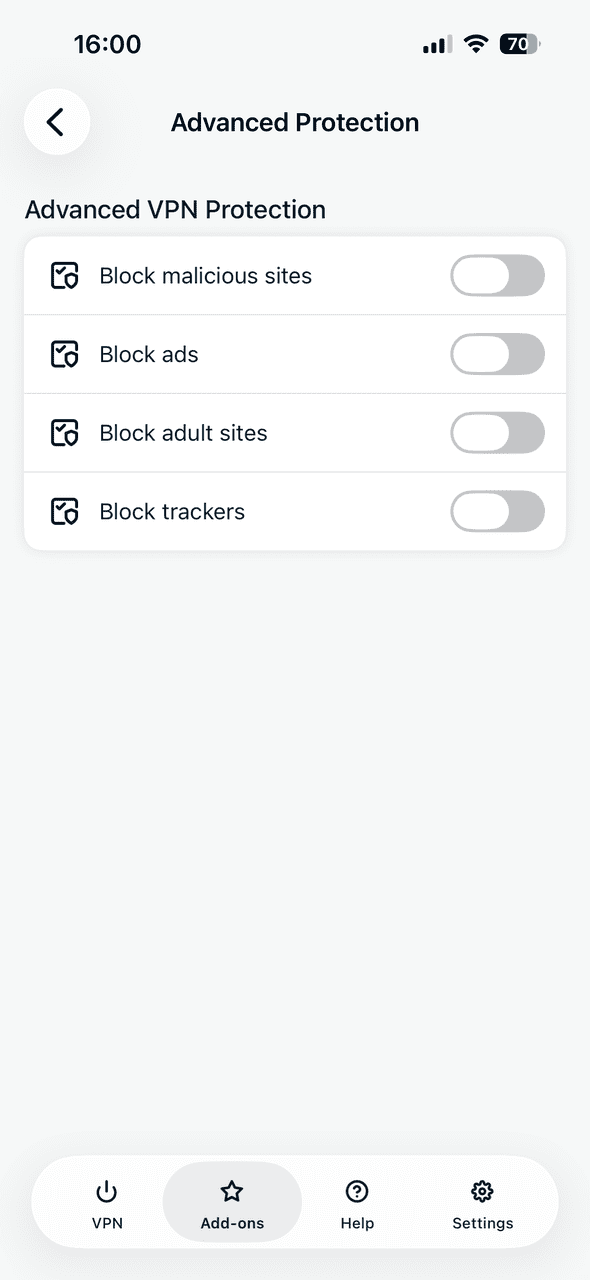
You can block ads, trackers, malicious sites, and adult content using the advanced protection features within the ExpressVPN app. This stops the apps and websites you visit on your device from communicating with third parties on our open-source blocklists. Advanced protection features are disabled by default.
To enable them:
- Go to the Add-ons tab and select Advanced Protection.
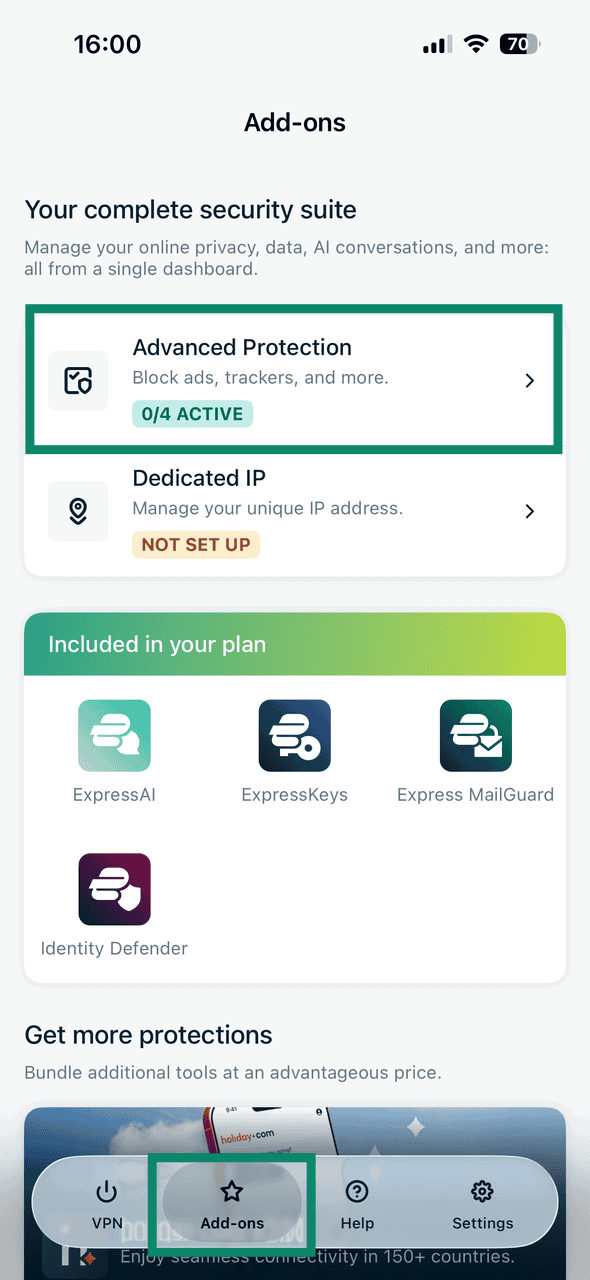
- Under Advanced VPN Protection, toggle the settings on/off as you see fit. Your changes will update automatically.
Need help? Contact the ExpressVPN Support Team for immediate assistance.
Customize the Internet Kill Switch
The Internet Kill Switch is a security feature that blocks internet access if the VPN unexpectedly disconnects to prevent unencrypted data leaks. On iOS, you can choose between Standard and Advanced options.
To change the kill switch:
- Go Settings and tap Internet Kill Switch.
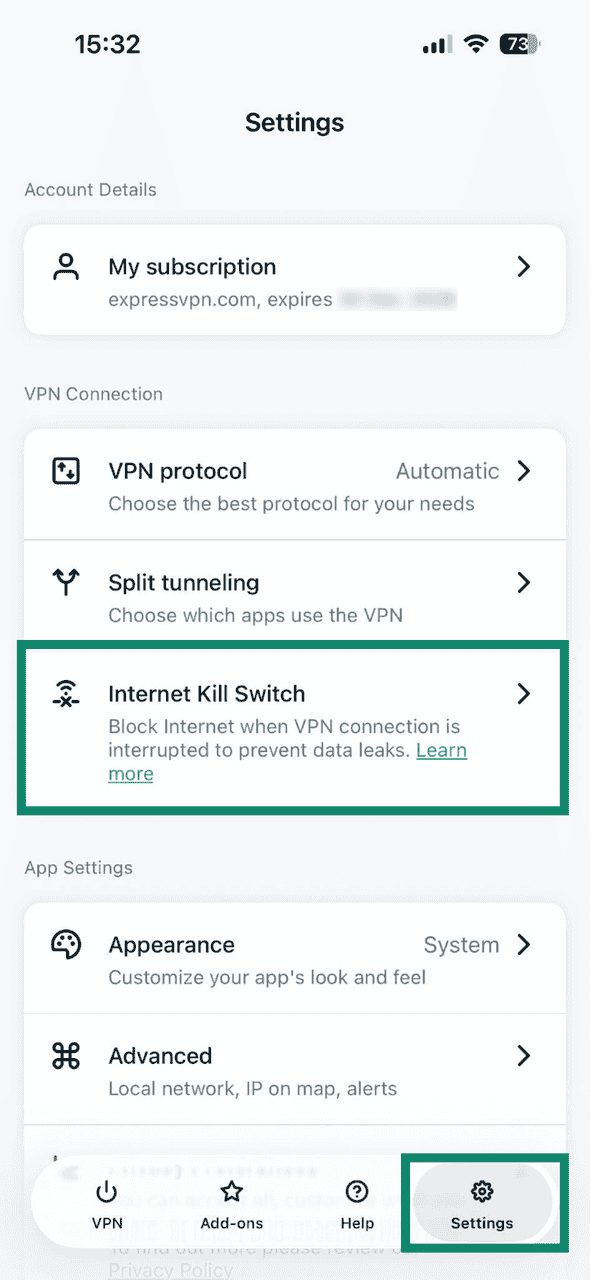
- Choose whether to use the Standard Kill Switch or Advanced Kill Switch.
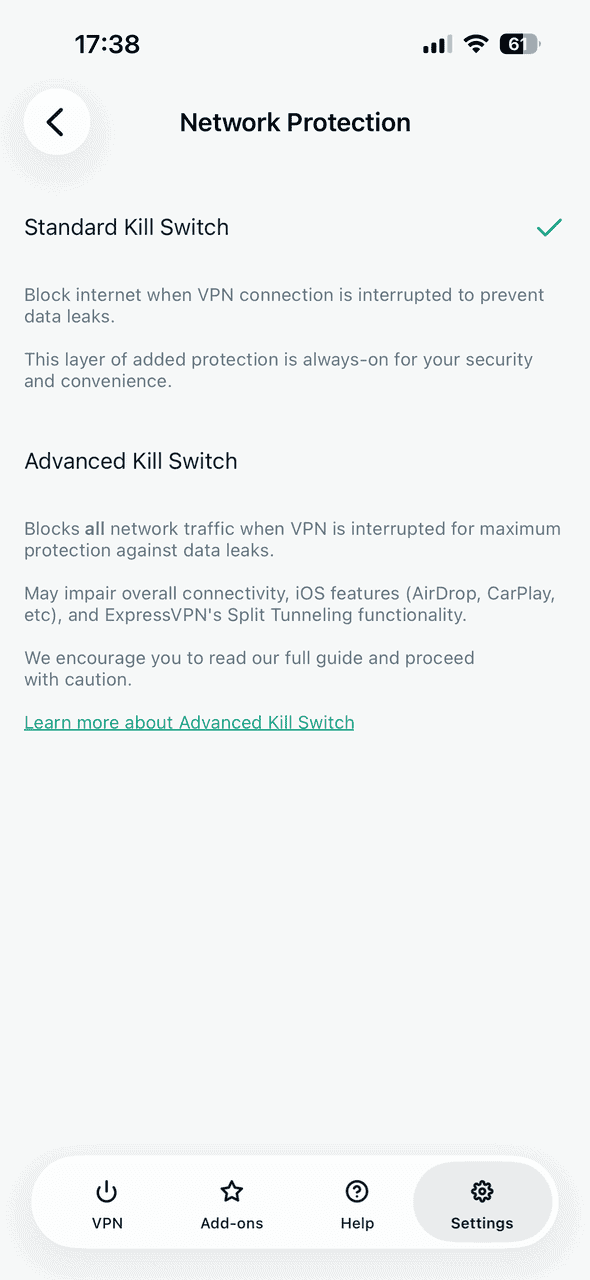
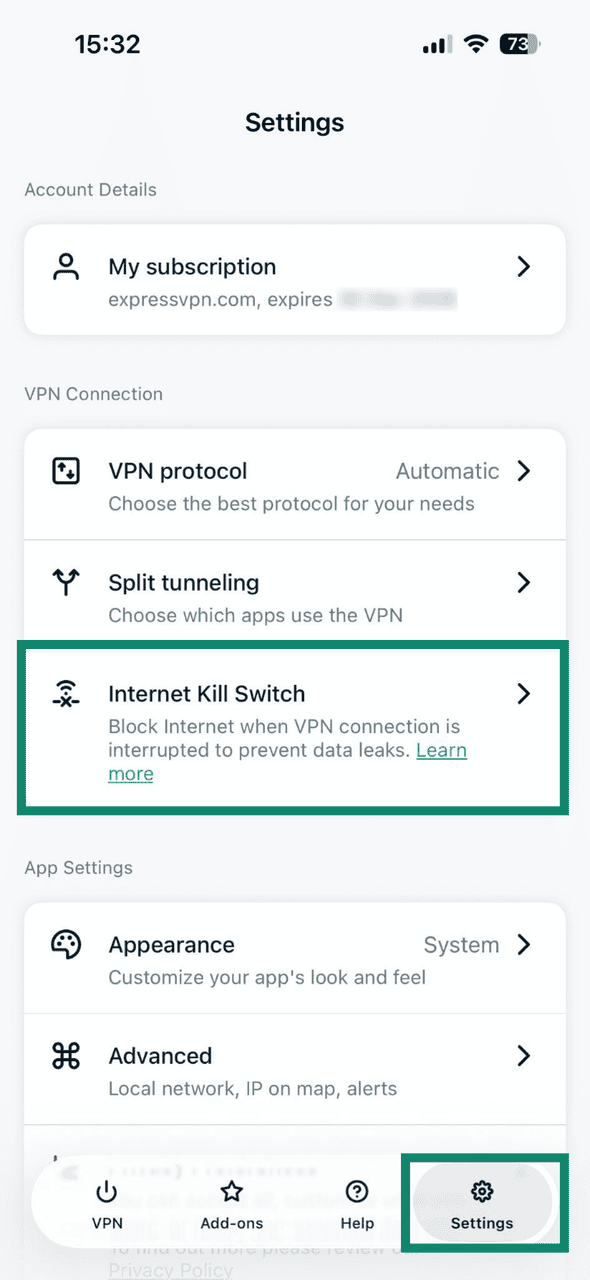
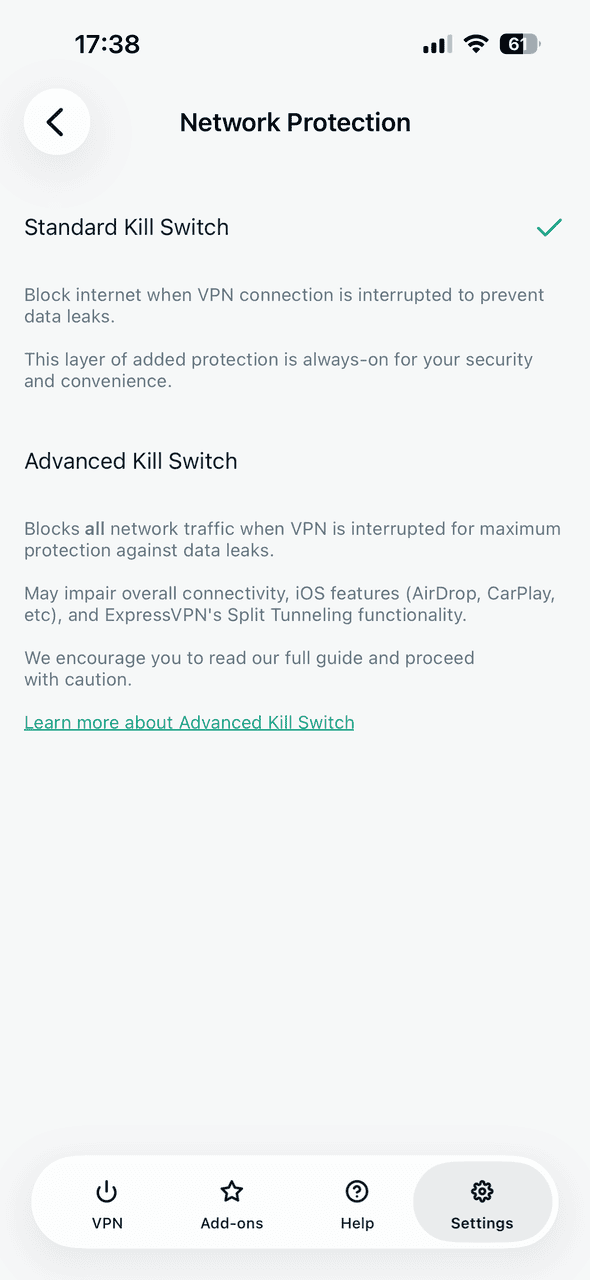
Learn more in our detailed guide on how to use the Internet Kill Switch on iOS.
Need help? Contact the ExpressVPN Support Team for immediate assistance.
View Time Protected summary
The Time Protected summary is a part of the ExpressVPN app home screen that provides an overview of your app use. It tells you how long you have been protected over the week.
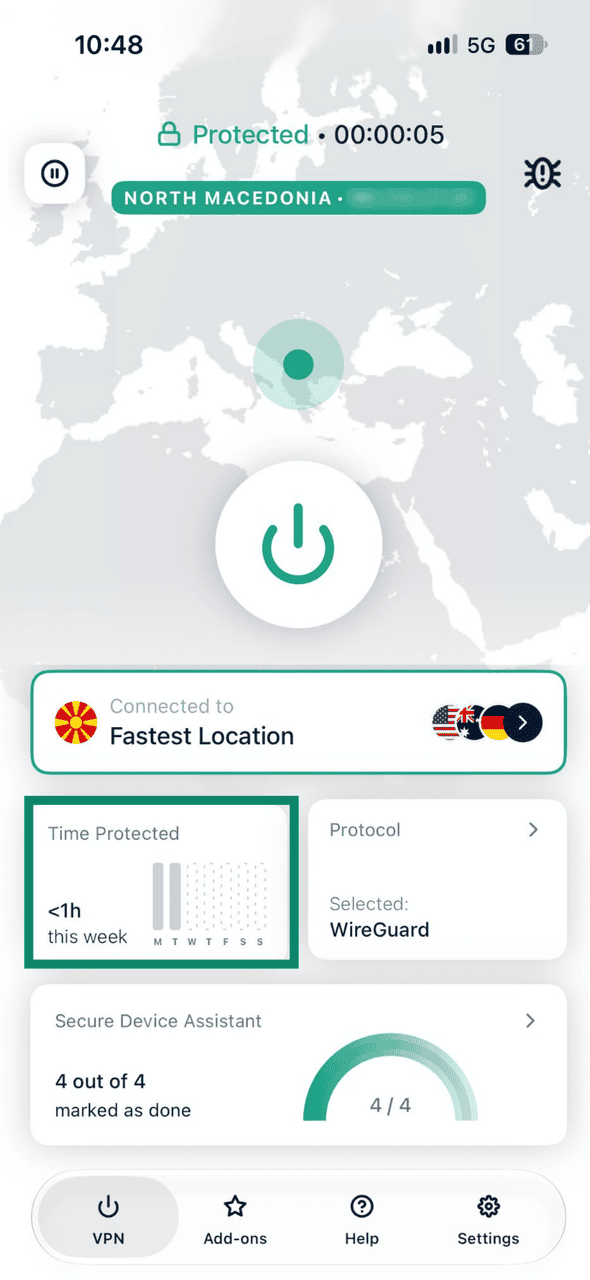
Need help? Contact the ExpressVPN Support Team for immediate assistance.
Check Secure Device Assistant
Secure Device Assistant is a feature that lets you quickly check if your iOS device is fully protected. To use it:
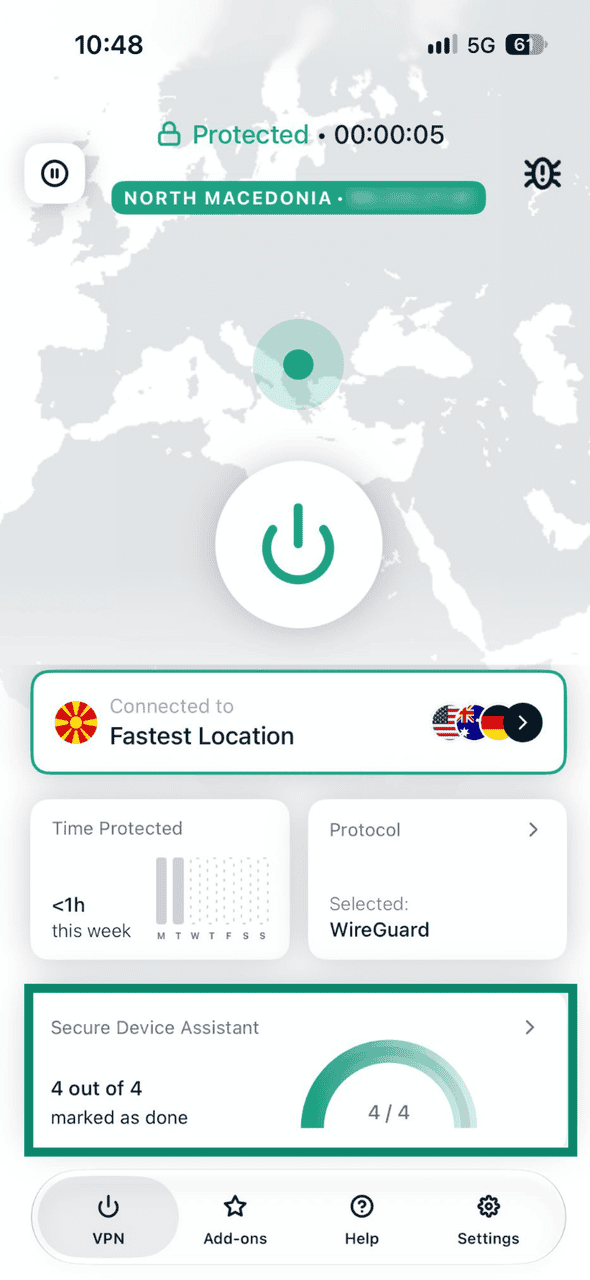
- On the VPN tab, tap the Secure Device Assistant widget.
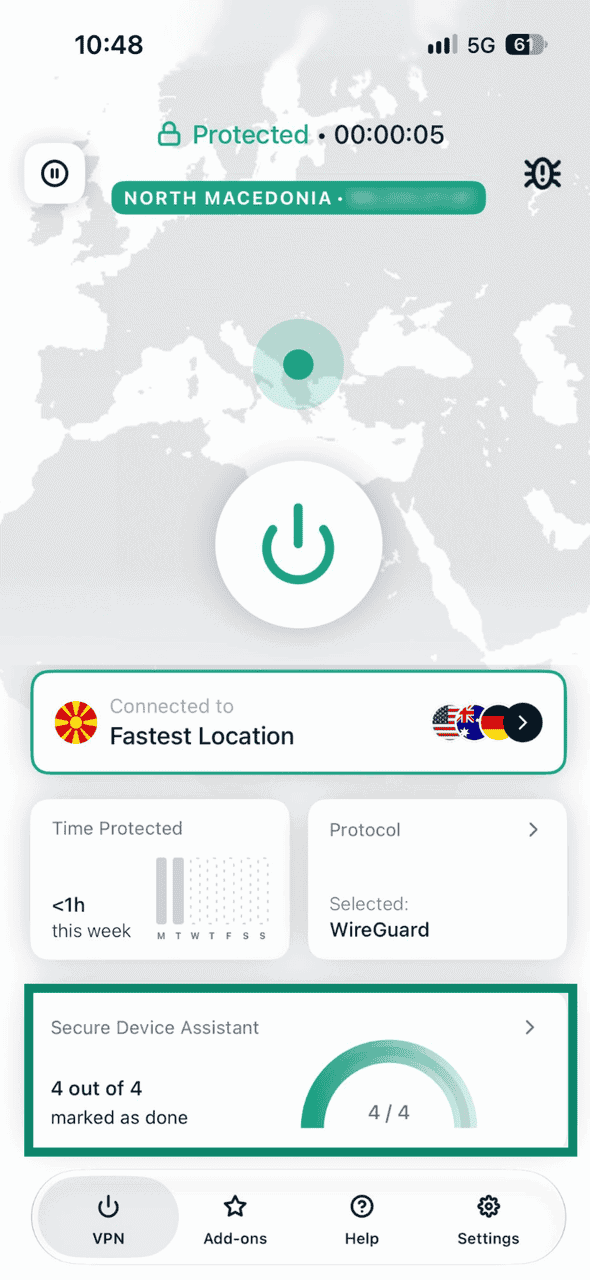
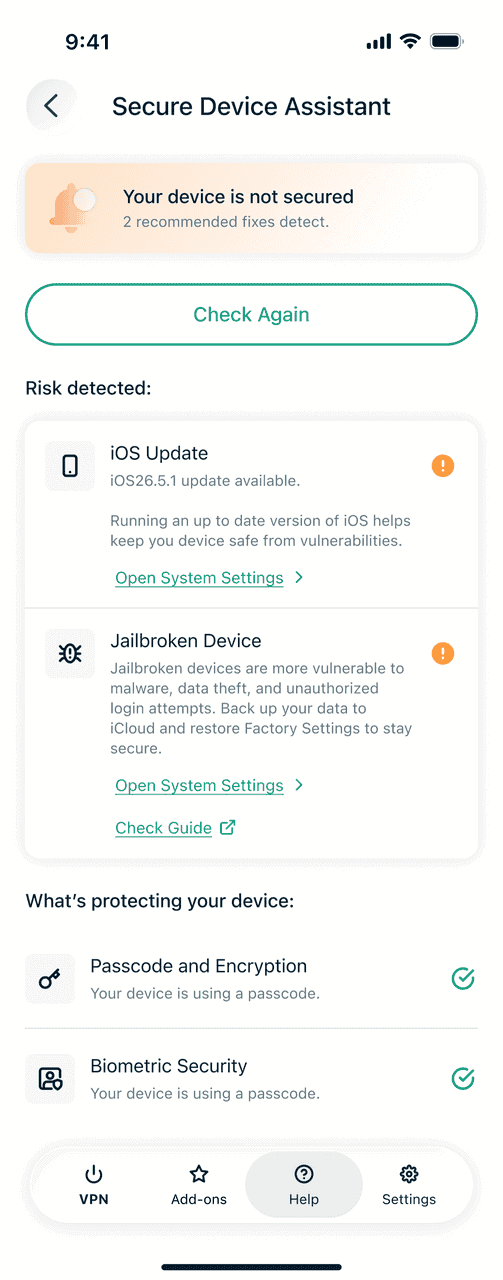
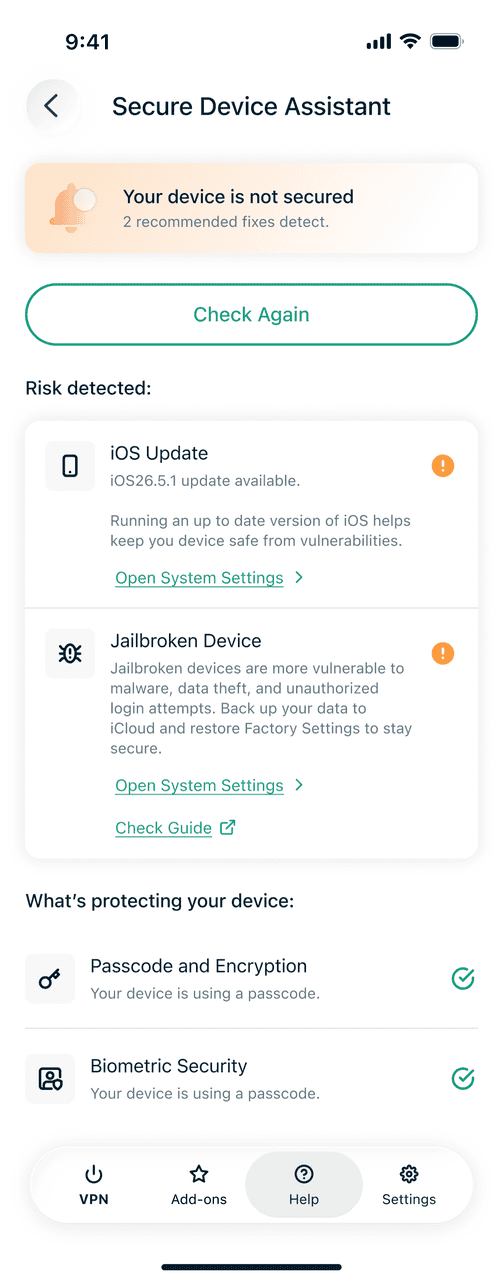
- Check if you need to make any security improvements. On the Secure Device Assistant tab, you will see the following:
- Latest iOS Version: Shows if you are running the latest version of iOS to keep your device protected against known vulnerabilities.
- Passcode Enabled: Checks if your device is secured with a passcode, adding an extra layer of protection alongside Face ID or Touch ID.
- Device Encryption: Verifies that your device storage is encrypted to help protect your data from unauthorized access.
- Biometric Security Enabled: Confirms that Face ID or Touch ID is enabled for quick and secure authentication.
- No Jailbroken Device: Checks if your device has been jailbroken, which can increase exposure to security risks.

Need help? Contact the ExpressVPN Support Team for immediate assistance.
Use Advanced settings
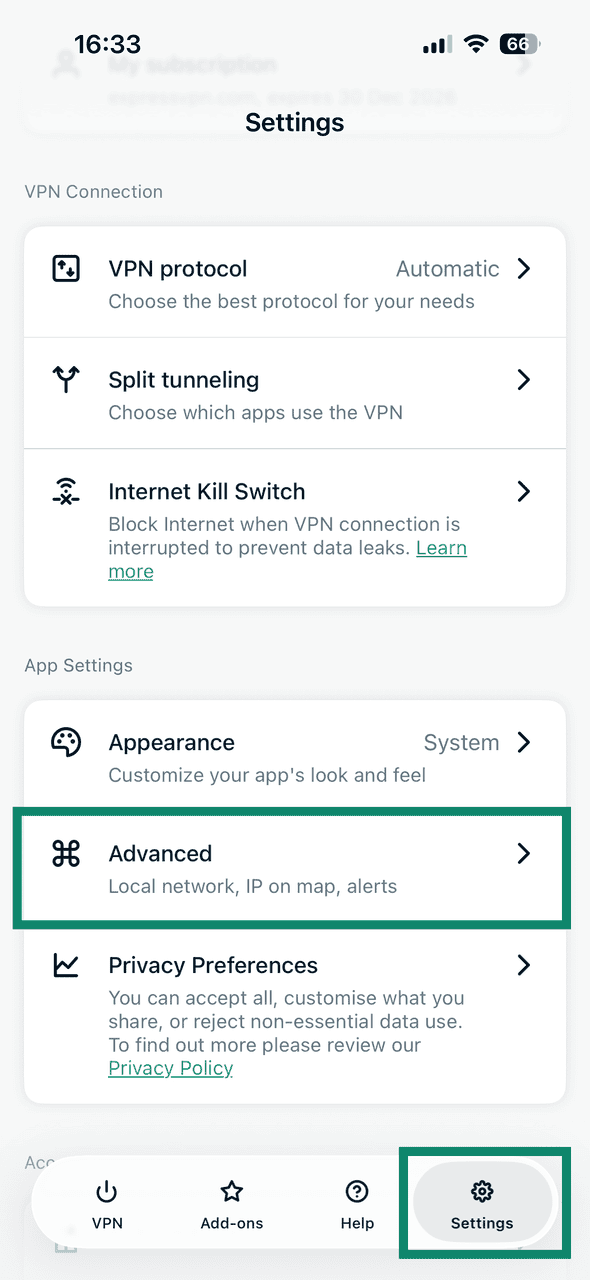
The Advanced settings let you customize certain details of the ExpressVPN app. To use these settings:
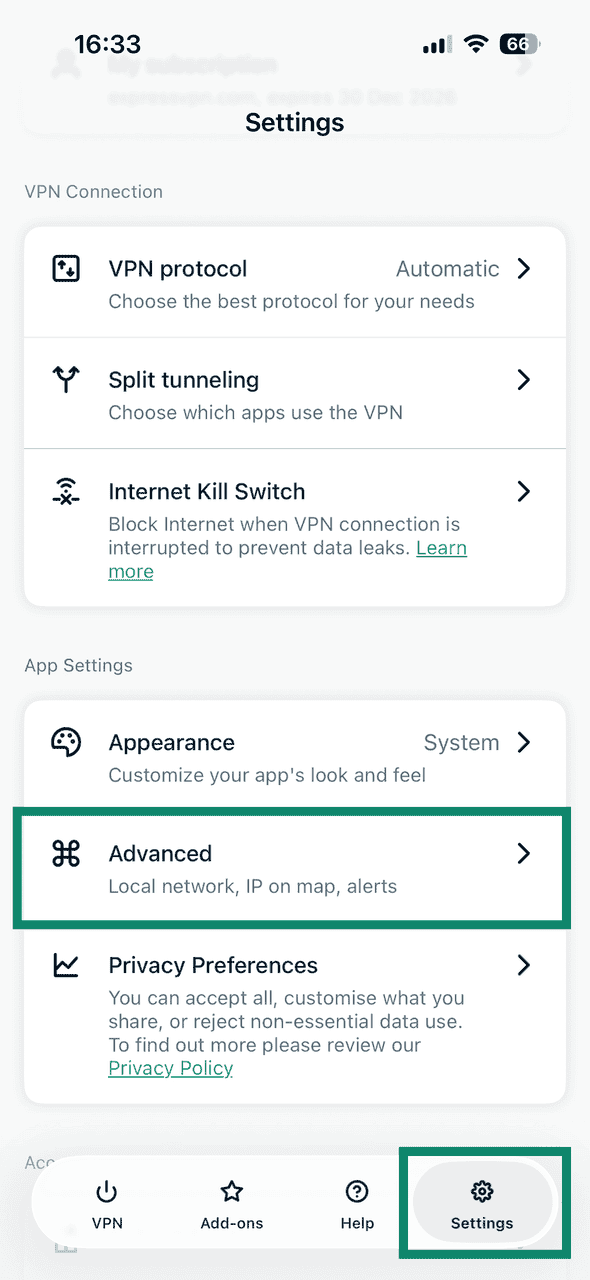
- Go to Settings > Advanced.
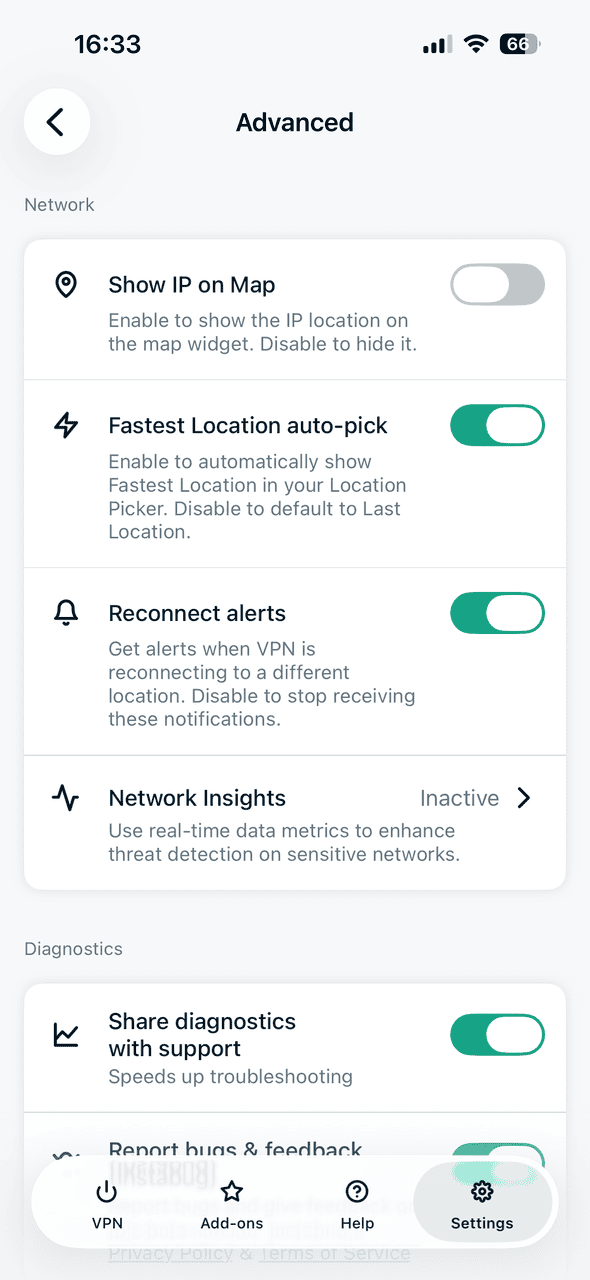
- Toggle the switch on or off next to the following:
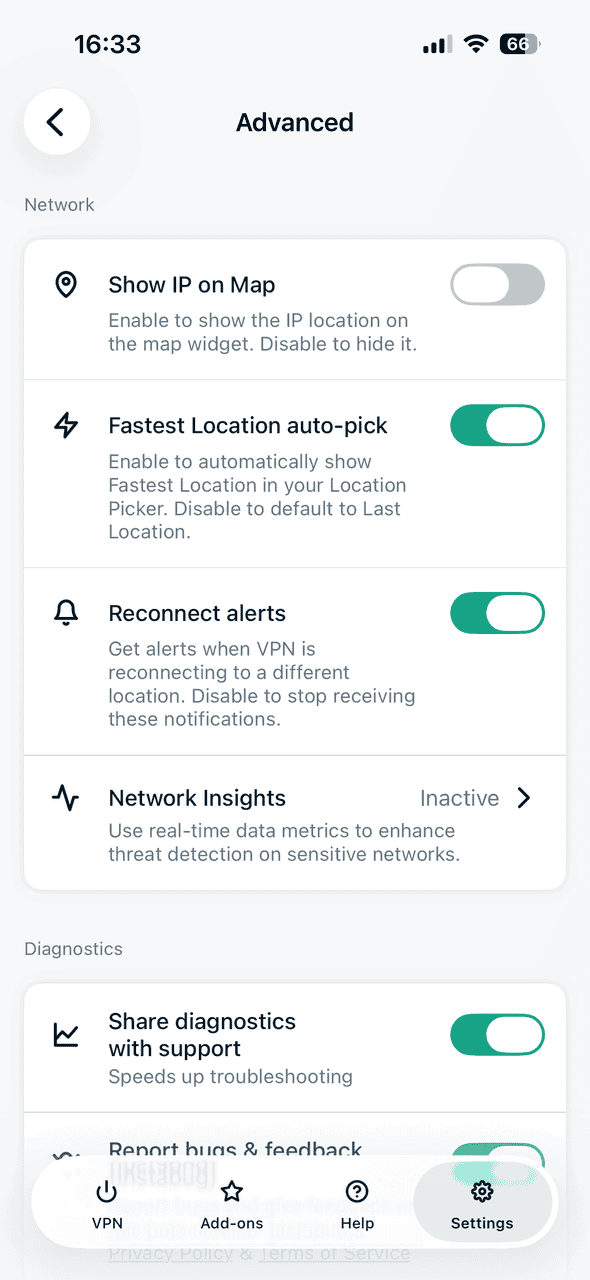
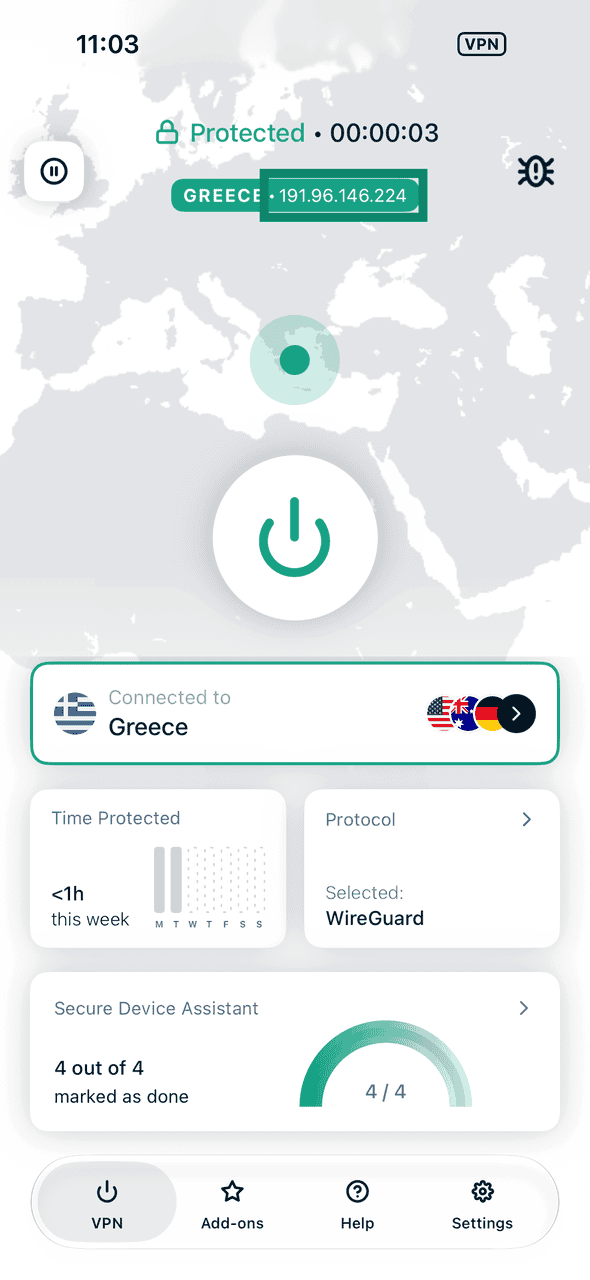
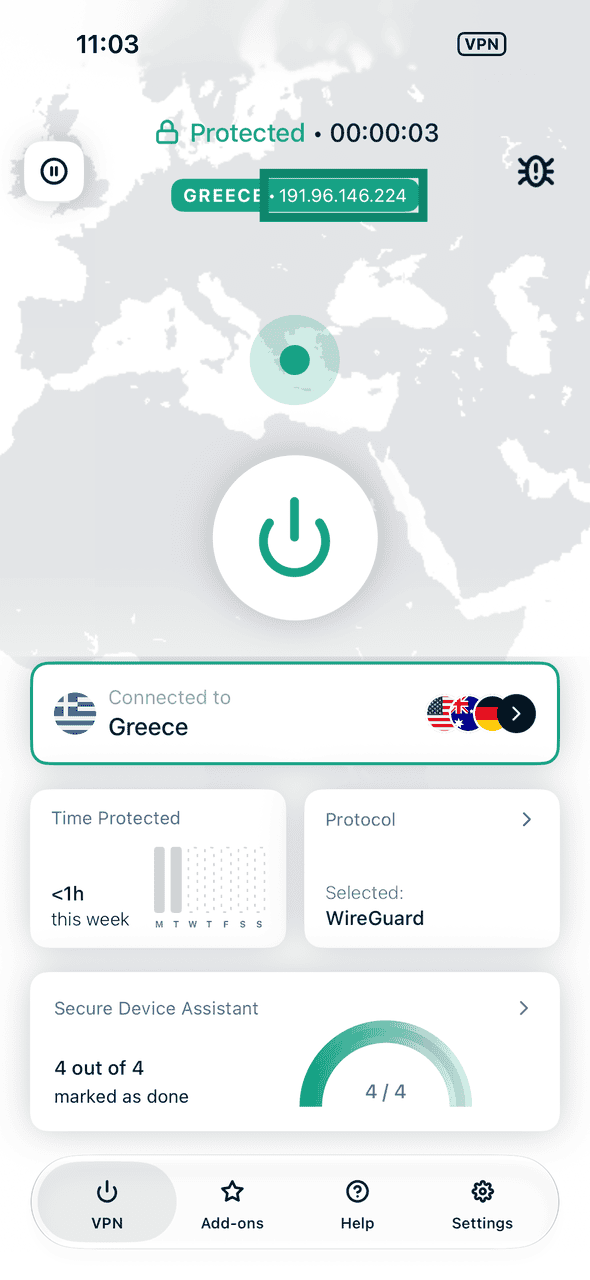
- Show IP on Map: Show or hide the location of the IP on the in-app map.
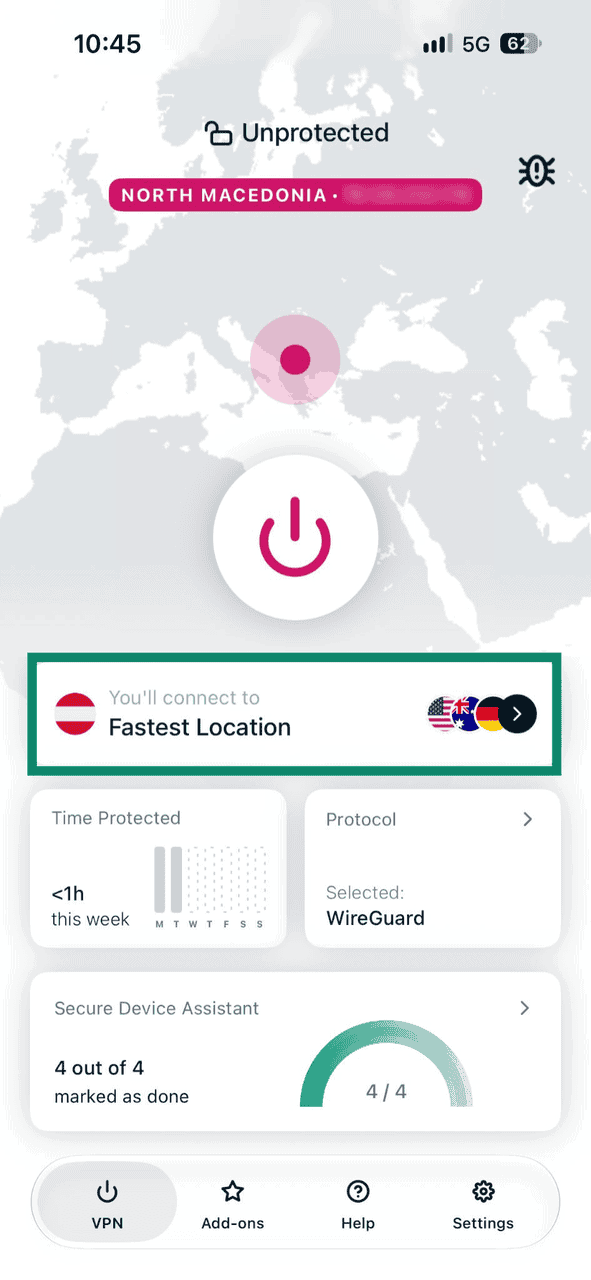
- Fastest Location auto-pick: Show the Fastest Location in the location picker every time you disconnect from the VPN. When disabled, the location picker defaults to your last location.
- Allow access to devices on the local network: Keeps you connected to local devices even when the VPN is turned on.
- Reconnect Notifications: You get alerts when the VPN reconnects to a different location.
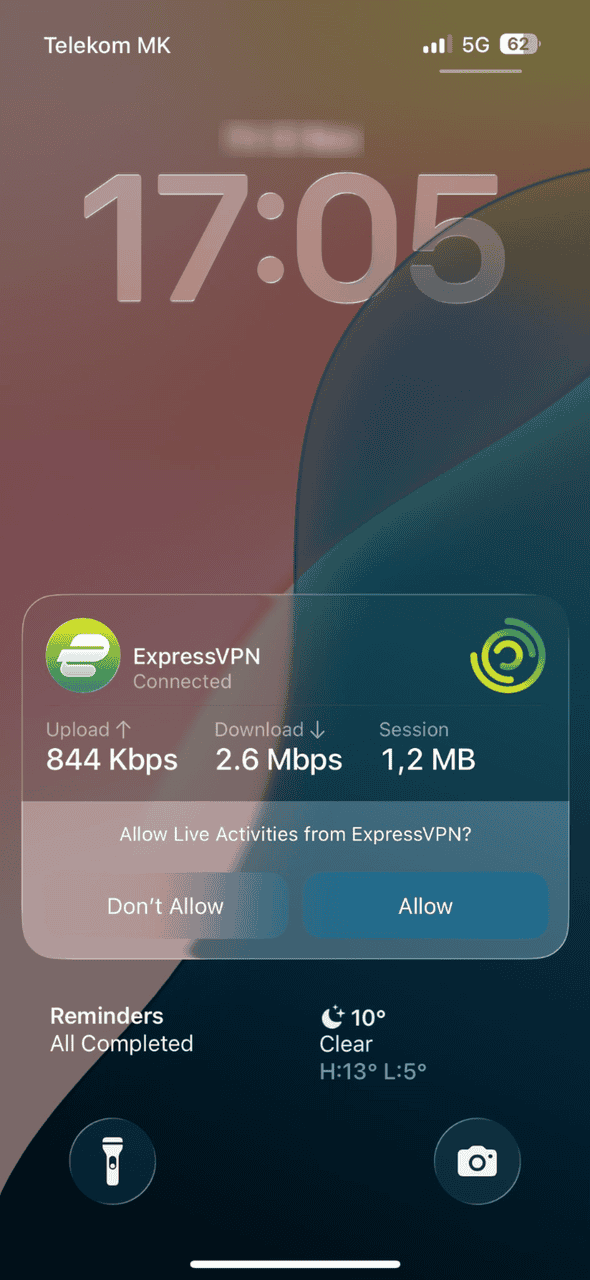
- Network Insights: A widget that appears on your locked screen and Notification Center that shows your network connection details in real time. You can see your upload and download speeds, how much data the VPN protects, and your VPN connection status.
- Share diagnostics with support: Allows diagnostic information to be shared automatically with the Support Team. This helps them understand the issue and find a fix faster.
- Show IP on Map: Show or hide the location of the IP on the in-app map.
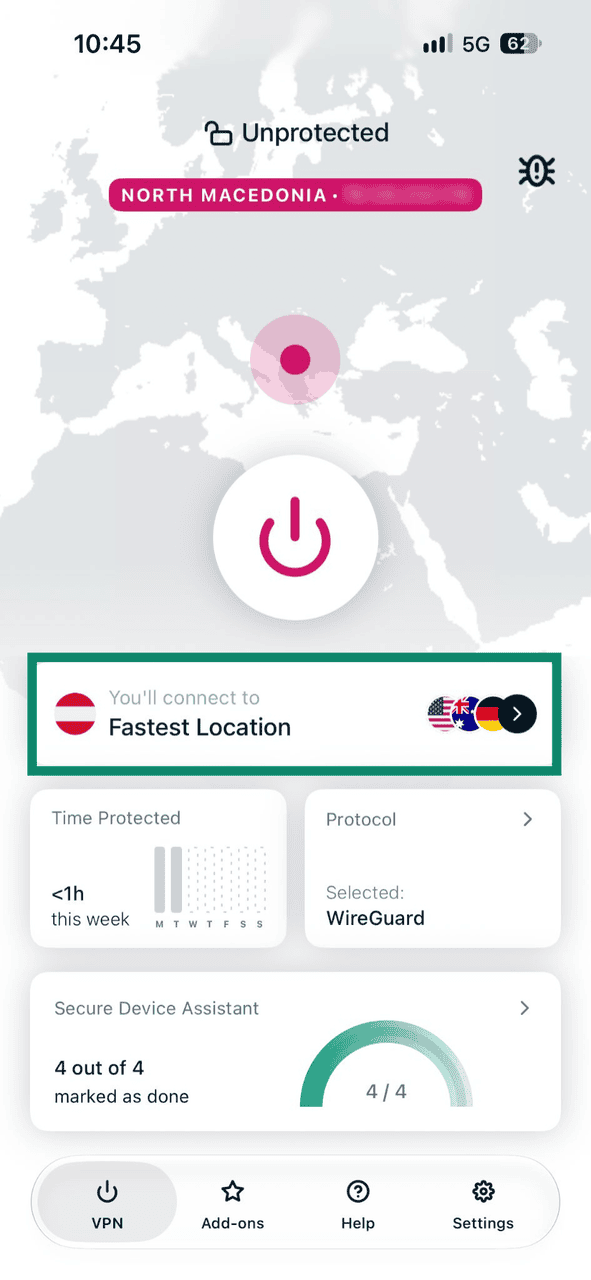
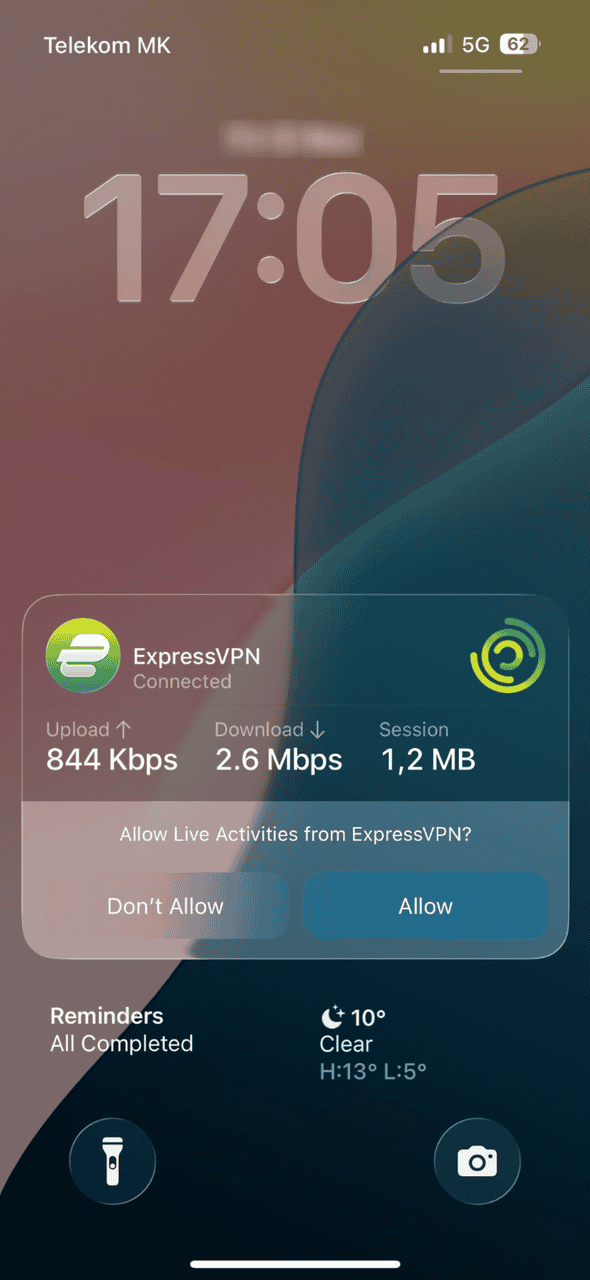
Need help? Contact the ExpressVPN Support Team for immediate assistance.
Change app appearance
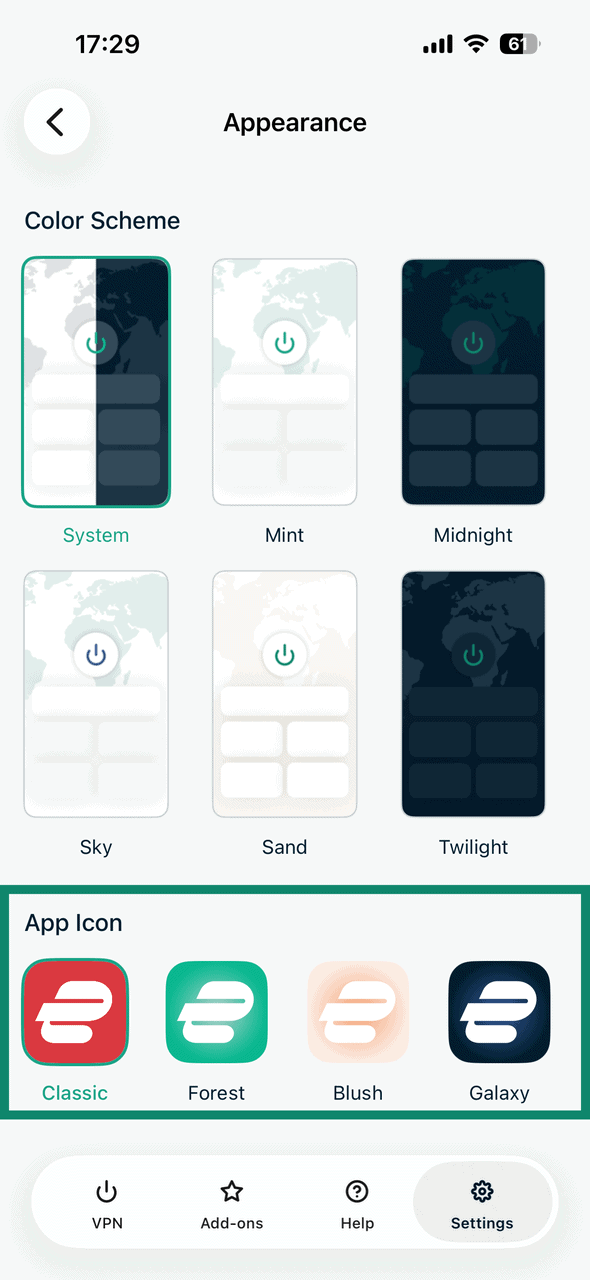
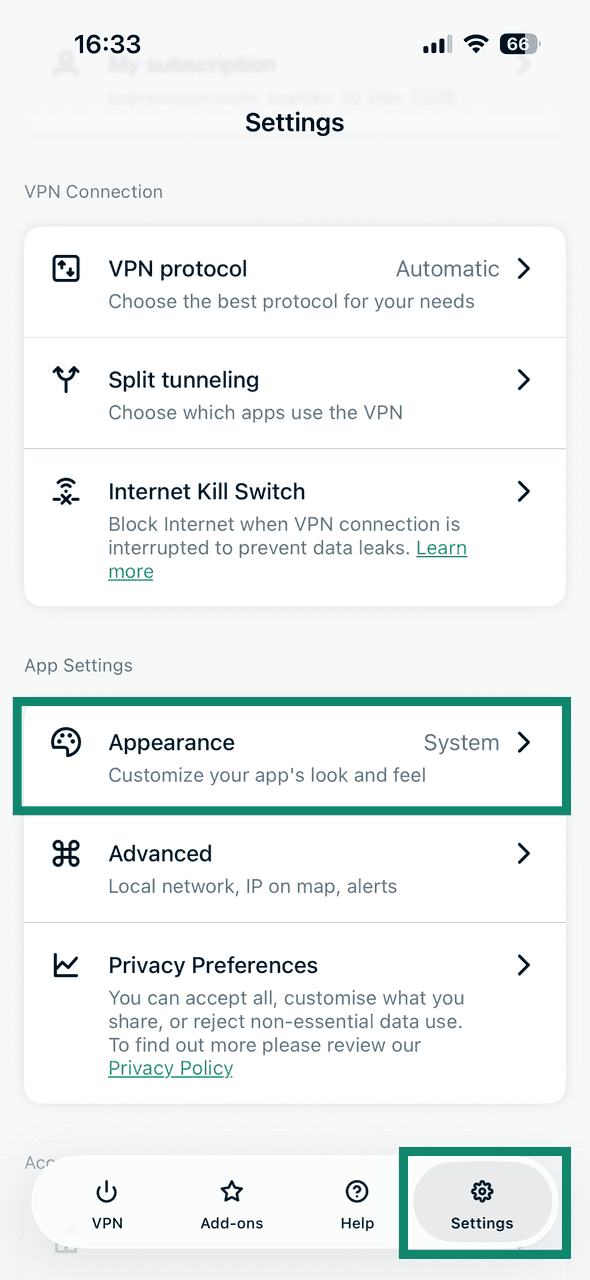
- You can change both the color scheme of the app as well as the style of the app icon. To access these settings, go to Settings and tap Appearance.
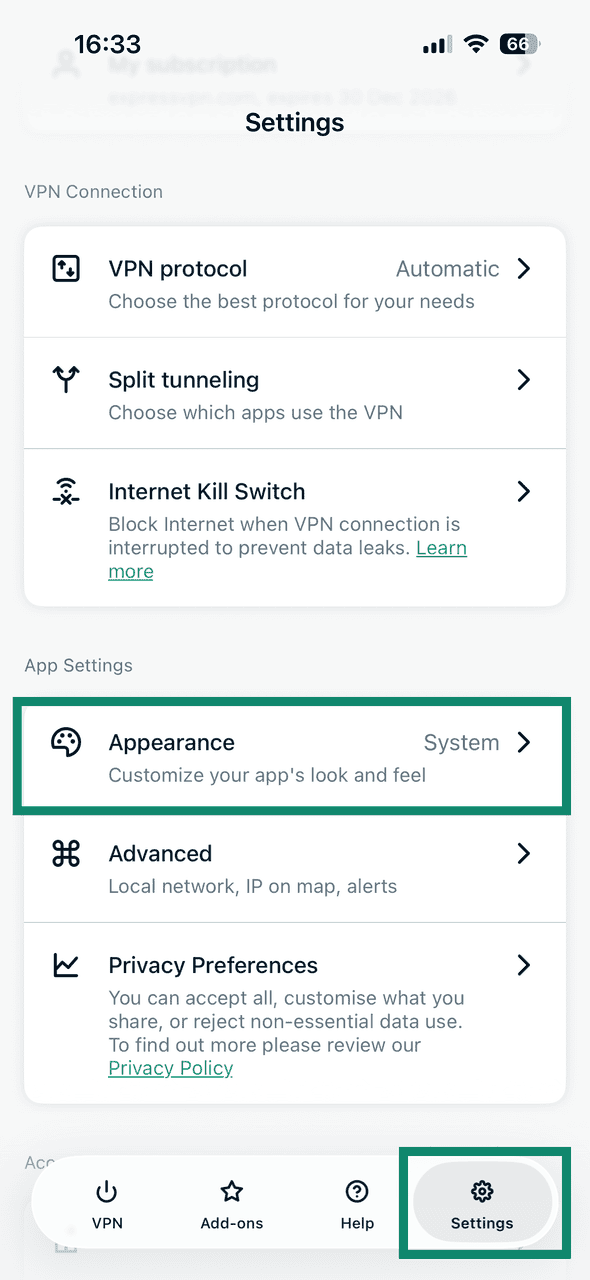
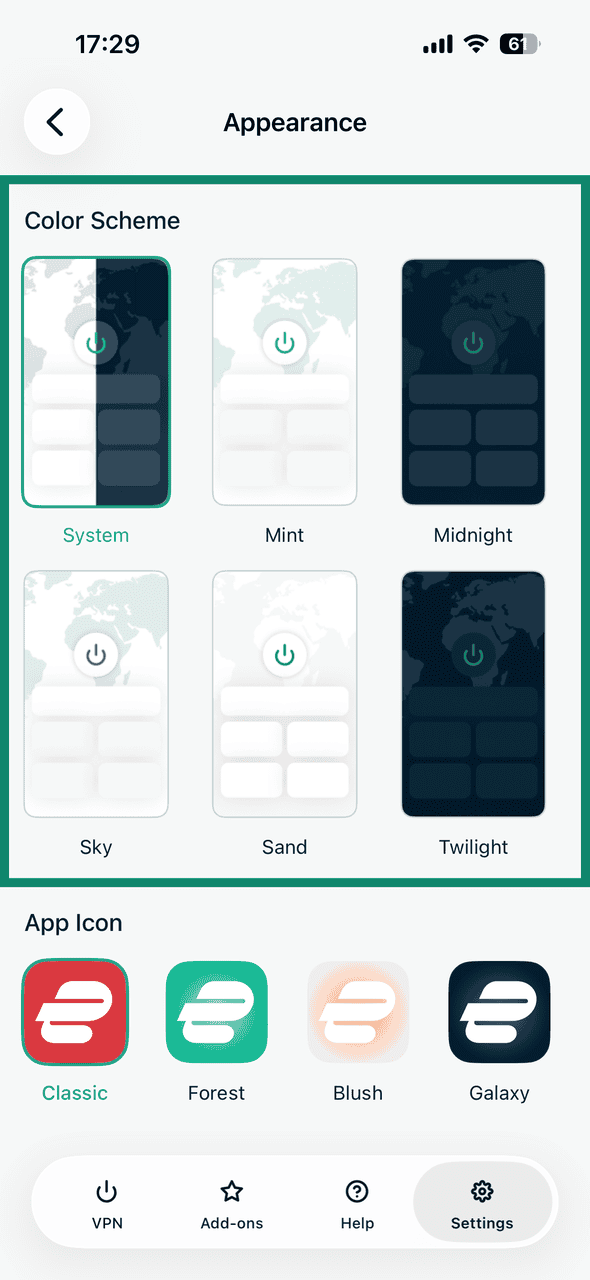
- To change the color scheme: Under Color Scheme, tap the theme you want to use. The app color scheme will change immediately.
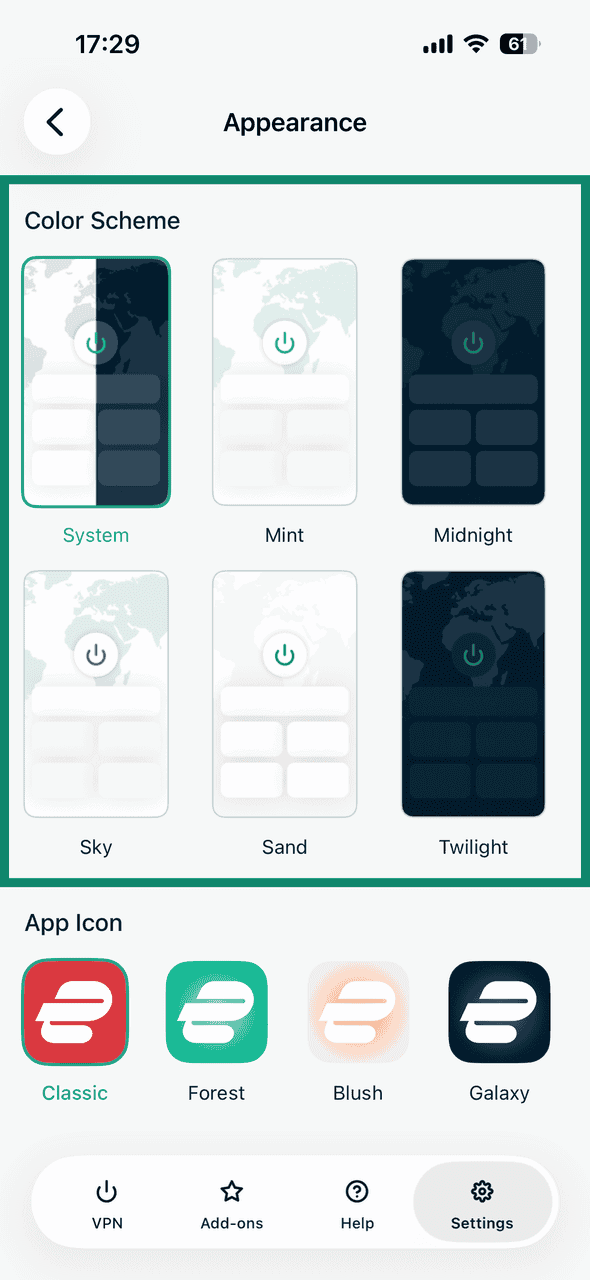
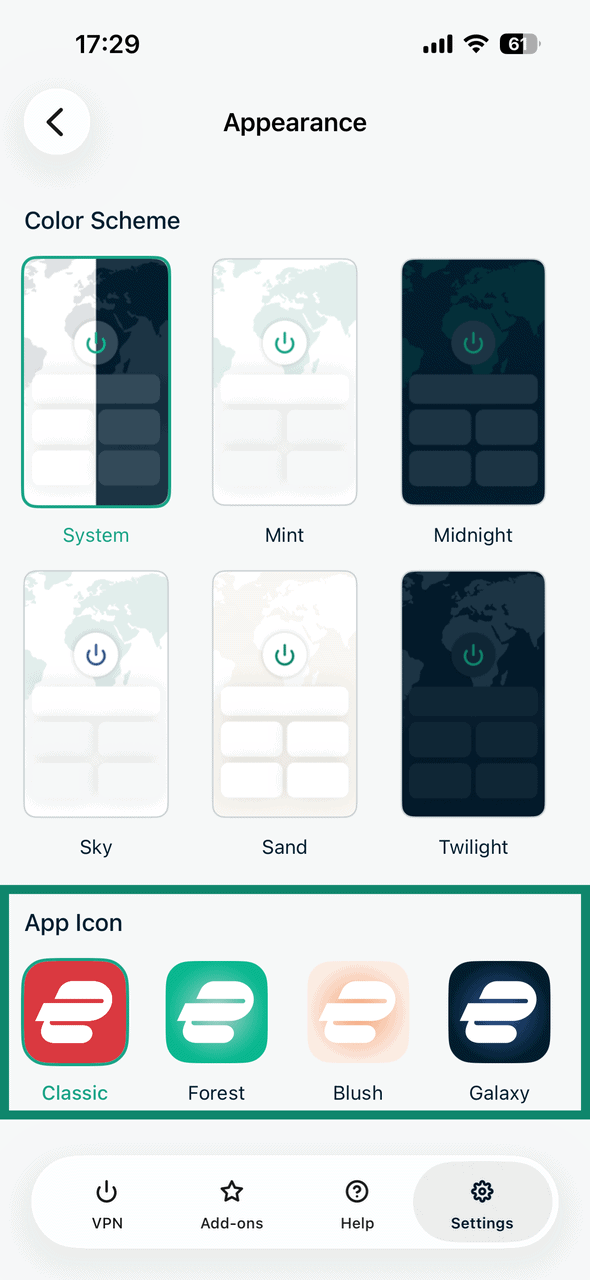
Note: If you choose System and enable dark mode from your iPhone’s system settings, the ExpressVPN app will automatically switch to dark mode. - To change the style of the app icon: Under App Icon, tap the icon you want to use. The app icon will change immediately.
Need help? Contact the ExpressVPN Support Team for immediate assistance.
Change languages for the ExpressVPN iOS app
The ExpressVPN app for iOS is available in 17 languages, including:
- English
- Danish
- Dutch
- Finnish
- French
- German
- Italian
- Japanese
- Korean
- Norwegian
- Polish
- Portuguese
- Russian
- Spanish
- Swedish
- Thai
- Turkish
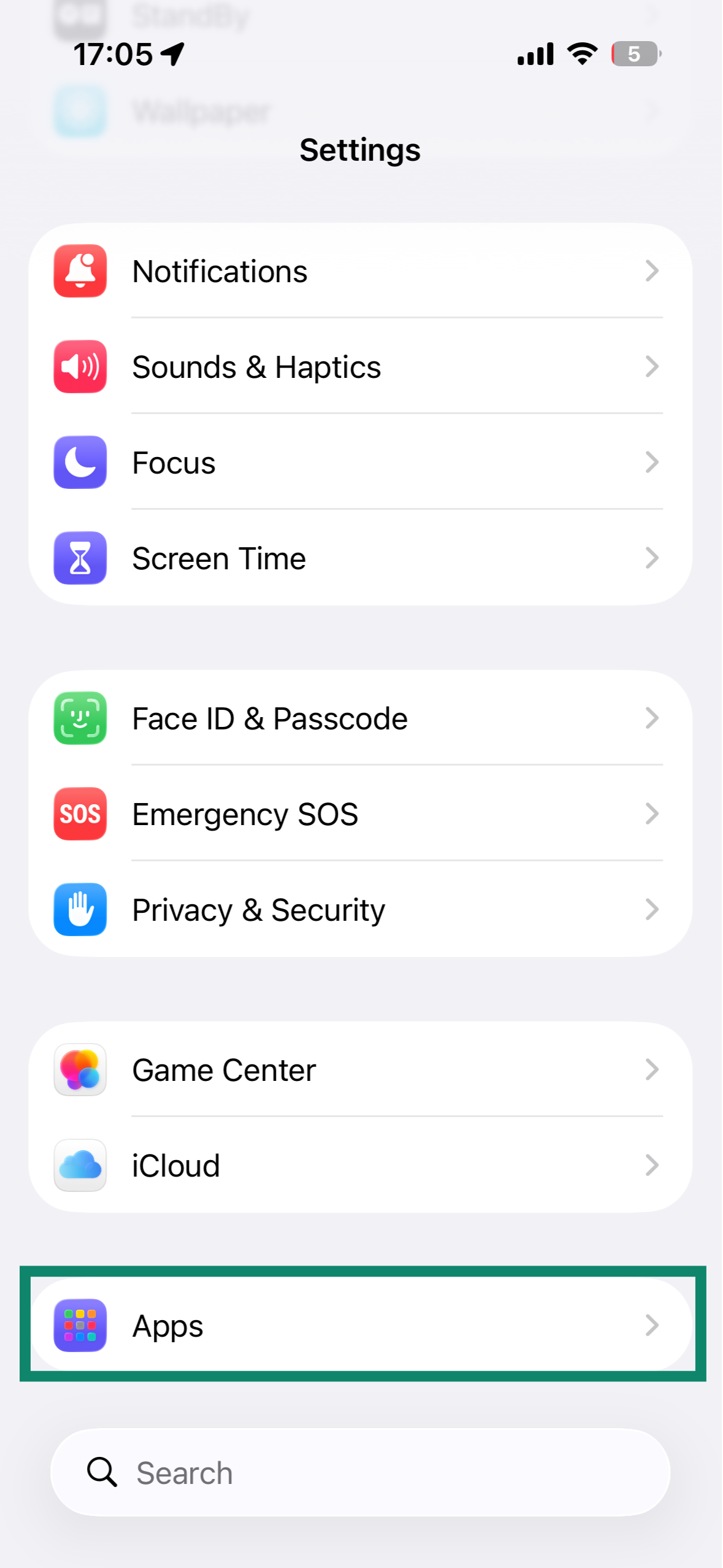
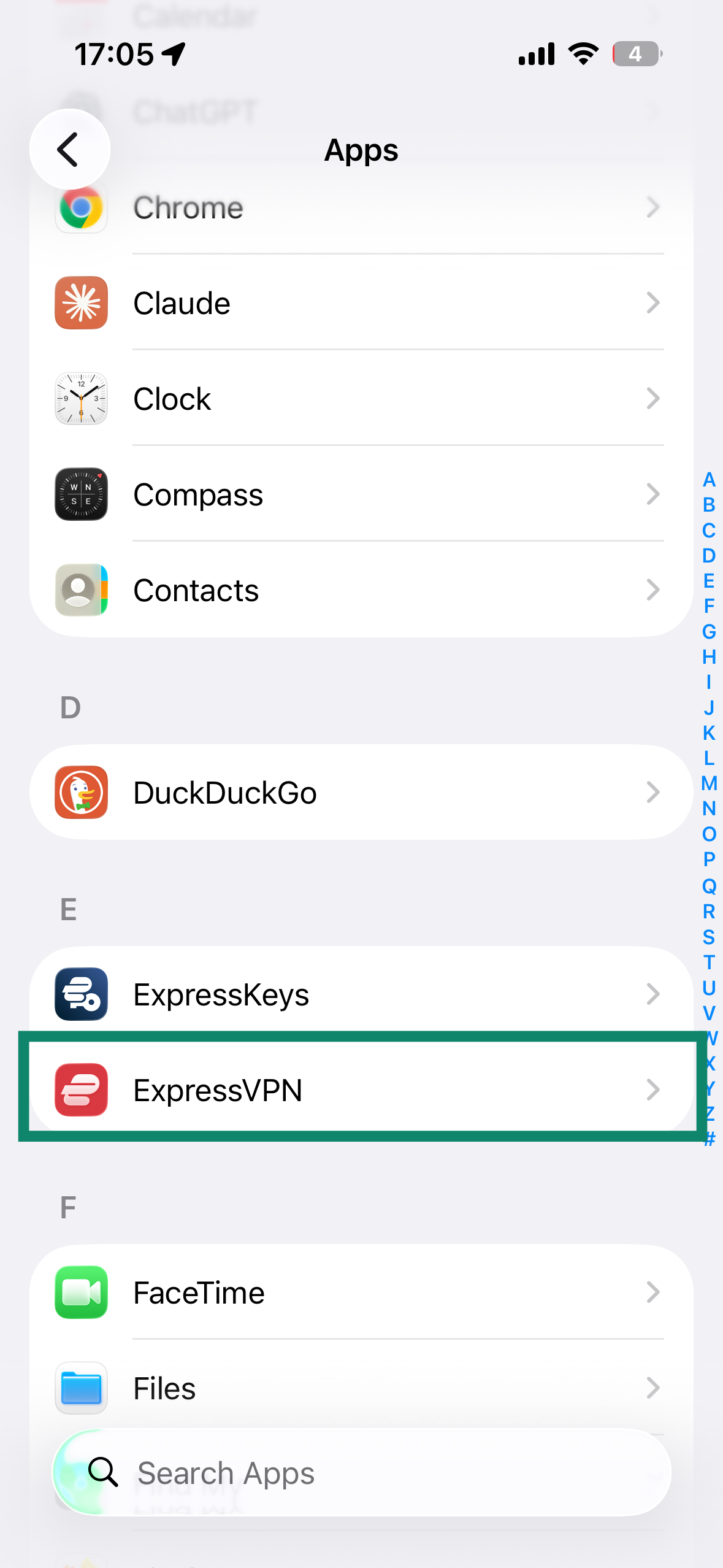
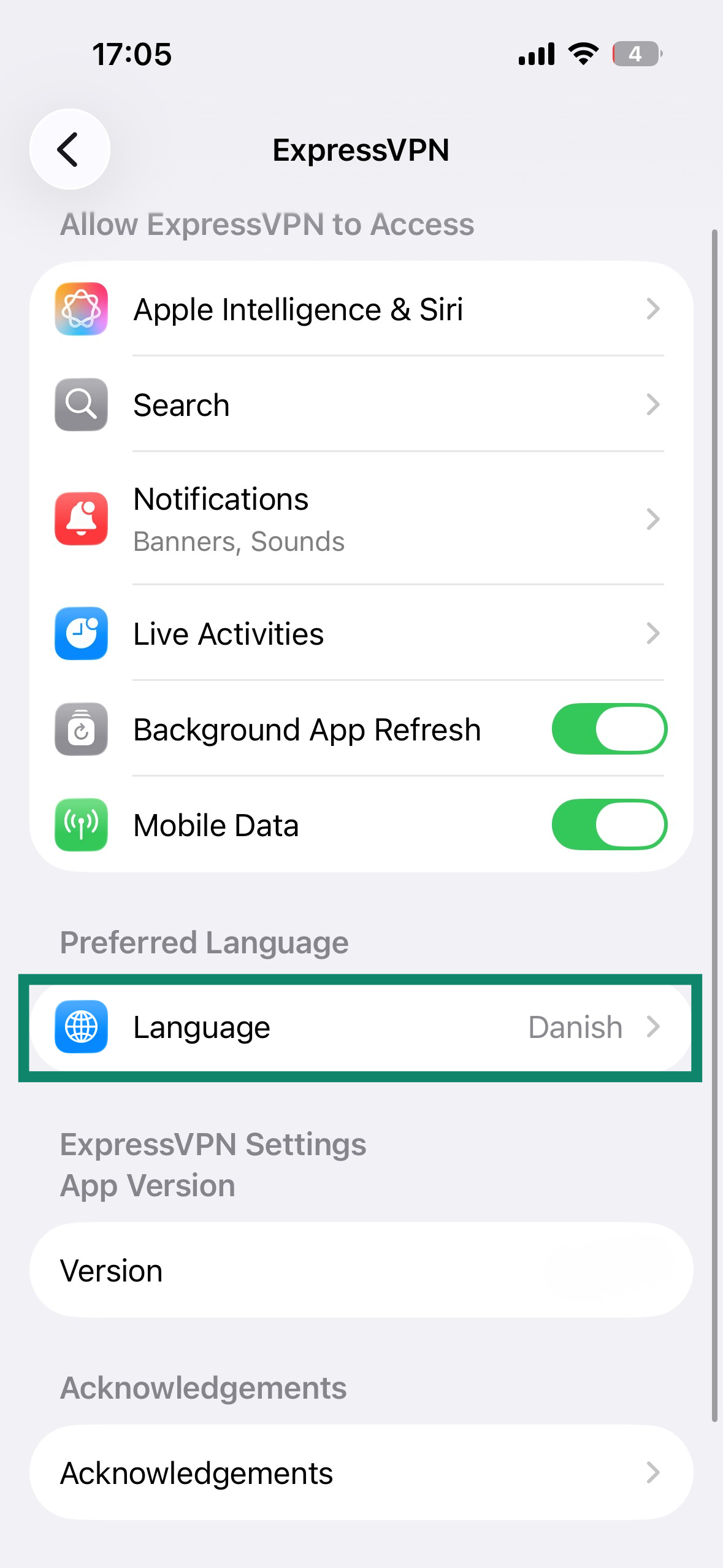
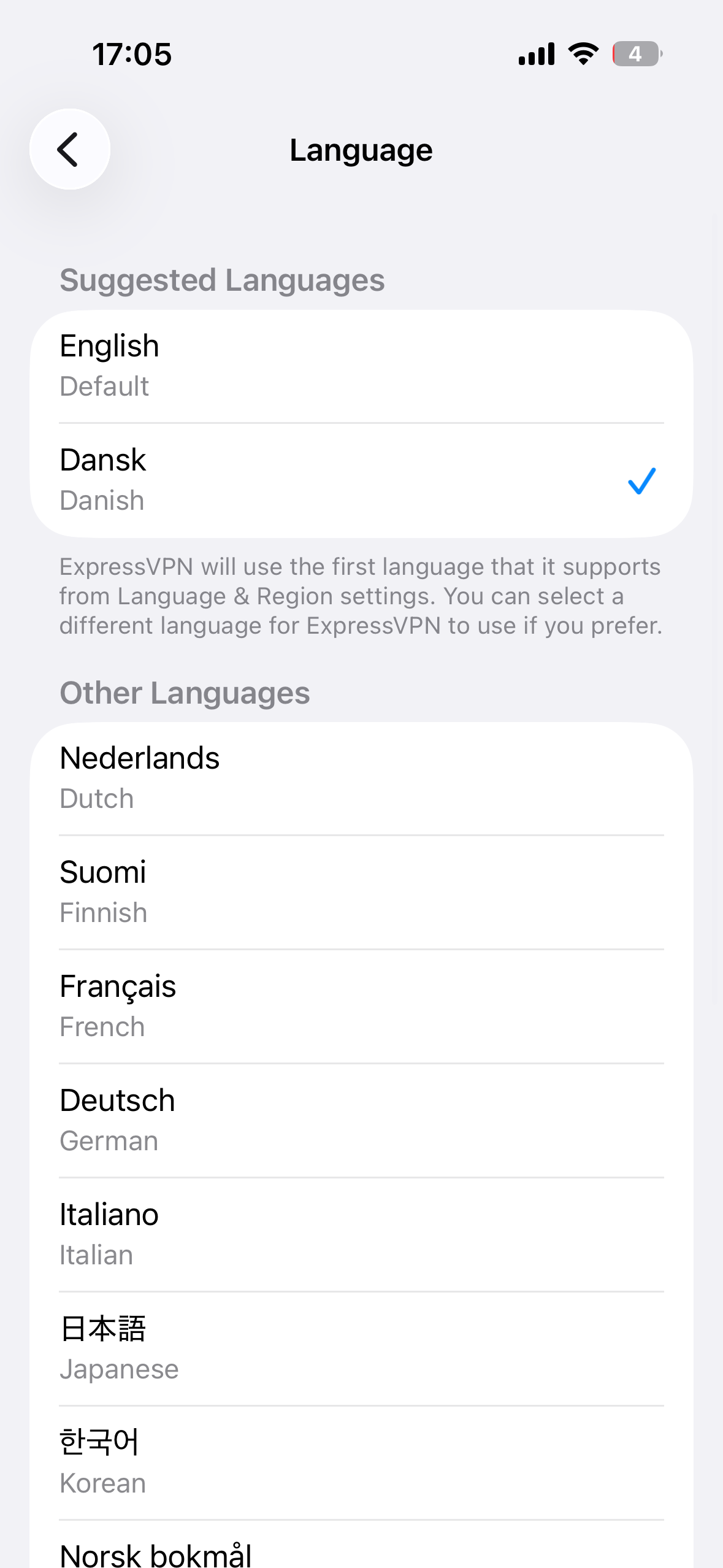
To change languages for the app:
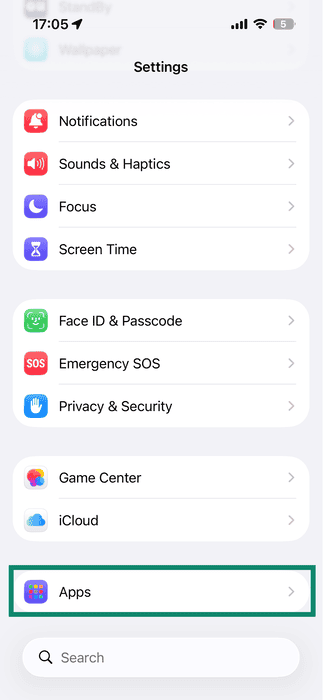
- In iOS Settings, select Apps.
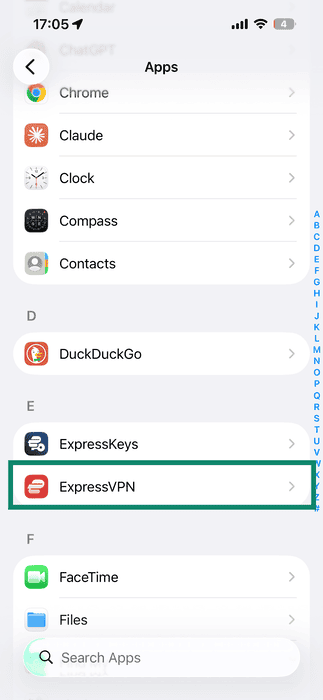
- Find ExpressVPN and tap it.
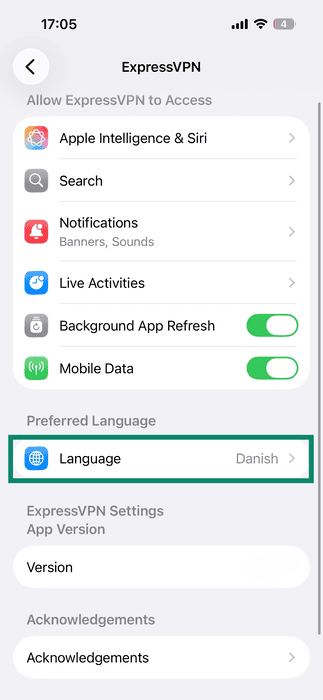
- Scroll down and select Language.
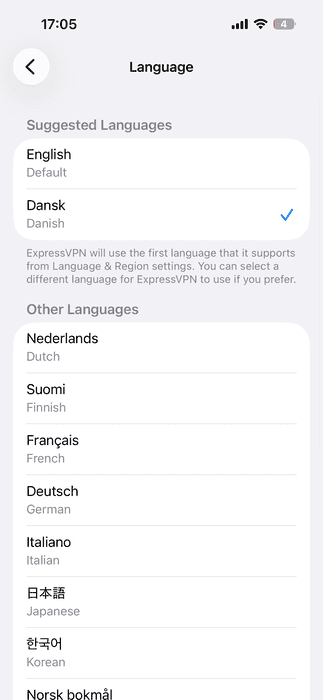
- Select the language of your choice and ExpressVPN will change automatically.
Need help? Contact the ExpressVPN Support Team for immediate assistance.
Try Siri commands
You can use Siri voice commands to manage your ExpressVPN connection.
To view all available commands, go to the Shortcuts app on your iPhone or iPad and look for ExpressVPN in the Apps section. Here, you’ll find the list of all the commands you can use in Siri.
Need help? Contact the ExpressVPN Support Team for immediate assistance.
Add the ExpressVPN app widget
To add the ExpressVPN widget to your Home Screen:
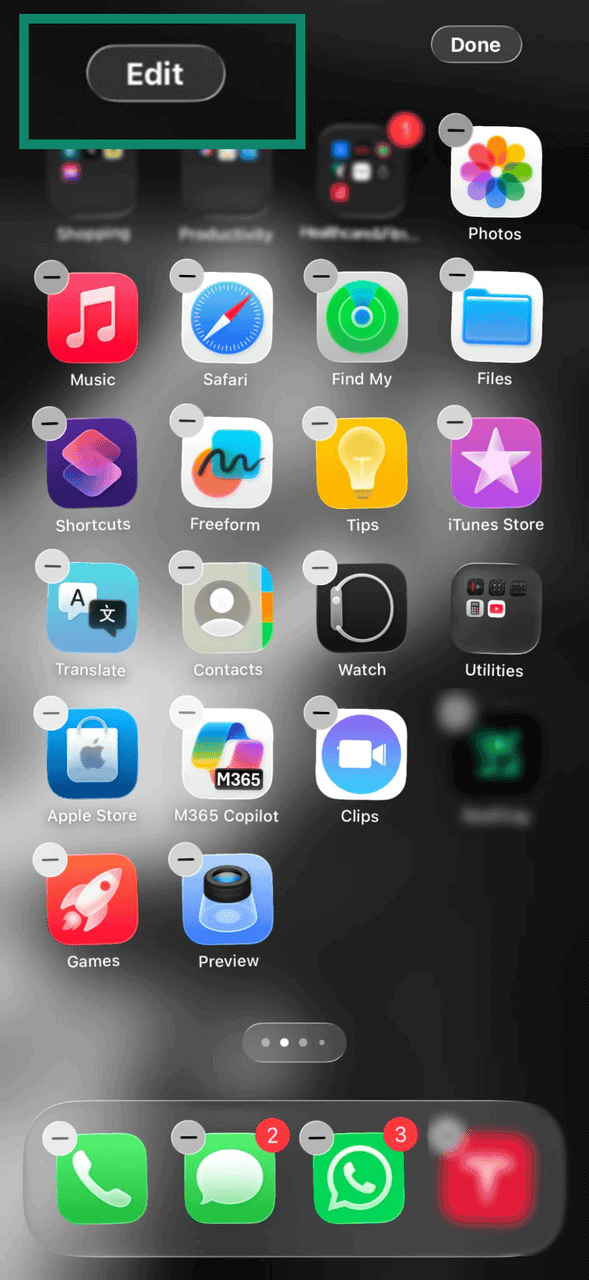
- Tap and hold an empty space on the Home Screen until the app icons move.
- Tap Edit in the top-left corner of your screen.
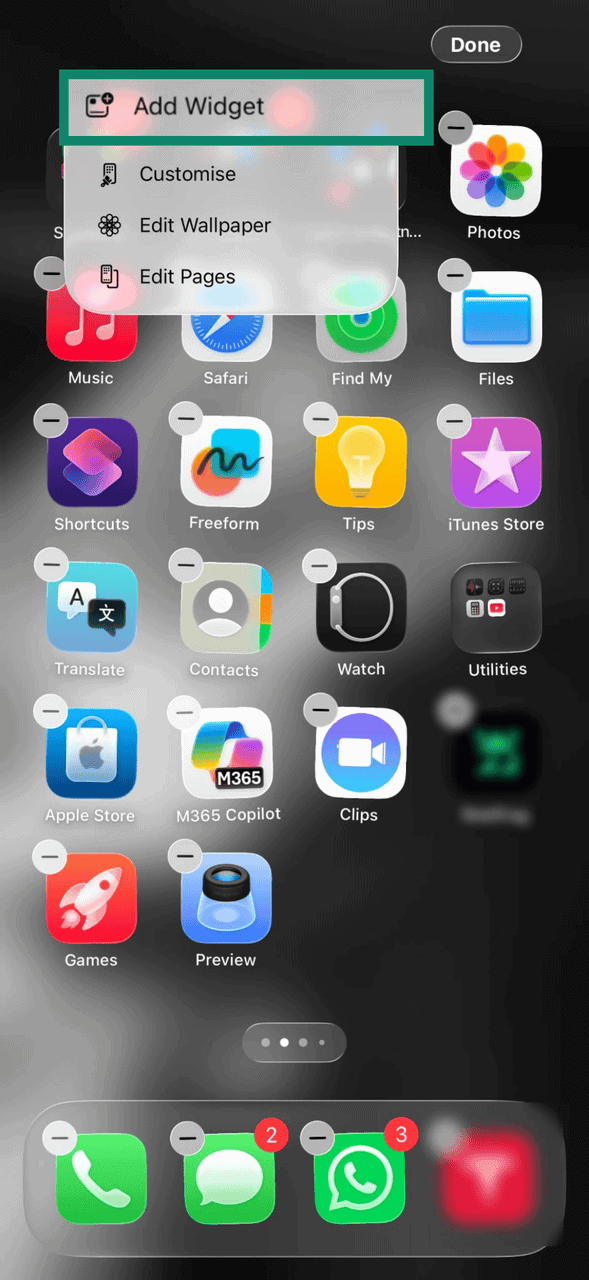
- Tap Add Widget.
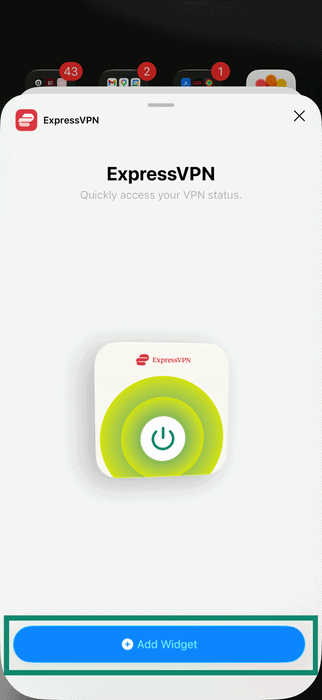
- In the search bar, type ExpressVPN.
- Tap Add Widget.
- Tap Done in the top right-hand corner of your screen.
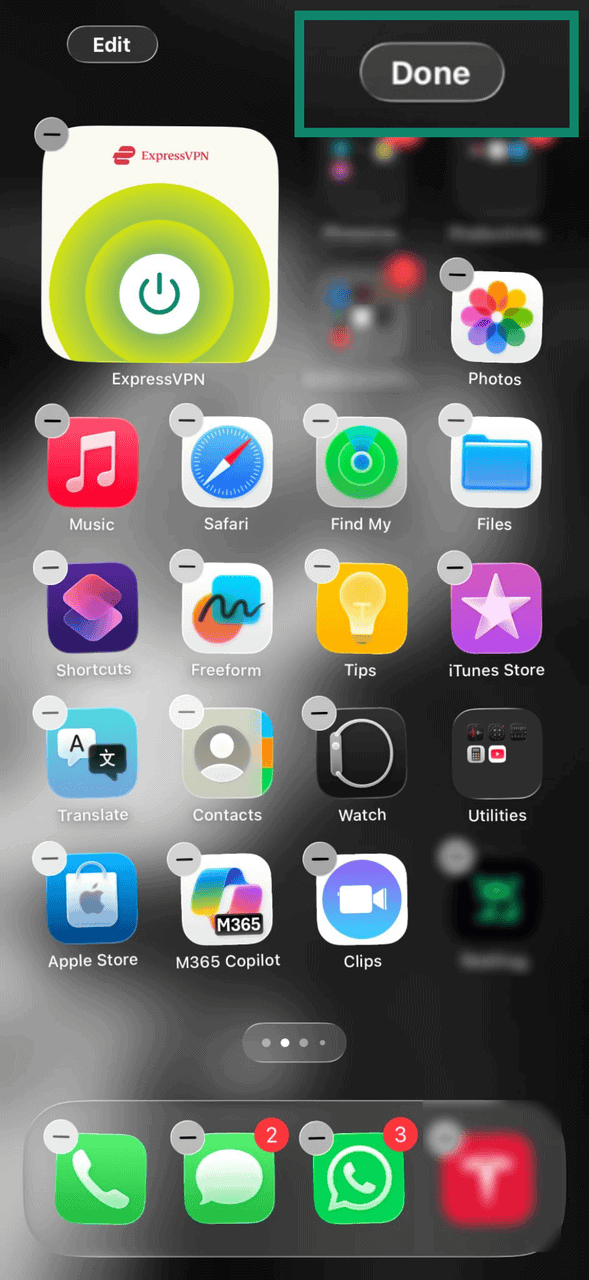
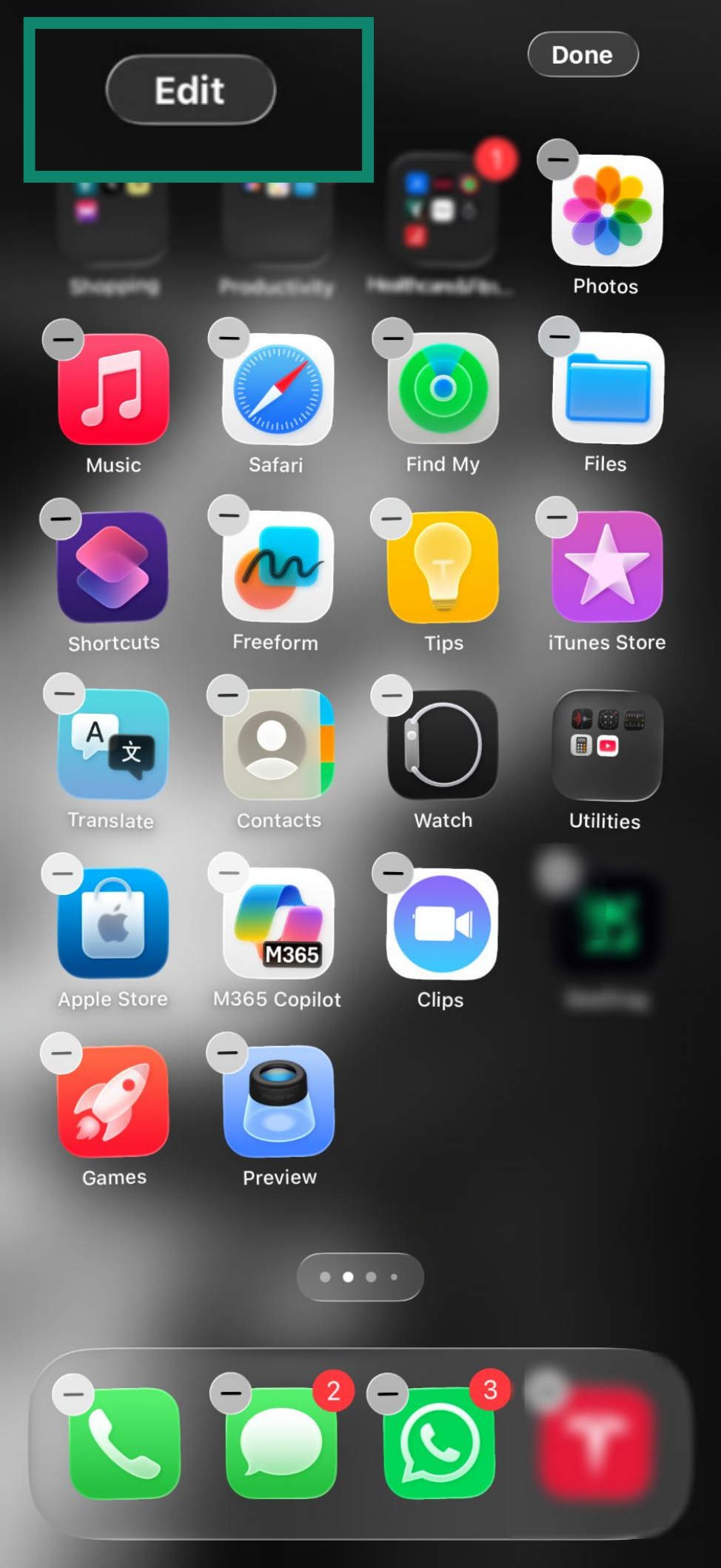
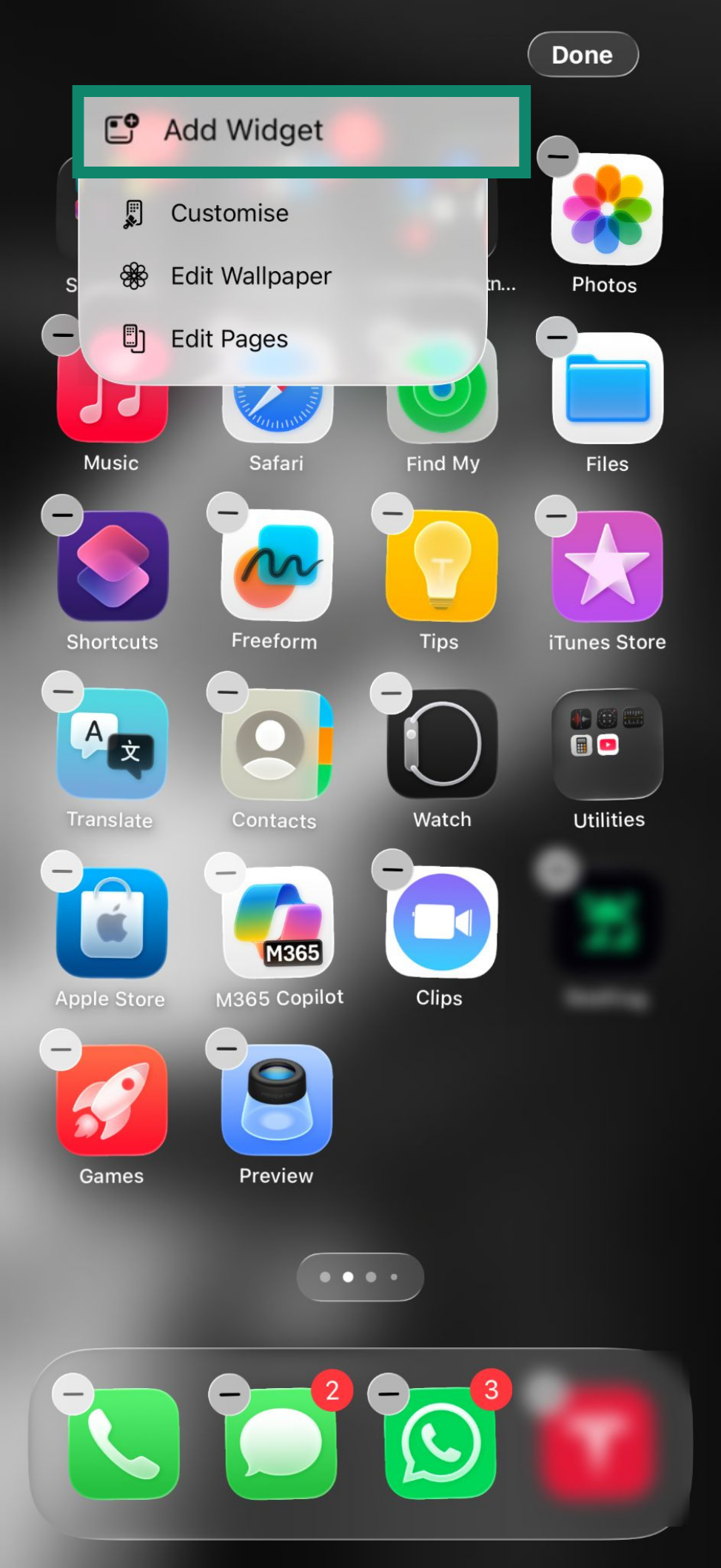
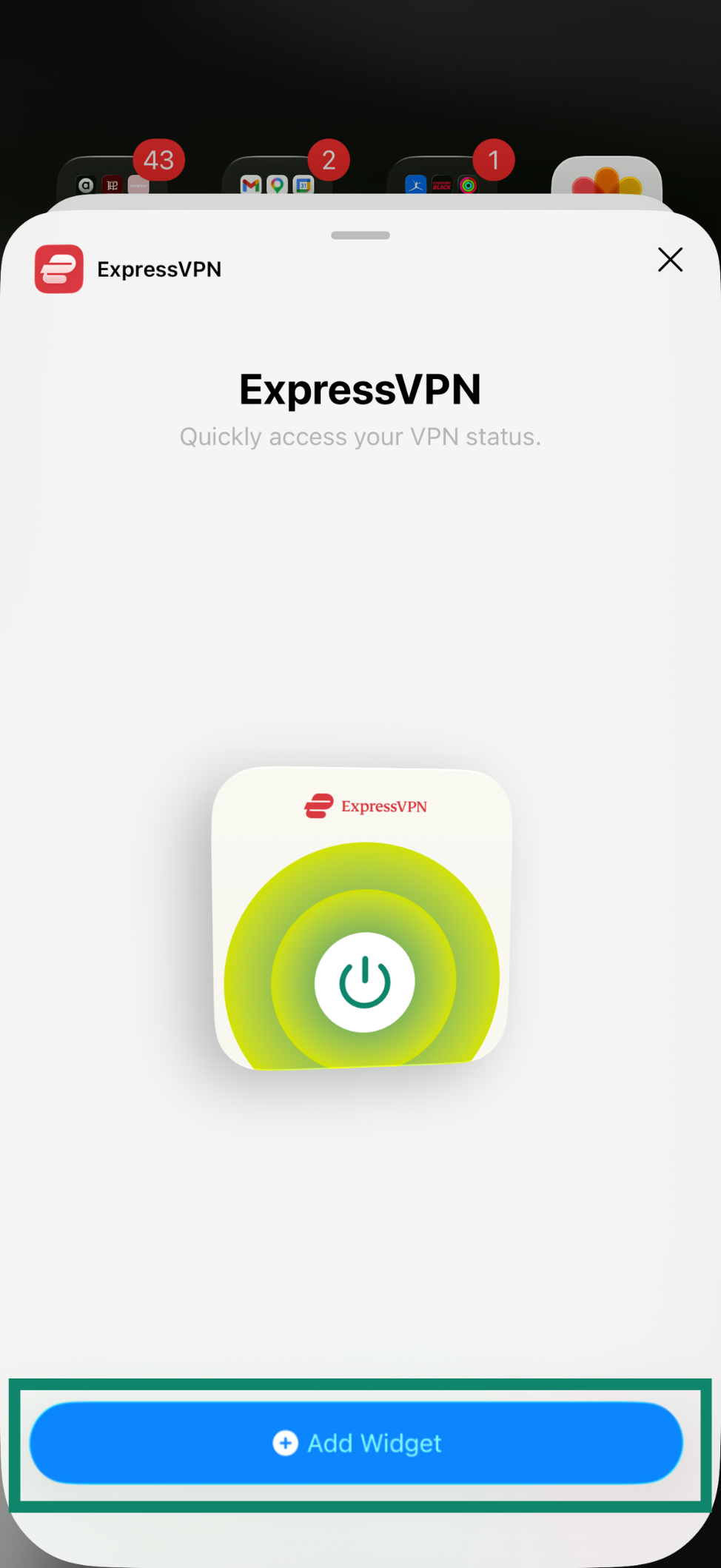
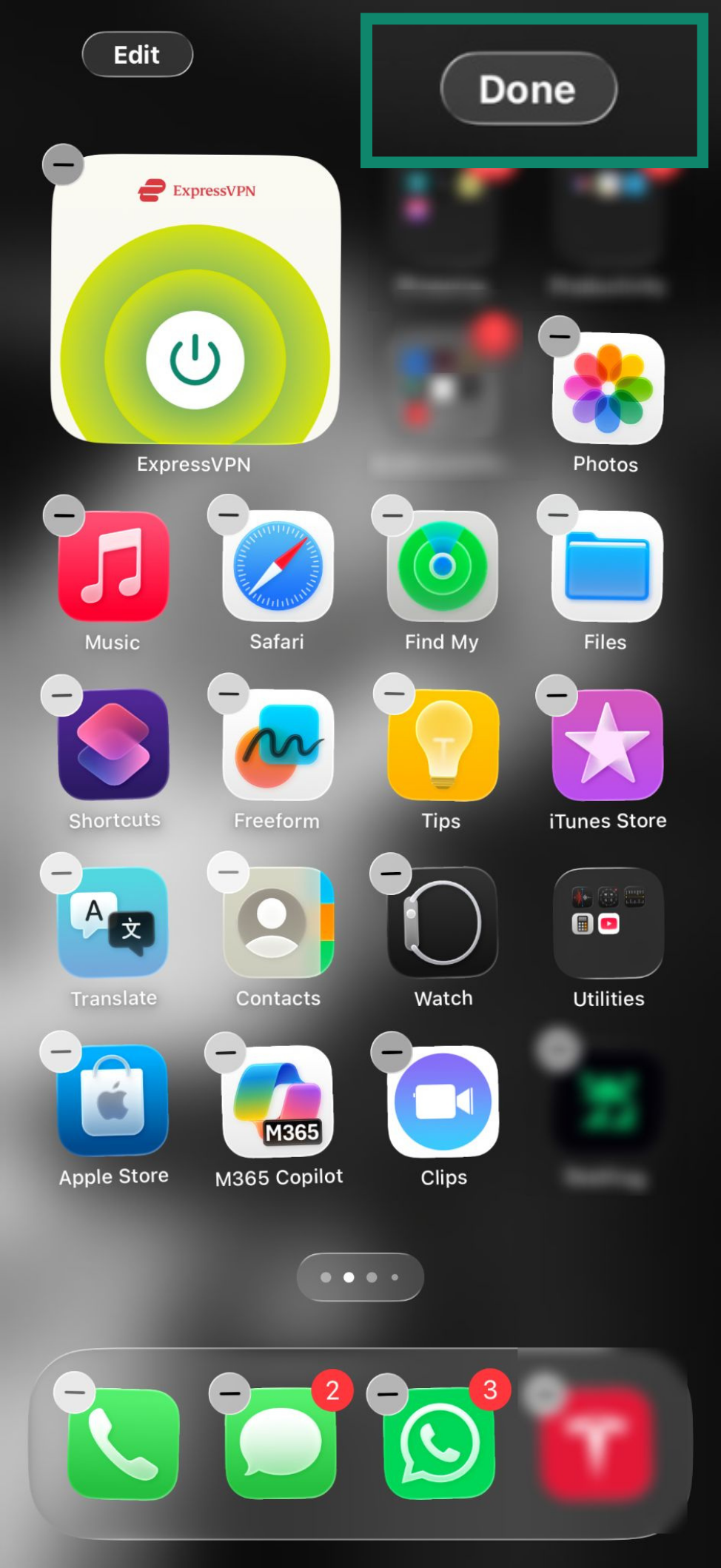
The widget is now on your Home Screen. You can use it to connect to and disconnect from the VPN without opening the ExpressVPN app.
To connect or disconnect from the VPN, tap the power button .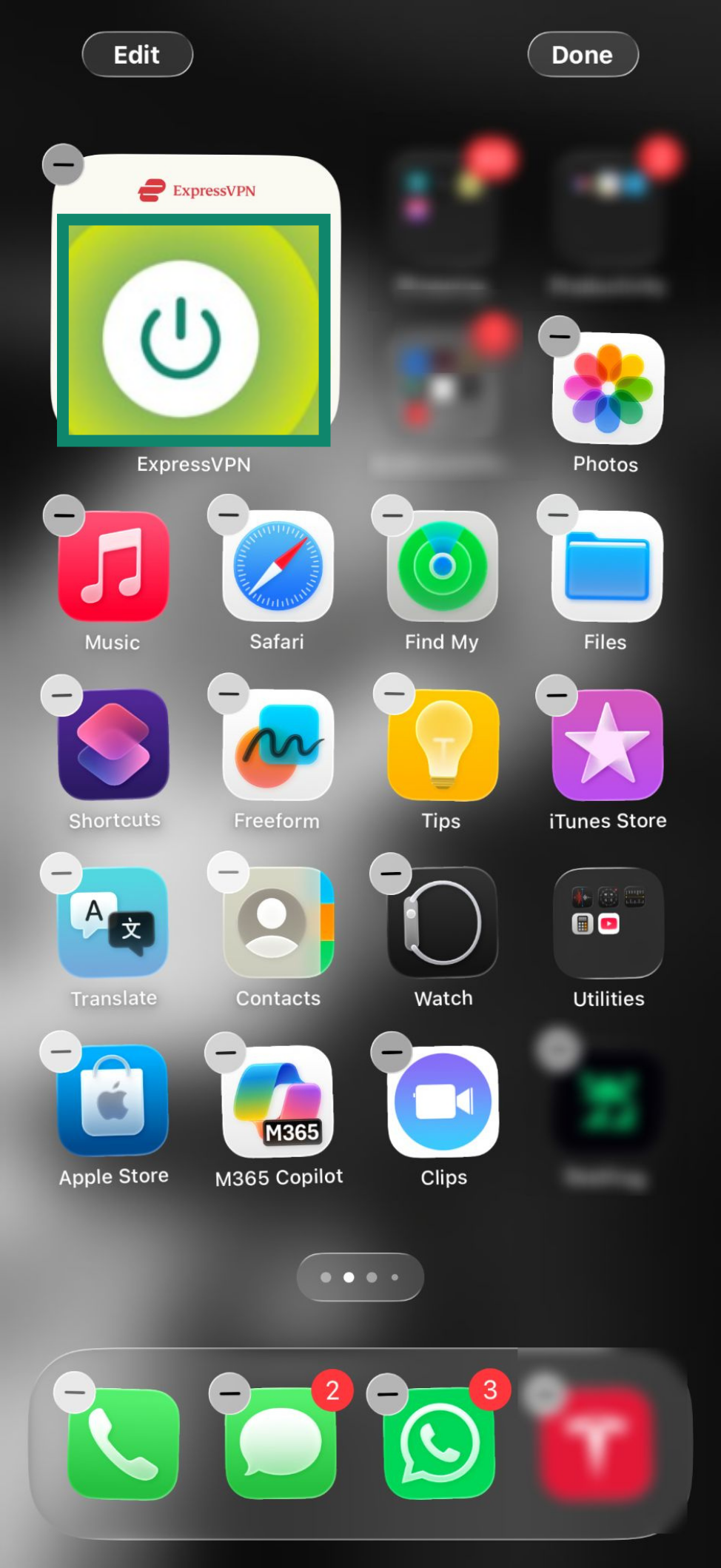
To open the ExpressVPN app, tap the widget.
Need help? Contact the ExpressVPN Support Team for immediate assistance.
Access support articles in the app
You can access support articles within the ExpressVPN app. To access these articles, go to the Help tab and tap a category to select an in-app support article.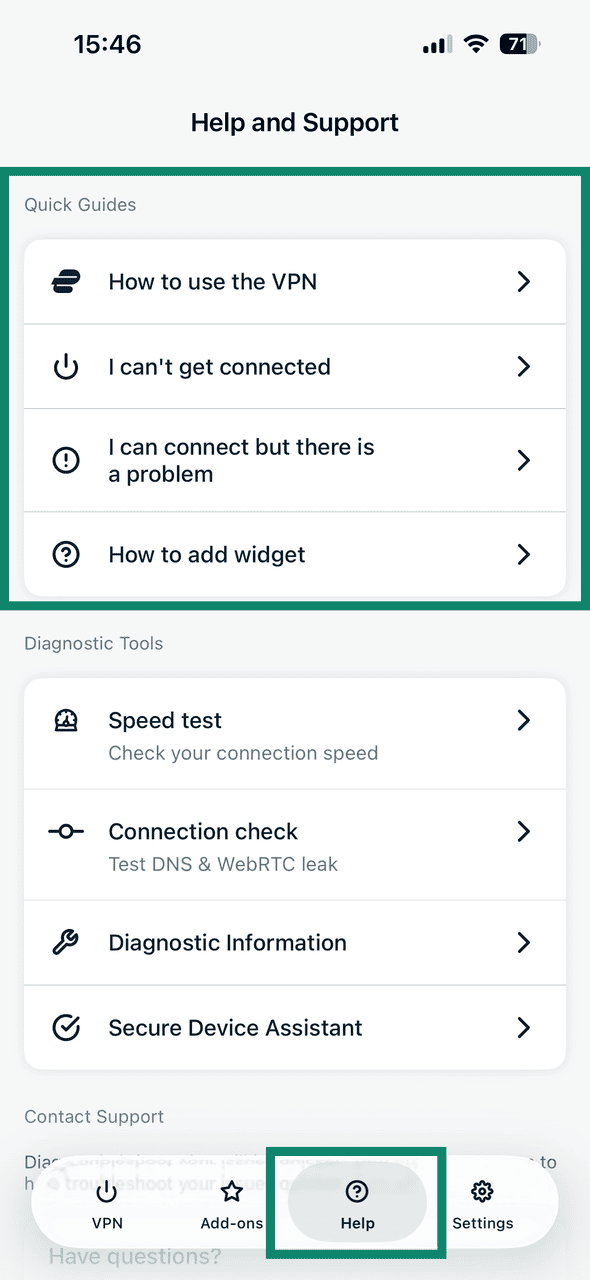
Need help? Contact the ExpressVPN Support Team for immediate assistance.
Uninstall the app
To remove ExpressVPN from your iPhone, iPad, or iPod:
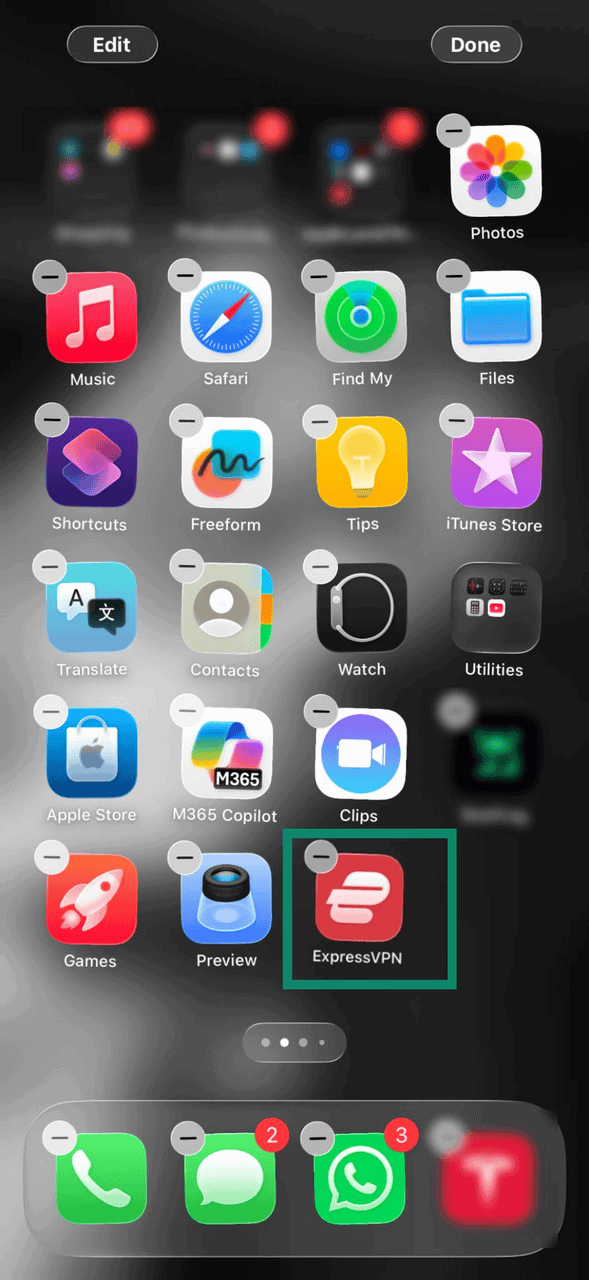
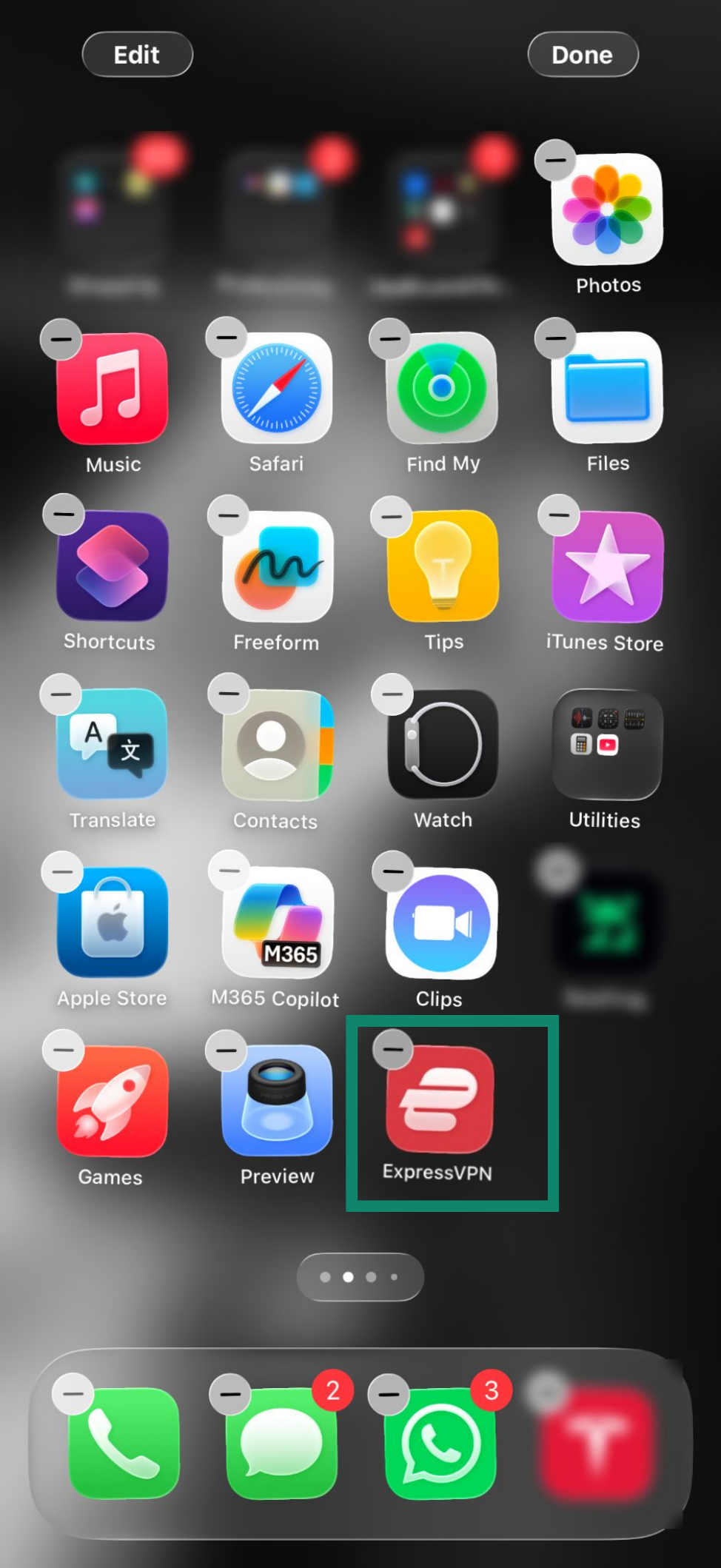
- Tap and hold the ExpressVPN app until the app icons move.
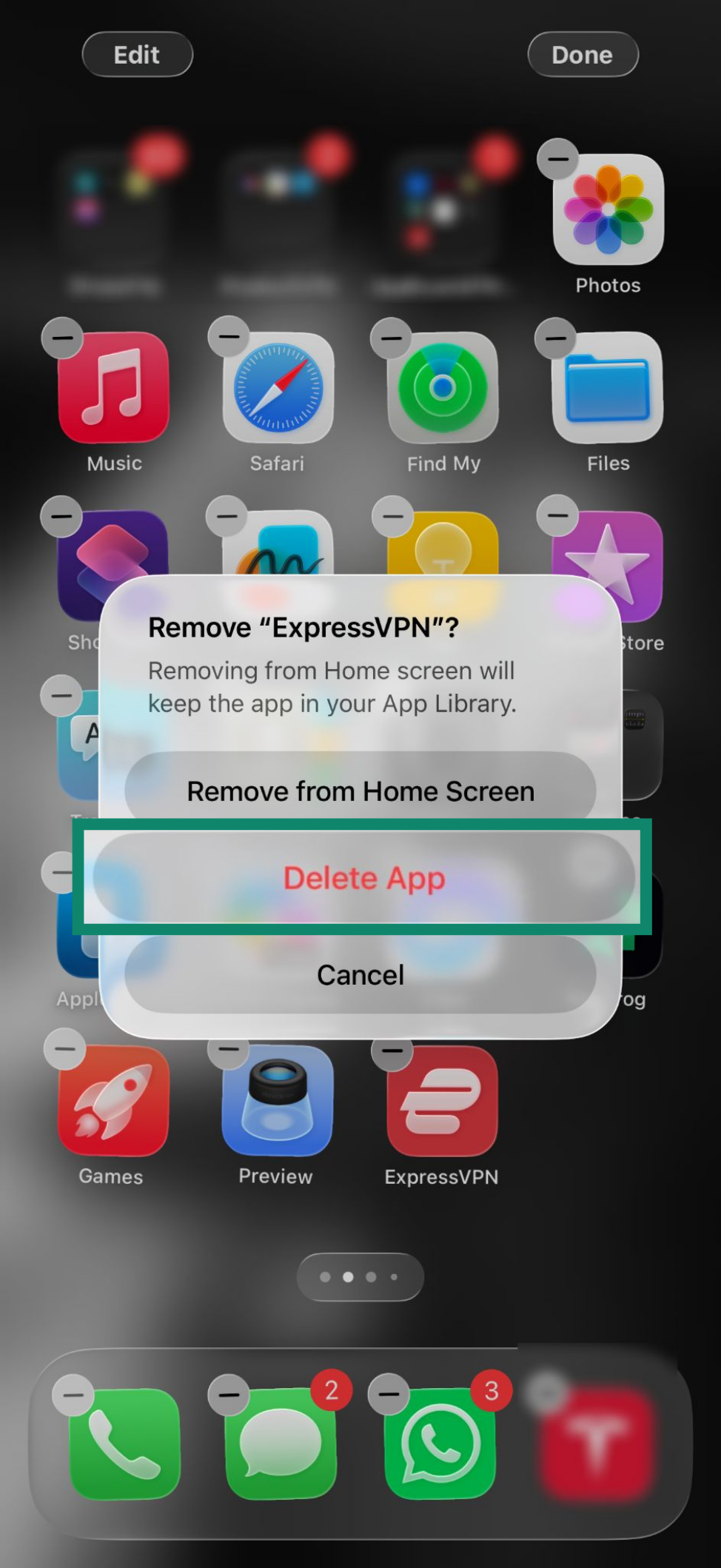
- Tap Delete App.
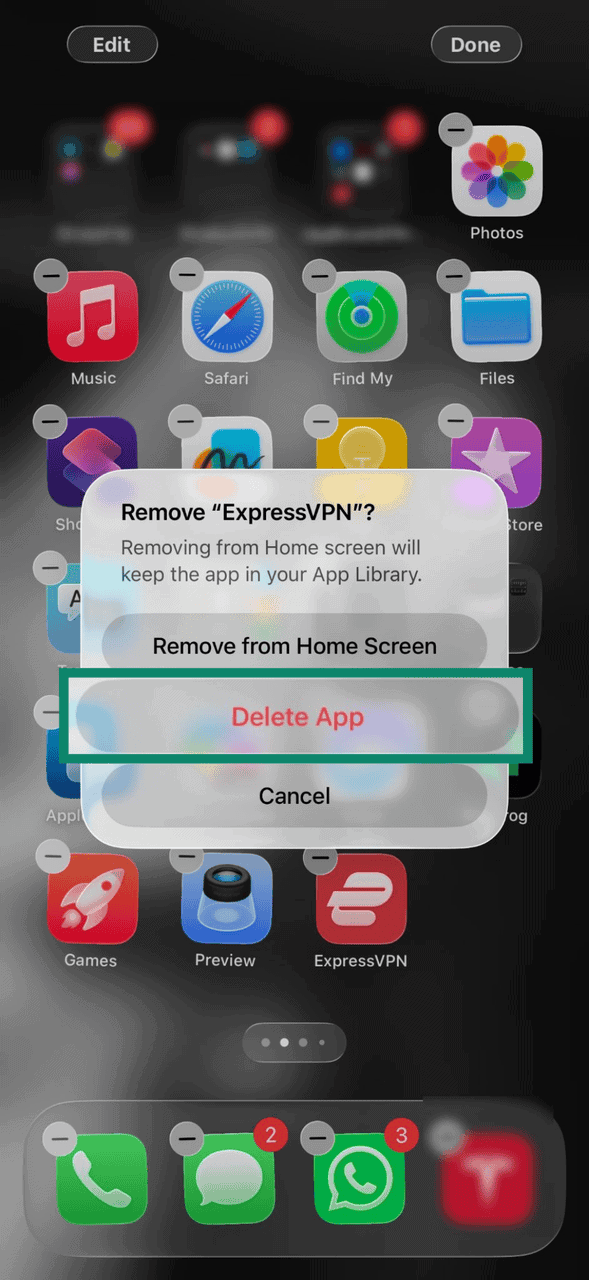
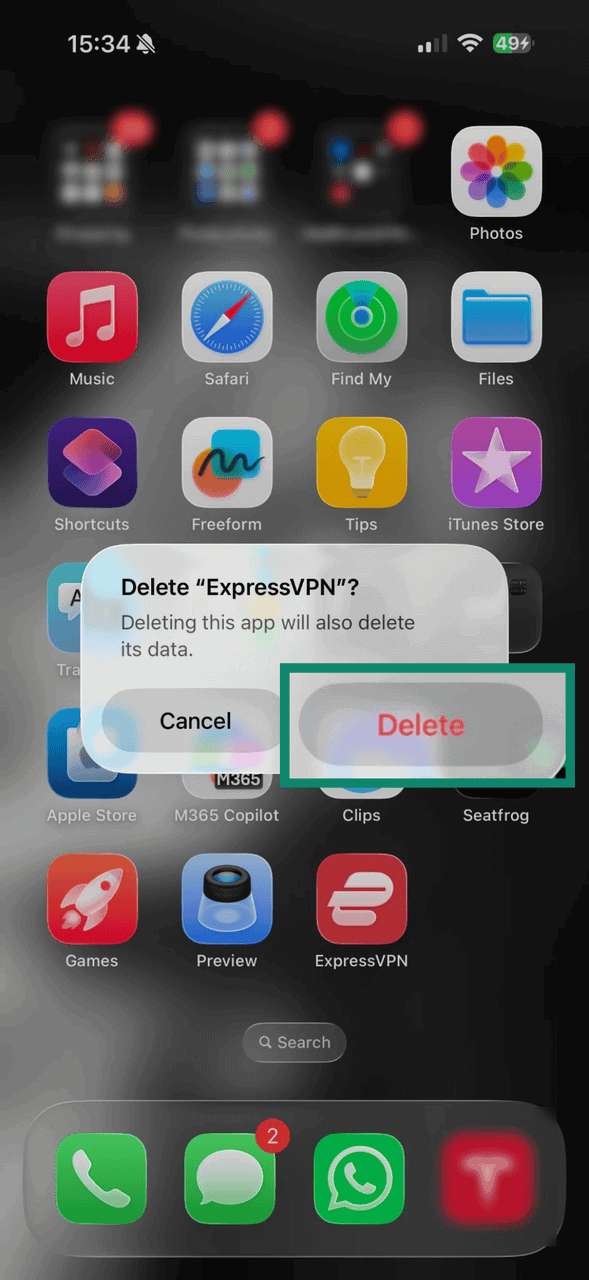
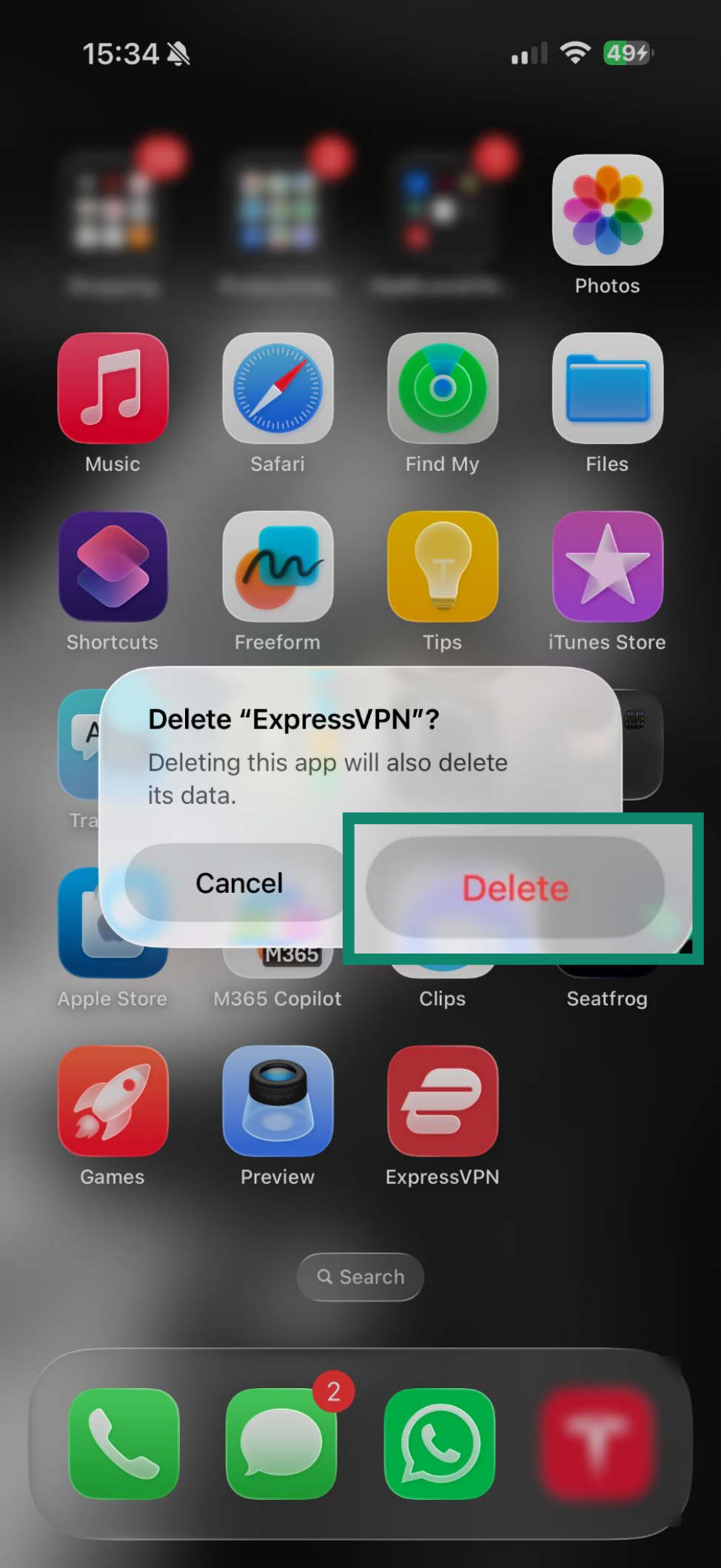
- Tap Delete to remove the app.
The app is now deleted from your device.
Need help? Contact the ExpressVPN Support Team for immediate assistance.