 Celebrate with up to 80% off
How to stop apps running in the background on Android


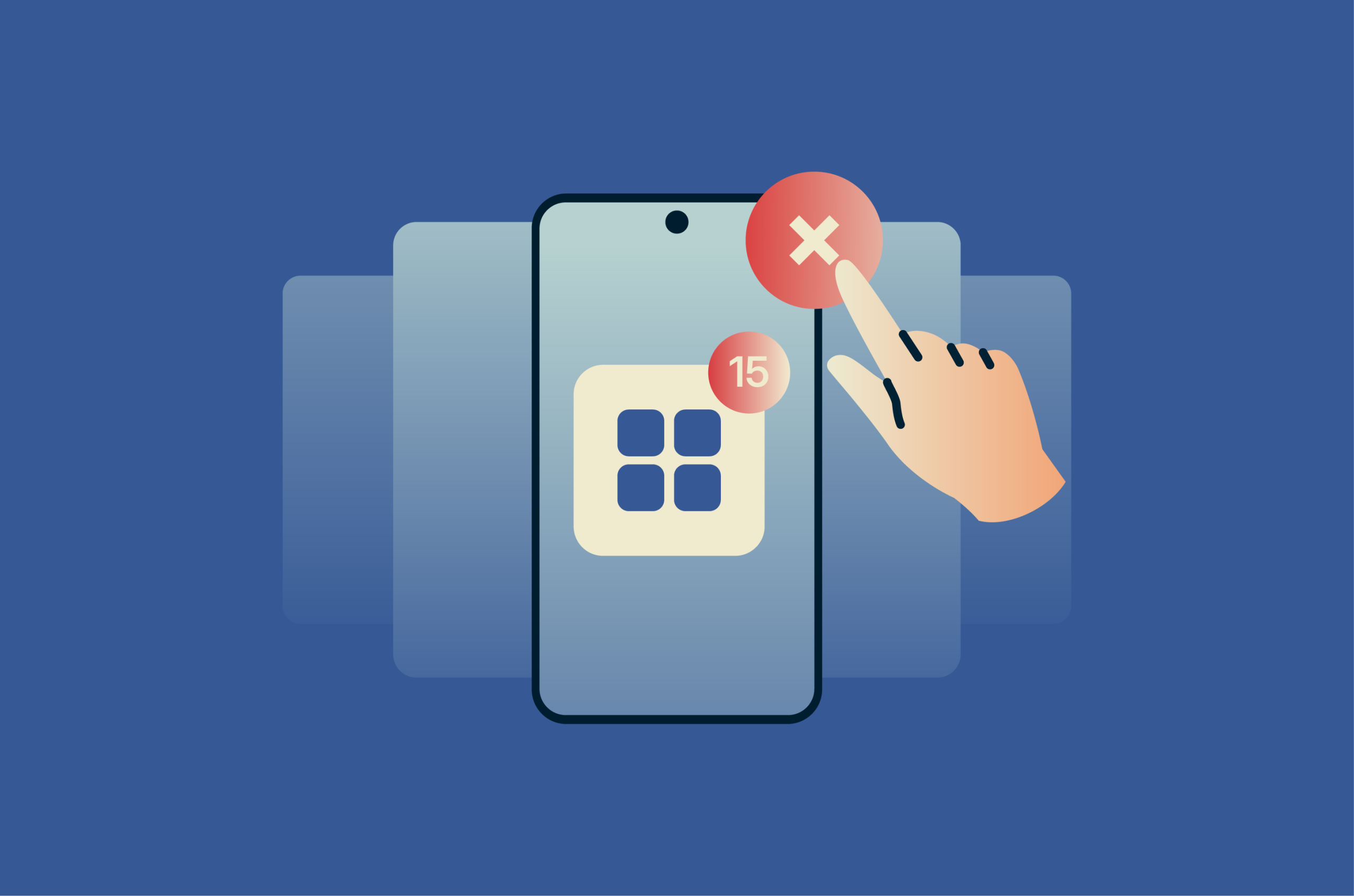
No universal rule says how long a phone charge should last. But sudden battery drain and unexplained mobile data use stand out, especially when your screen time hasn't changed. Background app activity is a common cause of both.
The tricky part is that Android keeps most of this activity out of sight. Swiping apps away from Recents closes the visible app card, but it doesn’t necessarily stop scheduled work, notifications, or future background activity. Tracking down the right setting to manage it isn’t always obvious.
Why apps run in the background on Android
Android apps run in the background to keep core features working even when an app is closed or the screen is locked. Background activity means an app isn’t visible on the screen, but the phone still allows limited tasks, such as syncing data or responding to system events.
Many Android features and apps rely on background work, including:
- Cloud and social apps: They rely on it to sync data like photos and messages and check for new activity to send real-time notifications.
- Downloads and app updates: Active downloads continue after a user switches apps. Google Play checks for app updates and prepares periodic downloads.
- Alarms and calendars: They track scheduled events to trigger alerts at the right time.
- Location services: These apps use background activity to provide features such as live navigation or weather alerts.
Do background apps drain battery and mobile data?
Background apps can use limited phone resources like RAM, mobile data, and battery, especially if they stay loaded in memory or keep the processor active.
For example, a fitness app tracking your location during a run, a cloud backup uploading photos over mobile data, or a chat app frequently checking for new messages will all draw more than an app sitting idle does. The impact depends on how many apps run off-screen simultaneously, what they do, and how often.
Android limits most of this for you. It caches some apps so they open faster without doing real work, limits background services by giving some apps a short window to finish work before treating them as idle, and restricts apps you haven’t used for a long time by clearing temporary files, revoking app permissions, stopping background activity, and stopping notifications.
Also read: What is bloatware, and how can you remove it?
Should you stop apps running in the background?
You generally don't need to stop background activity to save battery or data. Android manages memory and battery automatically, and it doesn’t let every app run freely in the background all the time.
Restricting a specific app makes sense if it drains resources, sends unwanted notifications, or keeps running for features you don't use. But manually force-stopping apps can disrupt expected behavior, especially for apps that handle alerts, security checks, syncing, or other essential features.
How to stop apps running in the background on Android
Android offers both app-level controls and broader phone-wide settings. The best option depends on whether the goal is to reduce overall background activity or to limit a specific app.
The sections below cover the main methods for each case. Navigation menus may vary slightly by Android version and phone manufacturer.
Restrict background activity for individual apps
Use the steps below to limit background data and battery use for one app at a time.
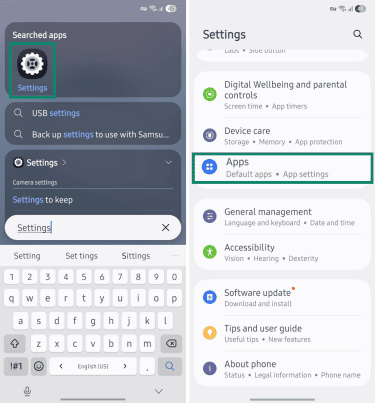
- Open Settings and go to Apps.
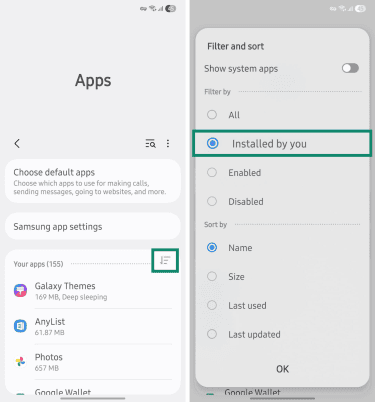
- Tap the filter button next to the app list and select Installed by you to narrow the list to non-system apps. If your phone doesn’t have this filter option, skip to the next step.
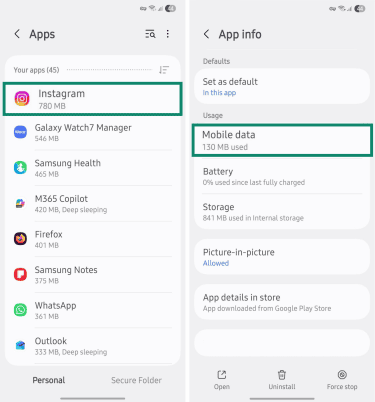
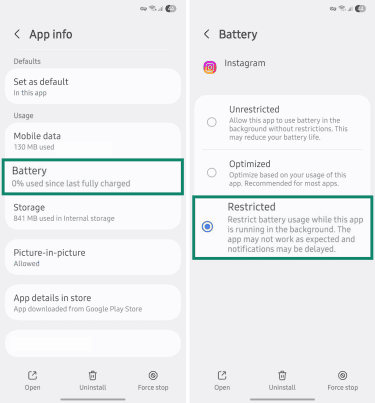
- Tap the app you want to manage and open Mobile data, App data usage, or a similar data-usage menu.
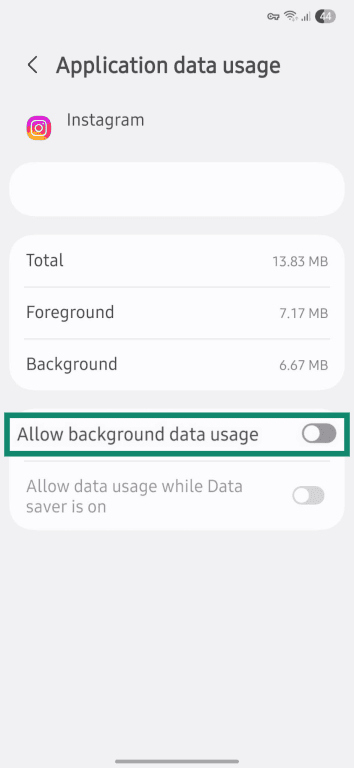
- Disable Allow background data usage to cut the app’s background internet access over cellular.
- Return to the app’s info menu and open Battery or App battery usage. If available, choose Restricted or turn off Allow background usage to limit background battery use.
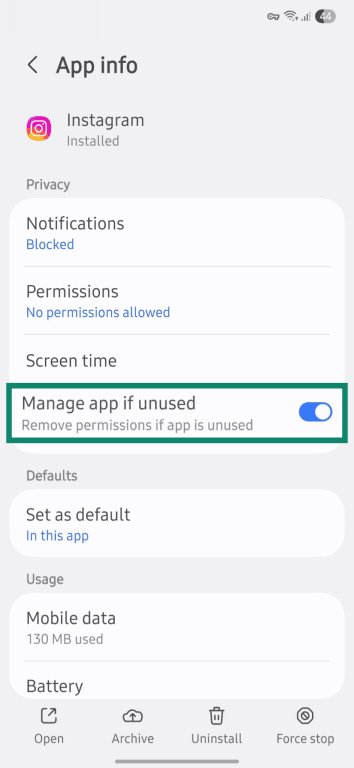
- Under the same menu, toggle on Manage app if unused or Pause app activity if unused. After the app hasn’t been used for a long time, Android may revoke permissions, clear temporary files, stop background activity, and stop notifications.
Force stop background apps
Force stopping an app closes its current activity and can temporarily stop its background processes, data use, battery drain, and notifications. It’s best used as a short-term fix for a specific app that's frozen, crashing, or behaving unexpectedly. If you reopen the app, it can run again, subject to its permissions and battery or data restrictions.
Follow these steps to temporarily stop specific applications:
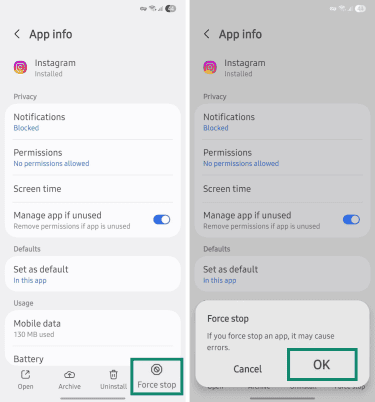
- Open the app from Settings > Apps menu.
- Tap Force stop, then tap OK to confirm.
Also read: What you should do when deleting an app from your phone.
Enable battery saver mode
Battery Saver reduces background activity across the whole phone. It doesn’t shut everything down, so essential phone functions keep working, but some apps may sync less often, and alerts or updates may be delayed.
Here’s how to turn it on:
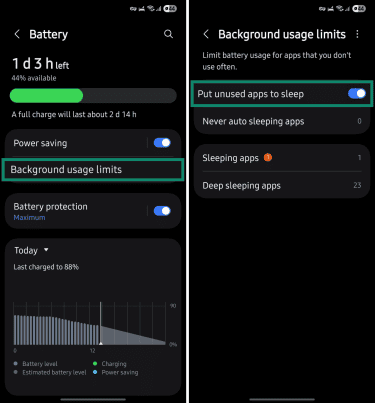
- Open Settings > Battery, tap Power saving, and activate the top toggle.
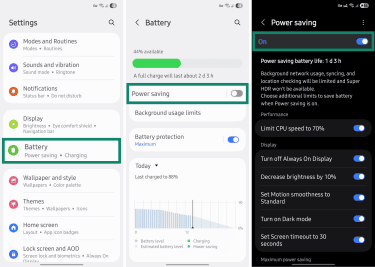
- Return to the Battery menu, open Background usage limits, and enable Put unused apps to sleep.
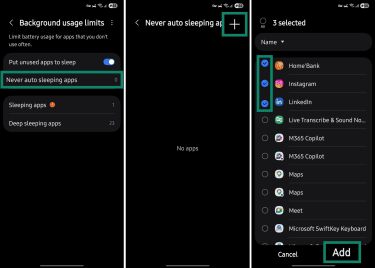
- To keep specific apps running, open Never auto sleeping apps, tap the + button, then select your chosen apps and confirm with Add.
Turn off background data usage
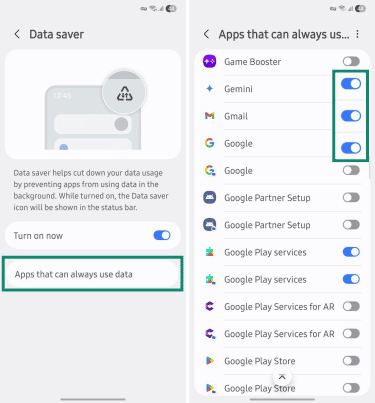
Data saver mode applies a broad background mobile data limit to most apps. It lets active apps use mobile data but restricts many apps from using it in the background.
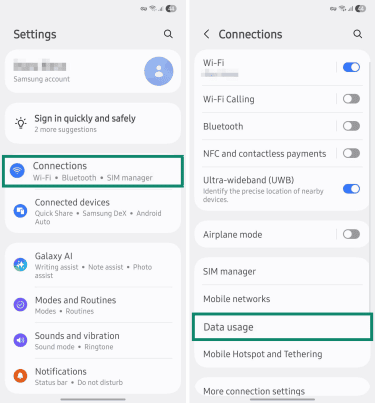
- Go to Settings and open Network and internet or Connections, depending on your device. Next, scroll down and open Data usage.
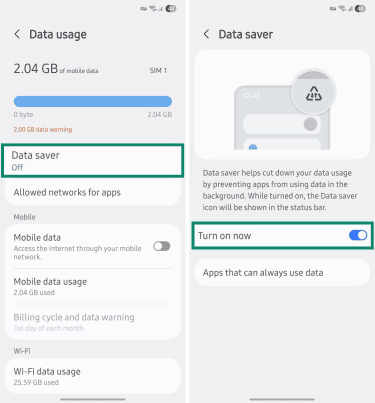
- Open Data saver and toggle Turn on now on.
- To make exceptions, open Apps that can always use data, Unrestricted data, or Allowed to use data while Data Saver is on, then toggle on the apps you want to allow.
Apps you should never force stop
Avoid force stopping apps you rely on for timely alerts, device protection, or activity tracking. This includes antivirus or privacy tools, messaging apps, pedometers, and widgets like Weather.
Also avoid stopping core Android system and user interface (UI) apps. They keep the phone’s navigation, updates, and security checks working properly. For example, the default UI launcher controls the Home screen and app drawer, so force stopping it may temporarily disrupt the Home screen, app drawer, or icons.
If you don't recognize an app, look it up to confirm what it does and whether you can safely stop it. Otherwise, choose broad battery or data-saving settings to reduce background activity with less risk.
If you’ve force stopped a system app and your phone starts glitching, restart the device. A reboot may restore crashed or stopped system processes. If you disabled a system app, you may need to re-enable it manually in Settings before related errors go away.
Some phones block changes for core apps and services, and Force stop isn’t available for every app. Be especially careful with core Google components such as Google Play services or the Google Play Store, which many apps and security features depend on.
Tips to improve Android battery life and performance
For better battery life and performance, consider a few more everyday settings and habits.
Prioritize apps by battery usage
Limiting battery use for the most demanding apps gives you the biggest payoff without wasting time on ones that barely affect performance, and it avoids putting the whole phone in battery-saving mode.
Check which apps use the most battery, then change individual settings where it makes sense. Here's how to find them:
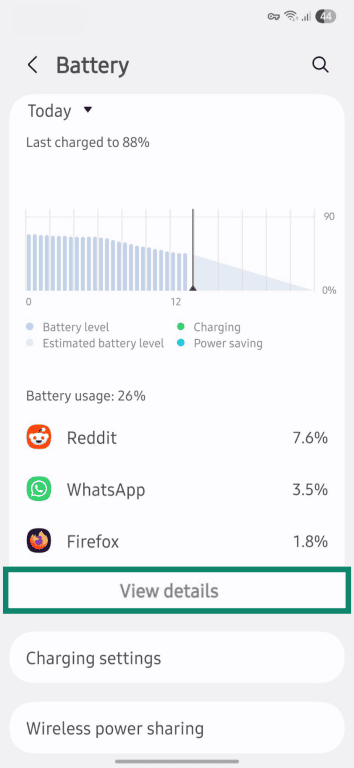
- Go to Settings > Battery.
- Tap View details on your phone's battery report for a full list of apps.
- Tap an app to view its battery use and background activity details.
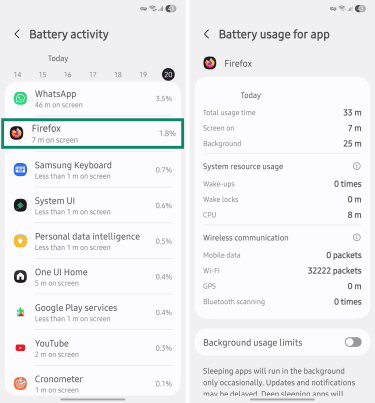
Note: Apps with the most screen time will naturally use more battery. Focus instead on apps with unusually high background time or battery usage relative to how often you open them.
Adjust display and feedback settings
Power saving mode can reduce display and background activity, depending on your device, but you can also change display settings individually for more control.
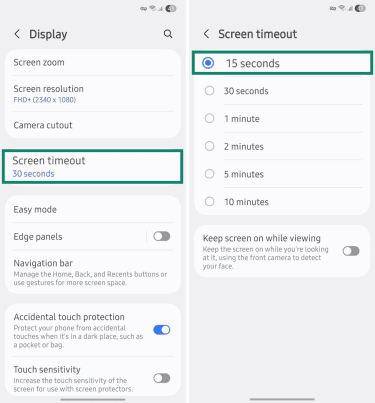
First, open Settings > Display. Then, check the following options: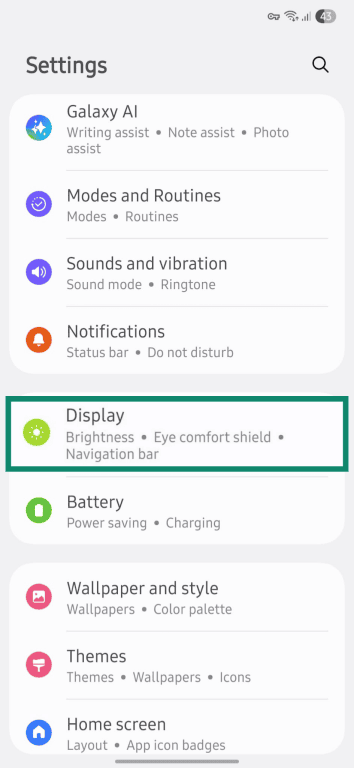
- Screen timeout: Select a shorter timeout, such as 15 or 30 seconds.
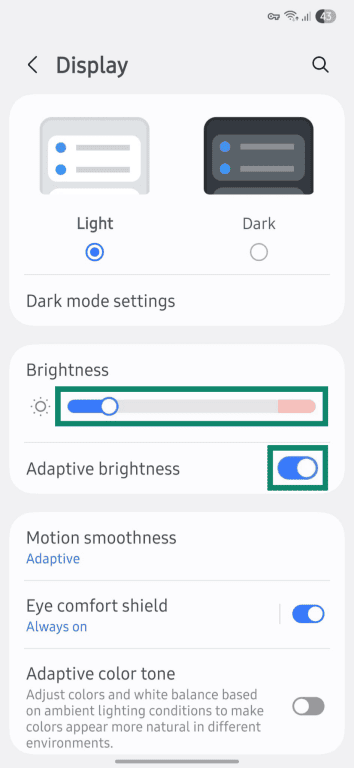
- Brightness: Lower the brightness slider, then turn on Adaptive brightness.
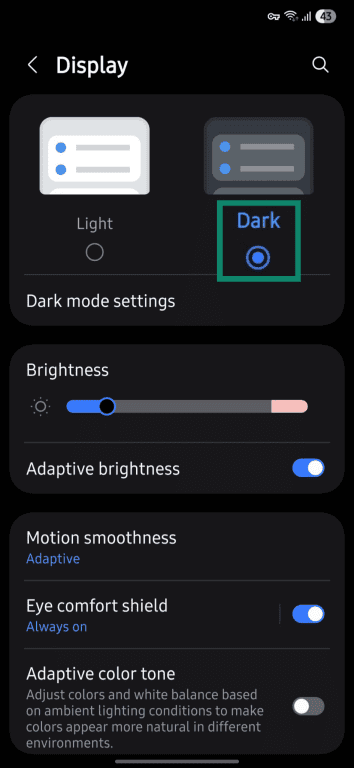
- Dark mode: Select the Dark theme option if available.
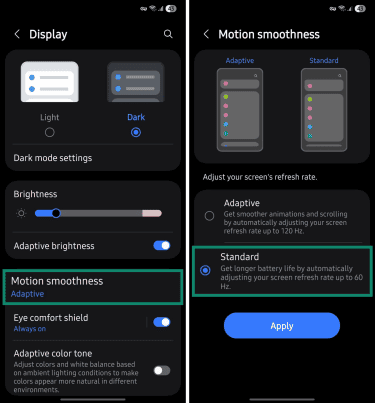
- Motion smoothness: Select Standard, then tap Apply to set your screen refresh rate to 60Hz.
- Screen resolution: On phones that offer Screen resolution settings, choose a lower resolution.
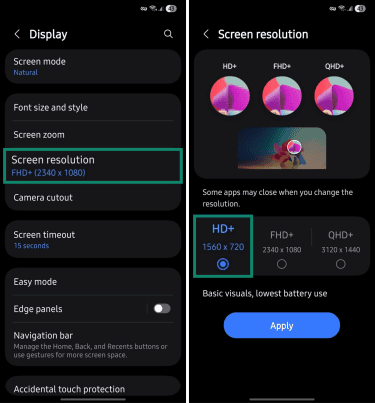
Next, go to Settings > Lock screen or Lock screen and AOD and disable Always On Display.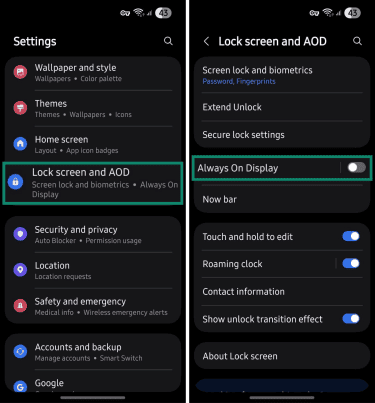
Turning off vibration for calls and keyboard feedback can also save a small amount of battery.
Go to Settings > Sounds and vibration. Turn off Vibrate while ringing if you don’t need it.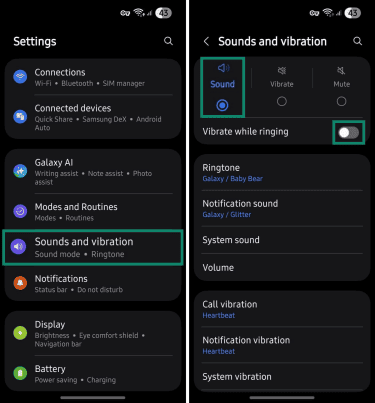
Scroll down and open System vibration, then disable all the ones you don't need.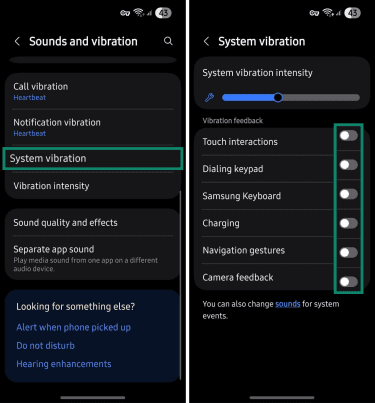
Turn off unused connections
Active connections use battery when the phone is scanning, maintaining a weak signal, sharing data, or using location services in the background. Turn off mobile data, Bluetooth, and Location when you don’t need them, and connect to secure Wi-Fi instead of mobile data when possible.
Keep in mind that turning off Location can affect maps, weather, location sharing, and device-finding features. For more privacy controls beyond Location, see our guide to Android privacy settings to turn off.
You can enable Wi-Fi and disable other connections from Settings > Connections or Network and internet, depending on your device.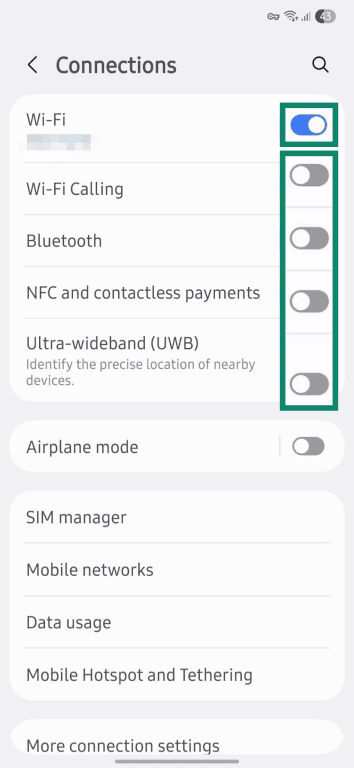
To turn off Location, go to Settings > Location and click the toggle to Off.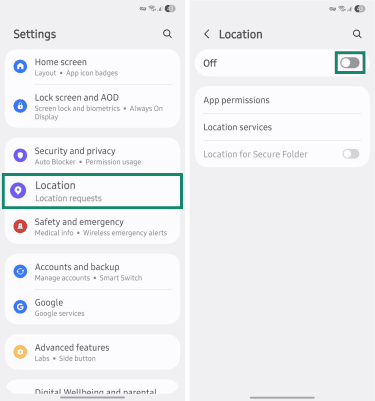
Limit background syncing
Background syncing keeps accounts and apps updated when you're not using them. For Google apps, sync refreshes messages, email, and other recent data, and helps deliver update notifications. It can also use battery and mobile data.
To limit it:
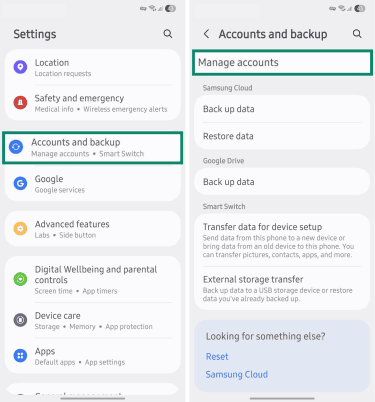
- Go to Settings > Accounts and backup > Manage accounts.
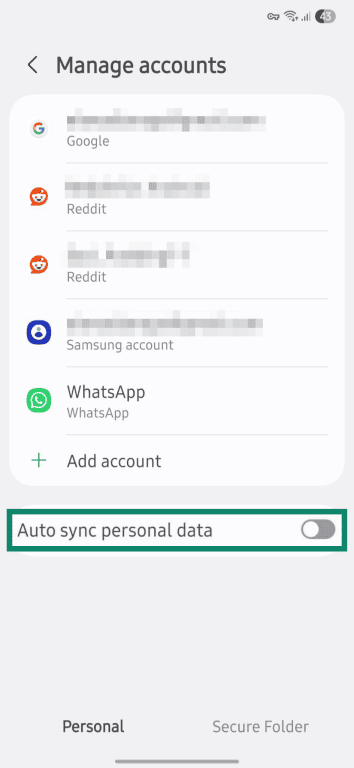
- Turn off Auto sync personal data.
Protect the battery
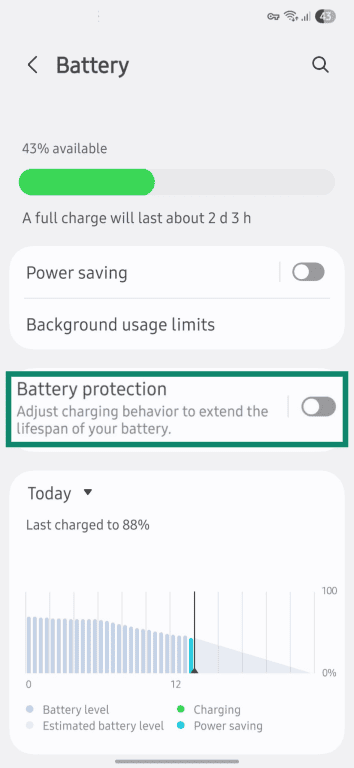
A phone’s battery has a limited lifespan, and charging habits can affect how quickly it wears down. A common way to reduce wear is to avoid regularly letting the battery drain very low or sit fully charged for long periods. Many users follow the 80/20 rule: avoid letting the battery drop below 20% or charging it past 80% regularly.
Modern phones automate this with charging optimization or battery protection features.
- Go to Settings > Battery > Battery protection.
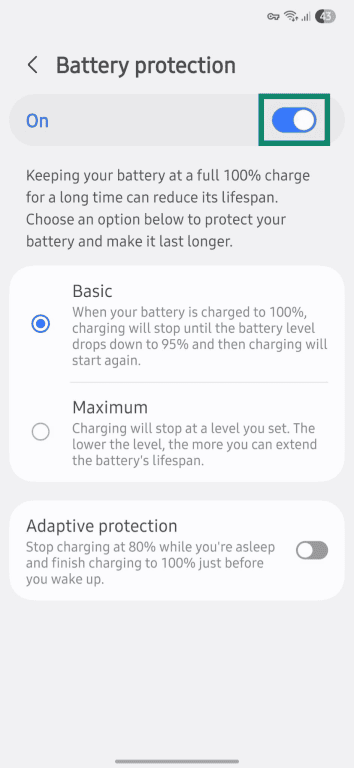
- Enable the toggle at the top.
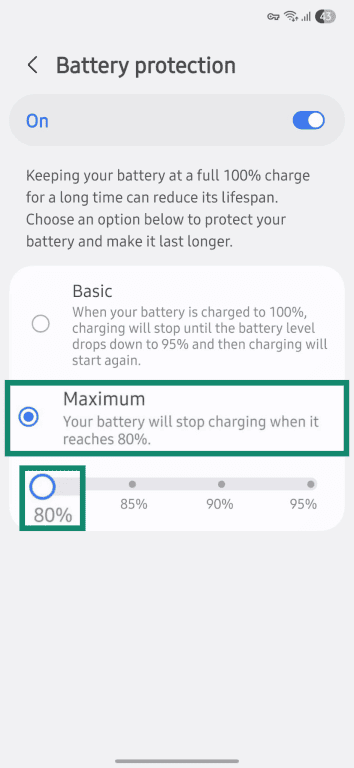
- Select Maximum and set the charging limit, such as 80%, if available.
Keep the phone cool
Heat is one of the main factors that can strain smartphone batteries. High temperatures, whether from the environment or internal strain, can reduce battery life and capacity over time. Heat is especially easy to overlook while the phone is charging.
Use the manufacturer’s recommended or a certified compatible charger and cable where possible, since incompatible chargers can increase the risk of heat, charging problems, or battery wear. If the phone gets hot, remove the case and keep it off heat-trapping surfaces like blankets, and move it somewhere cooler. If it becomes too hot while charging, unplug it and let it cool before using it again.
Heavy use during charging also strains the device. Multitasking, mobile games, streaming, and other graphics-heavy or data-intensive apps put more strain on the processor and network connection while the battery is already working to charge.
Install the latest updates
If battery problems persist, check for system and app updates. Updates can fix bugs, improve stability, and sometimes address battery or performance issues. Battery drain may temporarily increase after a major update while the phone finishes setup and optimization.
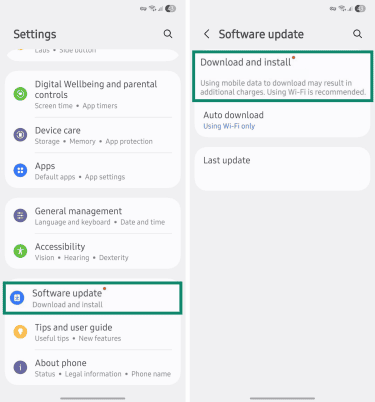
- Open Settings > Software update or System update. Tap Download and install to check for updates, then follow the on-screen prompts if one is available.
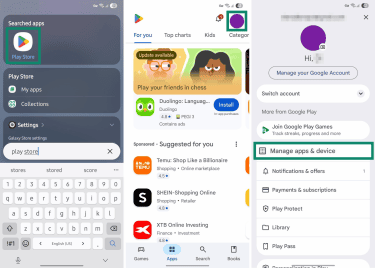
- Open the Google Play Store. Tap your profile icon and go to Manage apps & device.
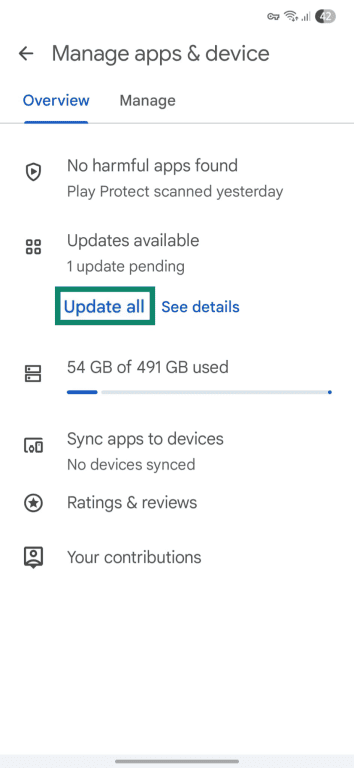
- Select Update all if any updates are available.
FAQ
Why do apps keep reopening in the background?
Does force stopping apps save battery?
Can background apps slow down my Android phone?
What happens if I restrict background activity?