This guide will show you how to add and edit Dedicated Subdomains in ExpressMailGuard.
Dedicated Subdomains are unique to you, and you can use them to create as many aliases as you want.
Jump to…
How to add Dedicated Subdomains
Editing Dedicated Subdomains
Adding default recipients to a Dedicated Subdomain
Disabling/Re-enabling Catch-All for a Dedicated Subdomain
How many Dedicated Subdomains can I create?
How to add Dedicated Subdomains
To add additional Dedicated Subdomains:
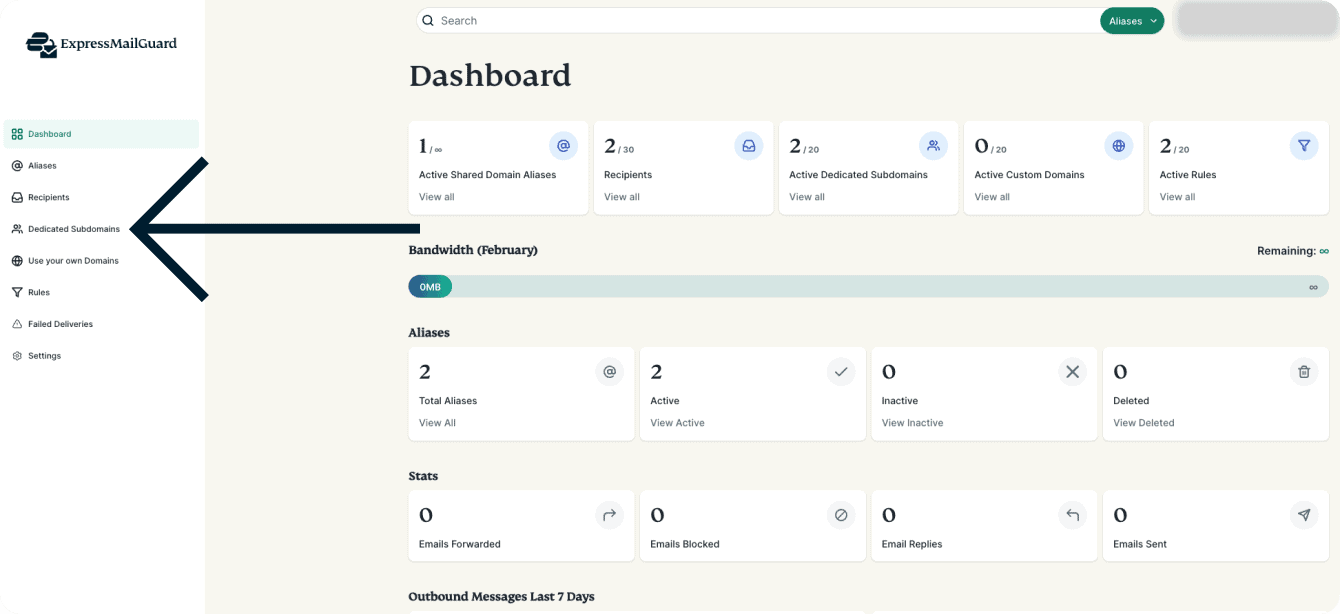
- On the ExpressMailGuard dashboard, click Dedicated Subdomains.

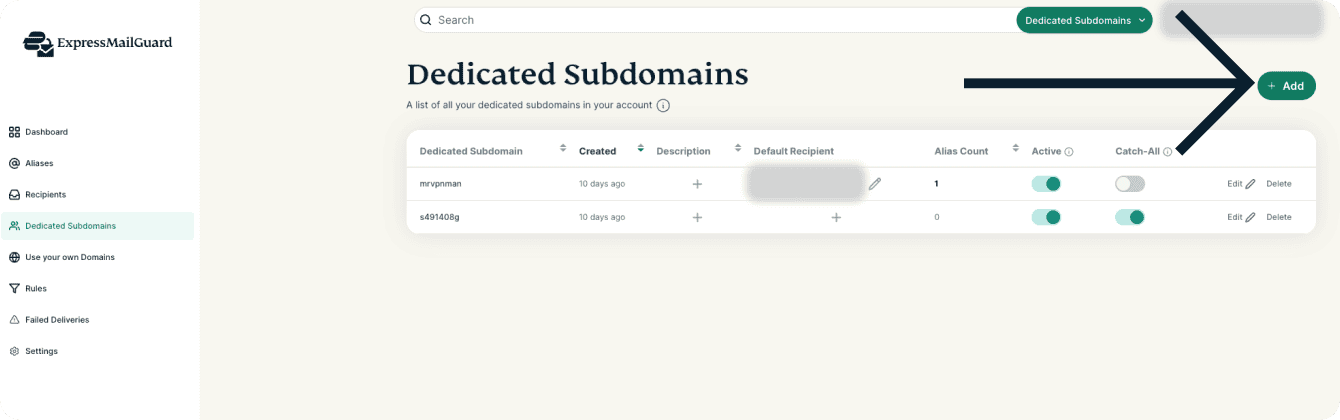
- Click + Add.

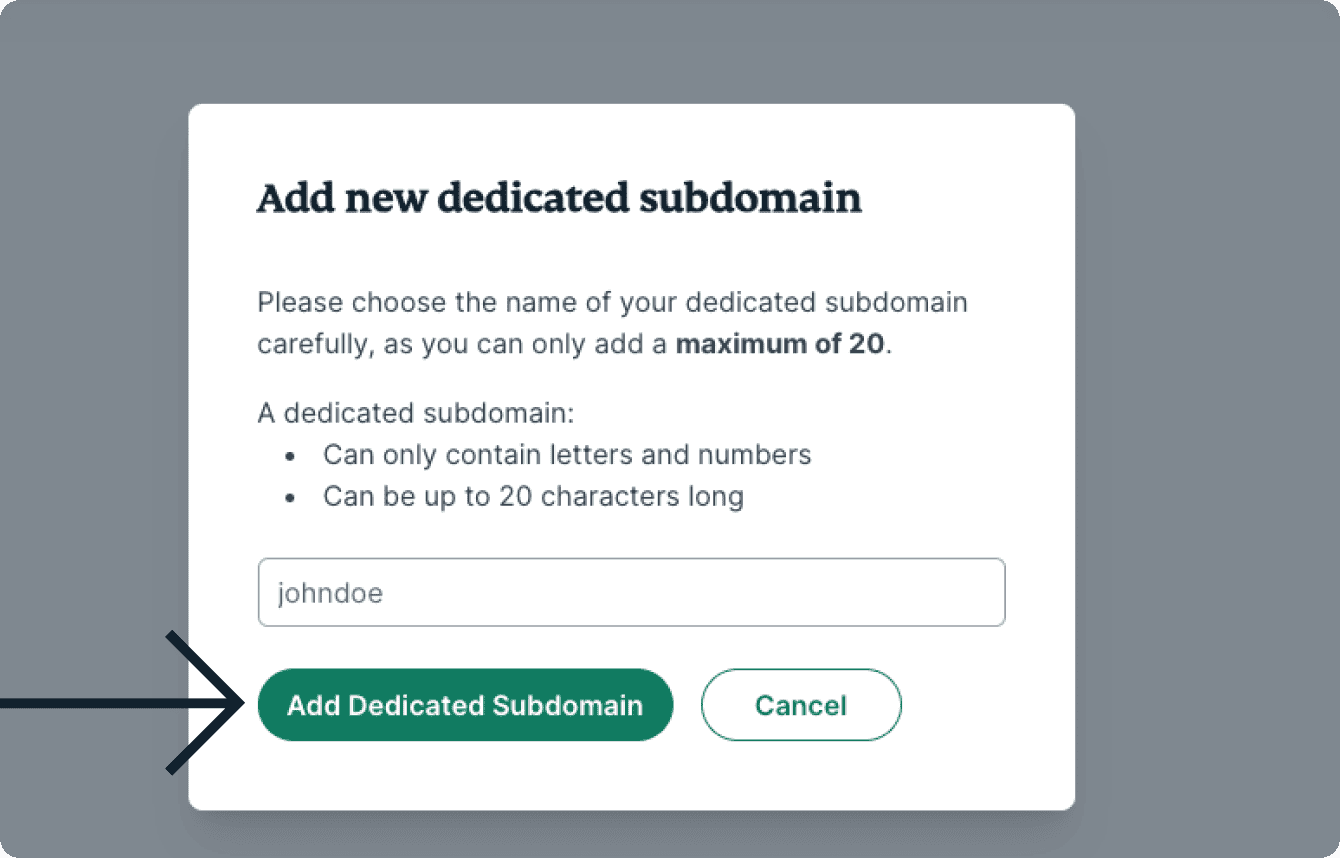
- Add your Dedicated Subdomain name. When adding a Dedicated Subdomain, it must follow this criteria:
- Be no longer than 20 characters
- Only contain letters and numbers
- No spaces
- Click Add Dedicated Subdomain.

Need help? Contact the ExpressVPN Support Team for immediate assistance.
Editing Dedicated Subdomains
You have several options you can modify when it comes to Dedicated Subdomains:
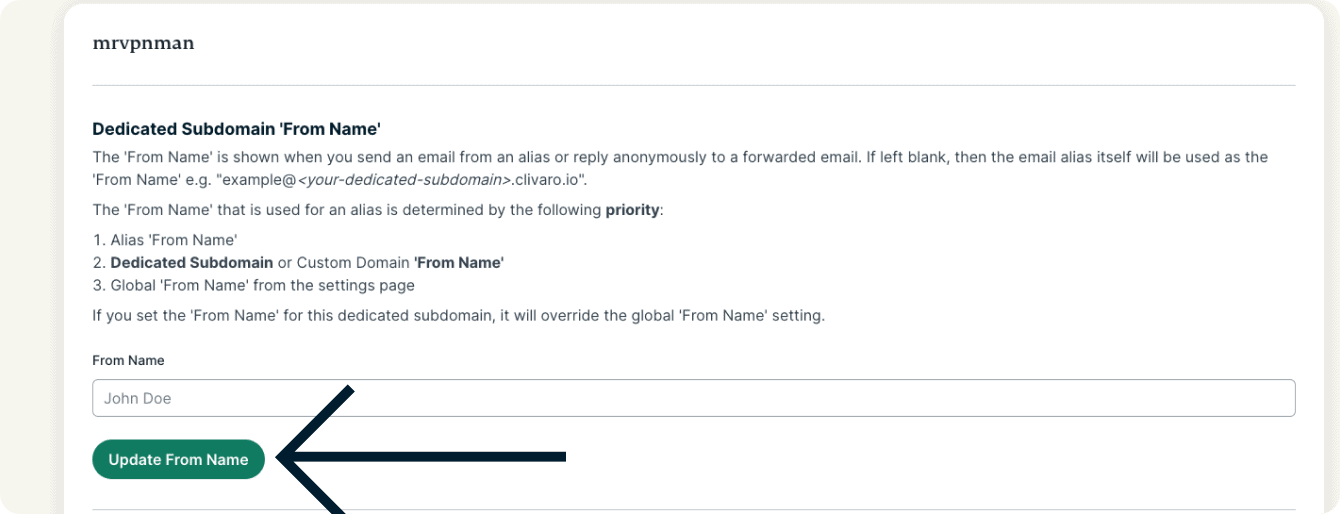
Dedicated Subdomain ‘From Name’
The ‘From Name’ is shown when you send an email from an alias or reply anonymously to a forwarded email. If left blank, then the email alias itself will be used as the ‘From Name’.
The ‘From Name’ that is used for an alias is determined by the following priority:
- Alias ‘From Name’
- Dedicated Subdomain or Custom Domain ‘From Name’
- Global ‘From Name’ from the settings page
If you set the ‘From Name’ for this Dedicated Subdomain, it will override the global ‘From Name’ setting.
To edit the ‘From Name’ for a Dedicated Subdomain:
- On the ExpressMailGuard dashboard, click Dedicated Subdomains.
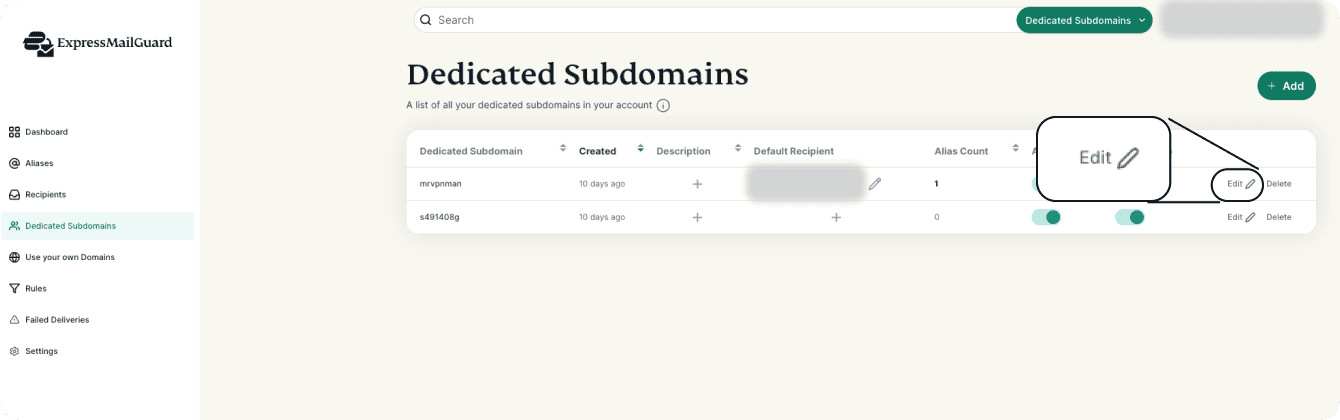
- Find the Dedicated Subdomain you want to edit and click Edit.
- Under Dedicated ‘From Name’, enter your new ‘From Name’ in the From Name text field.


- Click Update From Name.
Alias Auto Create Regex
If you wish to create aliases on-the-fly but don’t want to enable Catch-ll, then you can enter a regular expression pattern below. If a new alias’ local part matches the pattern then it will still be created on-the-fly even though Catch-All is disabled.
Note: Catch-All must be disabled to use alias automatic creation with regex.
For example, if you only want aliases that start with “prefix” to be automatically created, use the regex ^prefix
If you only want aliases that end with “suffix” to be automatically created, use the regex suffix$
If you want to make sure the local part is fully matched you can start your regex with ^ and end it with $ e.g. ^prefix.*suffix$ which would match “prefix-anything-here-suffix”
You can use regex101.com to help you write your regular expressions.
Test Alias Auto Create Regex
You can test whether an alias local part will match the above regex pattern and be automatically created by entering the local part (left of @ symbol) in the text box under Test Alias Auto Create Regex.
No aliases will be created when testing.
Need help? Contact the ExpressVPN Support Team for immediate assistance.
Adding default recipients to a Dedicated Subdomain
Adding a default recipient for a Dedicated Subdomain overrides the default recipient in your account settings. Default recipients can also be configured through the Account Settings.
To add a default recipient to a Dedicated Subdomain:
- On the ExpressMailGuard dashboard, click Dedicated Subdomains.
- Find the Dedicated Subdomain you want to add a default recipient for and click + under the Default Recipient column.

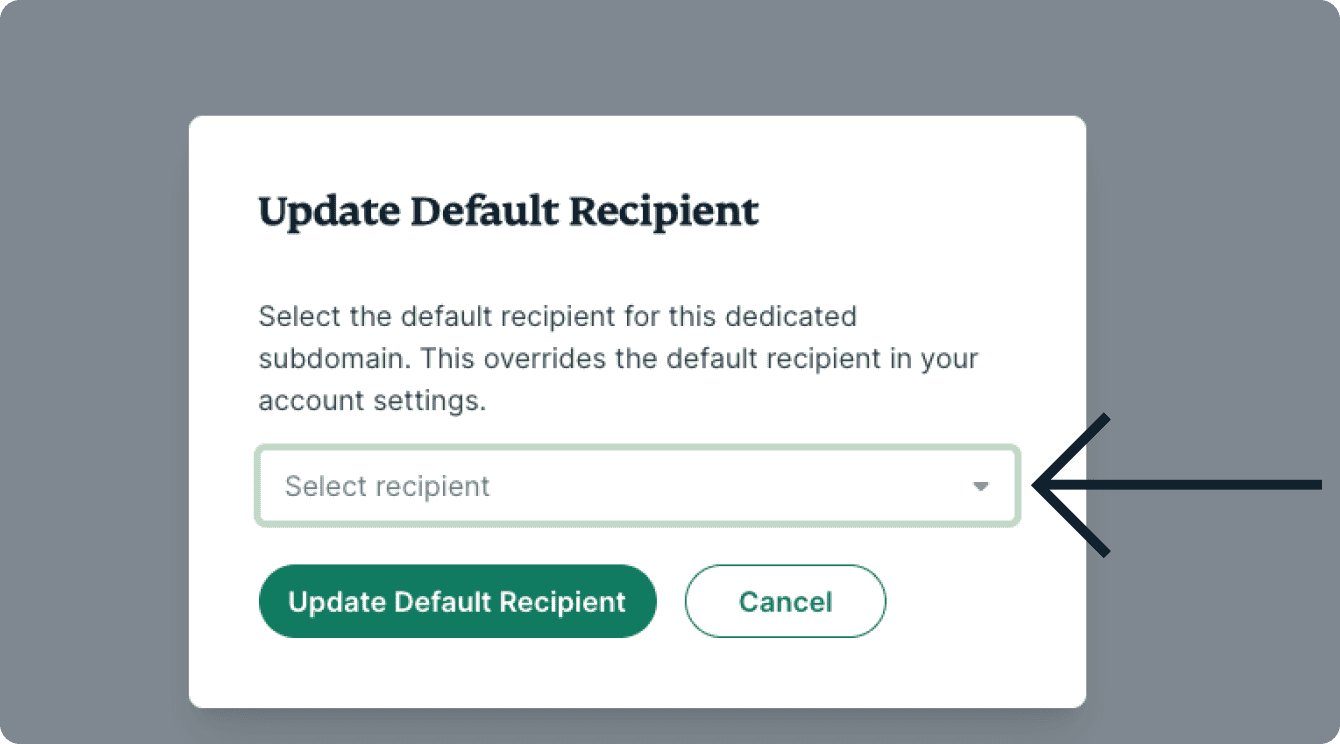
- Click the dropdown menu to choose your default recipient for that Dedicated Subdomain.

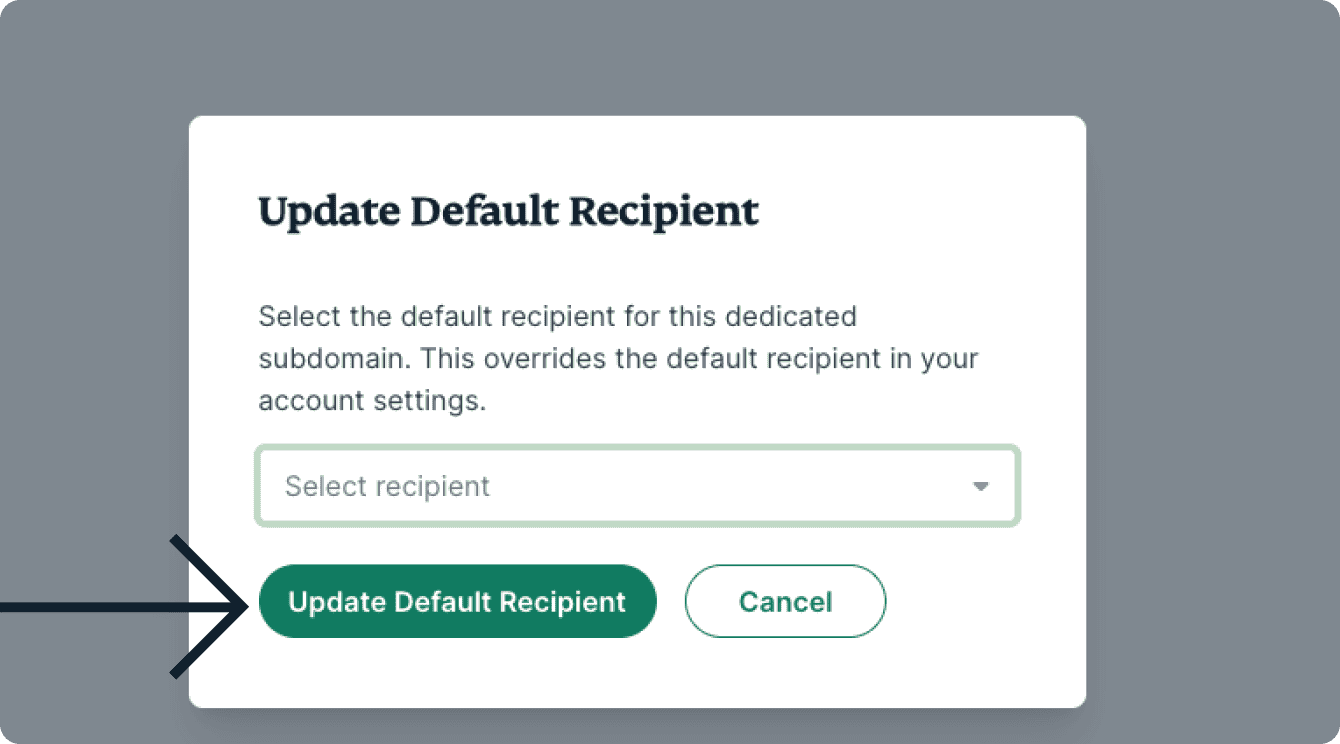
- Click Update Default Recipient.
Need help? Contact the ExpressVPN Support Team for immediate assistance.
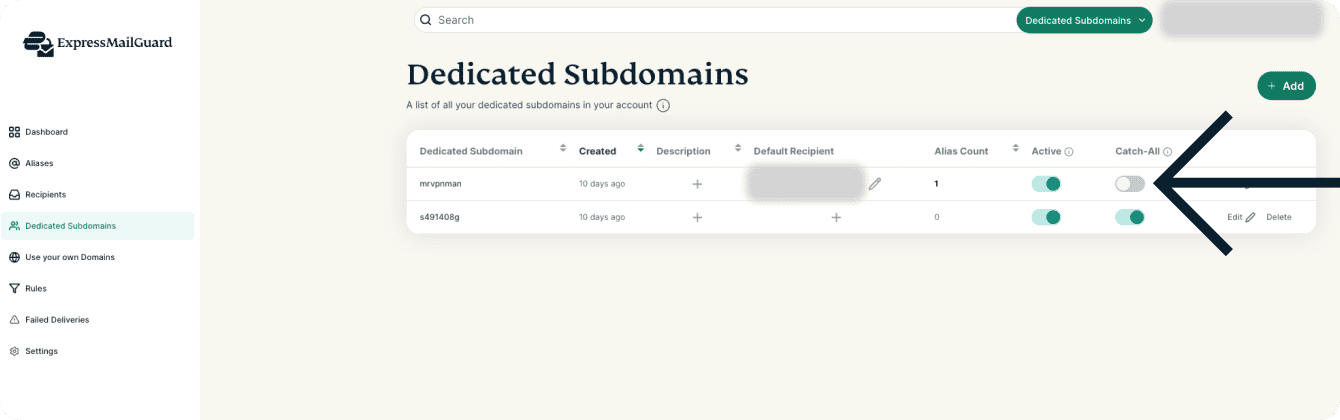
Disabling/Re-enabling Catch-All for a Dedicated Subdomain
Catch-All is enabled by default for all Dedicated Subdomains.
When Catch-All is disabled, only aliases that already exist for the Dedicated Subdomain will forward messages. They will not be automatically created on the fly unless you are using auto create regex.
To disable Catch-All for a Dedicated Subdomain:
- On the ExpressMailGuard dashboard, click Dedicated Subdomains.
- Find the Dedicated Subdomain you want to disable Catch-All for and click the toggle button under the Catch-All column.
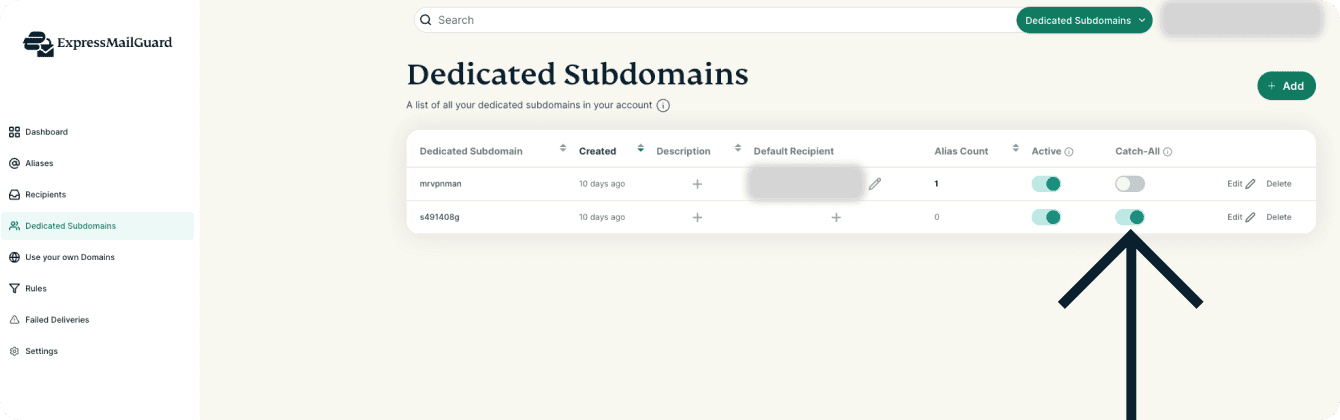
To re-enable Catch-All:
- On the ExpressMailGuard dashboard, click Dedicated Subdomains.
- Find the Dedicated Subdomain you want to enable Catch-All for and click the toggle button under the Catch-All column.
Need help? Contact the ExpressVPN Support Team for immediate assistance.
How many Dedicated Subdomains can I create?
The number of Dedicated Subdomains you can create depends on your ExpressVPN subscription tier:
- ExpressVPN Basic: One
- ExpressVPN Advanced: Five
- ExpressVPN Pro: 20
Need help? Contact the ExpressVPN Support Team for immediate assistance.