What are third-party cookies, and should you block them?



If ads seem to follow you from one website to another, it’s not usually a coincidence. Many websites load advertising, analytics, and social media services from external companies. Those companies can place third-party cookies in your browser, allowing them to recognize that browser again when it loads their code elsewhere.
These cookies influence the ads you see and how websites tailor parts of your experience. They raise valid privacy concerns because they allow your activity to be tracked across different websites, not just within one.
This guide explains what third-party cookies are, how they work, how they differ from first-party cookies, how browsers handle them, and whether blocking them makes sense.
What are third-party cookies?
A third-party cookie is a small tracking file created and stored in your browser by a domain other than the website you’re visiting. They’re also sometimes called cross-site cookies.
When you open a site, it can set its own cookies. These are first-party cookies. But most pages also load content from outside services, such as an ad network or social media platform. If one of those external domains sets a cookie, that cookie belongs to the third party, not the site you’re viewing.
For example, you might browse party decorations on one website. Later, you start seeing ads for similar decorations on other sites or on social media. This happens because the advertising network places a third-party cookie when you visit the first site. The cookie acts as an identifier that tells the network the same browser viewed party decorations. When that browser later loads ads on other websites that use the same ad network, the identifier is used to show related ads.
First-party vs. third-party cookies
Both first-party and third-party cookies are small text files that websites use to store information. The difference lies in who sets and reads them.
Only the website that created a first-party cookie can access it. It stays within the site you’re visiting. Third-party cookies are accessible to the external domain that sets them across any site that loads that same external service.
| Feature | First-party cookies | Third-party cookies |
| Who sets them? | The website you’re visiting | An external domain loaded by that website |
| Where are they accessible? | Only on that domain | On any site that loads the third party’s resources |
| Main purpose | Logins, preferences, shopping carts, session management | Advertising, cross-site analytics, audience profiling |
| Privacy impact | Limited to activity on one site | Can link activity across multiple sites |
| Browser treatment | Allowed by default in all major browsers | Blocked or restricted by Safari and Firefox by default; enabled by default in Chrome |
First-party cookies are the reason sessions work at all, for example, staying logged in, remembering language preferences, or saving items in a cart. Third-party cookies are mainly about tracking and measurement across sites, which is why browsers treat them more strictly.
How do third-party cookies work?
When you open a website, your browser doesn’t just talk to that one server. Most pages also load content from multiple external sources at the same time: ads, analytics scripts, embedded media, or tracking pixels.
Each time your browser loads content from an external service, it sends a request to that service’s server. The server can respond by setting a cookie in your browser tied to its own domain. Your browser saves it there.
From that point on, every time you visit another site that loads content from the same external domain, your browser automatically sends that cookie back, and the external server recognizes the same identifier.
Here’s a simple example:
- You visit a fitness blog that uses a specific ad network.
- The ad network stores a cookie in your browser with a unique ID.
- Later, you open a news site that also loads ads from that same network.
- Your browser sends that cookie to the ad network.
- The network recognizes the same browser ID and links the visits.
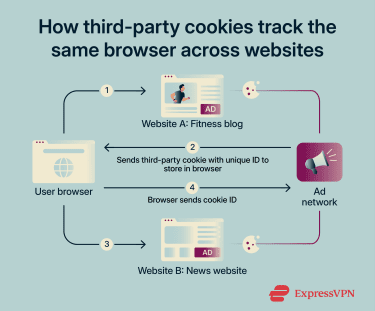 This is cross-site tracking. The third party doesn’t need to know your name, just the identifier stored in your browser. And because large ad and analytics companies power thousands of websites, that identifier can build a detailed picture of your browsing across many unrelated domains over time.
What third-party cookies cannot do
It’s important to clarify the capabilities of third-party cookies. They:
- Don’t automatically know your real name.
- Can’t see browsing history on sites that don’t load their code.
- Can’t access files or data stored elsewhere on your device.
However, if you log into an account tied to the same third party (for example, a social platform), the cookie data can become linked to that account, connecting an anonymous identifier to a real identity.
Why do websites use third-party cookies?
Here are some of the most common reasons websites use third-party cookies:
- Advertising, retargeting, and audience profiling: Ad networks use third-party cookies to show ads to people who have already shown an interest in a product or page. They also use them to cap how often you see the same ad (frequency capping), so you’re not shown the same one dozens of times in a row.
- Analytics and performance tracking: Many websites use third-party analytics tools to see how their pages perform: how many people click a particular button, how long they stay, and where they drop off in a checkout flow. The analytics provider sets a cookie that measures visits, behavior, and traffic sources across sessions.
- Social media tracking: Social platforms often provide embedded features such as “Like” and “Share” buttons or login widgets. When a page includes those elements, the platform can set or read a cookie as soon as the page loads, regardless of whether you interact with it. This lets the platform recognize your browser on other sites that include its features.
- Embedded functionality: Live chat systems, fraud detection tools, video players, payment processors, and mapping services may all use cookies to maintain sessions or keep features working as you move between pages.
Privacy and security risks of third-party cookies
Third-party cookies extend beyond a single website. That broader reach is what raises concern.
Cross-site tracking
Third-party cookies allow the same external company to appear invisibly across thousands of websites. Each time your browser loads content from that company, it sends back the same identifier, revealing your presence on that page.
Over time, this creates a detailed map of your browsing habits across unrelated domains: what topics you read, what products you look at, how your interests shift, and what you do at different times of the day.
Why “It doesn’t know your name” isn’t reassuring
This is worth dwelling on, because it's the most commonly misunderstood aspect of cookie tracking. A persistent identifier tied to your browser over months can reveal a great deal, such as health conditions you've been researching, political interests, and your financial situation, purely from the pattern of sites you visit.
Advertisers use these patterns to sort people into targeting categories. The absence of a name doesn't make that profile private.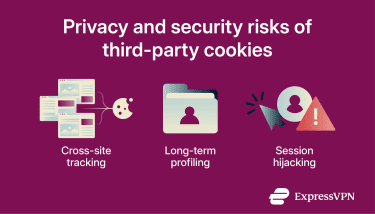
Long-term profiling
Many third-party cookies are set with long expiry dates, some lasting months or years. As long as they’re active and the external service has code running on sites you visit, they continue sending data back. Clearing your browsing history won’t remove them. You have to clear cookies specifically.
Session hijacking
If a site transmits a session cookie over an unsecured connection (such as public Wi-Fi) and an attacker intercepts it (for example, via cross-site scripting), they can impersonate you and access your account without a password.
Critically, this can bypass two-factor authentication (2FA) as the session is already authenticated. The attacker doesn’t need your credentials; they just need your cookie.
These risks don’t mean cookies are inherently unsafe. They arise from poor configuration and site vulnerabilities.
Why websites ask you to accept cookies
Concerns about online tracking have led to new privacy laws that give people more control over how websites collect and use their data. One visible result is the cookie consent banners that now appear on many sites.
In the EU, the General Data Protection Regulation (GDPR) treats certain cookies as personal data when they can be linked to a user. That means websites must ask for clear consent before placing non-essential tracking cookies. The ePrivacy Directive, often called the “Cookie Law,” reinforces this by requiring websites to inform users about tracking technologies and give them the option to refuse.
In California, the California Consumer Privacy Act (CCPA) and its update, the California Privacy Rights Act (CPRA), give residents the right to opt out of the sale or sharing of their personal information. This directly affects how advertising networks use browsing data. Several other U.S. states have passed similar laws.
These laws are the reason you now see cookie banners and consent pop-ups on most websites. They aren’t just design choices; they exist because companies are legally required to disclose what they collect and give users meaningful control.
How to manage third-party cookies
Managing third-party cookies involves checking who sets them, deciding whether to allow them, and clearing them when needed.
How to check if a site uses third-party cookies
You can use browser developer tools to check if a site uses third-party cookies. Any cookie domain that doesn’t match the website's main address is a third-party cookie.
Chrome and Edge
Open the website you want to inspect, then press F12 to open Developer Tools. If you don’t see the Application tab in the top menu, open the tab menu and select Application. Then expand Cookies in the left sidebar.
If a cookie’s domain doesn’t match the site you’re visiting, it’s a third-party cookie.
You can also sort cookies by the SameSite column. Cookies marked SameSite=None are allowed to be sent in cross-site requests. This configuration is commonly used by third-party services and can indicate cross-site tracking (although it may also be required for legitimate features such as single sign-on or embedded services).
Firefox
Open the website you want to inspect, then press F12 to open Developer Tools. Select the Storage tab and expand Cookies in the sidebar.
Any domain that differs from the site’s main domain indicates a third-party cookie.
Safari
Open the website you want to inspect, then open Web Inspector. Select the Storage tab and expand Cookies or Website Data in the sidebar.
If the domain doesn’t match the website you’re visiting, the cookie is set by a third party.
Should you block third-party cookies?
There’s no right answer, but for most people, blocking third-party cookies is a reasonable default, especially if privacy matters more than a perfectly smooth browsing experience.
When you block them, ad networks have a harder time linking your activity across sites. Social media widgets may not automatically recognize your browser, and some embedded tools, such as single sign-on (SSO), support chats, payments, and interactive maps, may forget settings or ask you to sign in again.
In most cases, browsing works normally. The main things you’ll notice are less targeted (though not fewer) ads and occasional friction with features that depend on third-party sessions.
| Benefits | Drawbacks |
| Less cross-site tracking | Some embedded features may break or reset |
| Fewer persistent tracking identifiers in your browser | Ads become less targeted, not fewer |
| Reduced exposure if an external ad network is breached | You may need to sign in more often on linked services |
| Lower risk of long-term behavioral profiling | Some widgets may reset preferences repeatedly |
If something breaks after blocking, you don’t have to turn third-party cookies back on globally to fix the issue. Instead, allow them for that specific site only. Most browsers let you do this through the padlock icon or the site settings menu.
This gives you the best of both: broad protection with targeted exceptions where you actually need them.
Which browsers block third-party cookies by default?
Manually blocking third-party cookies may not always be needed. Browser policies around them have changed significantly in recent years. While they were once widely accepted by default, some browsers now restrict or block them automatically as part of broader privacy protections.
- Chrome: Currently allows third-party cookies by default (although Incognito mode blocks them).
- Edge: Uses Tracking Prevention with Basic, Balanced (default), and Strict modes. Balanced blocks many known third-party trackers from sites you haven’t visited. Strict blocks more but may break some embedded features or login systems.
- Firefox: Blocks known third-party tracking cookies by default through Enhanced Tracking Protection. It also applies Total Cookie Protection, which isolates cookies by site, meaning a third-party cookie set on one site can’t be read on another, even if they both use the same external service.
- Safari: Blocks most third-party cookies by default through Intelligent Tracking Prevention. The Prevent Cross-Site Tracking setting is enabled by default in current versions, reducing the ability of advertising networks to follow browsing activity across sites.
How to disable third-party cookies by browser
The steps below show how to disable third-party cookies in Google Chrome, Microsoft Edge, Mozilla Firefox, and Safari.
Google Chrome
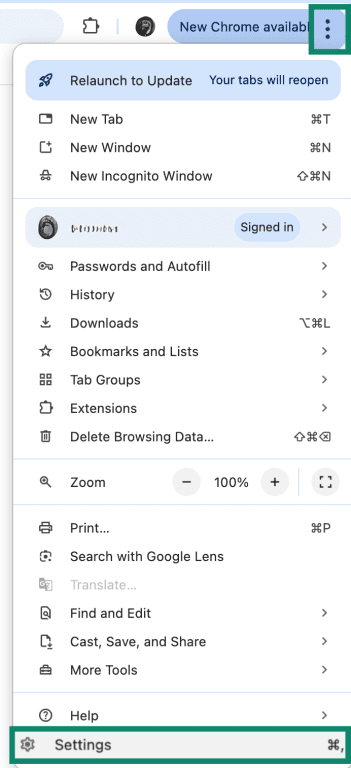
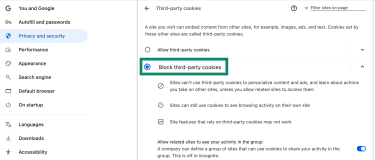
- Open the menu (three vertical dots) in the top-right corner of the browser window and click Settings.
- Select Privacy and security, then click Third-party cookies.
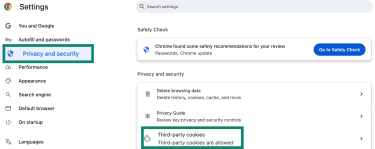
- Select Block third-party cookies to turn the setting on.
Microsoft Edge
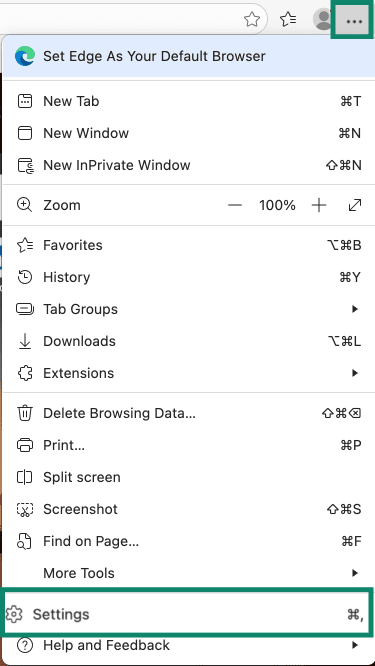
- Open the menu (three dots) in the top-right corner of the browser window and select Settings.
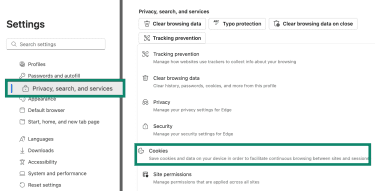
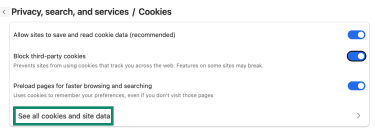
- In the left sidebar, click Privacy, search, and services > Cookies.
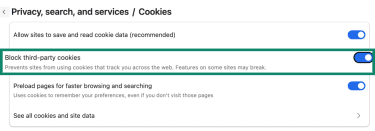
- Toggle Block third-party cookies to on.
Mozilla Firefox
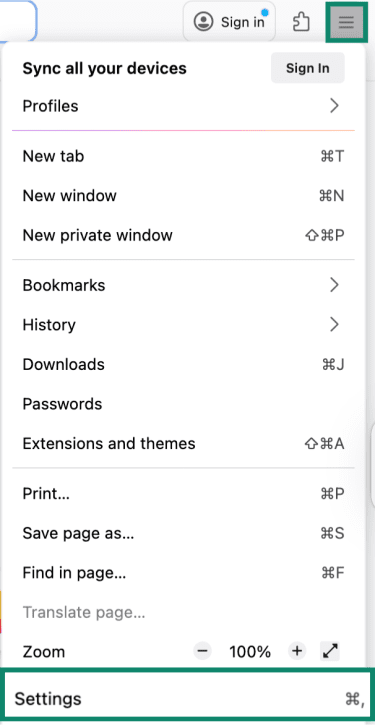
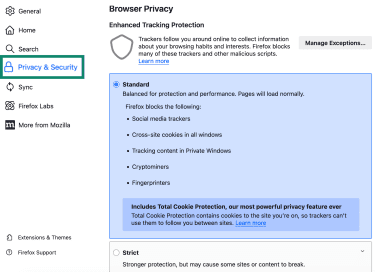
Firefox doesn’t use a single cookie toggle. It uses Enhanced Tracking Protection combined with Total Cookie Protection, which isolates cookies by site so third-party cookies on one site can’t be read on another.
- Click the menu (three horizontal lines) in the top-right corner of the browser window and select Settings.
- Under Enhanced Tracking Protection, choose Standard or Strict. Standard is usually fine. Strict blocks more but may break more site features.
Safari
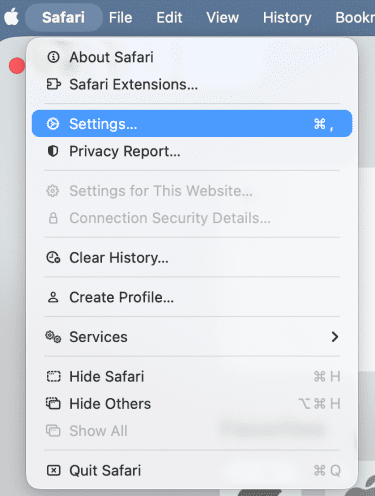
Safari’s control is framed around tracking prevention.
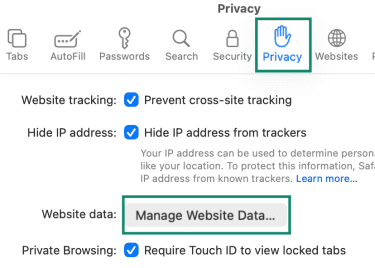
- Open Safari Settings.
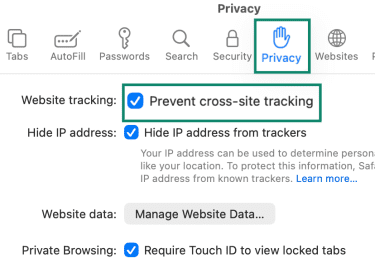
- Go to the Privacy tab and select Prevent cross-site tracking.
How to clear third-party cookies
Clearing all cookies will sign you out of sites and reset preferences. If you only want to target a specific site, use the per-site option instead.
Google Chrome
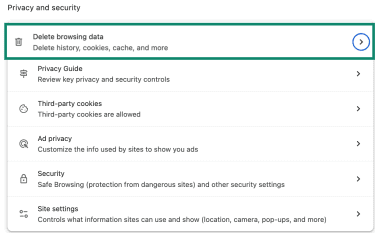
- Under Settings in Privacy and security, click Delete browsing data to remove all cookies.
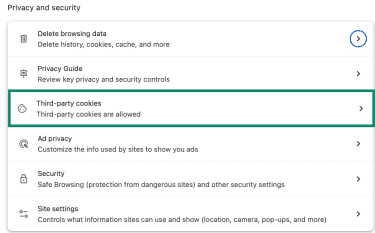
- To remove cookies for a specific site, open Third-party cookies.
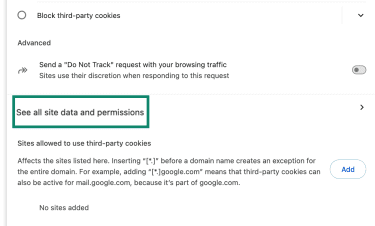
- Then click See all site data and permissions.
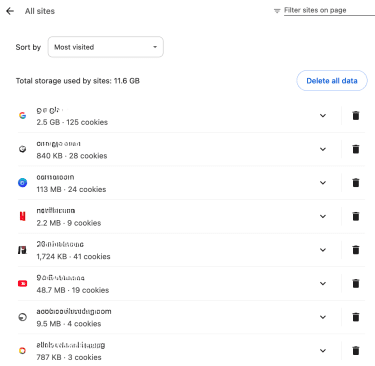
- Find the site and delete it manually.
Microsoft Edge
- Under Settings, select Privacy, search, and services and click Clear browsing data.
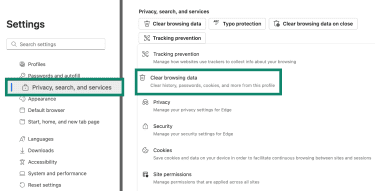
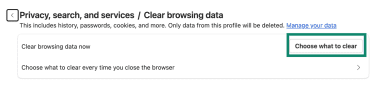
- Then click Choose what to clear.
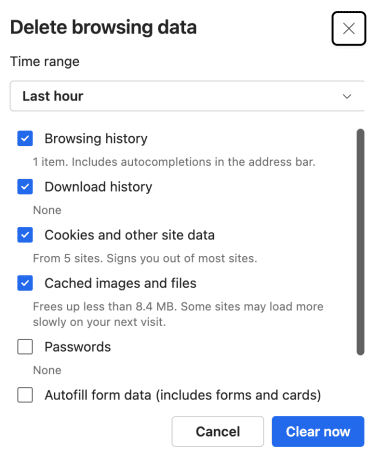
- Choose your preferred Time range, select Cookies and other site data, and then click Clear now.
- To remove a single website, open Cookies.
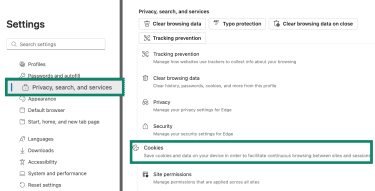
- Then click See all cookies and site data.
Mozilla Firefox
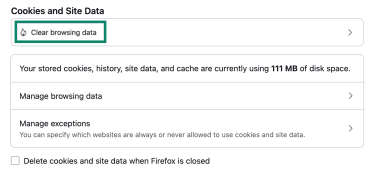
- Under Privacy & Security in Preferences, go to Cookies and Site Data and click Clear browsing data.
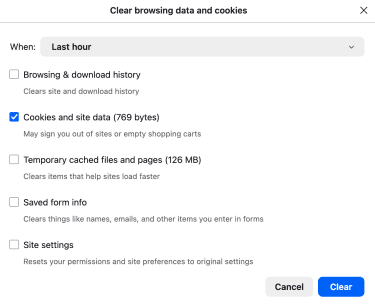
- In the pop-up window, select Cookies and site data, then click Clear.
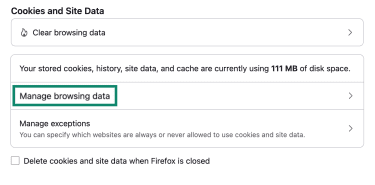
- To remove cookies for a specific site, click Manage browsing data in Cookies and Site Data instead of clearing all browsing data.
Safari
- Under the Privacy tab in Safari Settings, click Manage Website Data.
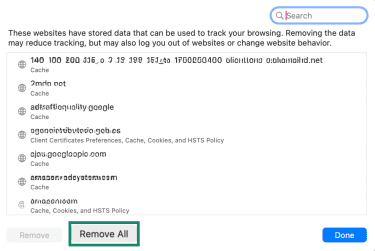
- In the window that opens, review the listed websites. From there, you can remove individual sites or select Remove All.
Are third-party cookies being phased out?
For years, major browsers have been moving to limit or eliminate third-party cookies because they enable cross-site tracking. In 2019, Google announced plans to improve cookie controls in Google Chrome and introduce privacy-focused technologies through its Privacy Sandbox.
However, that plan later changed course. Google also moved to retire many of the Privacy Sandbox initiatives, which were intended to provide privacy-focused alternatives to tracking.
Other browsers (like Safari and Firefox) have made cross-tracking harder through blocking, limiting lifetimes, or isolating storage.
However, even if the use of third-party cookies decreases, tracking doesn’t vanish. Companies are developing alternative methods to collect data and support advertising, such as:
- First-party data: Websites collect user information directly through account sign-ups, purchases, newsletters, and loyalty programs. This data stays within the site’s own domain rather than following users across the web.
- Contextual advertising: Ads are matched to the content of the page you’re viewing rather than your browsing history. For example, a travel article shows flight and hotel ads, and a cooking site shows kitchen products; no cross-site tracking is required.
- Server-side tracking: Tracking scripts run on the website’s own servers rather than directly in the user’s browser, making it harder for browsers to block. The site operator controls what gets shared with analytics or advertising partners, rather than that happening automatically client-side.
- Universal IDs: These are shared identifiers, usually derived from something a user has consented to share (like a hashed email address), that allow the same person to be recognized across different websites, apps, and devices without relying on browser cookies. They’re controversial because, unlike cookie identifiers, they can more easily be linked to a real person.
- Browser fingerprinting: Identifies browsers based on technical characteristics, such as screen resolution, installed fonts, browser version, and how the device renders graphics and audio. As it doesn’t rely on cookies and stores nothing on your device, blocking or clearing third-party cookies doesn’t automatically prevent fingerprinting.
FAQ: Common questions about third-party cookies
What’s the difference between first-party and third-party cookies?
Should I disable third-party cookies?
What are third-party cookies on Chrome?
How can I clear my cookies?
What are the risks of third-party cookies?
Do third-party cookies collect personal data?
Take the first step to protect yourself online. Try ExpressVPN risk-free.
Get ExpressVPN












 Support Center
  FAQ
FAQ  VPN Setup Tutorials