How to clear cache in Chrome and fix website loading issues


Chrome temporarily saves parts of websites, such as images, layouts, JavaScript files, and other assets, in what’s known as cache. While this helps pages load faster, cached data can become corrupted or outdated over time.
Clearing Chrome’s cache refreshes stored website data and is an easy first step if you're noticing loading issues on certain sites. This guide explains how to clear the cache in Google Chrome on different devices, along with advanced cache settings and troubleshooting tips.
When you should clear the cache in Chrome
Clearing the cache is useful for fixing certain website-related issues caused by stored data, rather than as a general way to improve browser performance. This includes:
Fixing website loading problems
Websites may fail to load correctly or take longer to display content when Chrome relies on cached files that are outdated, incomplete, or corrupted. For example, a webpage may try to load newer scripts or styles while the browser continues using older stored versions, causing missing elements, broken layouts, or pages that stall during loading.
Clearing the cache removes these stored files, allowing the page to load correctly.
Seeing the latest version of a page
After a website updates its content or design, Chrome may continue loading previously cached versions of certain files instead of requesting newer ones from the server. This can cause pages to appear unchanged even after updates have been published.
Removing cached data forces Chrome to request the latest version of the webpage and its assets, ensuring recent changes are displayed correctly.
What happens when cached data is deleted
When you clear the cache in Chrome, the browser removes temporary website files stored on your device, including images, scripts, and stylesheets. The next time you visit a website, Chrome downloads these resources again directly from the site.
As a result, some websites may load slightly slower the first time you open them after clearing the cache. Once Chrome stores the updated files again, pages load normally on future visits.
Will clearing the cache log you out?
No. Login sessions are stored in cookies, not in cache. Clearing cached data only removes certain website resources, so you’ll remain signed in.
Chrome separates cookies and cache into different categories, allowing you to delete cache, cookies, or both. This means you can refresh stored website files without removing saved sign-ins.
If you also want to remove cookies, simply select the Cookies and other site data option along with Cached images and files when following the steps below.
How to clear cache in Chrome
Chrome manages cached files similarly across platforms, so the process is mostly consistent across devices. Below, you’ll find step-by-step instructions for each device.
Clear Chrome cache on desktop
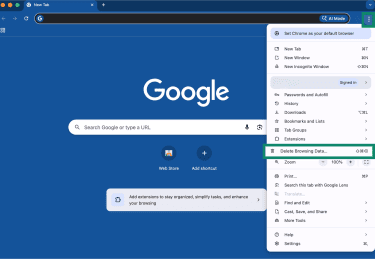
- Click the three-dot menu in the top-right corner of Chrome and click Delete browsing data.
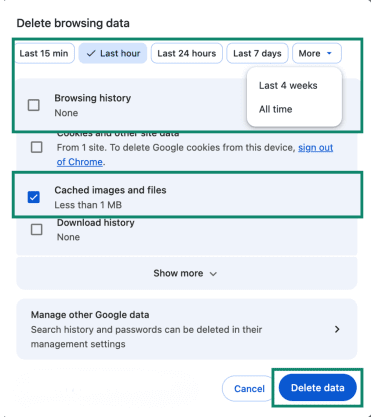
- In the window that appears, choose a time range: Last 15 minutes, Last hour, Last 24 hours, Last 7 days, Last 4 weeks, or All time. Then uncheck all options except Cached images and files. Finally, click Delete data.
Clear Chrome cache on Android
Clearing Chrome cache on Android follows a similar process to the desktop version, with a slightly different layout.
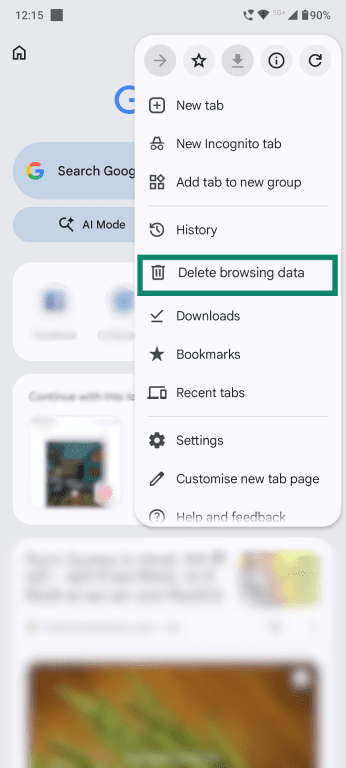
- Open Chrome on your Android device and tap the three-dot menu in the top-right corner.
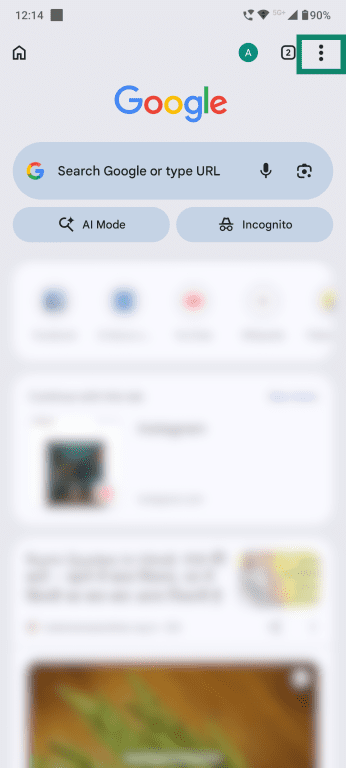
- Tap Delete browsing data.
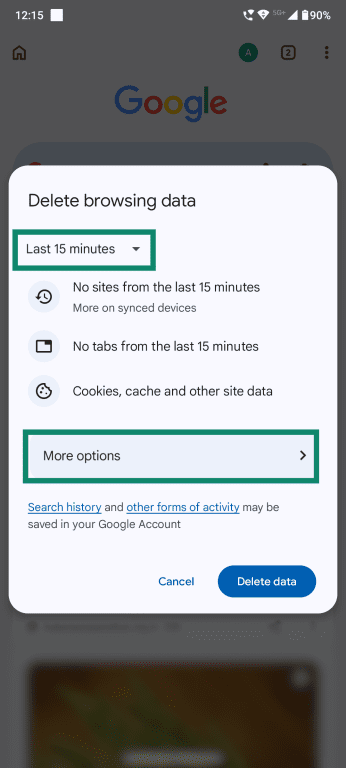
- Choose the time range for which you want to clear cached data and select More options.
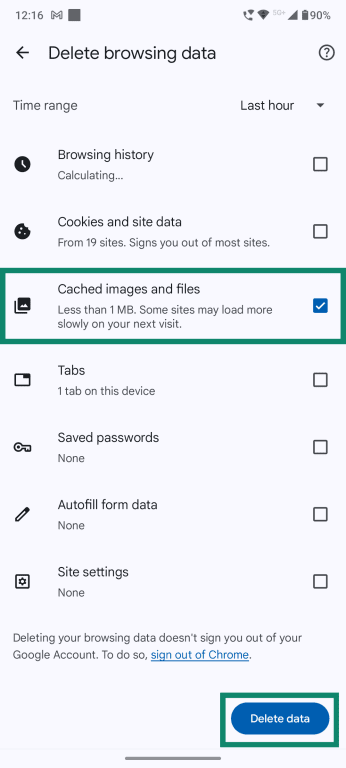
- Select Cached images and files and uncheck the other options if you don’t want to remove additional data. Tap Delete data to confirm.
Clear Chrome cache on iPhone and iPad
You can also clear Chrome cache on iPhone and iPad directly from the browser’s settings menu in just a few steps:
- Open Chrome on your iPhone or iPad and tap the three-dot menu.
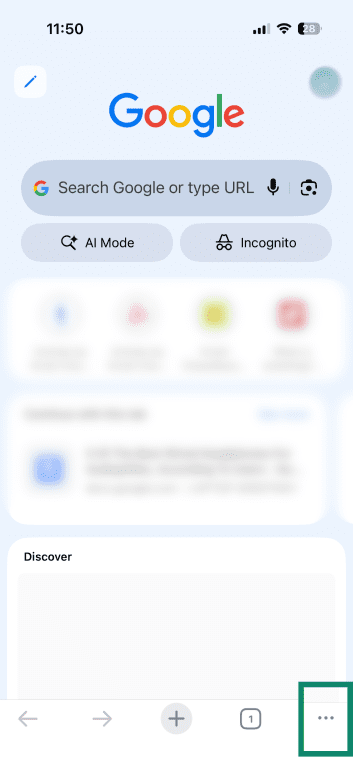
- Select Delete browsing data.
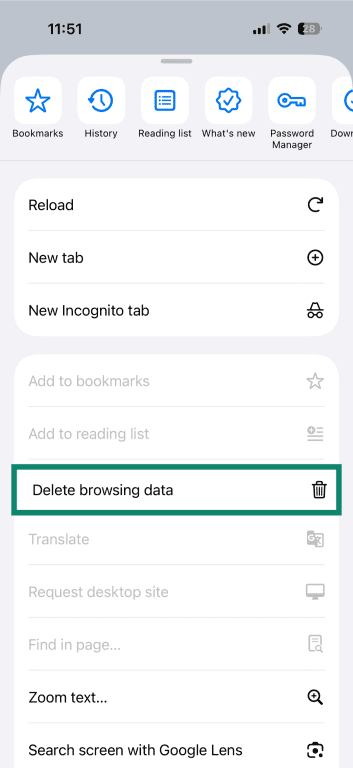
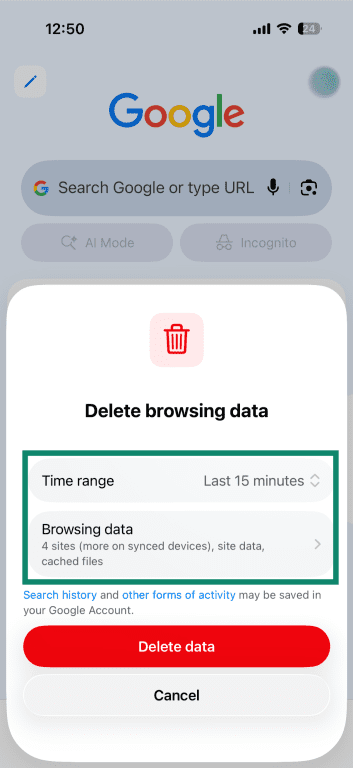
- Tap Time range and choose how far back you want to clear cached data, and then tap Browsing data.
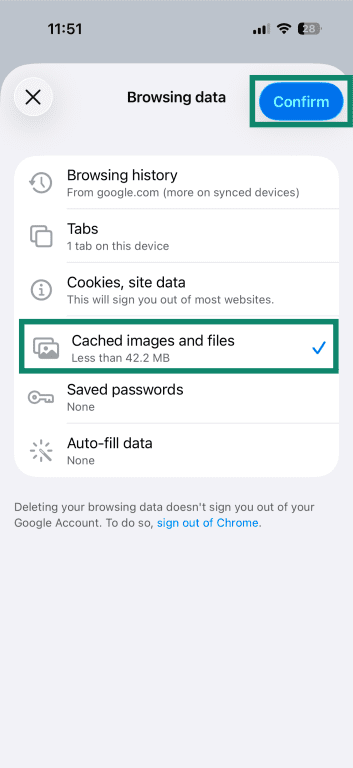
- Check Cached images and files and uncheck any other data types if needed. Then, tap Confirm.
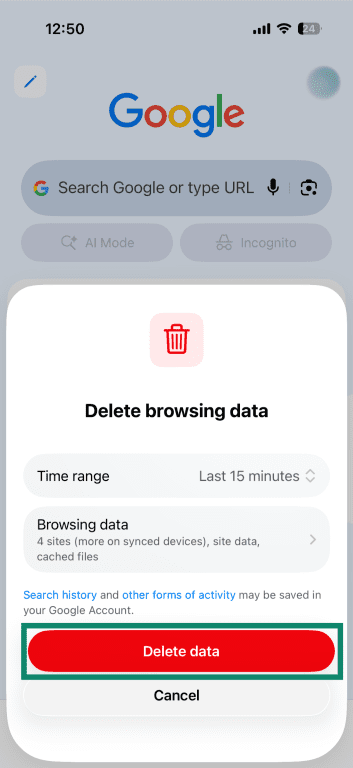
- Tap Delete data to confirm.
How to clear the cache for one website in Chrome
If a single website isn’t loading properly, you don’t need to clear the cache for your entire browser. Chrome lets you refresh cached resources for a specific page using Developer Tools:
- Open the website you want to clear the cache for. From the three-dot menu, select More Tools, and click Developer Tools.
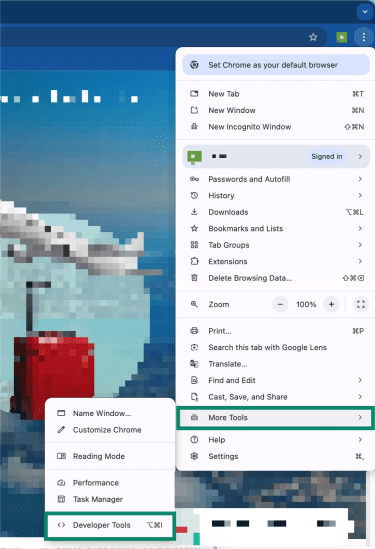
Note: You can also press Ctrl + Shift + I (Windows) or Cmd + Option + I (Mac) to open Developer Tools.
- Right-click the Refresh button next to the address bar to see additional options. Select Empty Cache and Hard Reload.
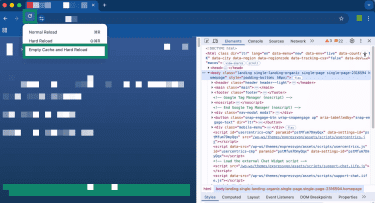
This is helpful when a website shows outdated content, fails to load recent updates, or displays broken elements even after refreshing the page. The Empty cache and hard reload option clears cached resources used by the current page and reloads everything.
Note: The Developer Tools panel must remain open to access this option.
Advanced cache management
In most cases, clearing cached images and files from Chrome’s browsing data is enough to fix website loading problems. However, Chrome also provides a few advanced options that give you more control over how cached resources are handled during troubleshooting.
Disable cache in Chrome Developer Tools
Chrome Developer Tools allows you to temporarily disable cache for a tab while troubleshooting a website. Instead of deleting stored files, Chrome simply stops using cached resources during page reloads. This is useful when testing website updates or investigating problems that continue to appear after clearing the cache.
To disable cache:
- Open Developer Tools on the website and select the Network tab.
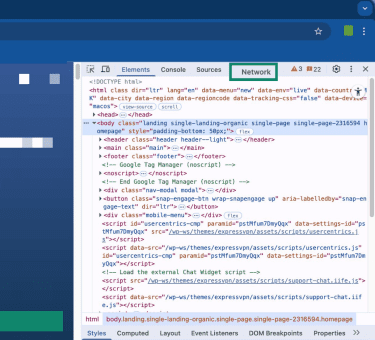
- Enable the Disable cache checkbox.
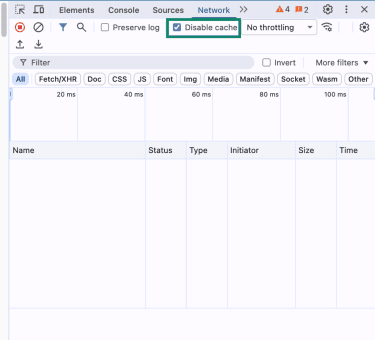
The cache remains disabled only while Developer Tools is open. Once the panel is closed, Chrome resumes normal caching.
Use a Chrome extension for faster cache clearing
Chrome doesn’t include a built-in option to automatically clear cached images and files or remove cache with a single click from the toolbar. Cache-clearing extensions can simplify this process, especially if you frequently troubleshoot website issues.
Depending on the extension, you can:
- Clear cache without opening Chrome settings.
- Remove cached files with one click.
- Automatically clear the cache when closing the browser.
Privacy tip: Before installing an extension, review its permissions carefully since cache-cleaning tools require access to browsing data.
Troubleshooting cache issues
Clearing cached images and files usually fixes website loading problems, but some issues can persist if other caching systems or browser processes continue serving older content. The sections below cover common cache-related problems in Chrome and how to resolve them.
Chrome is waiting for a cache error
“Chrome is waiting for cache” is a network status message you may see at the bottom of your screen while visiting a website. This means Chrome is trying to access cached data to load the website.
If this continues for more than a minute, try the following:
- Perform a hard refresh to reload the page without using cached files with the keyboard shortcuts Ctrl + Shift + R on Windows or Linux, or Cmd + Shift + R on Mac.
- Restart Chrome to reset active browser processes.
Site still looks wrong after clearing the cache
If a website continues to display broken layouts, missing elements, or formatting issues after clearing the cache, another system may still be serving stored content or modifying how the page loads.
Disable service workers
Service workers are specialized JavaScript assets that act as proxies between browsers and servers. Many modern websites use service workers to store cache separately from the usual browser cache.
Even after clearing cache, service workers can intercept network requests and serve stored cached responses. To fix this:
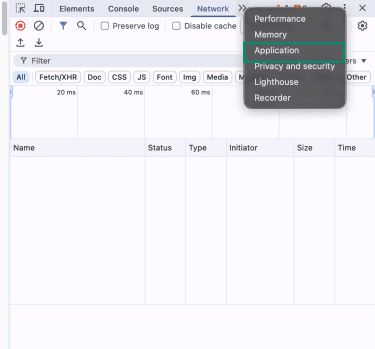
- In Developer Tools, click the » (double right-arrow) menu at the top of the panel and select Application.
- In the left sidebar, select Service Workers and enable Bypass for network. Then, reload the page.
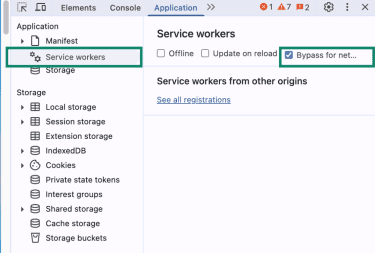
This temporarily prevents the service worker from serving cached content and forces Chrome to request updated files from the server.
Server or Content Delivery Network (CDN) issue
Caching doesn't only happen inside Chrome. Many websites use servers or Content Delivery Networks (CDNs) to store temporary copies of webpages and site assets such as images, stylesheets, and scripts.
A CDN is a distributed network of servers located in different geographic regions. When you visit a website, Chrome usually downloads content from the server closest to your location instead of the website's main server. This improves loading speed, but it also means cached versions of a page may exist across multiple servers.
When a website updates, those cached copies may not refresh everywhere at the same time. As a result, Chrome may receive an older version of a webpage even after you clear your browser cache, because the server itself is still delivering cached content.
To check whether this is happening, try a hard refresh or loading the page in a different browser entirely.
If the same outdated version appears regardless, the issue is likely caused by server or CDN caching rather than your local browser cache.
Browser extensions
Some Chrome extensions can change how websites load or appear by modifying page content after it downloads.
For example, extensions that block ads, manage dark mode, translate pages, or add productivity tools may inject their own custom Cascading Style Sheets (CSS) or JavaScript into a webpage.
Because these changes happen after Chrome loads the site, clearing the cache and downloading fresh files from the server may not fix layout or display issues caused by an extension.
To check whether an extension is affecting the page, open the website in incognito mode, where extensions are usually disabled by default. If the website loads correctly, one of your installed extensions is likely interfering with how the page displays.
You can then disable extensions one at a time from chrome://extensions to identify which one is causing the issue. In rare cases, a poorly designed or malicious Chrome extension may modify webpages unexpectedly.
FAQ: Common questions about clearing cache in Chrome
Does Ctrl+F5 clear the cache in Chrome?
Where is clear cache in Chrome settings?
What is the difference between cache and cookies?
Can I clear cache without deleting cookies?
Can clearing cache resolve website loading problems?
How frequently should I clear my cache?
What happens if I don’t clear cache for a long time?
Take the first step to protect yourself online. Try ExpressVPN risk-free.
Get ExpressVPN











 Support Center
  FAQ
FAQ  VPN Setup Tutorials